'/%3e%3cellipse%20opacity='0.34'%20cx='327.5'%20cy='339'%20rx='264.5'%20ry='264'%20fill='url(%23paint1_linear_12724_35442)'/%3e%3cdefs%3e%3clinearGradient%20id='paint0_linear_12724_35442'%20x1='327'%20y1='-2.524e-06'%20x2='327'%20y2='389.286'%20gradientUnits='userSpaceOnUse'%3e%3cstop%20stop-color='%2327D9E5'/%3e%3cstop%20offset='0.927406'%20stop-color='%23004047'%20stop-opacity='0'/%3e%3c/linearGradient%3e%3clinearGradient%20id='paint1_linear_12724_35442'%20x1='328.02'%20y1='74.7771'%20x2='328.02'%20y2='395.312'%20gradientUnits='userSpaceOnUse'%3e%3cstop%20stop-color='%2327D9E5'/%3e%3cstop%20offset='0.927406'%20stop-color='%23004047'%20stop-opacity='0'/%3e%3c/linearGradient%3e%3c/defs%3e%3c/svg%3e)
How to Unblock Steam on Any Network (Updated for 2026)
WebsitesLearn how to unblock Steam using proxies. Follow our step-by-step guide to set up a proxy and access Steam from anywhere.


Milena Popova
On January 11, 2026, more than 42 million users logged in to Steam at the same time, setting a record for the platform. But while millions are playing without interruption every day, others can’t even access Steam because of network blocks or regional restrictions.
Although VPNs and DNS changes are common ways to bypass access restrictions, they usually come with complex setups, slower connection speeds, and network-level blocking. This is when reliable proxies come into play.
Whether Steam is blocked at your work, school, or in your region, proxies can help you regain access and enjoy the gaming platform from anywhere.
In this guide, we’ll show you how to set up and use a proxy server on your device to unblock Steam. We’ll also offer a few tips on choosing the best proxy for the job and how to get the most out of it.
Common Reasons You Can’t Access Steam
Understanding why you can’t access the Steam website is important if you want to unblock it quickly and efficiently. Here are the most common causes to consider.
Network Blocks
Many schools, universities, workplaces, libraries, and public Wi-Fi networks impose restrictions that block various social media and gaming platforms. With these measures, institutions help manage internet traffic, keep the connection stable, and ensure users stay focused on work or studies rather than entertainment.
Geo-Restrictions
While Steam is widely available around the world, people in certain regions may not be able to access it due to legal or regulatory restrictions. In these countries, international sanctions or regional laws prevent Valve, the developer of Steam, from offering full services.
In addition, some products purchased from the Steam store as gifts may also have region restrictions. This means the Steam website is accessible in both players’ regions, but the gifted product itself cannot be accessed or used in the recipient’s country.
Account Bans
If you violate Steam’s terms of service, whether intentionally or unintentionally, the platform may temporarily or permanently ban your account. Common violations include distributing pirated games, buying, selling, or trading accounts with third parties, or abusing the Steam community.
This is why we recommend always following Steam’s rules to protect your account from bans and avoid unnecessary interruptions.
Why Use a Proxy Server to Unblock Steam
Using a proxy server to access Steam means using the proxy’s own IP address to connect to the platform. As a result, the Steam website sees the proxy’s IP address and location as yours, keeping your original IP details private.
This way, you can access the site as a different user from outside your school, office, city, or country. Here are the key reasons to use a premium proxy server to unblock Steam.
Reliable Access on Public Networks
Many public Wi-Fi networks block VPN connections to prevent their users from bypassing network restrictions. Unlike VPNs, reliable proxies from trustworthy providers, especially residential proxies, stay under the radar by using real IPs from real users.
This allows you to access Steam even on networks where VPNs are prohibited, so you can play, browse, or download games without interruptions.
Easy Setup & User Friendly
Proxies are easy to set up and use on your device or browser. However, you can make proxy management even easier by using a proxy browser extension.
Premium proxy providers like IPRoyal usually offer free browser extensions for Chrome and Firefox, so you can take advantage of them to connect to a supported location with a single click.
Reduced Latency
Premium proxy services let you pick the location of your Steam proxy . This means you can choose an IP that’s as close to the game server as possible, regardless of your location.
As a result, your connection will travel a shorter distance, reducing latency and improving online gaming performance or other real-time interactions on Steam.
Improved Privacy
Since proxies keep your real IP hidden, they make it harder for Steam, as well as trackers and hackers, to trace your activity on the platform back to you.
This allows you to keep your browsing habits, purchases, and gaming activity private. While enhanced privacy is always beneficial, it’s especially important when using public or shared Wi-Fi networks.
Step-by-Step Guide to Unblock Steam
The easiest way to unblock the platform is to use a proxy browser extension or a proxy manager. In this guide, we’ll show you how to unblock Steam using IPRoyal Proxy Manager and our ethically sourced Residential Proxies.
Step 1: Install the IPRoyal Google Chrome Proxy Manager
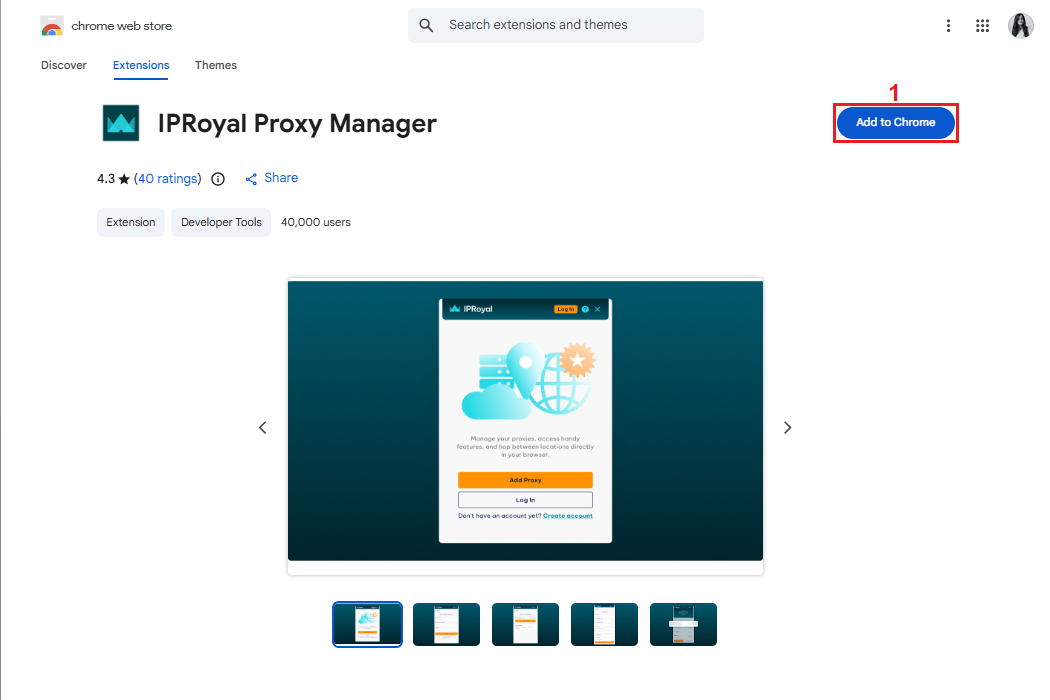
Start by adding the IPRoyal Proxy Manager from the Chrome Web Store or Firefox Add-ons. In this example, we’ll use the IPRoyal Google Chrome Proxy Extension , so we’ll click the ‘Add to Chrome’ (1) button.
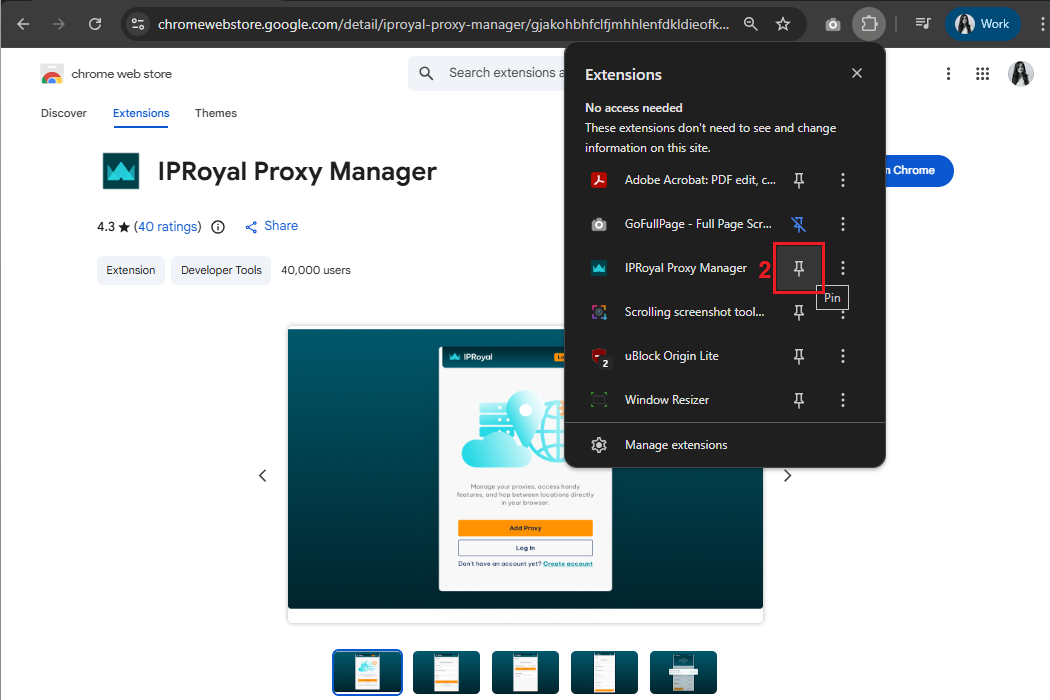
Pin (2) the extension for easy access.
Step 2: Log in or register on IPRoyal
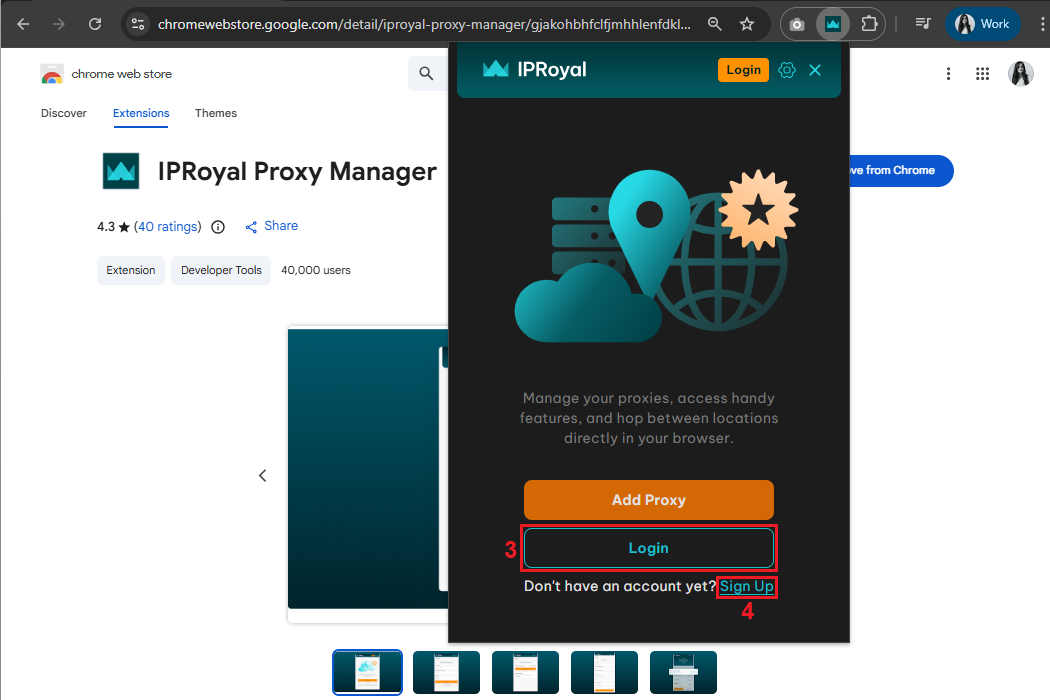
Log in to your IPRoyal account by clicking the ‘Login’ (3) button, or click ‘Sign Up’ (4) to create an account if you don’t have one.
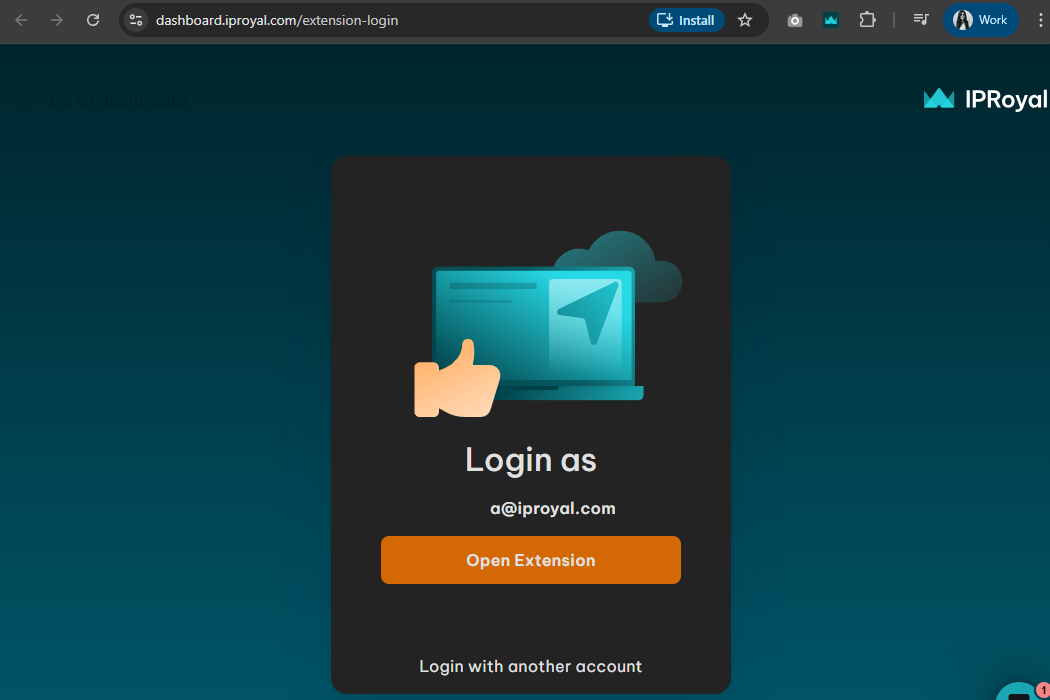
Follow the on-screen instructions to get started.
Step 3: Set up a proxy profile
Click the Proxy Manager icon (5) in your extensions panel, and then click the ‘Add new proxy’ (6) button.
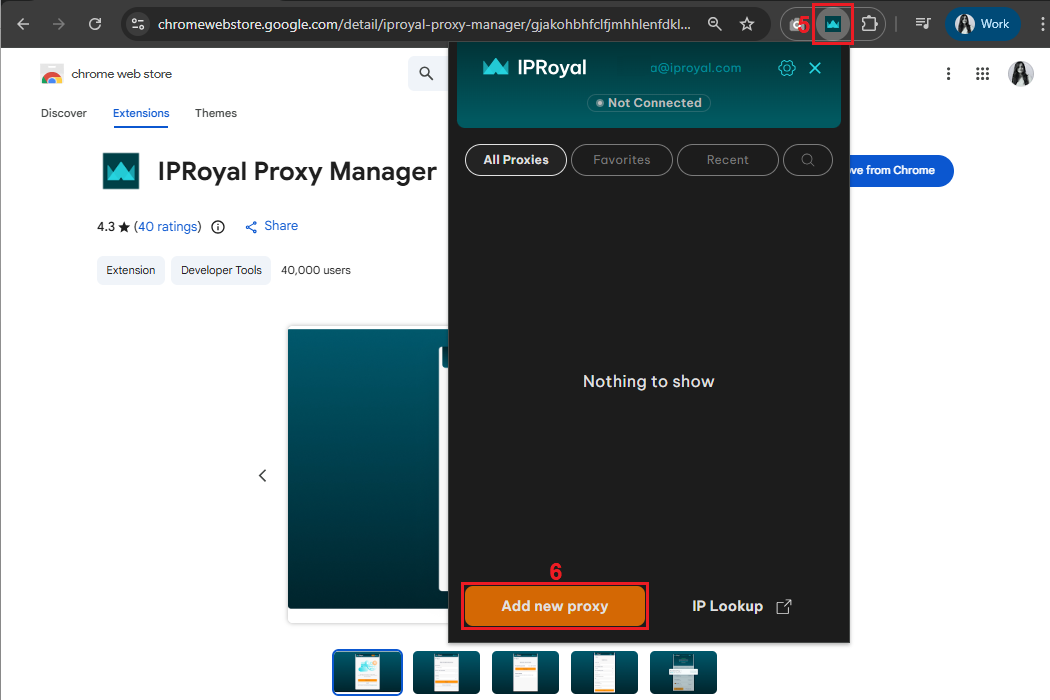
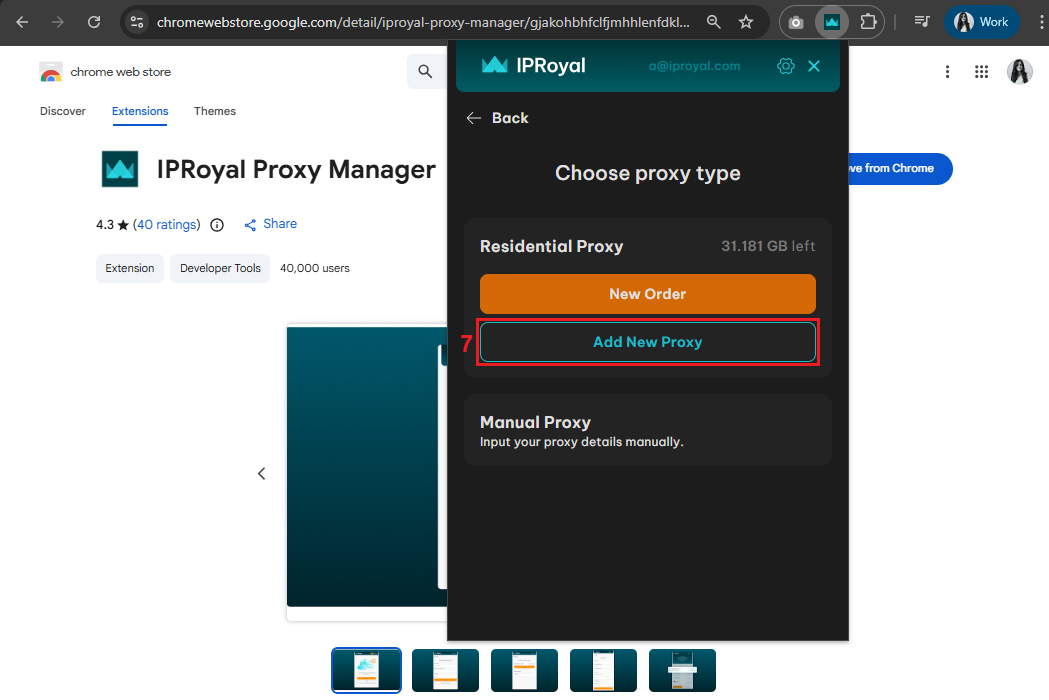
Next, click the ‘Add New Proxy’ button to set up a residential proxy profile, or ‘New Order’ if you still haven’t purchased Residential Proxies. Since we already have active residential traffic, we’ll go with ‘Add New Proxy’ (7).
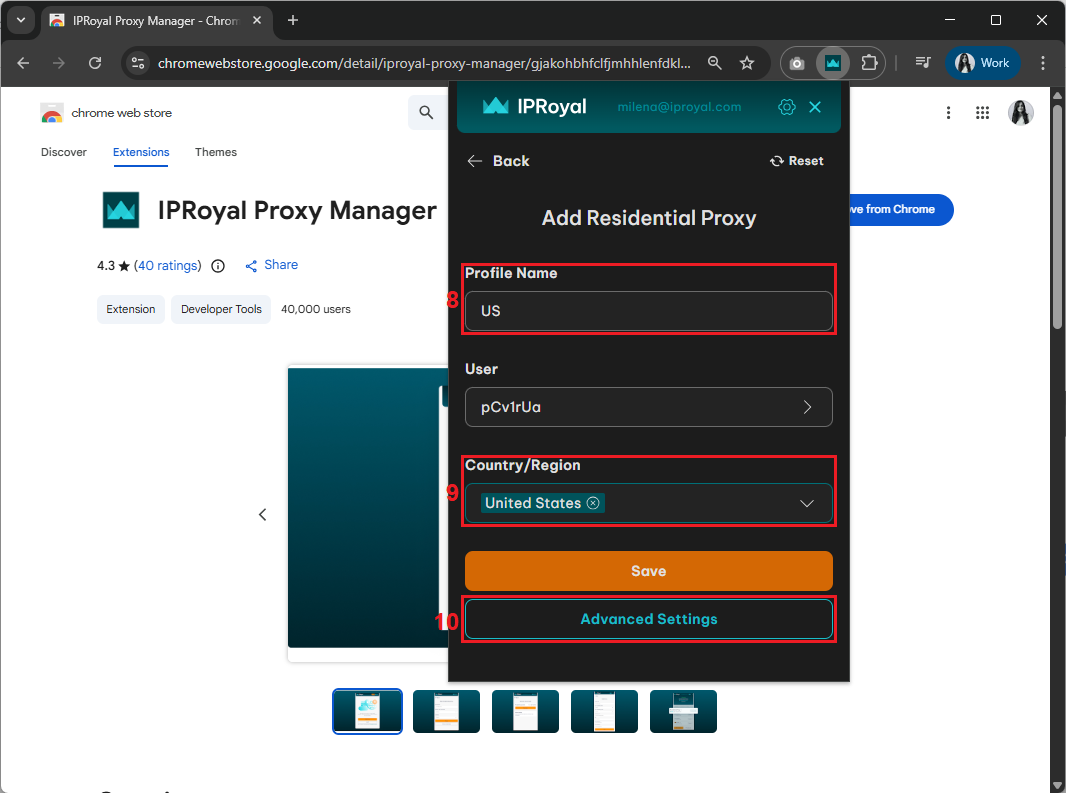
Name (8) your proxy profile and choose your IP location (9). Steam is available in most countries, but we’ll go with the US, hence our profile name. To choose a specific state or region, click the ‘Advanced Settings’ (10) button.
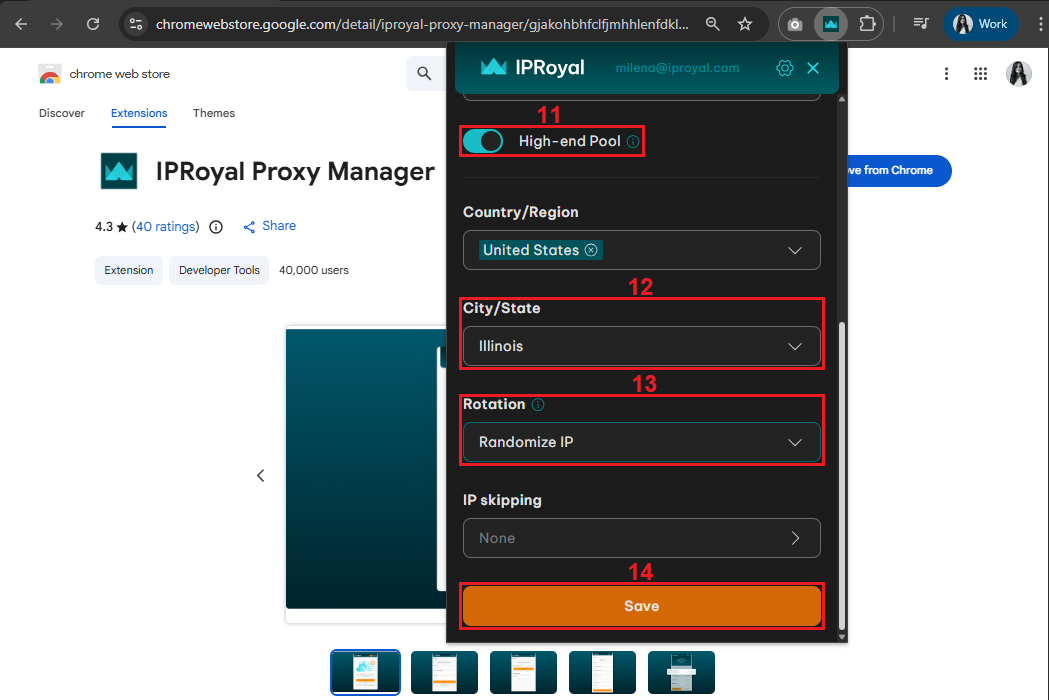
Let’s say you wanted to use a high-end (11) residential proxy from Illinois, the US (12), with automatic IP rotation (13). Once you set up your proxy profile, click the ‘Save’ (14) button.
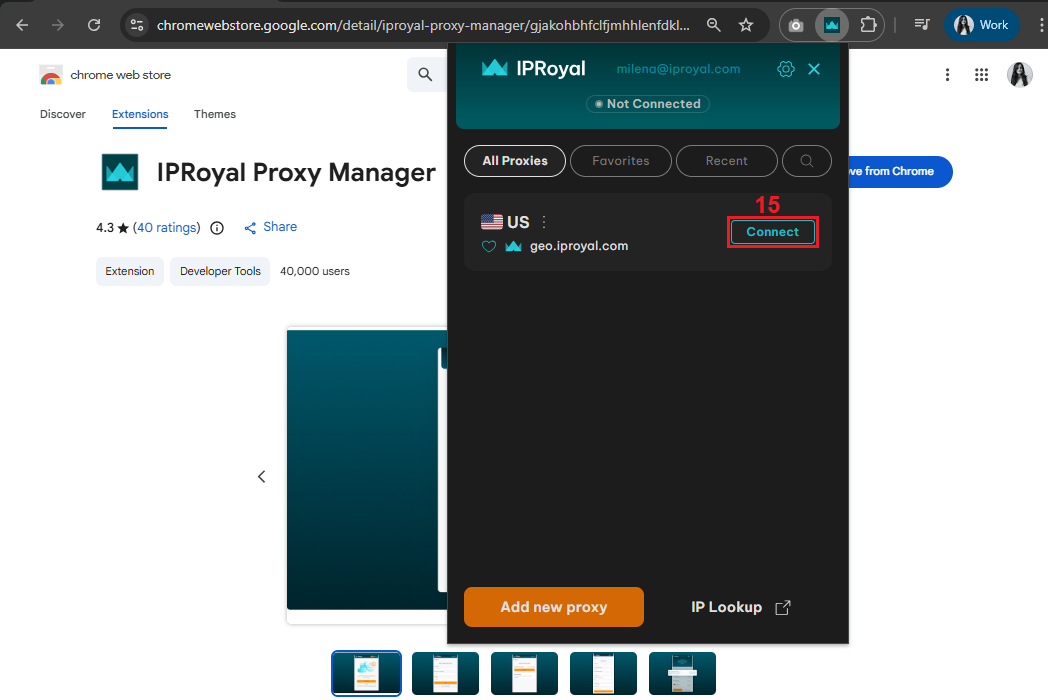
Your newly created proxy profile will now appear in the Proxy Manager interface. To enable it, click the ‘Connect’ (15) button.
Step 4: Test the proxy
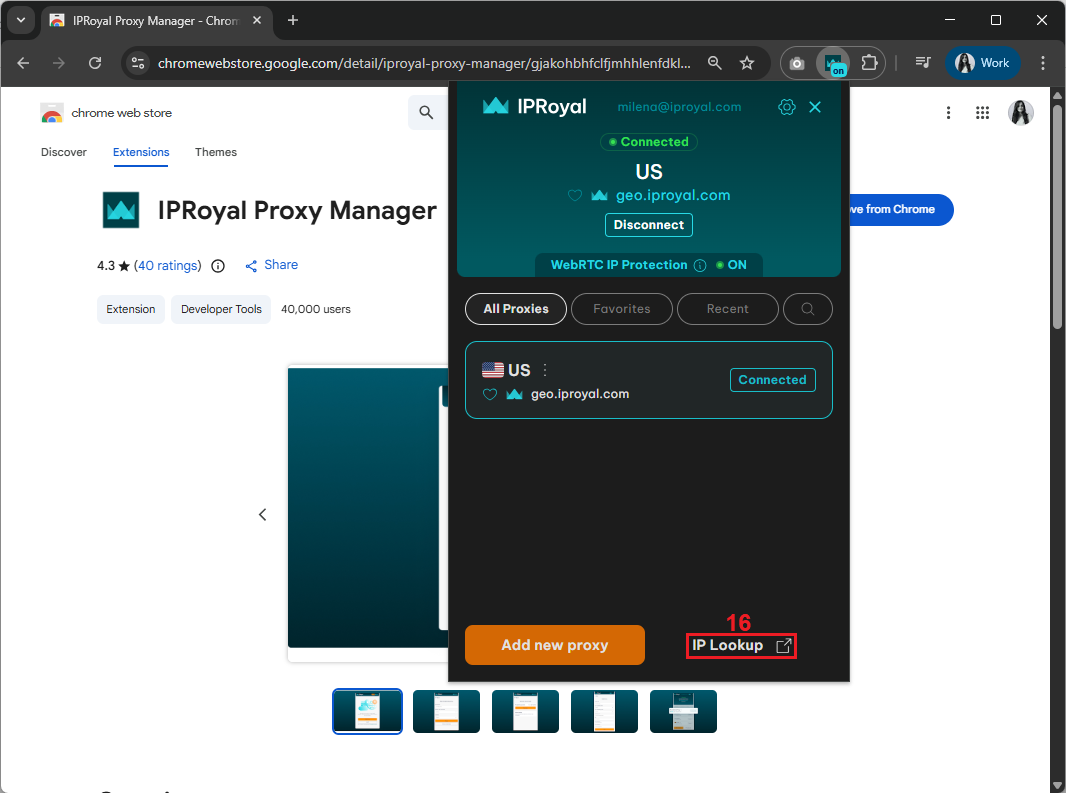
Once activated, the status will update to “Connected.” Before you browse Steam with your US proxy, check if it’s working properly by clicking the ‘IP Lookup’ (16) button.
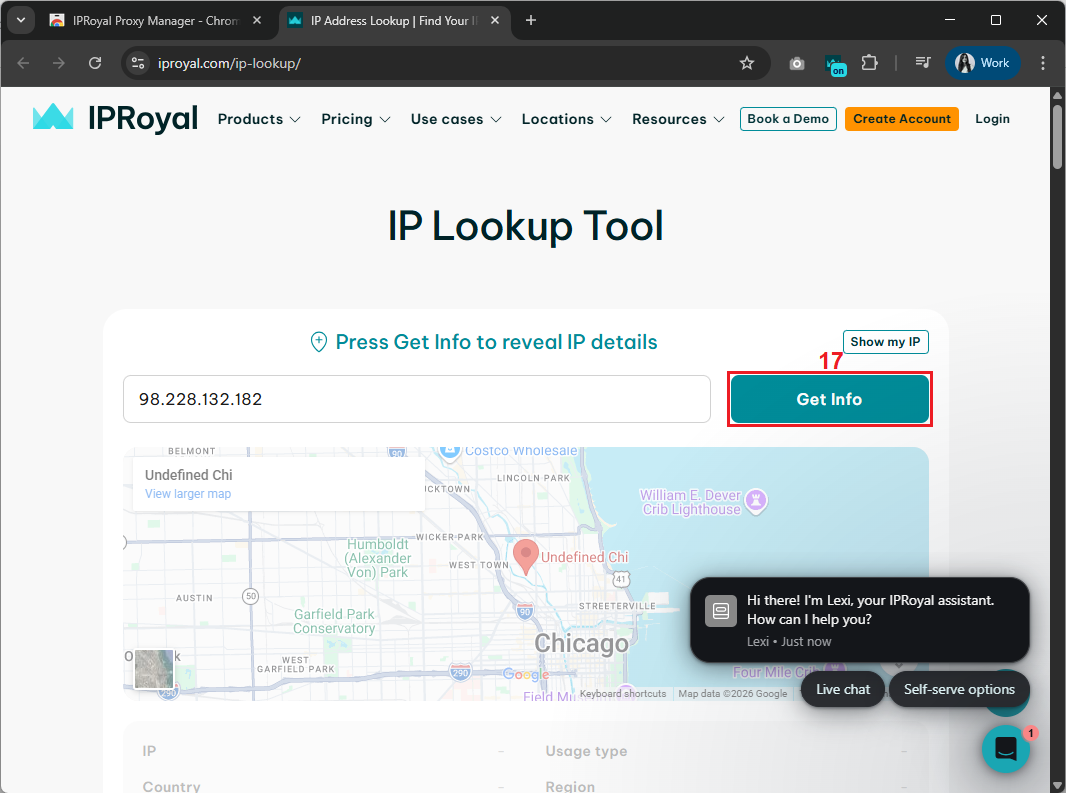
This will take you to our free IP checker tool. Click the ‘Get Info’ (17) button to see your IP details.
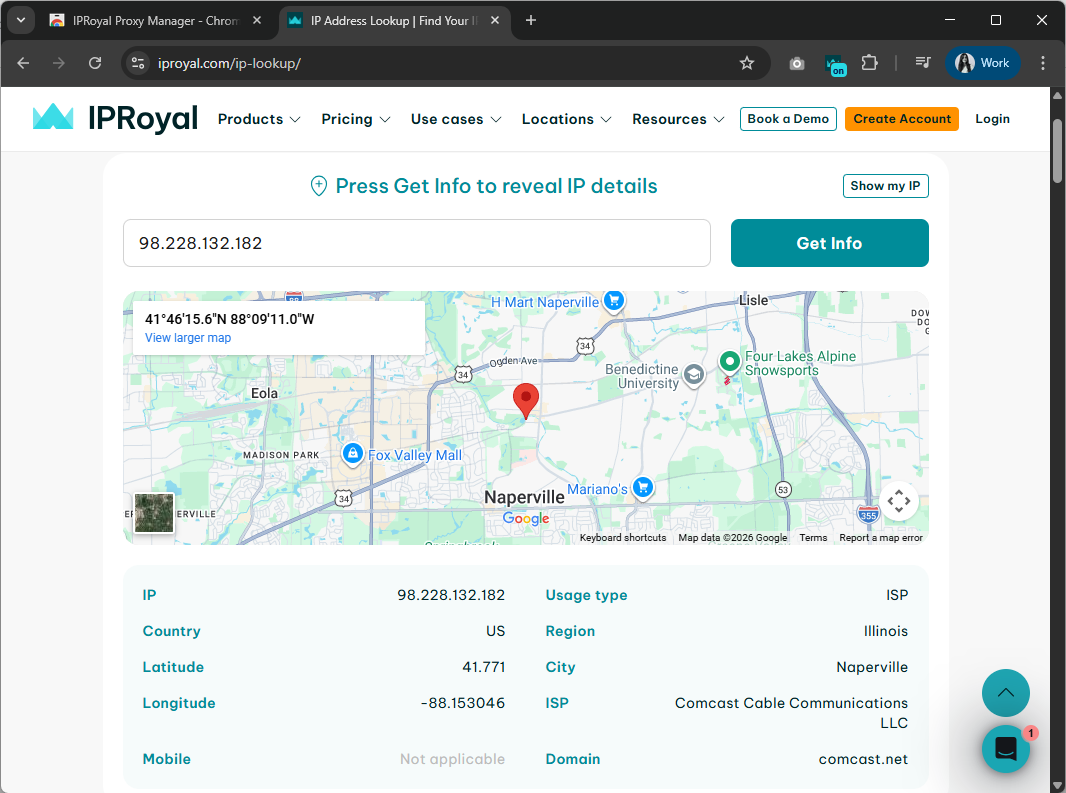
You’ll be able to see proxy information, including the IP region, city, and ISP.
Step 5: Visit Steam
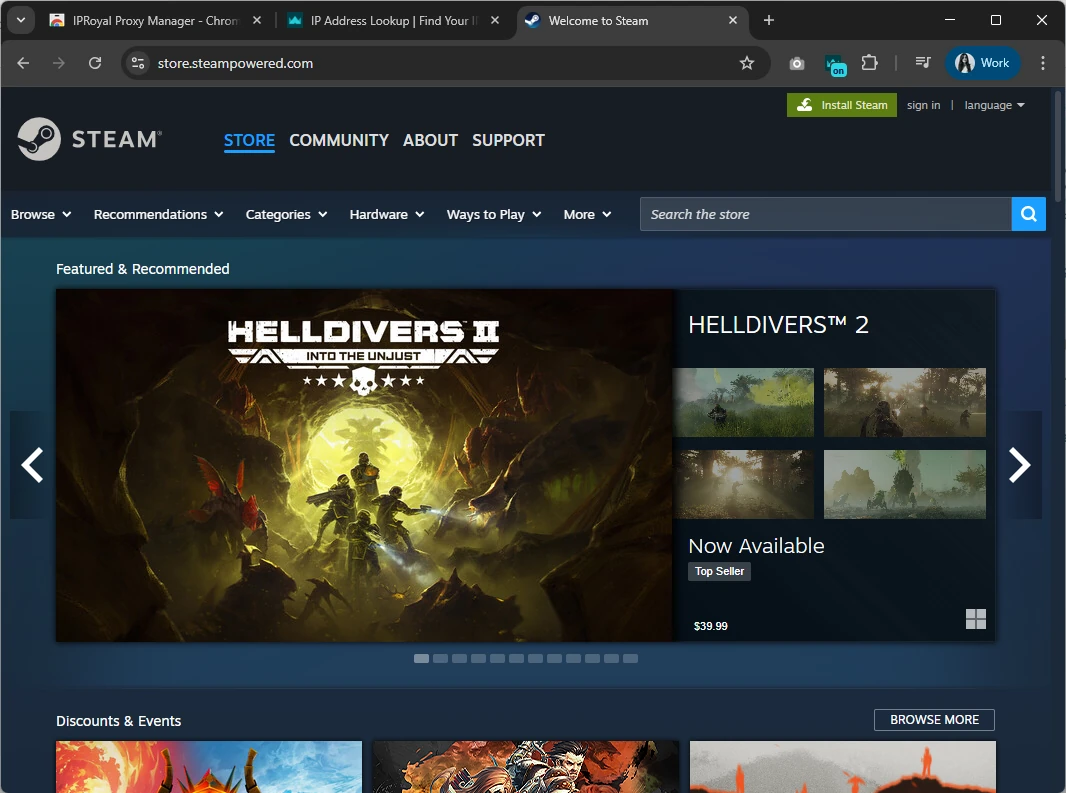
Once you confirm the proxy works, it’s time to visit Steam. You can now browse the store, install the Steam client if needed, and explore the available games.
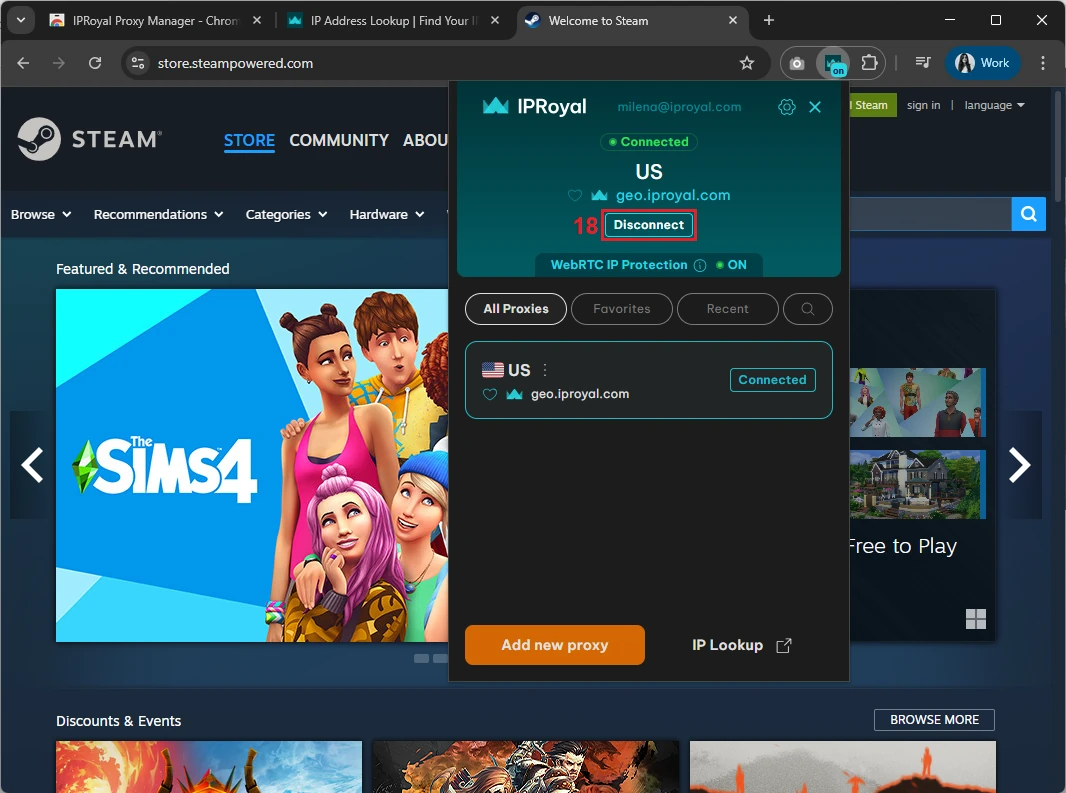
When you want to stop using the proxy, just click the ‘Disconnect’ (18) button.
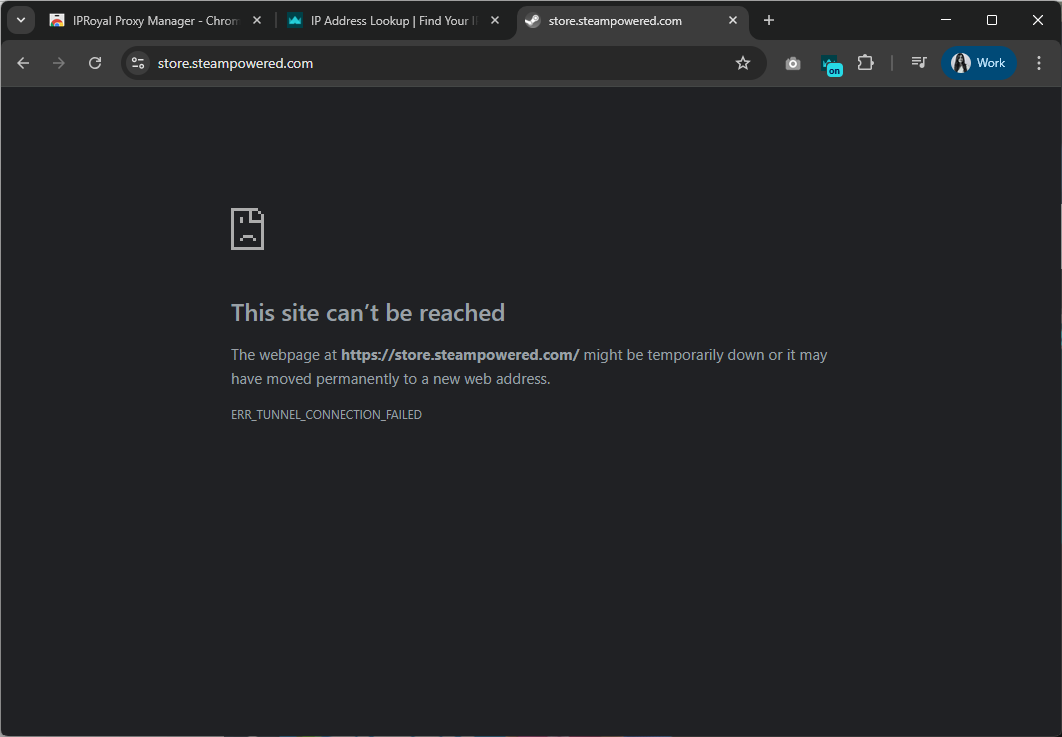
Keep in mind that returning to your original connection may result in losing access to the platform again.
Note: If you want to use a Steam proxy on your iPhone or Android , you’ll need to configure it manually in your device’s settings.
Tips for Better Results
Here are a few tips to ensure reliable access and optimal performance when using a proxy to unblock Steam.
Avoid Free/Public Proxies
Public or free proxies are generally used by too many people at the same time, slowing down your connection and increasing latency. While some of them may help you access the platform, they usually provide weaker privacy protections and may even expose your real IP address and location.
For that reason, it’s best to use reliable proxies from premium providers offering ethically sourced proxies, dedicated IPs, and high uptime.
Choose the Right Type of Proxy for Your Needs
Residential proxies use IPs sourced from authentic users and ISPs, making them almost impossible to detect. As long as they are ethically sourced and come from a trustworthy provider, they are ideal for accessing Steam from restricted networks or regions.
Mobile proxies are also highly reliable, carrying IPs from real mobile users. They can help you bypass network limitations and geo-restrictions with minimal risk of detection and ban. However, they are most cost-effective for mobile gaming or using the Steam client on your smartphone or tablet.
Datacenter proxies and ISP proxies provide the best possible speeds and uptime, especially if they are dedicated and static. While they provide performance advantages, they may be more easily detected by Steam and other platforms compared to residential or mobile proxies.
Choose a Proxy Close to Your Steam Region
The closer your proxy server is to the Steam region you want to access, the shorter the distance your connection needs to travel. This can reduce latency and improve your browsing or gameplay performance, whether on the Steam site or in the Steam client.
For example, if you want to access games or store content available in the US Steam store, you should choose a US proxy. This ensures faster loading, lower ping in online games, and full access to region-specific content.
Refresh or Switch Proxies If Steam Loads Slowly
If Steam isn’t loading properly, it could be due to temporary network issues, high server traffic, or a proxy that isn’t performing optimally. In these cases, refresh your connection by disconnecting and reconnecting your proxy.
If the problem persists, try switching to a different proxy in the same region or a nearby location.
Keep Your Browser Up to Date
Use the latest version of your preferred browser to ensure compatibility with proxy extensions, such as IPRoyal’s. Browser updates can include bug fixes, security patches, and performance improvements that help your extensions run seamlessly.
This can make it easier to access and use Steam without interruptions.
Respect Steam’s Terms of Service & Local Laws
Always use proxies in ways that comply with Steam’s Terms of Service and your local regulations. While proxies can help you bypass access limits, you should never use them for cheating, committing fraud, sharing accounts in violation of Steam’s rules, or any other abusive behavior.
To Sum Up
Not being able to access and browse Steam can be frustrating, but with the right method, you can once again enjoy your favorite games from anywhere. Knowing how to unblock Steam on public Wi-Fi, school or office networks, or even in regions with restrictions ensures you can browse the store and play games no matter where you are.
Reliable proxies make this possible by assigning you a different IP address, helping you connect to the platform as another user from another region.
With IPRoyal’s ethically sourced proxies and easy-to-use Chrome and Firefox proxy extension, you can get around any network or region restrictions and access your favorite platform within minutes.