Organizations Quick-Start Guide

The Organizations feature in the IPRoyal dashboard provides a centralized control hub for simplified proxy management that scales with your team. It allows you to structure proxy usage across organizations, projects, and team members, while keeping access, billing, and traffic usage clearly separated.
This makes it easier to coordinate multiple teams, clients, or campaigns without losing visibility or control.
In this guide, you’ll learn what Organizations is and how to use it to reduce operational complexity as your proxy needs grow.
What Is the Organizations Feature
Organizations allows you to manage multiple projects, teams, proxy usage, and billing in separate, structured workspaces from a single account. You can create multiple Organizations with different teams and projects, while keeping your personal IPRoyal account separate.
Here are the most important benefits of this approach:
- Centralized management & clear separation
The IPRoyal Organizations feature lets you oversee all projects, teams, billing, and proxy usage from a single control center. At the same time, it keeps each project and organization structured to reduce confusion between teams or clients.
- Precise access control & role management
By assigning organization-level and project-level roles to team members, you can ensure everyone has the appropriate permissions for their responsibilities. As a result, you can prevent unauthorized access, reduce errors, and ensure uninterrupted workflows.
- Simplified billing & financial clarity
With Organizations, you can centrally manage invoices and payment methods while keeping billing separated per organization or project as needed. This provides clear spending visibility, reduces administrative overhead, and simplifies cost tracking.
- Efficient scalability
This feature lets you add new projects or team members in minutes, with organization-level settings applied automatically. That means you can scale your operations without extra setup or complicated restructuring.
When Should You Use Organizations?
This feature is designed for teams and businesses that need structured proxy management across multiple projects, users, or clients. It’s especially useful if you:
- Manage multiple proxy-based projects or campaigns
- Need to separate proxy usage between teams or departments
- Work with external clients and want isolated environments
- Require role-based access control for team members
- Want clear billing separation for projects or clients
For individual proxy usage or testing, your personal account workspace may be sufficient. However, when your proxy operations involve multiple users, projects, or billing structures, Organizations provide a more scalable, structured way to manage access, usage, and costs.
Understanding Organizations Structure
Organizations is a feature available in your IPRoyal dashboard, whether you’re a new or existing client. From your dashboard, you can create or access multiple organizations while keeping your personal workspace separate.
Within an Organization, you can create multiple projects, each with its own team members and controlled access to project and organization resources.
A single login gives you access to your personal account, all your organizations, and different projects, combining the simplicity of self-serve proxy management with enterprise-grade controls.
Here’s what each level in the Organizations structure allows you to do.
Personal Account
Your personal account is your individual workspace within the IPRoyal dashboard. It operates independently from any organizations you create or join, with its own proxy usage, orders, and settings.
Organization
An organization is an independent workspace inside your IPRoyal account, with its own projects, payment methods, admins, members, and usage tracking. It allows you to group multiple projects under one structured environment, while keeping them operationally separate and under centralized control.
An organization dashboard shows all projects at a glance, giving you complete oversight without micromanaging.
At the organization level, you can manage:
- Statistics - track data usage across different proxy types, time periods, and projects.
- Orders - place and manage proxy orders for specific projects
- Members - invite new members, assign roles, and control access to specific projects and permissions
- Projects - create and manage projects, assign proxies or traffic to each, and oversee project-level operations
- Settings - customize the organization name, manage payment methods, and view invoices
Project
A project is a dedicated workspace within an organization designed for a specific use case, team, client, or campaign. It allows you to separate proxy operations while keeping them connected to the broader organization for oversight and billing.
Within a project, you can manage:
- Statistics - monitor data usage
- Orders - manage and track proxy orders
- Members - assign project-specific team members and roles
- Settings - update project name, select residential traffic source, and view invoices
Projects help you keep workflows organized and clearly defined. This makes it easier to manage different teams or departments, control costs at a granular level, and maintain accountability without mixing operations across teams.
Managing Members and Roles
Managing members and roles in organizations and projects helps you maintain control, accountability, and security. Roles determine who can view, manage, or configure specific features at both the organization and project levels.
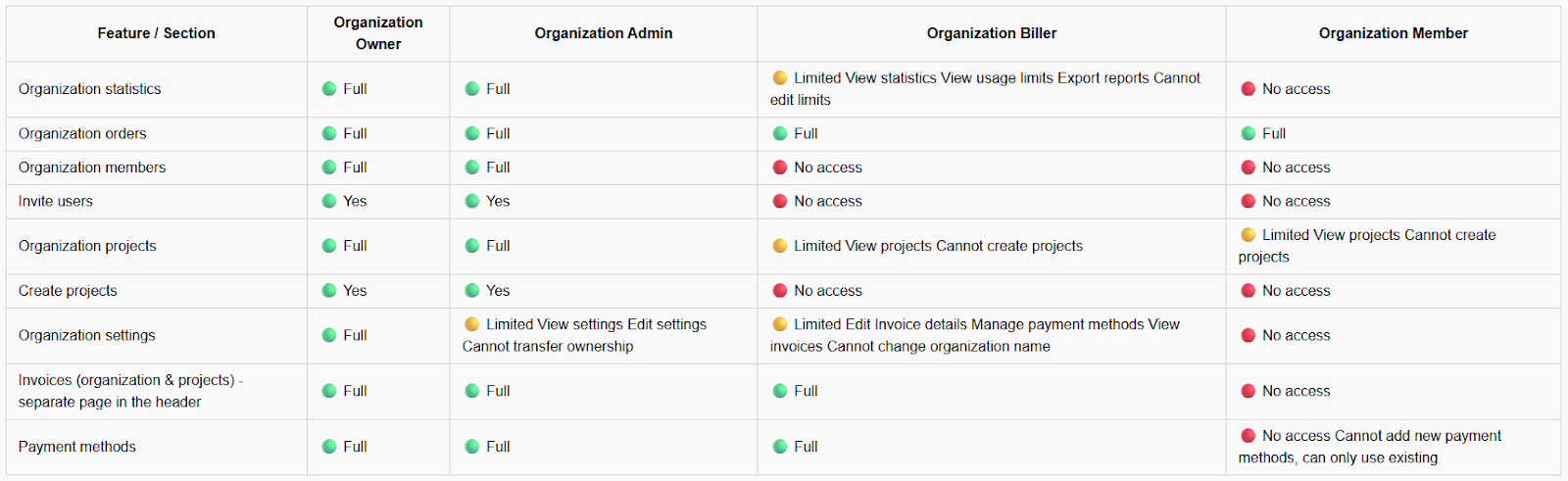
Aside from the organization owner, the only role that can create organizations and transfer ownership, there are three main role types in organizations and projects:
Admin
An organization/project admin has full operational control, with the exception of ownership transfer. Their permissions include:
- Managing orders, members, and settings
- Handling payments
- Viewing statistics and invoices
Organization admins can also create new projects and invite members. They automatically have access to all projects within the organization and don’t need to be added individually at the project level.
Overall, the admin role ensures strong governance, budget oversight, and efficient day-to-day management across teams and projects.
Member
An organization/project member has access to assigned proxy resources and personal usage statistics. They don’t have permissions to manage team members, projects, or settings.
This role is ideal for operational team members who need hands-on access to proxies while keeping administrative control centralized. It ensures secure collaboration without risking configuration changes or budget mismanagement.
Billing
The billing role is responsible for financial oversight. They can view and manage billing details, access invoices, manage payment methods, and view projects and proxy orders.
However, they cannot manage users, create or modify projects, adjust usage limits, or change organization settings.
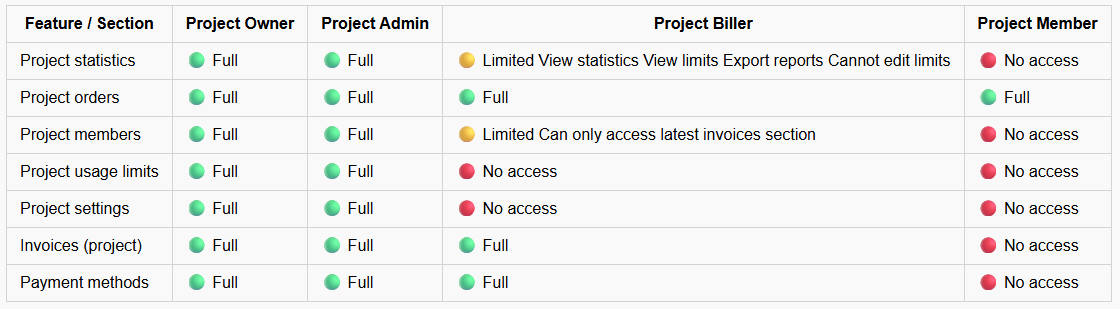
A project billing role has access to project-level invoices, payment methods, and proxy orders. However, they can’t modify project settings. This allows companies to involve finance teams in payment and invoice management without granting operational control, ensuring clear financial visibility while protecting workspace integrity.
Organization-level Access
Project-level Access
Getting Started With Organizations
Follow these steps to create an organization and project, add members, and assign roles.
Creating an Organization
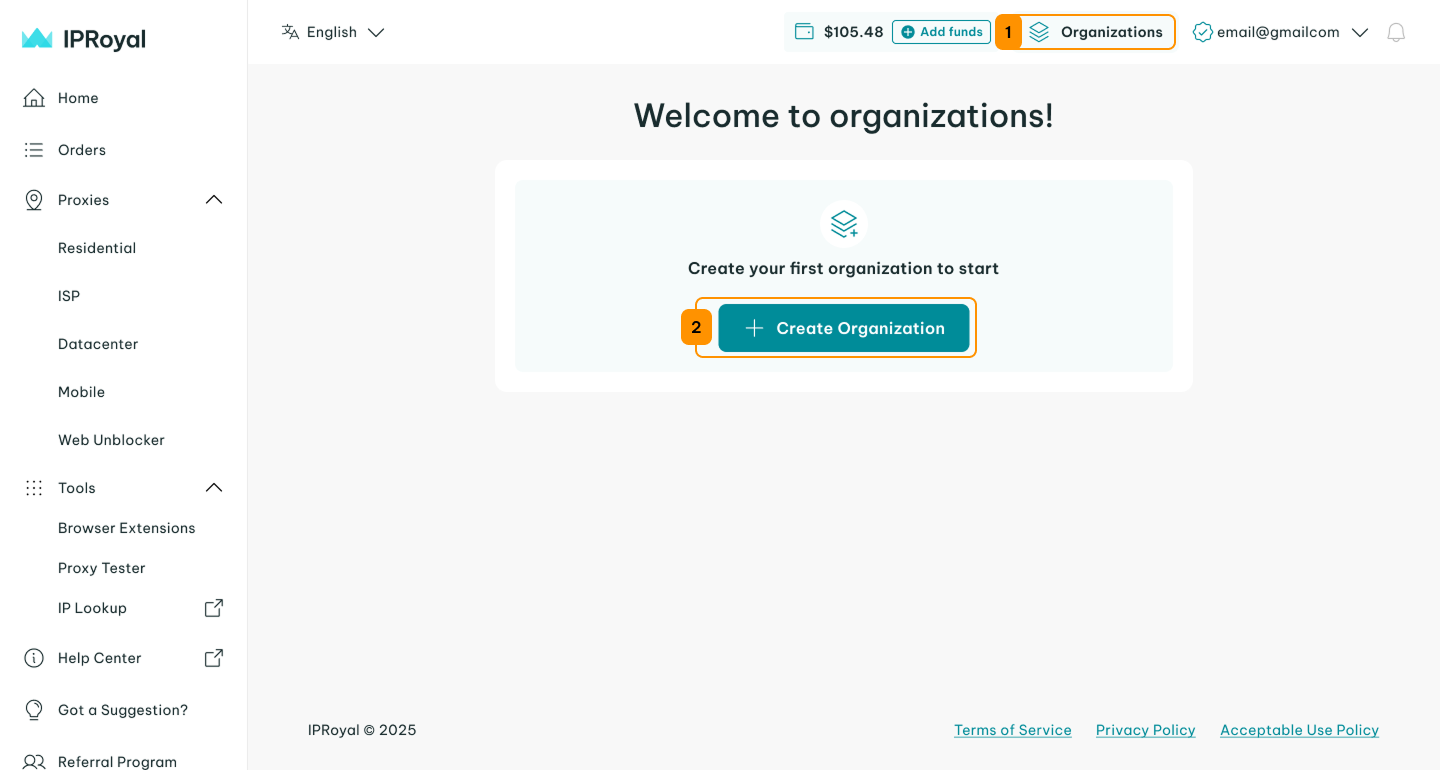
To get started, open your IPRoyal dashboard. Click ‘Organizations’ (1), and then the ‘Create Organization’ (2) button.
Enter the name of your organization (3), select your preferred payment method (4), and click the ‘Create Organization’ (5) button.
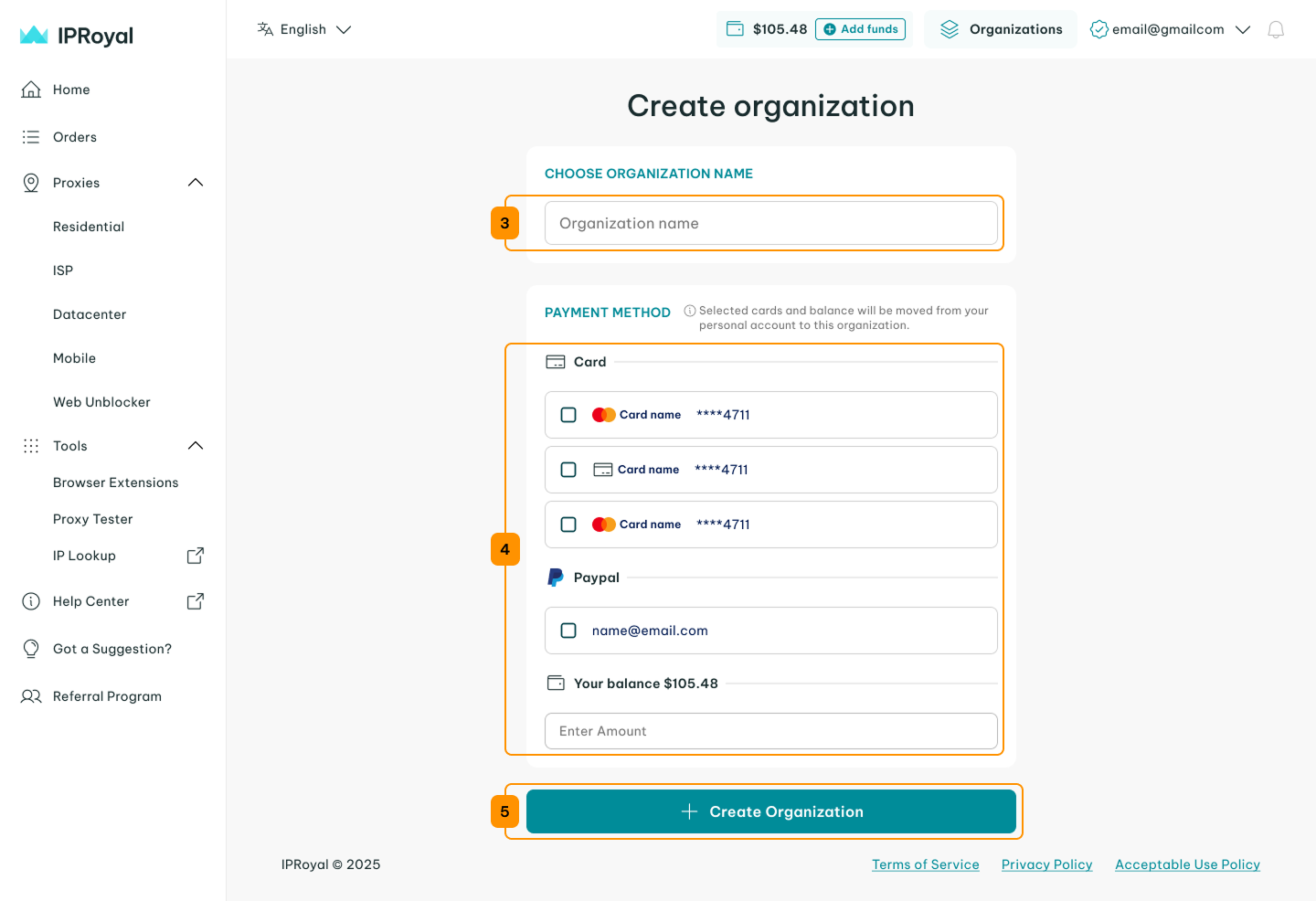
Selecting a payment method allows you to place proxy orders within the organization later. This payment method will be used for purchases made under this organization, keeping billing separate from your personal account or other organizations. Creating an organization itself is completely free.
Creating a Project
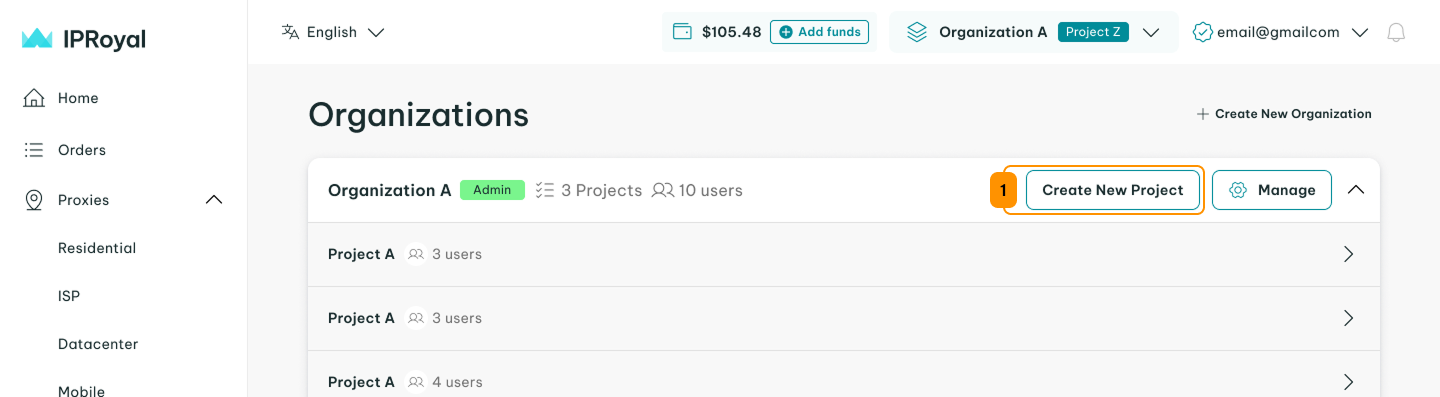
Once you’ve created an organization, you can add as many projects as you need. Click the ‘Create New Project’ (1) button next to the organization.
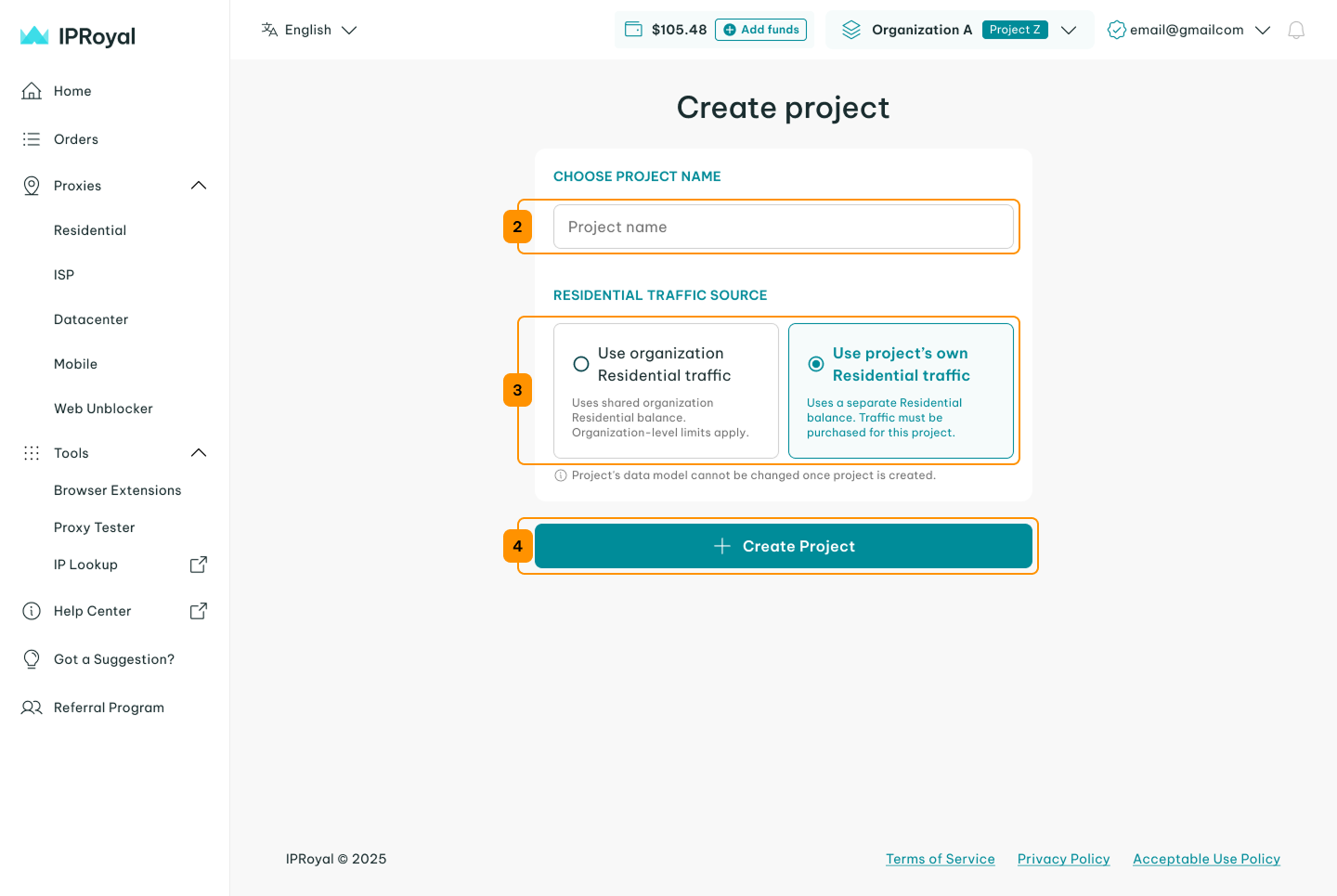
Enter your project name (2) and choose the residential proxy traffic source (3) (if applicable) for that particular project. If you select ‘Use organization Residential traffic‘, residential proxy orders can only be created at the organization level, not inside individual projects. Click the ‘Create Project’ (4) button.
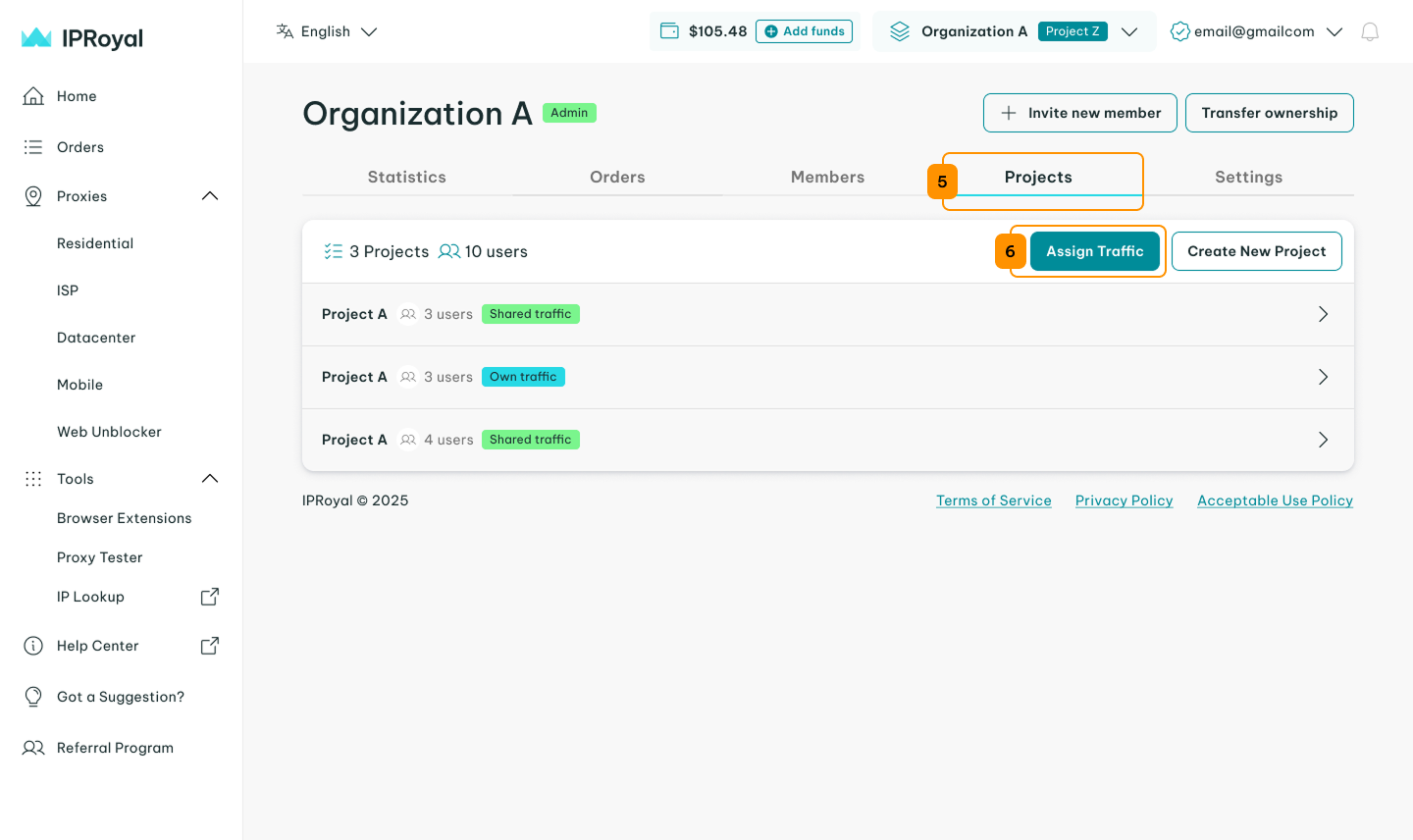
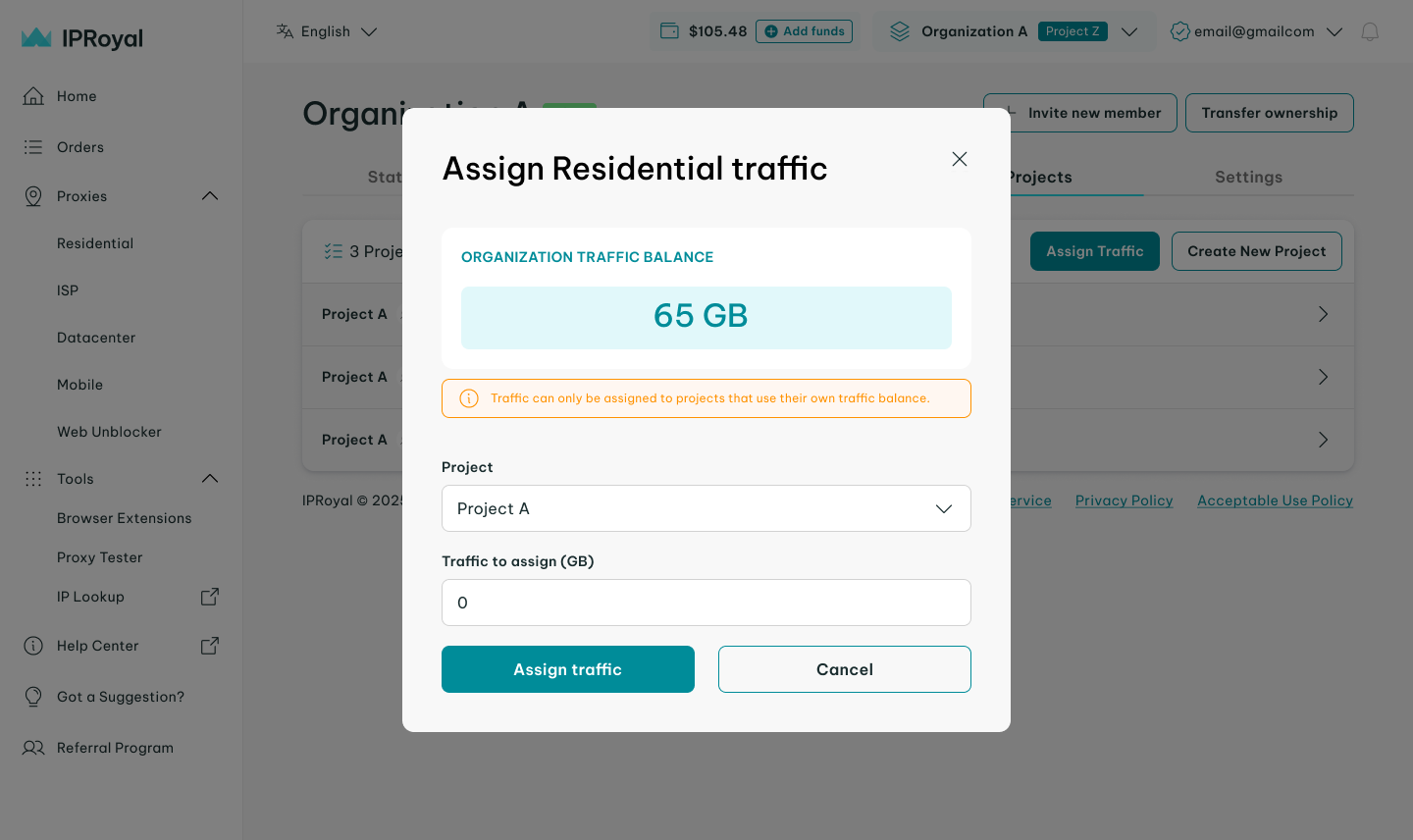
If you navigate to the ‘Projects’ (5) tab in the organization-level dashboard, you can view all projects you’ve created within that organization and assign traffic (6) to each. From here, you can always invite new members or create a new project.
Adding Users
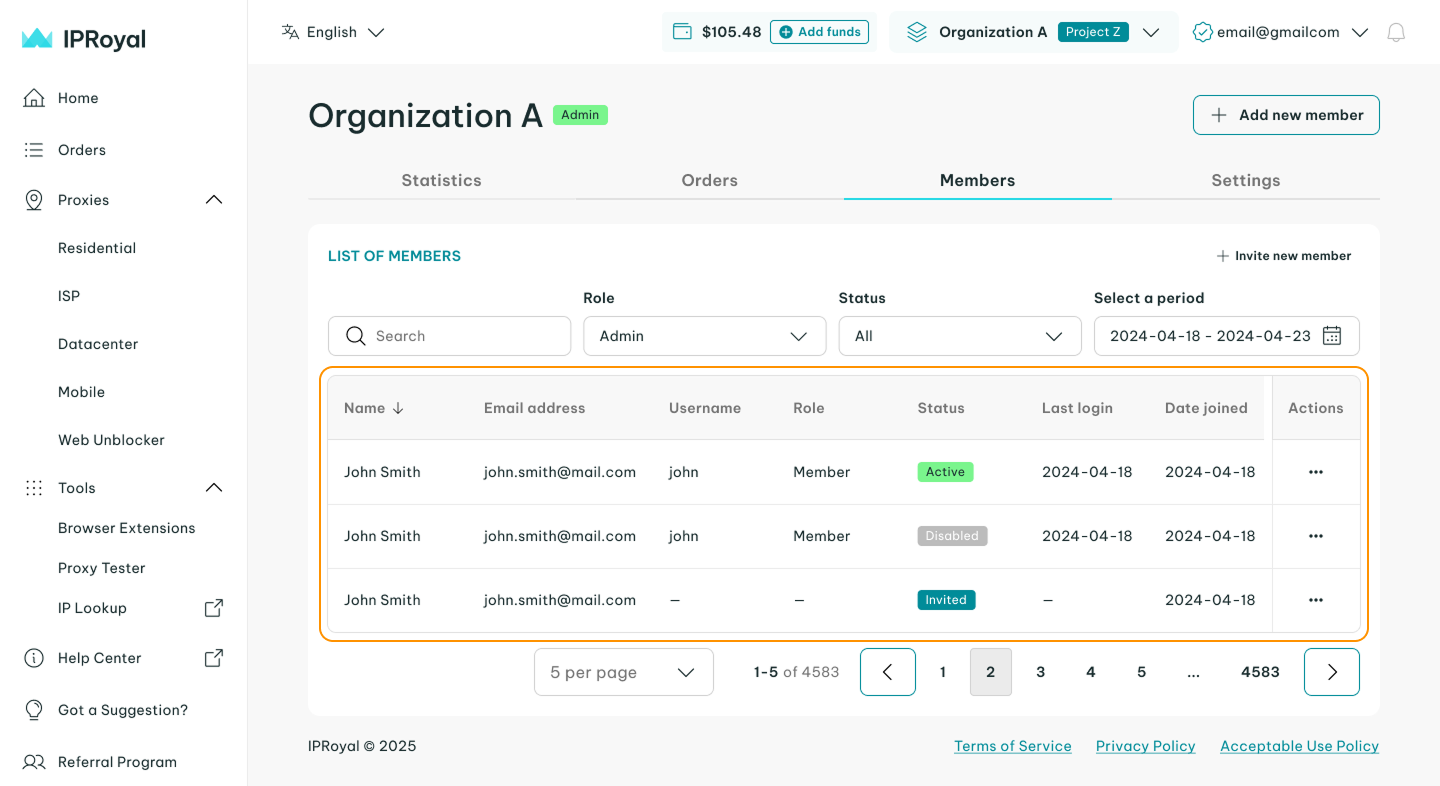
To add users to a particular organization, navigate to the ‘Members’ (1) tab in the organization-level dashboard. Click the ‘Invite new member’ (2) button and add as many members as you need by entering their email addresses.
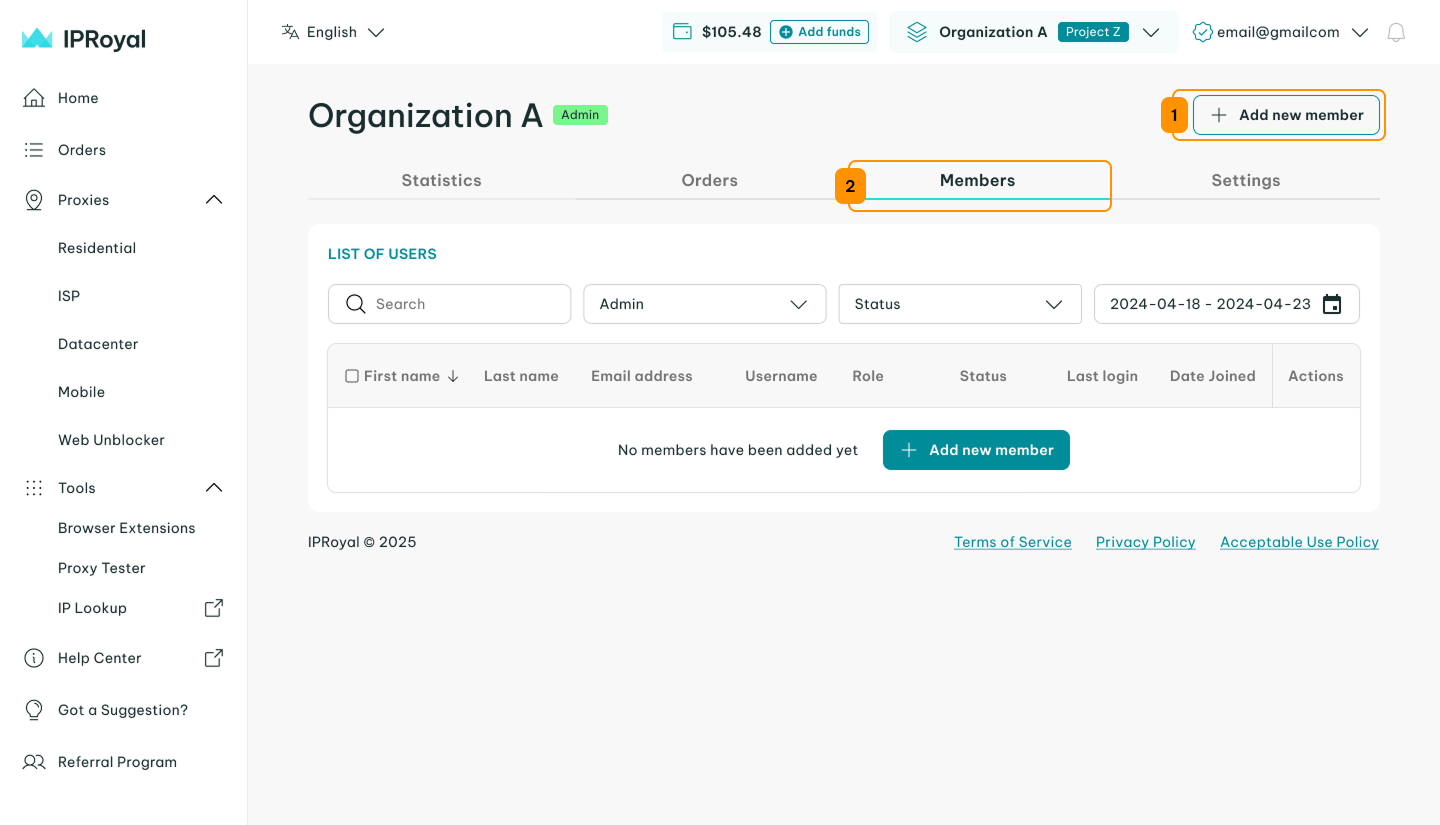
You’ll see a list of all members in the organization, including their role and status.
Assigning Roles
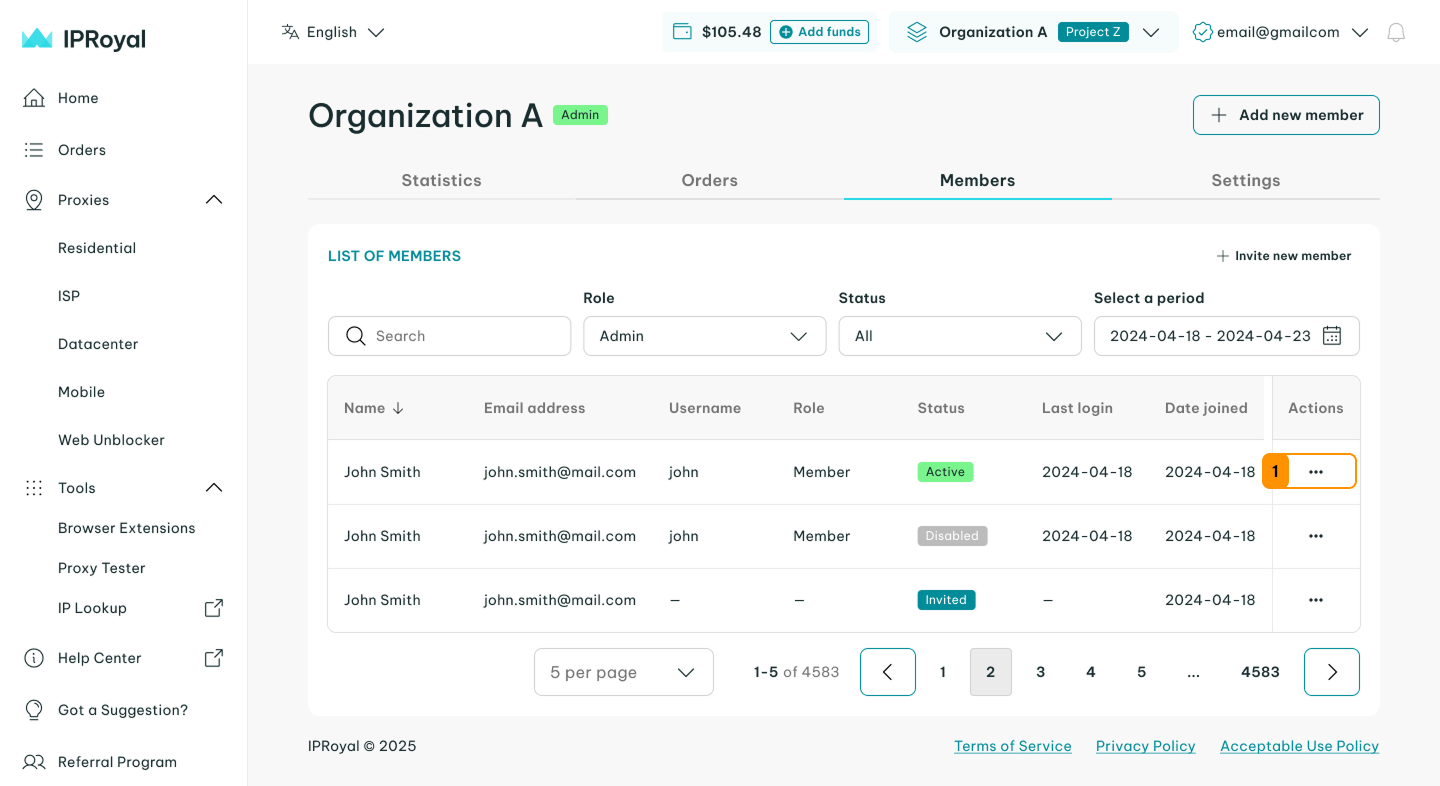
To assign or change a member’s role, click the three-dot icon (1) under ‘Actions’ on the right side of their row.
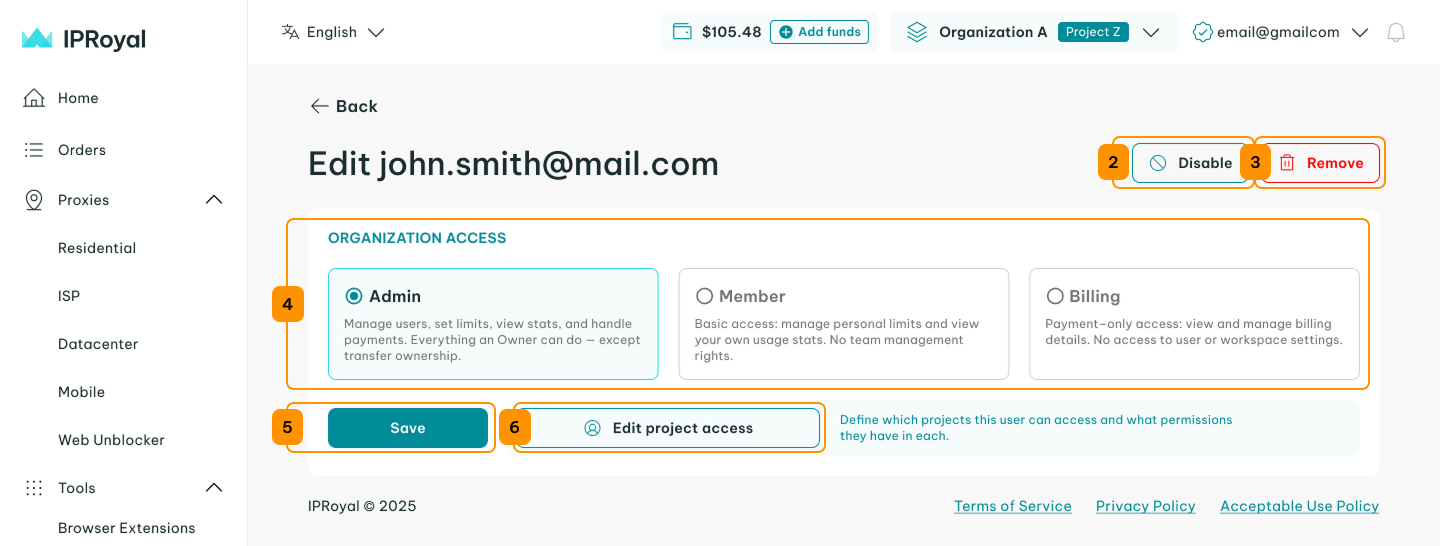
From here, you can disable (2) or remove the member (3), or assign them an organization role (4) - admin, member, or billing. Click ‘Save’ (5) to confirm the changes. You can also edit their project access (6).
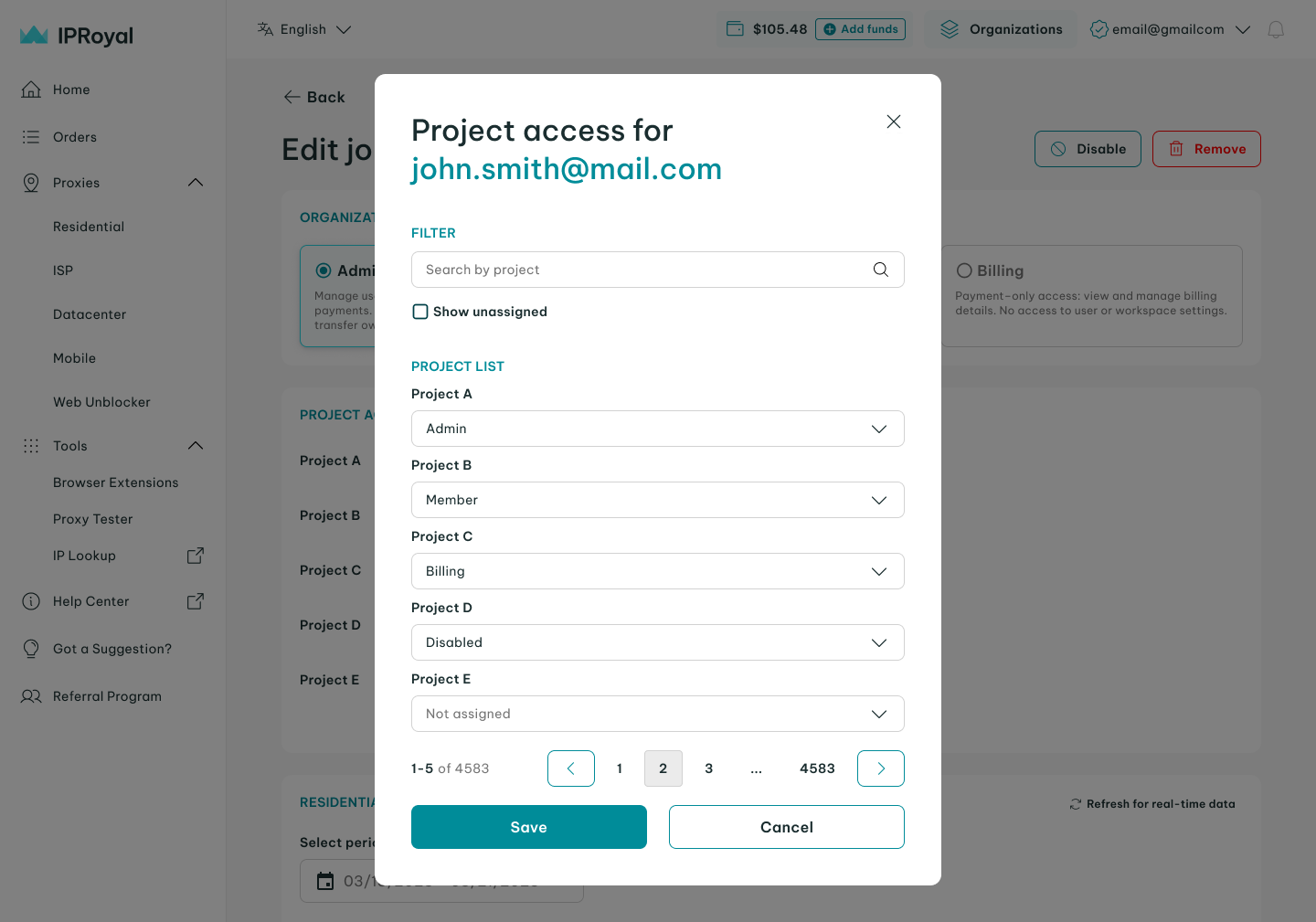
This option allows you to select which projects the user can access and define their permissions within each project.
Switching Between Workspaces
After setting up your organizations and projects, you can easily switch between workspaces as needed.
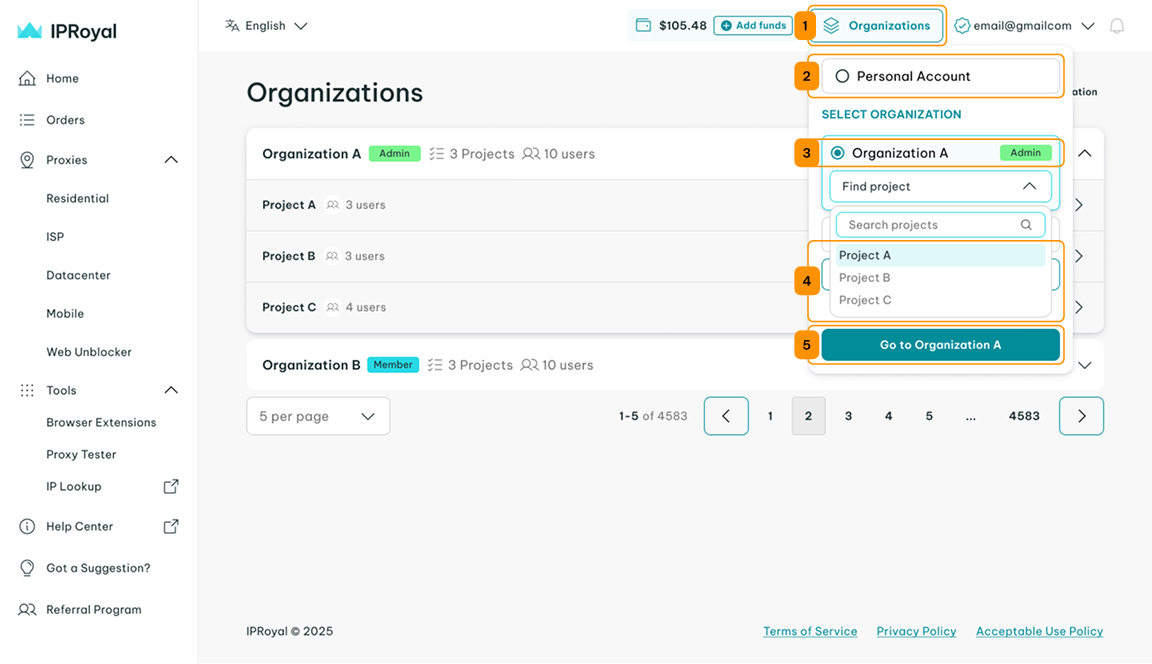
Click the ‘Organizations’ (1) button and select your personal account (2), a specific organization (3), or a project within an organization (4). Then, click on ‘Go to Personal account/Organization/Project’ (5) to access its dashboard.
Managing Proxies
Within an organization, you can manage proxies at two levels:
- Organization-level proxies
At the organization level, you can manage proxies that are shared across all projects. This allows you to control proxy consumption from a central place and track total usage across the organization. It also makes it easier to allocate traffic and maintain consistent oversight across teams.
- Project-level proxies
You can assign proxies to a specific project, keeping them isolated from other projects within the organization. This allows teams to operate independently while maintaining clear usage tracking and cost control.
Each project can use its own proxies or, in the case of Residential Proxies, share traffic from the parent organization.
Monitoring Proxy Usage & Reports
Organizations give you full visibility and accountability across teams and projects. The dashboard lets you track proxy usage in detail and generate reports to make data-driven decisions.
Viewing Statistics
Organization admins can access organization-level and project-level statistics, with filters to narrow down proxy consumption by:
- Total usage - see overall proxy consumption
- Organization - view proxy usage across all projects within an organization
- Project - see proxy usage for individual projects
- Period - filter by day, week, or month
- Websites - analyze traffic by destination
- Units - view usage in MB or GB
- User - track and limit usage by specific team members
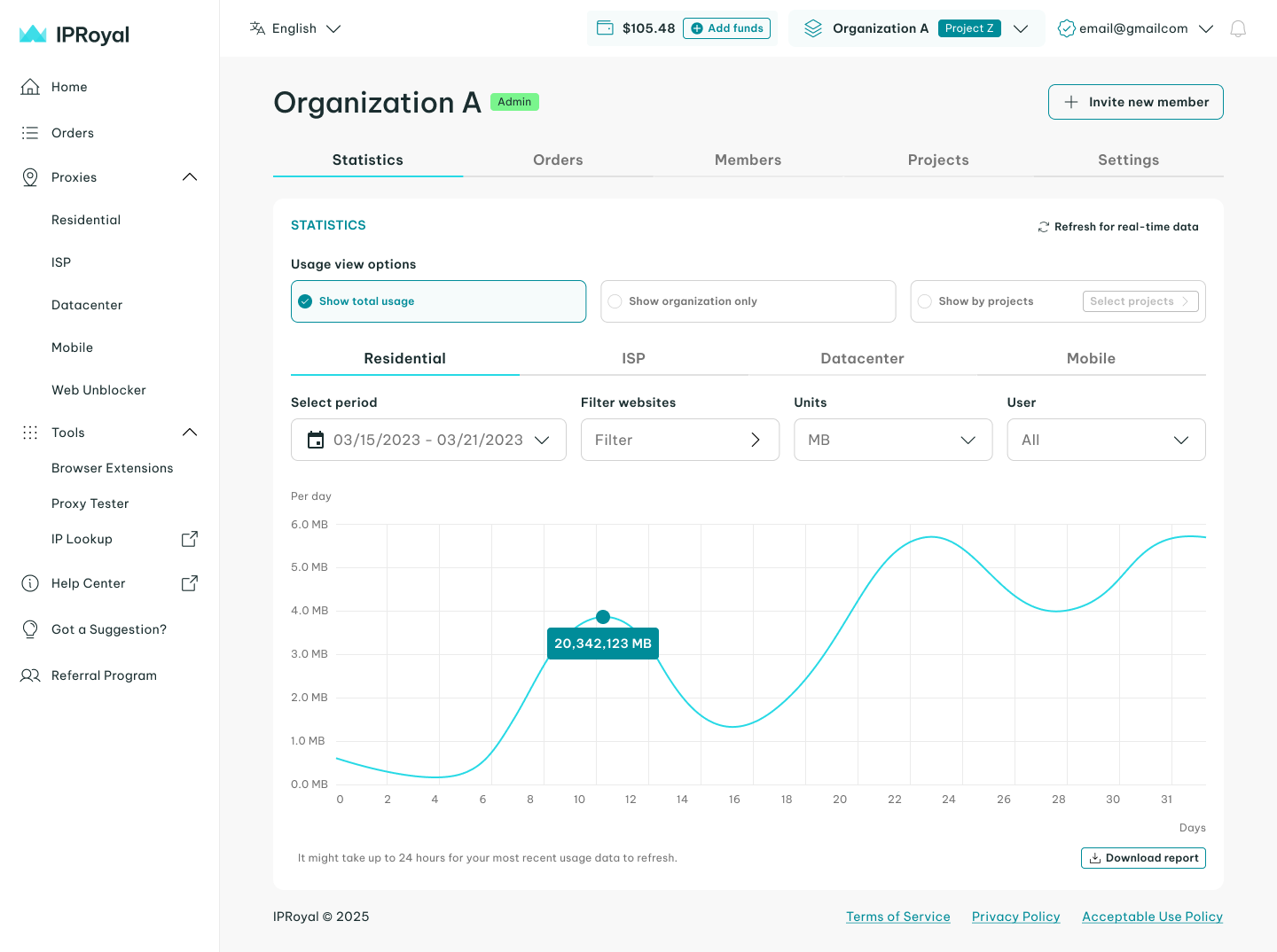
Customizing how you view statistics allows you to monitor proxy usage precisely, identify overconsumption, optimize resource allocation, and maintain operational efficiency across all teams and projects.
Generating Data Usage Reports
As an organization or project admin, you can generate and download detailed usage reports to track proxy consumption over time. To create a report:
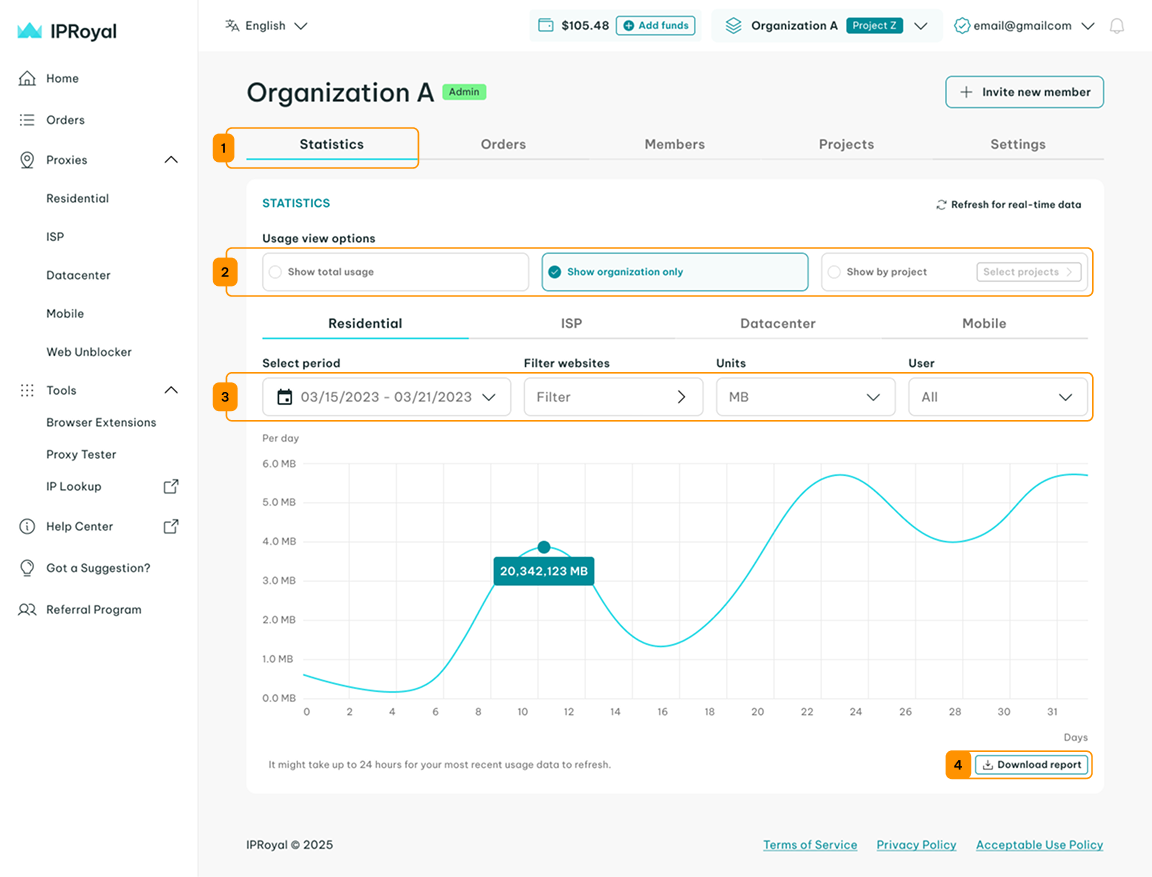
Navigate to the ‘Statistics’ (1) tab in your organization dashboard, and select the desired usage view option (2) - total usage, organization, or project. Apply the desired filters (3) - period, websites, units, and user, and click the ‘Download report’ (4) button.
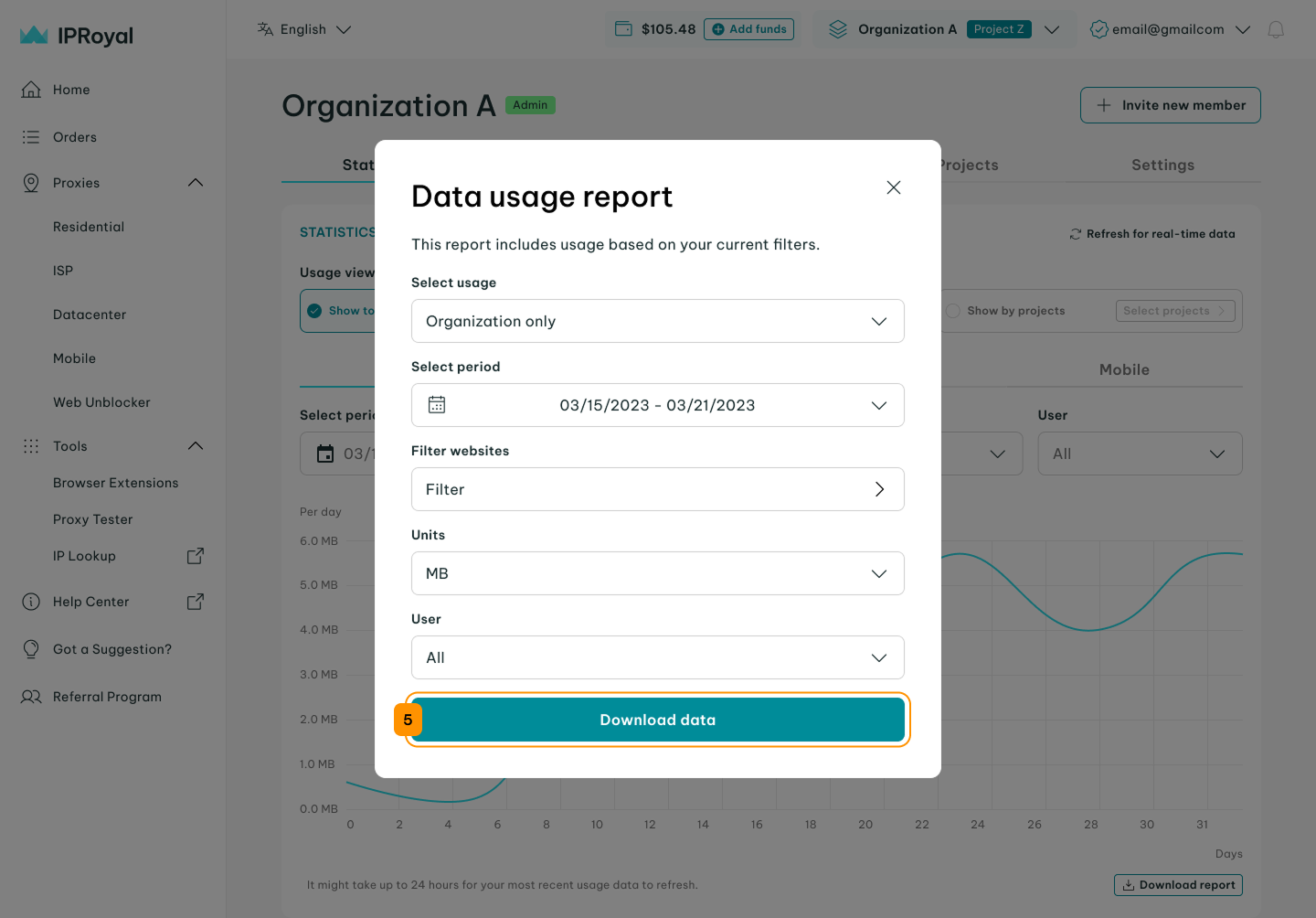
A window will appear, allowing you to confirm or adjust your filters before exporting. Click the ‘Download data’ (5) button to export the report for analysis or record-keeping.
With these reports, you can maintain financial control, optimize proxy usage across teams and projects, and ensure accountability within your organization.
Orders & Available Proxies
Both organization and project admins can place proxy orders. However, order availability depends on the project configuration. For projects that use organization-level residential traffic, Residential Proxies orders cannot be created directly within the project.
In that case, project admins can only view and track Residential Proxies orders. This restriction does not apply to ISP, Datacenter, or Mobile Proxies, which can be ordered directly at the project level as needed.
Organization admins can place orders, monitor both organization- and project-level purchases, and allocate traffic across projects.
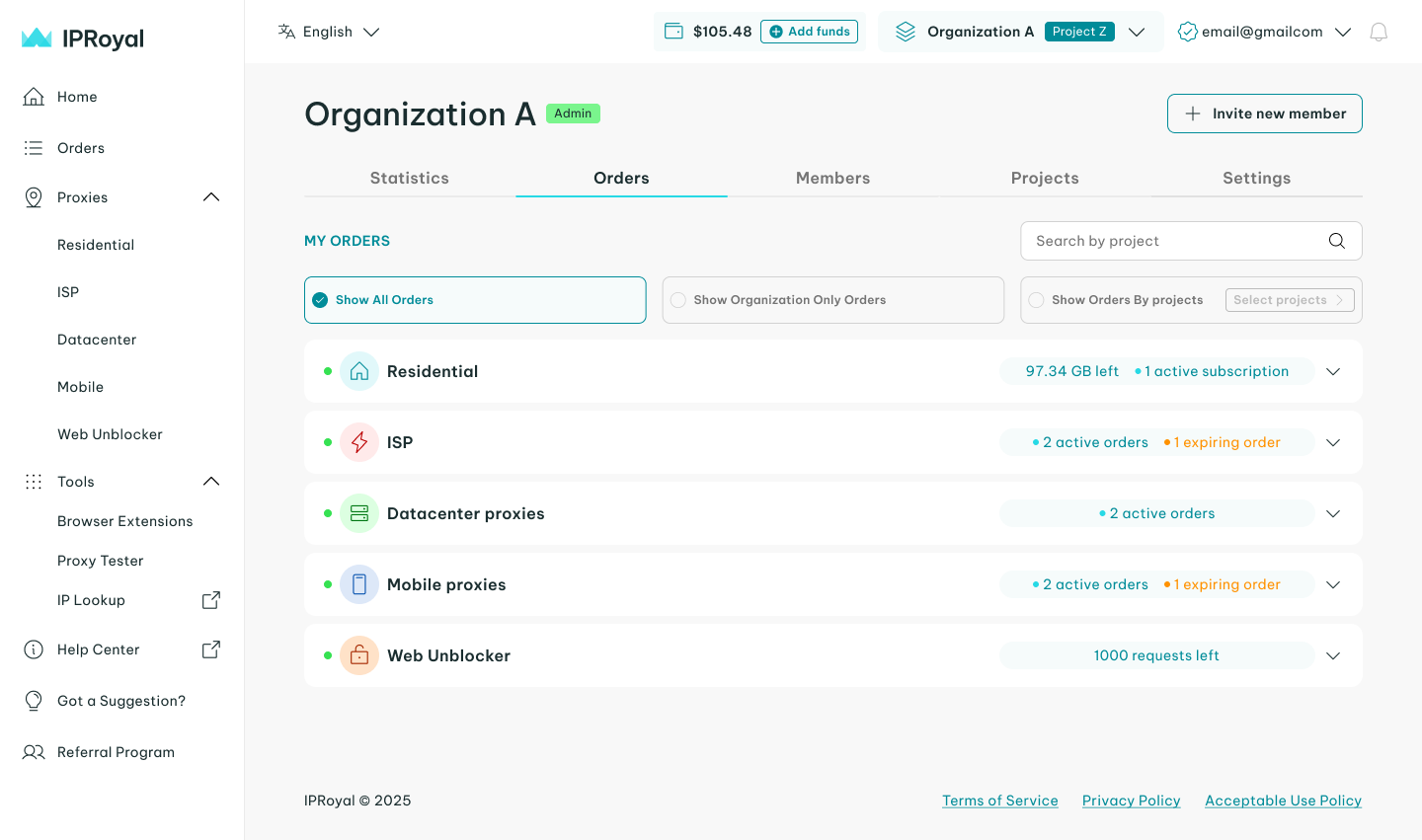
They also have full visibility into proxy availability, allowing them to track assigned resources, monitor remaining traffic, and redistribute proxies as needed to ensure balanced usage and operational continuity.
Billing & Invoices
The Organizations structure is designed to support clean accounting and financial transparency. Each organization and project can maintain separate billing details, making it easier to manage budgets, departments, or client accounts without mixing expenses.
You can assign separate payment methods to each organization and project. This allows you to:
- Isolate costs between different teams or clients
- Charge projects to different company cards or billing entities
- Maintain accurate internal cost allocation
- Simplify reconciliation for finance teams
You can also assign the billing role at both the organization and project levels to streamline financial management.
The Invoices section provides a centralized overview of transactions at both the organization and project levels. You can:
- Filter by time period (1) and order ID or invoice number (2)
- View invoices for a specific organization or project (3)
- Download selected invoices (4) or generate a combined invoice (5)
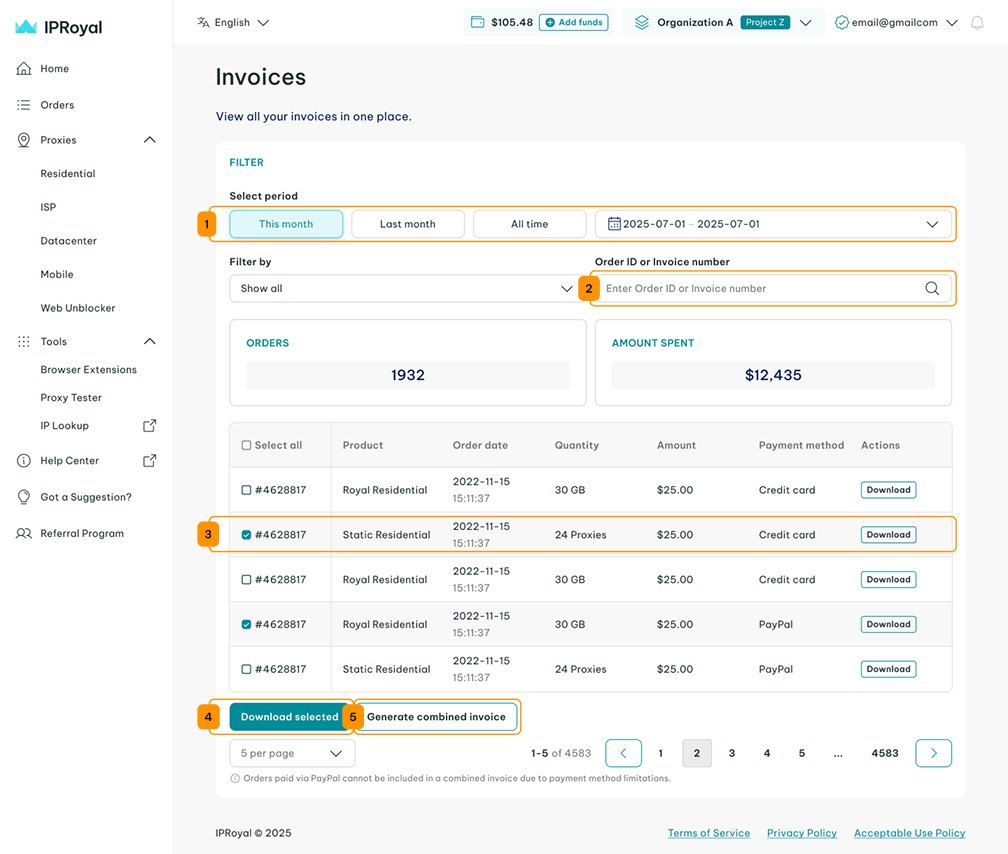
By separating billing access from operational management, Organizations provide a secure, enterprise-friendly structure that supports clear financial oversight, client separation, and scalable accounting processes.
Best Practices
To get the most value from the IPRoyal Organizations feature, follow these best practices to maintain control, improve visibility, and scale efficiently across teams and clients.
- Use separate organizations for external clients
This will help you keep client data, billing, and proxy usage fully isolated, ensuring clean accounting, clear reporting, and improved data security.
- Create projects per campaign or use case
This approach enables granular usage tracking, improves operational performance, and simplifies cost analysis.
- Assign the billing role to finance teams
Give finance teams access to invoices and payment methods without granting operational control. This will improve internal controls and reduce the risk of configuration errors.
- Regularly review statistics and usage reports
Monitoring consumption trends can help you identify inefficiencies, prevent bottlenecks, and optimize proxy allocation.
- Standardize naming conventions
Using consistent organization and project names (e.g., Client-Campaign-Region) can help you improve navigation and reporting clarity as your structure grows.