'/%3e%3cellipse%20opacity='0.34'%20cx='327.5'%20cy='339'%20rx='264.5'%20ry='264'%20fill='url(%23paint1_linear_12724_35442)'/%3e%3cdefs%3e%3clinearGradient%20id='paint0_linear_12724_35442'%20x1='327'%20y1='-2.524e-06'%20x2='327'%20y2='389.286'%20gradientUnits='userSpaceOnUse'%3e%3cstop%20stop-color='%2327D9E5'/%3e%3cstop%20offset='0.927406'%20stop-color='%23004047'%20stop-opacity='0'/%3e%3c/linearGradient%3e%3clinearGradient%20id='paint1_linear_12724_35442'%20x1='328.02'%20y1='74.7771'%20x2='328.02'%20y2='395.312'%20gradientUnits='userSpaceOnUse'%3e%3cstop%20stop-color='%2327D9E5'/%3e%3cstop%20offset='0.927406'%20stop-color='%23004047'%20stop-opacity='0'/%3e%3c/linearGradient%3e%3c/defs%3e%3c/svg%3e)
How to Fix YouTube Error 400: A Step-by-Step Guide
WebsitesLearn how to troubleshoot and fix YouTube Error 400 with our expert step-by-step guide. Enjoy uninterrupted access to your favorite video platform once more.

Kazys Toleikis
When it comes to modern entertainment staples, few match the scope and usefulness of YouTube. Easily one of the most widely used video-sharing platforms in the world, YouTube has become a go-to website for many worldwide. Over the years, this site has built a massive collection of videos that range from just about anything.
Be it informative lessons on any subject you can think of, bits of comedic shows or cartoons from our past, or the omnipresent funny cat videos, it’s hard to deny just how ubiquitous this site is. Nevertheless, as much as YouTube is a blessing for its tremendous amounts of information, accessing it can be a hassle at times.
We’re talking about the dreaded YouTube errors. The ones that do nothing but kill your mood and cut your video-watching sessions short.
Among those, the YouTube error 400 stands out. It mainly occurs due to corrupted data or improper browser settings, which often cause confused responses on YouTube’s servers. However, make no mistake: the burden of this error lies first on the user-side configuration.
Facing this setback while watching your favorite videos can be frustrating. With that in mind, we present this handy guide to sort out those irksome error messages. Here, you’ll not only find what triggers YouTube error 400, but also steps to solve it, including helpful proxy use cases , and when it’s better to reach out to YouTube support for a helping hand.
What Is YouTube Error 400?
Before we delve into the different approaches we can use to address YouTube error 400, it’s crucial to understand what causes it. The error 400 code indicates a “Bad request.” It often occurs whenever YouTube’s servers are unable to process or understand the request they receive.
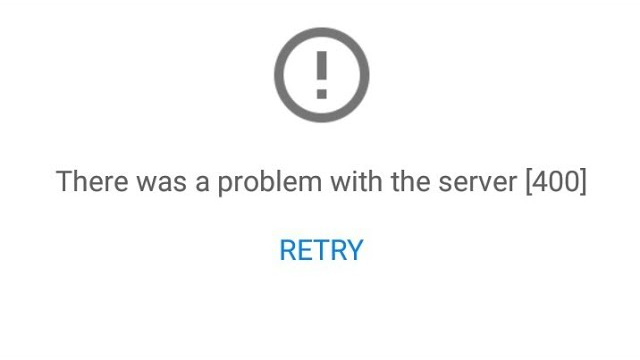
Such “bad requests” can occur due to a multitude of issues, ranging from corrupted cookies and outdated browsers to incorrect date and time settings and even mobile data usage restrictions. Regardless, most of these causes are client-sided, which means some misconfiguration on your device might be triggering the error.
How this YouTube error 400 presents itself varies. It can manifest as partial content loading, seemingly endless video buffering, app freezes or crashes, login issues, and, of course, the well-known “400 Bad Request” error code appearing on screen. Needless to say, none of these are nice to encounter as they hamper your user experience on the platform.
Furthermore, this error code can pop up whether you are on a desktop or using the YouTube app on mobile. More often than not, it doesn’t signal an issue on YouTube’s end or a problem with the video file format, but rather that something is impeding proper communication. This is what causes the server to reject requests.
When and Where Does This Error Occur?
As mentioned above, YouTube error 400 can appear on your desktop or in the YouTube App on a mobile device. When using your browser, it doesn’t matter which one you use. Whether it’s Chrome, Firefox, Safari, Edge, or Brave, the error code can appear in any of them.
The same holds for the two app variants. Regardless of whether you use the Android or iOS version, this YouTube error can appear in either.
The troubleshooting for each case is, as expected, varied, as each software may show things differently. Now, let’s take a look at some of the common causes that make this undesirable YouTube error 400 appear.
Poor Network Connection
An unreliable or slow internet connection can affect communication, causing your connection to drop data packets on your request. Such an issue, often caused by low-quality Wi-Fi networks or hotspots with strict firewall rules, can trigger the error code to appear.
Outdated Browser or Apps
Using an outdated version of the YouTube app or your browser of choice is a surefire way to encounter problems. Such an approach often results in compatibility issues, as older versions may lack features and functionalities made available in later revisions.
Conflicting Extensions or Add-ons
Some browser add-ons and extensions can interfere with YouTube’s proper functioning. If any of these have permissions to modify web requests or block web content, they might break your data request, causing error 400.
Corrupted Cookies or Cache
Both your browser and the YouTube app store files in the form of cookies and cache. They do this to help you remember your login info or to speed up web page load. However, over time, this data can become corrupted, triggering the error whenever you try to access YouTube’s servers.
Date and Time Mismatch
Incorrect date and time settings are another cause of errors. If the clock on your device is off, this can make security certificates and request timestamps appear invalid, which in turn causes servers to reject your requests.
Data Restrictions
Some Android skins include controls that let you set data usage restrictions for specific apps. When activated in the YouTube app or web browser, it limits the amount of data they can send, leading to possible YouTube error 400 encounters.
YouTube Restricted Mode
Finally, YouTube also offers Restricted Mode as a feature. It filters mature content, blocking those types of videos from ever appearing in your feed. However, this feature is also known to cause server access conflicts on occasion.
Step-by-Step Solutions to Fix YouTube Error 400
Now that we have a good idea of when and where this error occurs, let’s outline some of the steps you can take to solve it. This section will be divided into two large categories, each outlining various approaches you can take to resolve error 400 on your desktop or mobile app.
Fixing YouTube Error 400 on Desktop
Desktop refers primarily to home-based devices such as personal computers. If any of the fixes outlined here don’t work, simply move to the next one to try it out.
To address any instances of the YouTube error 400 on your desktop, try the following:
1. Refresh the Page
Starting with the easiest solution, the first thing anyone should try is to refresh the page in their browser. There are several ways you can go about this:
- Press the F5 key on your keyboard.
- Move your mouse pointer to the ‘Reload’ icon on your browser.
- On Windows, you can press Ctrl + R to refresh the page in the browser.
- On macOS devices, the button combination is Command + R to achieve the same result.
- Alternatively, for a more effective “hard refresh,” use either Ctrl + Shift + R for Windows or Command + Shift + R for macOS to refresh the page and clear the browser’s cache.
2. Clear Cache and Browsing Data
If the previous method didn’t work, you can also try a more thorough cache and temporal data cleanup with the following strategy:
In Google Chrome
- Move your mouse to the top-right corner of your screen and click on the ‘three dots’ icon. Then, select ‘Delete Browsing Data’ from the dropdown menu.
- In the following window, you’ll see a number of check boxes you can tick. These represent cached data, browsing history, cookies, and other web-browsing data. Tick the boxes for cached data and cookies.
- Above these boxes, you’ll also see a time range of how much you want to delete. Select the option that best aligns with the time frame you’ve been attempting to access YouTube. For a more thorough cleanup, it’s recommended that you choose the earliest available time.
- After that, click the ‘Delete Data’ button below, then refresh your browser.
In Safari
- Drag your mouse over to the top left corner of the screen and click on the ‘Safari’ option. Then, scroll down in the new options that have just appeared and select the ‘Clear History…’ option.
- In the new window, you can choose the timeframe for how much browsing history you want to delete. Pick the one that best suits your needs, but remember, for a more complete cleanup, the earliest option should always be preferred.
- Once you have made your choice, move your mouse over to the ‘Clear History’ button and click it. This should purge your browser’s cookies, session history, and cached data.
- After that’s done, refresh your browser window to see if you can access YouTube again.
3. Reboot Your Device
Restarting your device is an easy fix that often resolves YouTube error 400. The reason is that it allows the OS running your device to close all programs and services, then start them again, getting processes back on track.
On Windows
- Click the ‘Start’ button in the lower center of your screen for Windows 11 (lower left for Windows 10).
- Then click on the ‘Power’ button.
- Finally, select the ‘Restart’ option (or ‘Update and restart’, if you have any pending updates).
On macOS
- Move your mouse over to the top left section of your screen and click on the ‘Apple’ menu.
- In the new scroll-down menu that has just appeared, select ‘Restart’.
- A confirmation screen will appear asking whether you wish to reopen all your windows when you log back in. Select as needed and then click on the ‘Restart’ button.
4. Check Your Internet Connection
On certain occasions, an unreliable internet connection may be the culprit of YouTube error 400. Therefore, assess your connection’s speed to determine whether it’s capable of supporting YouTube video playback. Ideally, you need at least 5 Mbps to ensure steady HD video reproduction on the platform.
Visiting a speed test website like Fast.com can help you determine your connection’s performance.
If your connection is underperforming, try the following:
- Unplug your router, wait about 10 seconds, then reconnect the power source. Doing so allows the unit to restart.
- If using Wi-Fi, you can move your desktop device closer to your router or switch to a wired connection by plugging a cable directly into it. In most cases, this approach ensures better performance.
- If you’re unable to access any sites besides YouTube, there may be an issue with your network. If that’s the case, contact your ISP and let them know about the problem.
5. Verify the URL for Mistakes
If you’re trying to access a specific video in the platform from a URL you typed in or a link you found, double-check the URL to make sure it is correct. Sometimes, error code 400 might appear when you try to access an incorrect address.
If you think your URL is wrong, try navigating to the video through YouTube’s search function or homepage.
6. Activate Incognito or Private Mode
Enabling Incognito or Private Mode in your browser lets you explore the web without using existing cookies and with all installed extensions turned off by default. Thus, try opening a separate window in your browser with this mode enabled and see if you can access YouTube.
If the platform works fine in private browsing and no error 400 ever appears, this confirms that the issue is related to cookies, cached data, or extensions. From here, you can either clear your data or disable/eliminate the problematic extensions.
7. Update Your Browser
Keeping your internet browser up to date ensures your workflows remain error-free thanks to compatibility improvements. To verify you’re on the latest version:
- In Chrome, click the ‘three-dot’ button on the top right of your browser. Then navigate to the ‘Settings’ option.
- Click on ‘About Chrome’ to check for updates automatically.
- If prompted to download a newer version, do so.
8. Disable Problematic Add-ons and Extensions
Extensions and add-ons enhance our browsing experience. However, there are cases in which they may interfere with web navigation. Ad blockers and privacy extensions can cause the YouTube error 400 in certain scenarios.
If you believe an extension or add-on might be causing trouble, you can try deactivating them one by one and then refreshing YouTube again. If error 400 disappears or you suddenly notice YouTube loading faster after turning off a specific extension, you have found the culprit.
Fixing YouTube Error 400 on Mobile
The YouTube app on mobile devices, whether smartphones or tablets, is a common entryway for millions to visit the giant video-sharing platform. Troubleshooting this app is a little different from that of the desktop browser, but overall, the process still includes some similar steps.
To sort out any YouTube error 400 events on your mobile device:
1. Restart the App
App refreshing is always the best thing to try out first. If error 400 or other issues persist, you can close the YouTube app and reopen it.
If using Android, you can hop into the ‘Recent Apps’ section and swipe YouTube away. iPhone users will instead need to swipe from the bottom of the screen, find the YouTube app, and then swipe it away from the screen to close it.
After that, try opening the YouTube app and see if videos load fine again.
2. Double-Check Your Internet Connection
Similar to the desktop method, we want to make sure the internet connection on our mobile device can handle video playback. Mobile data may be unreliable in certain locations. Thus, you’ll want to make sure you’re connected to a stable Wi-Fi connection.
If the network you use all the time feels too slow, you can try switching to another network to see if you get better speeds. Likewise, if you believe mobile data in your area offers good performance, then switching to it is the way to go. It’s all about selecting what works best given your environment.
Rebooting your router or Wi-Fi device can also help mitigate any error codes and improve your internet speed.
3. Reinstall or Update the App
Maybe the server error you’re encountering is related to the YouTube app itself. In cases like this, uninstalling and then reinstalling the app can help ensure proper functionality.
Before reinstalling the app from the Google Play Store or Apple App Store, make sure to reboot your device first. After you’re done installing the YouTube app again, log in to your account and test the app.
Keep abreast of YouTube releasing new app versions, as this ensures proper compatibility with your device.
4. Clean the App’s Cache and Data
Cached data includes preferences and user and account information. On the YouTube app, this data can become corrupted at times, leading to server errors and the subsequent error 400. To clear the YouTube cache:
- On Android, go to ‘Settings’. From here, go to the ‘Apps’ section and look for the YouTube app on the list. Once you find it, tap it and go to ‘Storage’. There should be an option named ‘Clear Cache’. Tap it, and you should be good to go.
- On iOS, things are a little more complicated since there’s no direct, clear YouTube cache option. Instead, you’ll have to delete and reinstall the app to achieve the same result.
5. Enable Data Usage
If you’re on mobile data, enabling unrestricted data usage ensures the app can communicate with the servers properly. Thus, verify that mobile data is not disabled and that background data is enabled to avoid facing server errors. Try the following:
- On Android, open the app’s data usage settings and double-check its background data permissions are enabled.
- On iOS, navigate to ‘Settings’ and select the YouTube app. Then, verify the ‘Mobile Data’ option is turned on.
6. Disable Restricted Mode
As explained earlier, Restricted Mode enables content filtering. Although this feature is useful for filtering adult content on the platform, it is known to cause occasional error 400 issues. Hence, turning off this feature is in our best interest if we want an error-free experience.
To turn off Restricted Mode, all you need to do is:
- Open the YouTube app and tap on your profile icon.
- Move over to ‘Settings’ and then select ‘General’.
- Here, you’ll find the aforementioned Restricted Mode, which you’ll need to toggle off.
- Finally, refresh the app and see if videos load fine again.
7. Ensure Date and Time Configuration
Incorrect date and time settings can cause security certificates and request timestamps to appear incorrect to YouTube’s servers. It sounds like a small thing, but it actually has a significant impact on server-related errors. To avoid this, ensure your date and time configuration is correct.
On Android
- Open the ‘Settings’ app and then move over to ‘System settings’.
- Then, select ‘Date & time’.
- Here, you’ll want to enable the ‘Set time automatically’ and ‘Set time zone automatically’ options. This will use your cellphone’s provider to update the appropriate time and date.
- If the synced data is still wrong, you can also set the time and date manually.
8. Employ a DNS or a YouTube Proxy
Sometimes, the YouTube error 400 may be caused by a faulty DNS server. In such cases, switching to a more stable DNS or using a YouTube proxy could be the answer.
To use an alternate DNS on Android, do the following:
- Open the ‘Settings’ app on your phone and then head over to ‘Connections’.
- Once there, scroll down and pick ‘Private DNS’.
- You’ll then be prompted to enter your private DNS provider’s hostname.
- Tap ‘Save’ after you’re done.
It’s important to remember that on some phones, you may need to switch your IP settings from ‘DHCP’ to ‘Static’ to be able to edit the DNS options.
A YouTube proxy is another excellent way to circumvent issues when accessing the platform. They allow you to mask your current IP settings and give you a new IP address, enabling access to YouTube’s servers in the process.
If you’re interested in scraping YouTube videos for research purposes, YouTube proxies make this process effortless. Simply choose your desired location and collect data to your heart’s content. YouTube proxies give you endless possibilities when it comes to reaching the popular video-sharing platform.
When to Seek Help From YouTube Support
As comprehensive as this guide is, there will be times when none of these solutions will prove helpful. That could happen because of more severe issues on YouTube’s end, spotty connectivity on your network, or another device-related issue not covered here.
Regardless of the case, visiting YouTube’s Help Center will be in your best interest. There, you’ll find additional resources and troubleshooting suggestions that may help address your connection problems. If none of those provide enough aid, using the direct support option is another route worth pursuing.
The YouTube Community forums are host to plenty of technical knowledge and helpful individuals ready to lend a hand. Google experts are often ready to address issues through this channel as well.
Lastly, if you’re using a proxy to enhance your privacy and access the platform but are still receiving proxy-related error codes, a guide to solving proxy error codes is what you need.
Final Thoughts
Dealing with YouTube error 400 can be frustrating, especially if all you want to do is watch your favorite videos. Thankfully, we have explained plenty about this error code here. Now we know it relates to a communication issue and that, more often than not, it appears due to a misconfiguration on our devices.
If none of these measures are enough to help you sort out error 400, then reaching out to YouTube for support is what you should do.