Mobile Proxies Quick-Start Guide

This guide will show you how to integrate IPRoyal Mobile Proxies into your workflows - for web scraping, social media management, multi-accounting, testing, automation, and more.
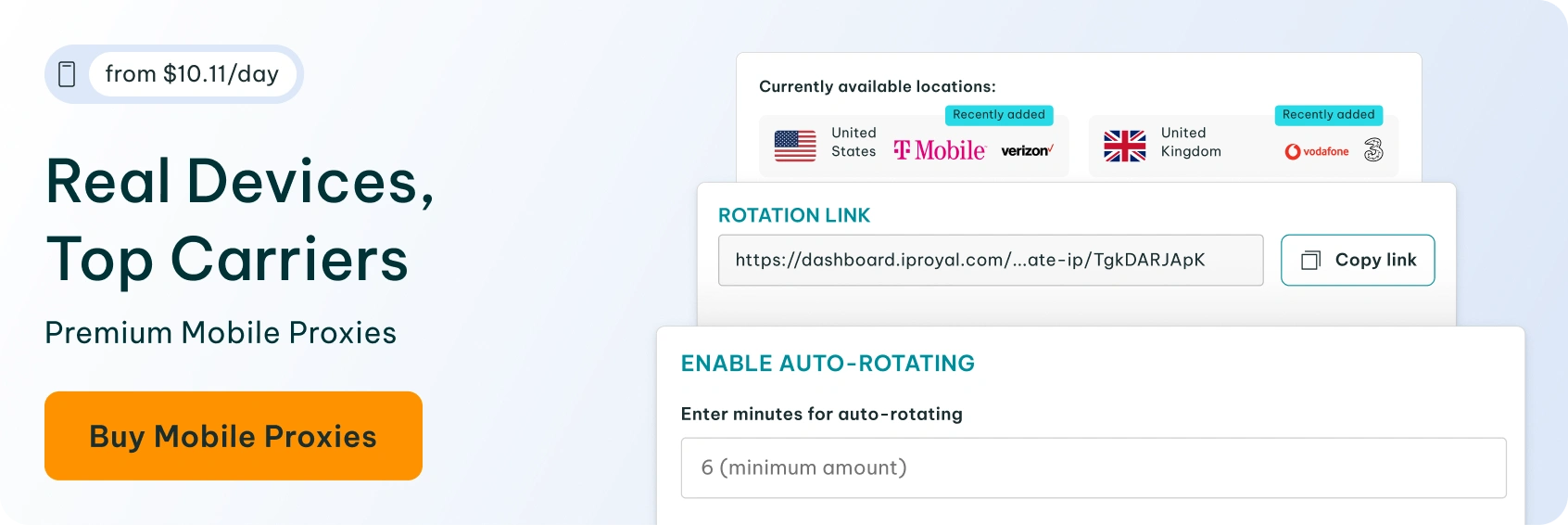
IPRoyal Mobile Proxies offer IPs sourced from premium mobile carriers worldwide with zero bandwidth and thread restrictions. They support HTTP/HTTPS and SOCKS5 protocols, country-, state-, and city-level geo-targeting, and custom rotation options.
Mobile Proxies are available in two options:
- Rotating proxies, priced per GB
- Dedicated proxies, priced per proxy
In this guide, you’ll learn how to:
- Purchase and access your Mobile Proxies
- Configure settings in the IPRoyal dashboard
- Use your proxy credentials
- Manage your Mobile Proxy Orders
How to Purchase IPRoyal Mobile Proxies
Mobile Proxies are subscription-based and can be purchased directly from your dashboard.
To place a Rotating proxies order:
- Log in or create an account at iproyal.com
- Select ‘Mobile’ in the left menu
- Choose the proxy type - ‘Rotating proxies’
- Select the amount of traffic you want to purchase (in GB)
- Click ‘Continue’ to select your payment method
- If you have a coupon code, click ‘Have a coupon’ to apply it
- Click the ‘Complete order’ button
To place a Dedicated proxies order:
- Log in or create an account at iproyal.com
- Select ‘Mobile’ in the left menu
- Choose the proxy type - ‘Dedicated proxies’
- Select the subscription plan you want to order
- Customize the ‘Proxy location’
- Enter how many proxies you need in the ‘Number of proxies’ field
- To specify a more precise location, click the ‘Add City/State’ button and select one from the list
- To order proxies from multiple available locations, click the ‘Add Another Country’ button and repeat steps 5 and 6
- Click ‘Continue’ to select your payment method
- If you have a coupon code, click ‘Have a coupon’ to apply it
- Click the ‘Complete order’ button
How to Configure IPRoyal Rotating Mobile Proxies
Once your order is confirmed, go to the dashboard to configure your proxies. The dashboard gives you full control over how your traffic is routed, including location targeting, session behavior, authentication, and more.
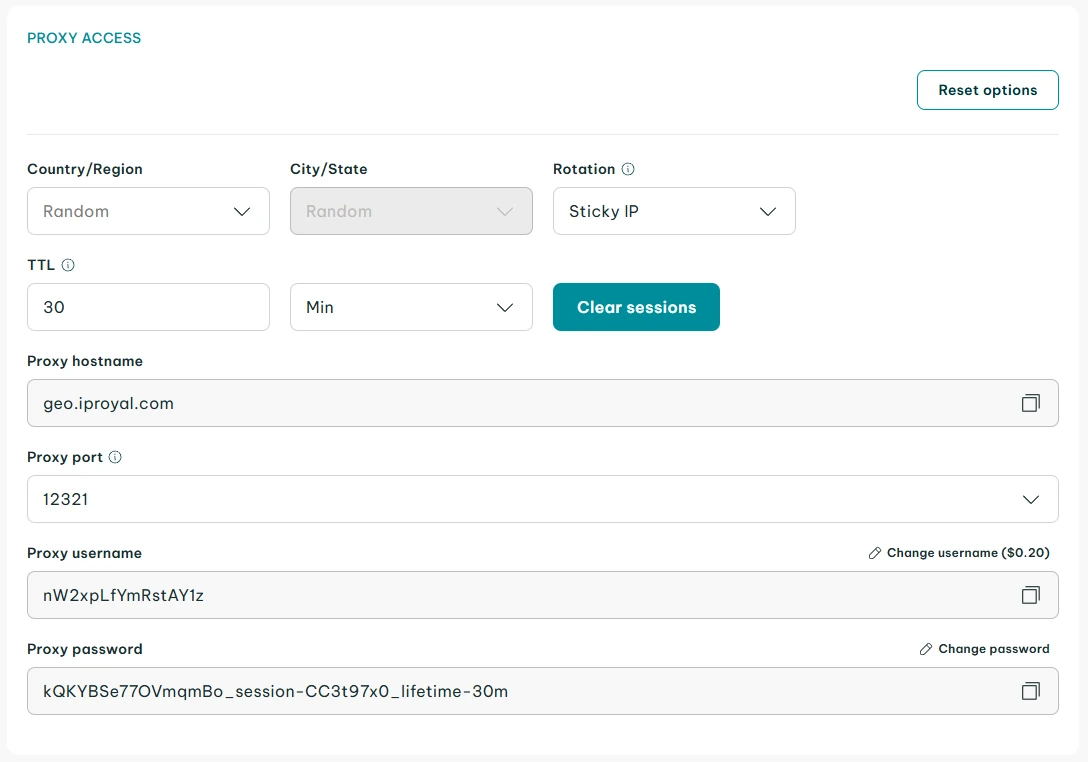
1. Select the proxy location
Choose one or more countries or regions. The ‘City/State’ section will update automatically to show available options.
2. Choose the rotation type
- ‘Randomize IP’: get a new IP on each request
- ‘Sticky IP’: keep the same IP for a set period
3. Set session TTL
If you choose the ‘Sticky IP’ option, set the duration for your sessions (from 1 second to 7 days).
How to Use IPRoyal Rotating Mobile Proxies Credentials
Once you’ve configured your rotating proxies, you can deploy them with your software, automation tools, browser extensions, and more. To get started, click the ‘Copy’ (1) button to copy your sessions to the clipboard.
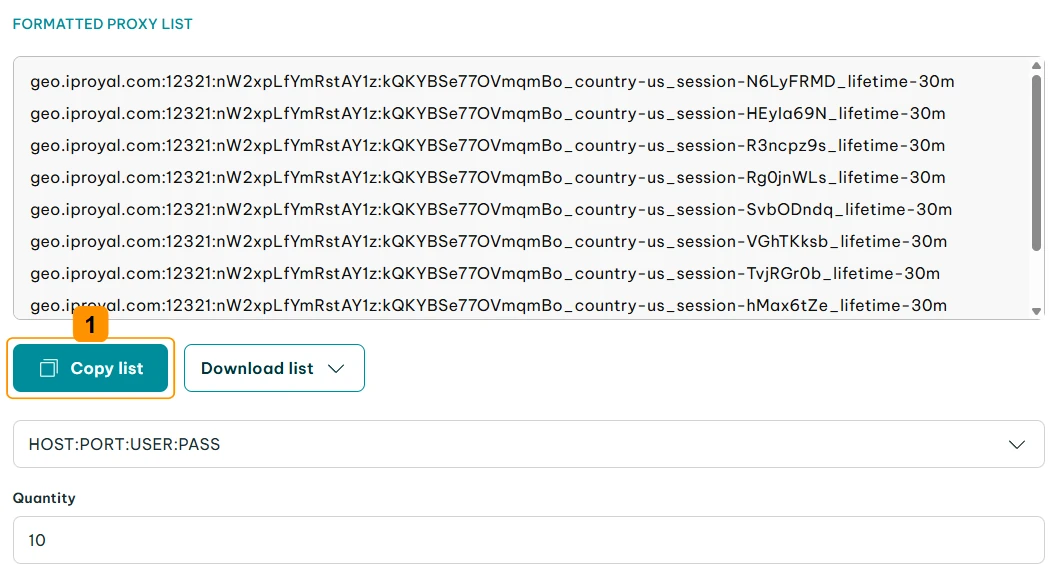
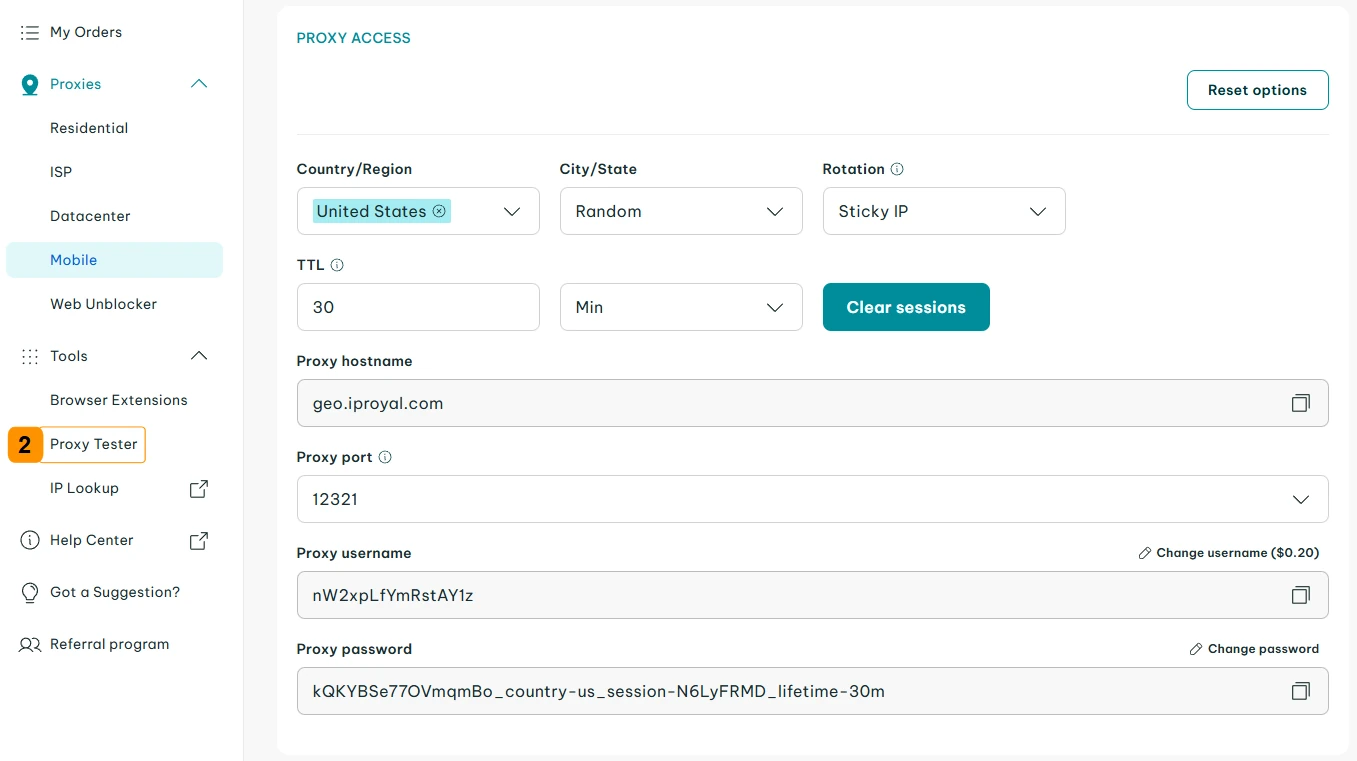
Next, use the IPRoyal Proxy Tester to quickly verify your proxy configuration, connectivity, and speed. It’s a great way to ensure your proxies work correctly before integrating them into your workflow.
- Select ‘Proxy Tester’ (2) from the menu on the left.
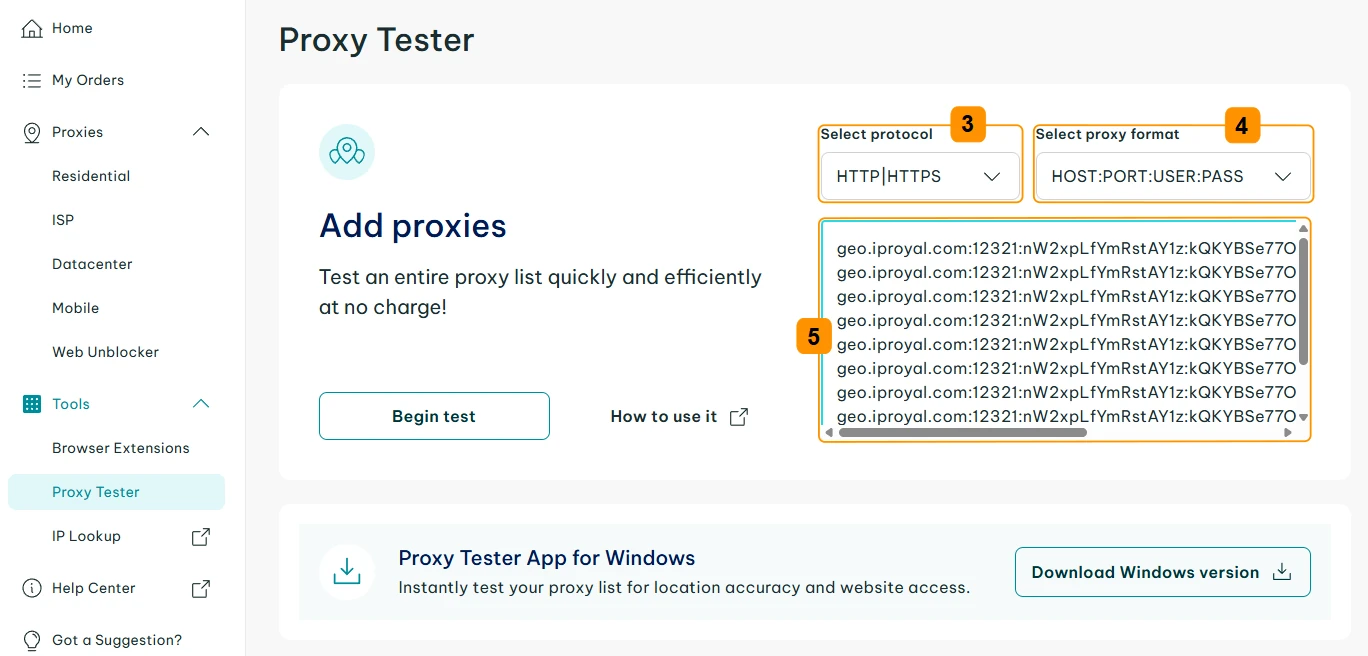
2. Select the protocol (3) you want to test. Ensure the format (4) matches your Formatted Proxy List settings and paste your copied credentials in the input field (5).
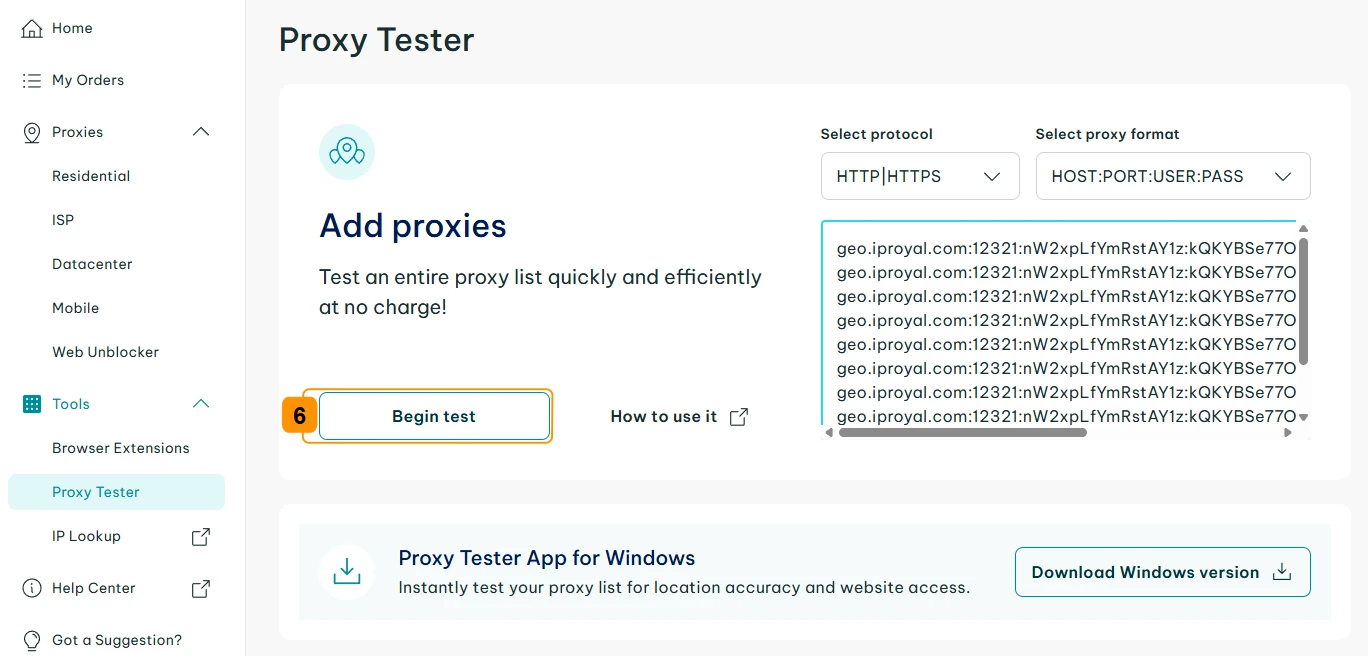
3. Finally, click the ‘Begin test’ (6) button.
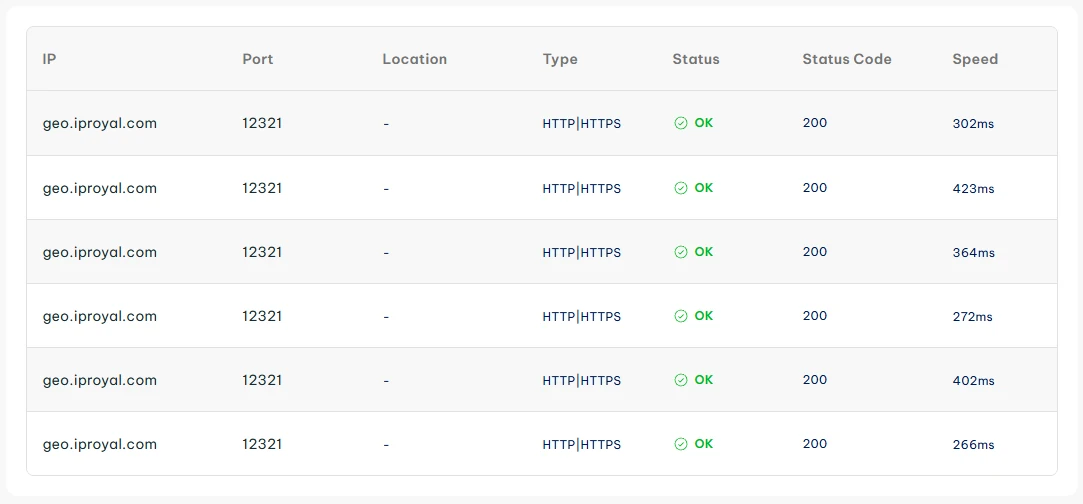
4. You will instantly get results for each provided set of credentials.
You can find more information about making requests in our Proxy Strings documentation.
How to Configure Iproyal Dedicated Mobile Proxies
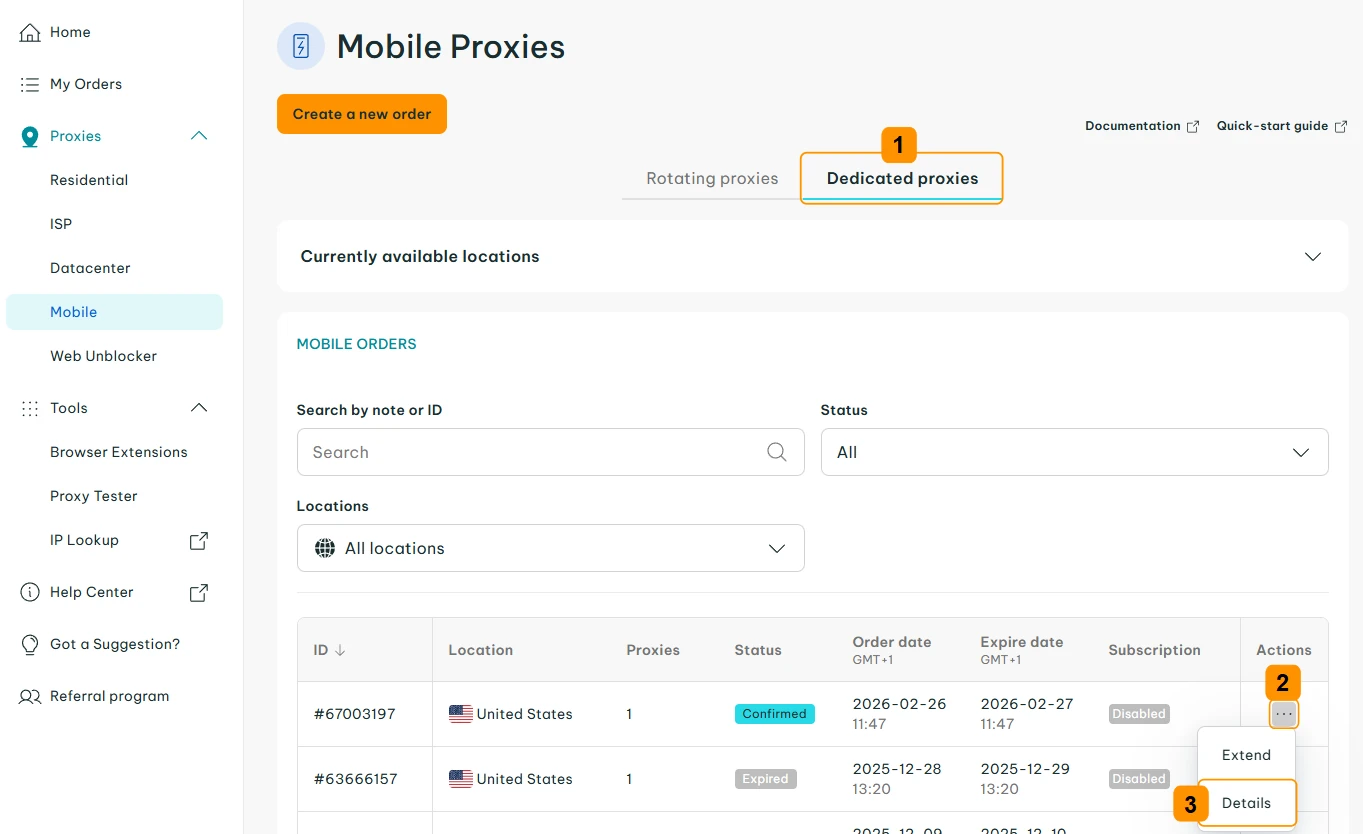
After confirming your order, open your dashboard and click on ‘Dedicated proxies’ (1). Find your order, click the three-dot (2) button, and select ‘Details’ (3).
The dashboard makes it easy to manage your proxy credentials and IP rotation. We’ll go over these options below.
1. Copy or download your proxy credentials
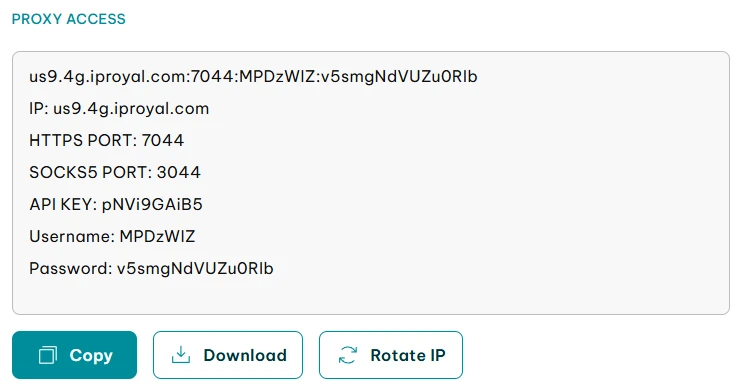
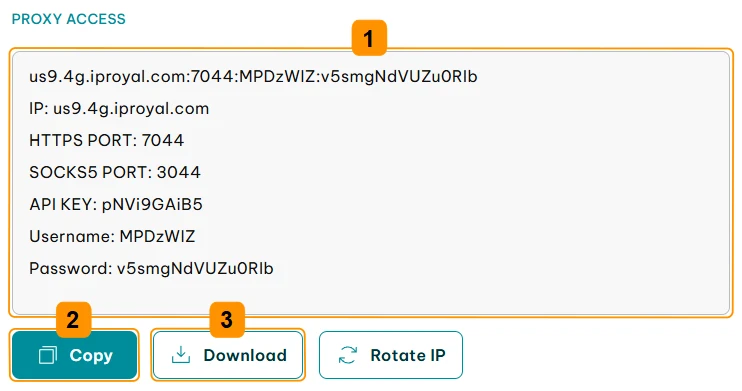
The ‘Proxy Access’ (1) section gives you an overview of your proxy details. These include a credentials string, ports for each protocol (HTTP/HTTPS and SOCKS5), your API key, username, and password. Click the ‘Copy’ (2) button to copy this data to your clipboard, or the ‘Download’ (3) button to save it as a .txt file for easy integration.
2. Rotate IPs manually or automatically
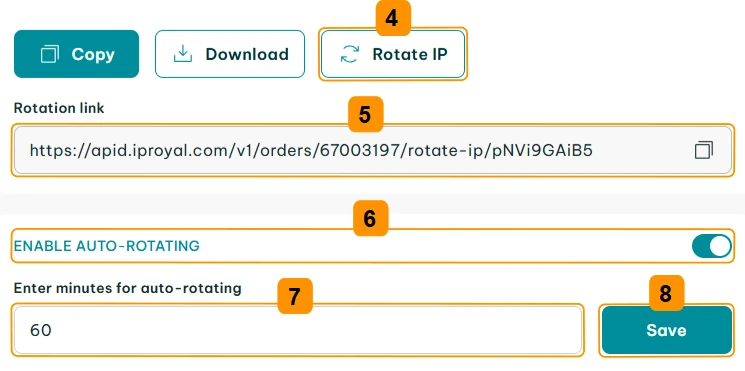
To rotate your IP address manually, use the ‘Rotate IP’ (4) button or the rotation link (5). Alternatively, toggle on ‘Enable Auto-Rotating’ (6) and set your preferred rotation interval (7), then click ‘Save’ (8).
How to Use IPRoyal Dedicated Mobile Proxies Credentials
Once configured, your dedicated proxies are ready to use with your software, automation tools, browser extensions, and more.
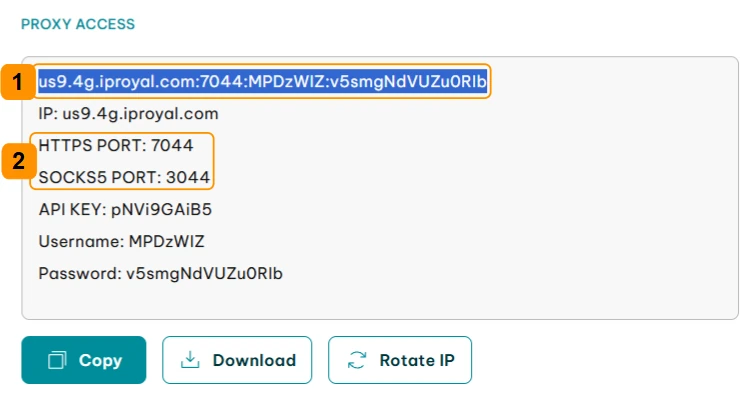
To get started, select the proxy string (1) from the ‘Proxy Access’ section and copy it to your clipboard. The string uses the HTTP/HTTPS protocol by default. To use SOCKS5, make sure to change the port number (2).
Next, use the IPRoyal Proxy Tester to quickly verify your proxy configuration, connectivity, and speed. It’s a great way to ensure your proxies work correctly before integrating them into your workflow.
- Select ‘Proxy Tester’ (3) from the menu on the left.
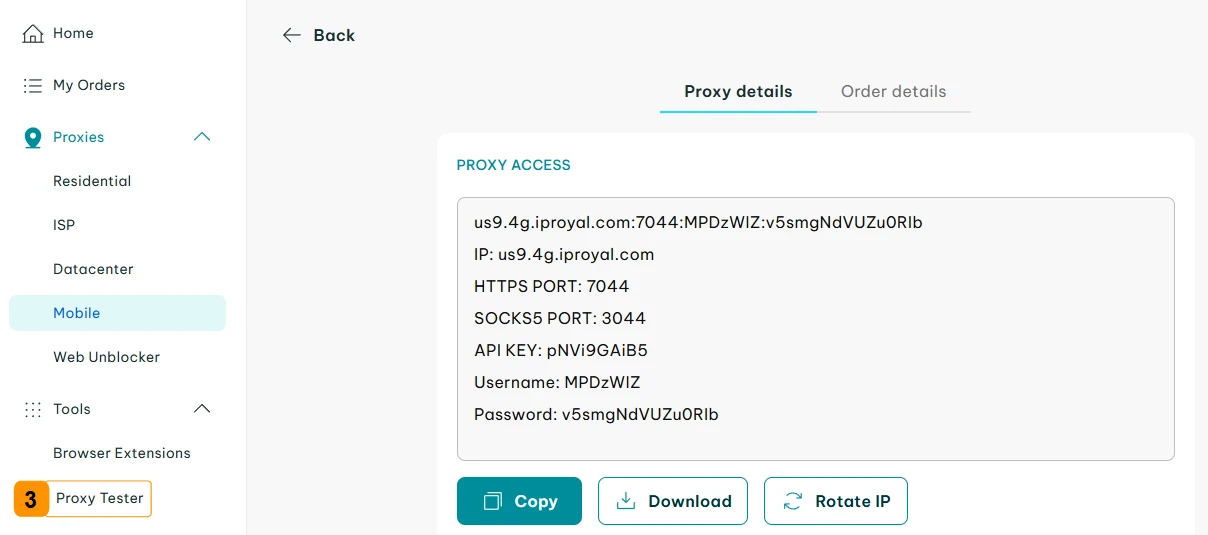
2. Select the protocol (4) you want to test and make sure you use the correct port number. Also make sure your proxy credentials use the correct format (5). Paste your credentials in the input field (6), and click ‘Begin test’ (7).
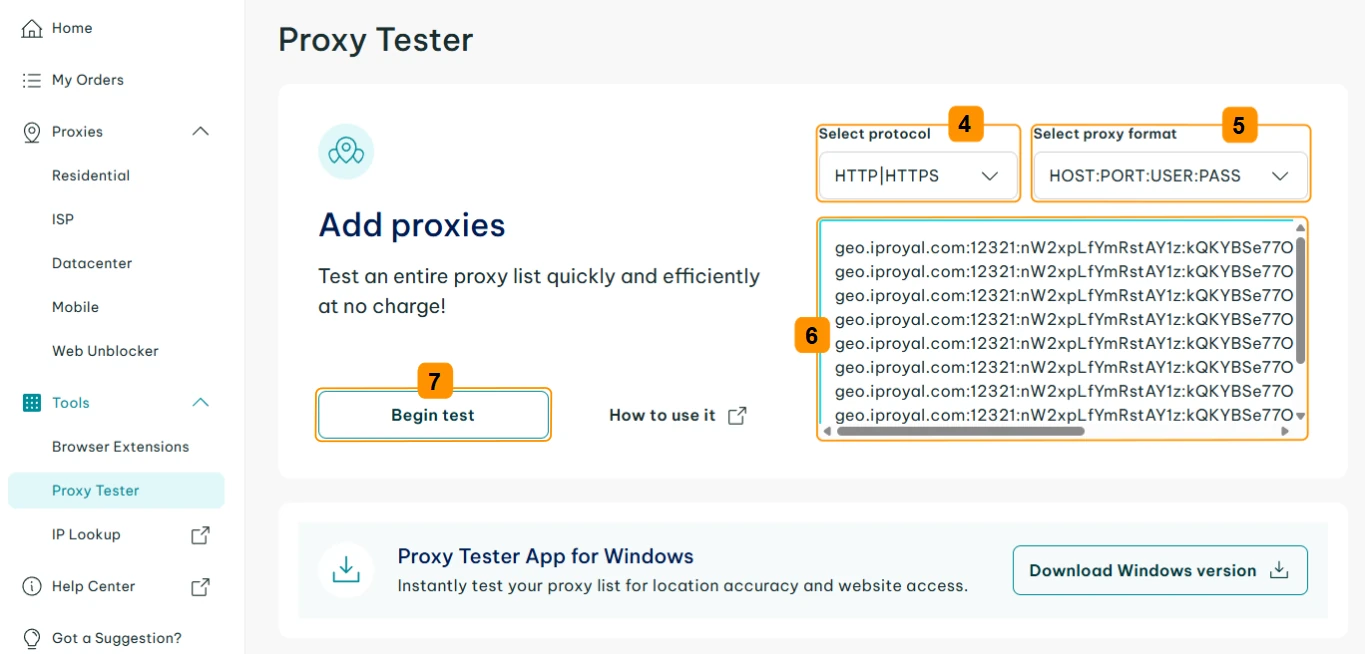
3. You will instantly get results for the provided credentials.

You can find more information about making requests in our Proxy Strings documentation.
How to Manage IPRoyal Mobile Proxies Orders
All Mobile Proxy orders are subscription-based.
For Dedicated Mobile Proxies, you can modify your subscription settings in the ‘Order details’ tab.
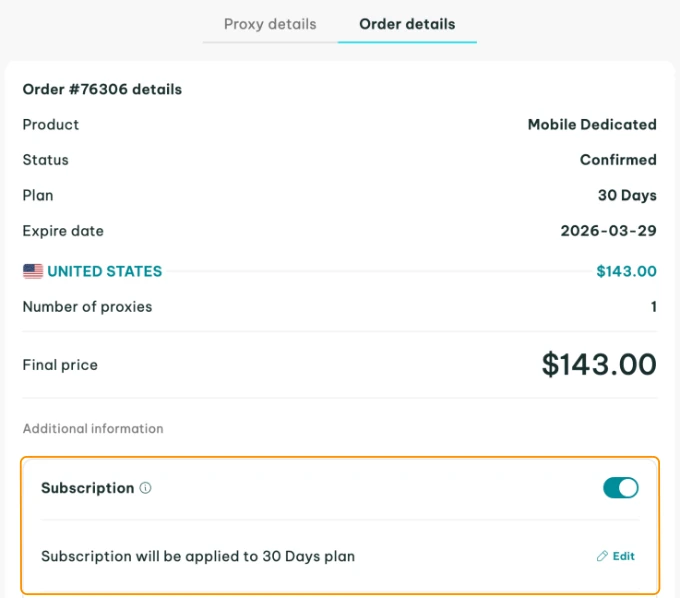
You can also manually extend an order by clicking the ‘Extend’ option in the ‘Mobile Orders’ section.
For Rotating Mobile Proxies, you can modify your subscription settings by clicking the ‘Manage Subscription’ button in the dashboard.
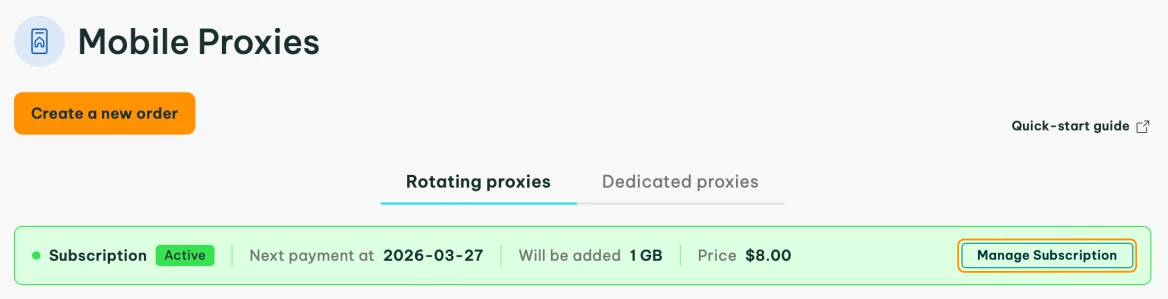
For more information, see our Extending an Order documentation.