Residential Proxies Quick-Start Guide

This quick-start guide will show you how to integrate IPRoyal Residential Proxies into your workflows - for web scraping, ad verification, market research, testing, and beyond.
IPRoyal Residential Proxies offer access to a global pool of responsibly sourced, genuine residential IP addresses that are compliant with the latest legal and data protection standards. They support precise geo-targeting, rotating and sticky sessions, and seamless integration with standard proxy configurations.
In this guide, you’ll find step-by-step instructions to:
- Purchase and access Residential Proxies
- Configure settings in the IPRoyal dashboard
- Use generated proxy sessions
- Monitor proxy usage statistics
- Integrate with popular tools
- Manage your Residential Proxy order
How to Purchase IPRoyal Residential Proxies
You can purchase new proxies through your IPRoyal dashboard. We offer two purchasing options to suit your needs: pay-as-you-go and subscriptions.
To place your first Residential Proxy order:
1. Log in or create an account at iproyal.com
2. Select ‘Residential’ in the menu on the left and choose between ‘Subscription’ and ‘Pay-as-you-go.’ Select the plan that fits your traffic needs or manually enter the number of GBs you need in the ‘Custom amount’ field, and click the ‘Buy Now’ button.
3. Choose your preferred payment method
4. Click ‘Complete order’
For any following orders:
1. Log in at iproyal.com
2. Select ‘Residential’ in the menu on the left and click ‘Create a new order’
3. Select the amount of data you need from the ‘Choose data amount’ list, or manually enter a custom number of GB in the field at the top
4. Choose a payment option: subscription is best for ongoing needs and includes an additional 5% discount, while pay-as-you-go is more suitable for one-time purchases
5. Click ‘Continue’
6. Choose your preferred payment method
7. If you have a coupon code, click ‘Have a coupon’ to apply it
8. If the order costs more than your balance, you can enable the ‘Split Your Payment with Balance’ option. Enter the amount you want to pay from your balance, and select a payment method for the remaining amount.
9. Click ‘Complete order’
How to Configure IPRoyal Residential Proxies
Once your order is confirmed, go to the dashboard to configure your proxies. The dashboard gives you full control over how your traffic is routed, including location targeting, session behavior, authentication, and more.
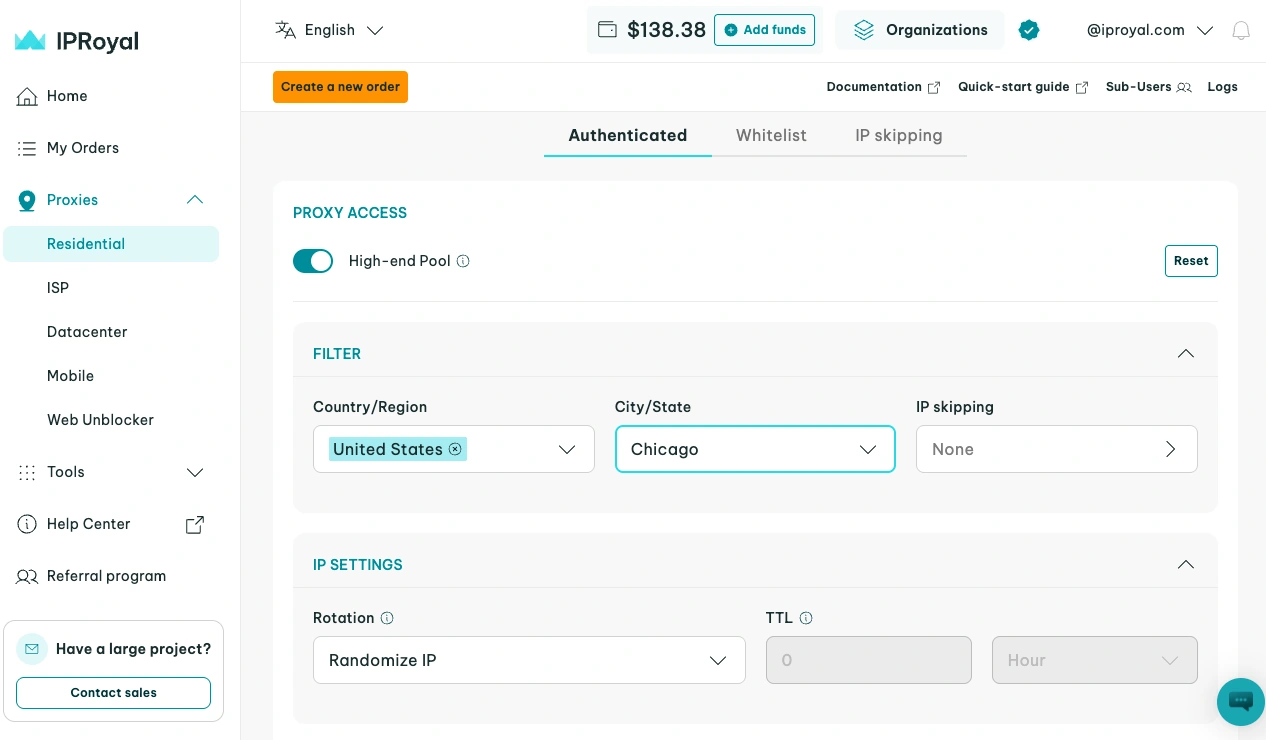
1. Enable the High-end Pool
Turn this option on to use only the fastest, most responsive residential IPs. Available with active subscription only.
2. Select the proxy location
Select one or more countries or regions. The ‘City/State’ section will update to show available options.
3. Choose the rotation type
- ‘Randomize IP’: get a new IP on each request
- ‘Sticky IP’: keep the same IP for a set period
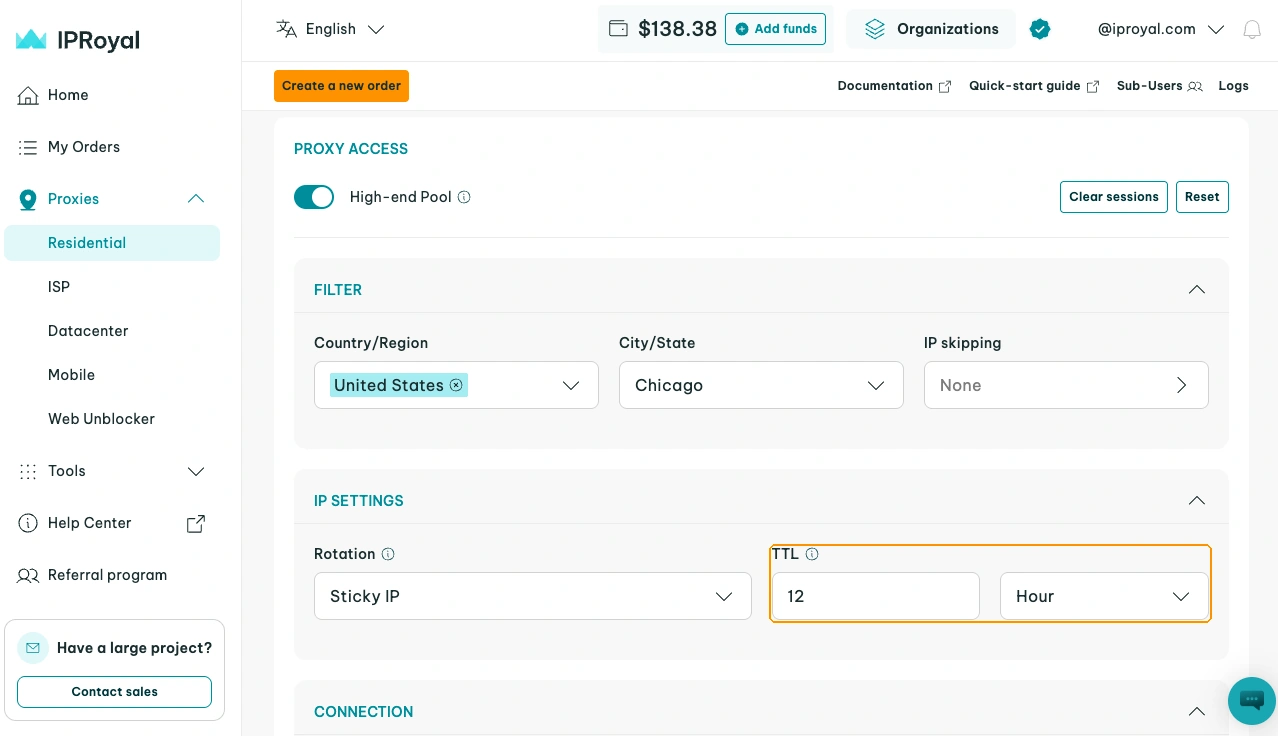
4. Set session TTL
If you chose the ‘Sticky IP’ option, set the duration for your sessions (from 1 second to 7 days).
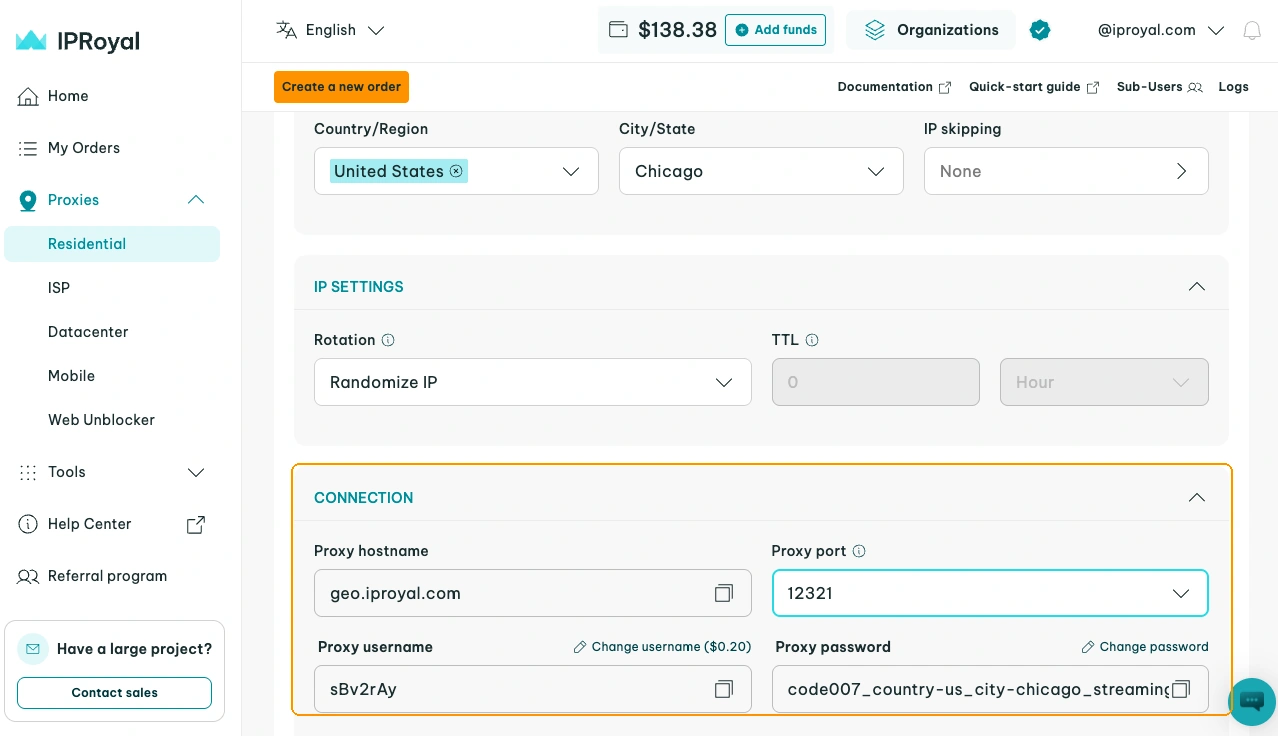
Once you configure your proxy settings, your proxy credentials are ready in the 'Connection' section. You can change your username and password at any time, as well as select a different port number.
You can find more information about these features in our documentation.
How to Use the Formatted Proxy List
Once you’ve configured your proxies, you can deploy them with your software, automation tools, browser extensions, and more.
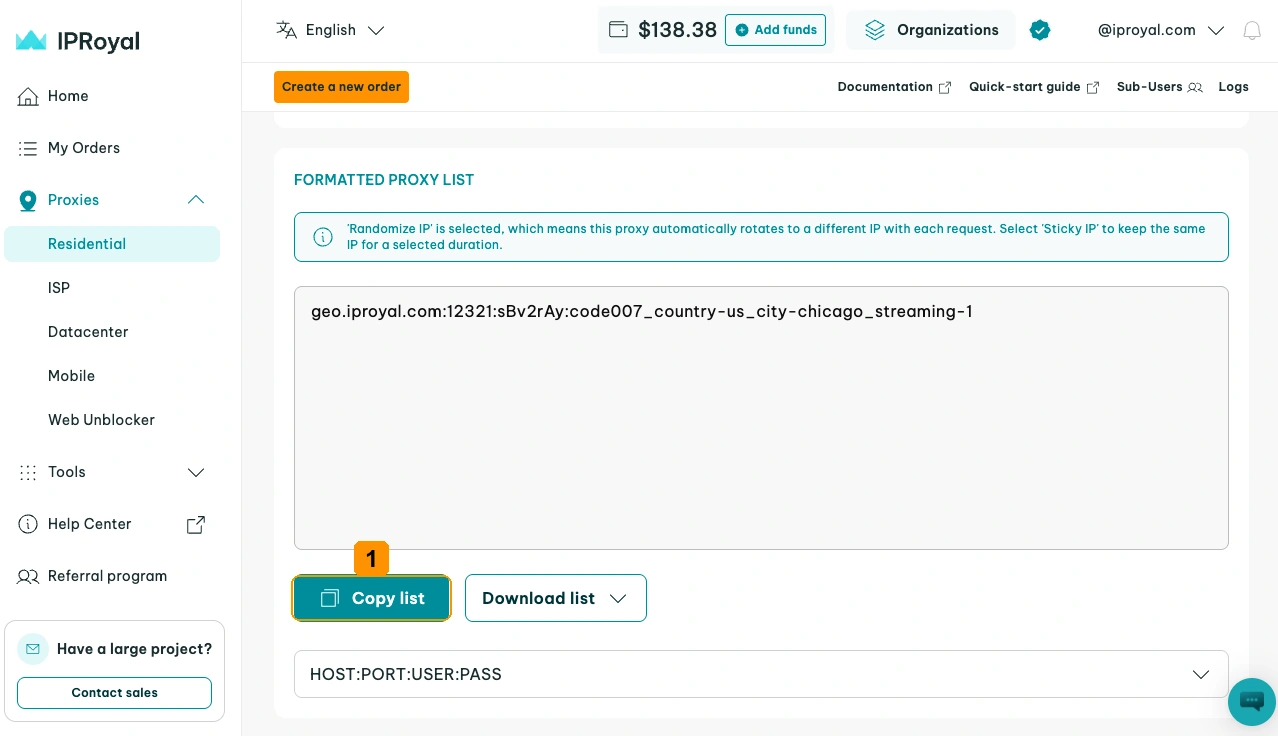
With 'Sticky IP', the list contains multiple sessions, each with a fixed IP for its duration. Use the 'Quantity' field to set how many sessions appear in the list.
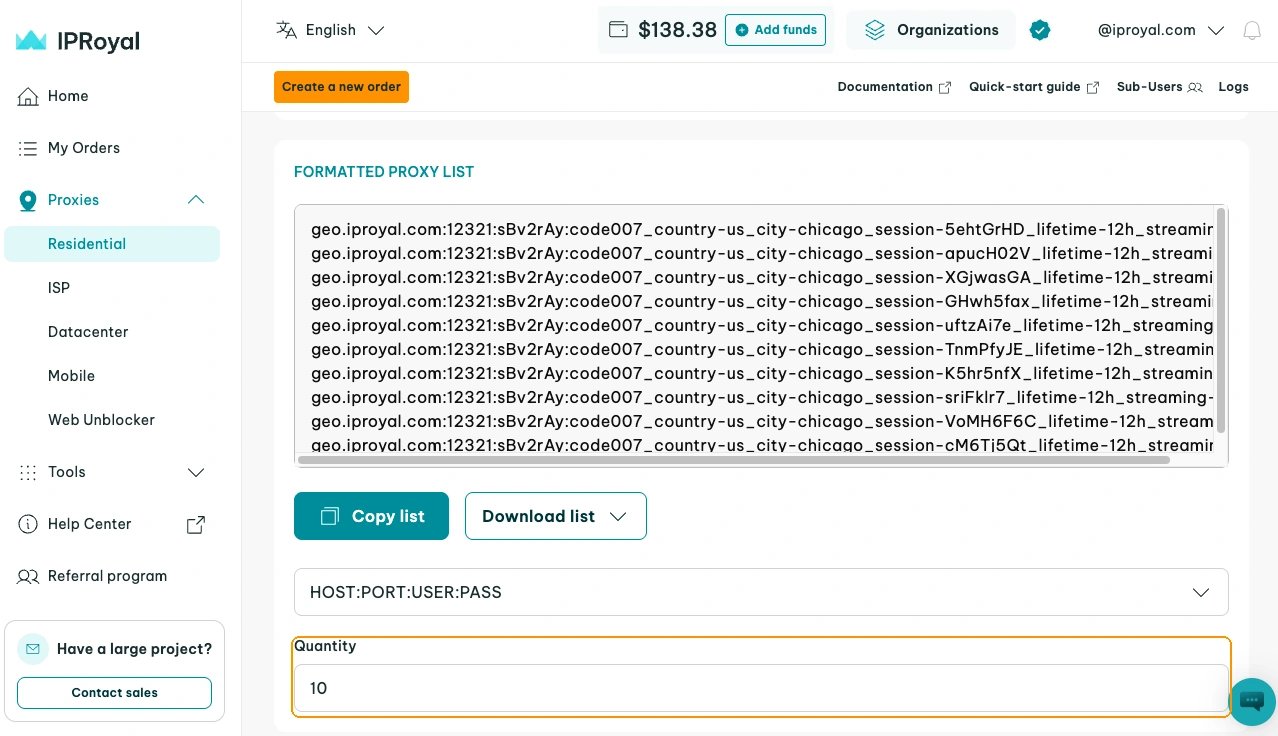
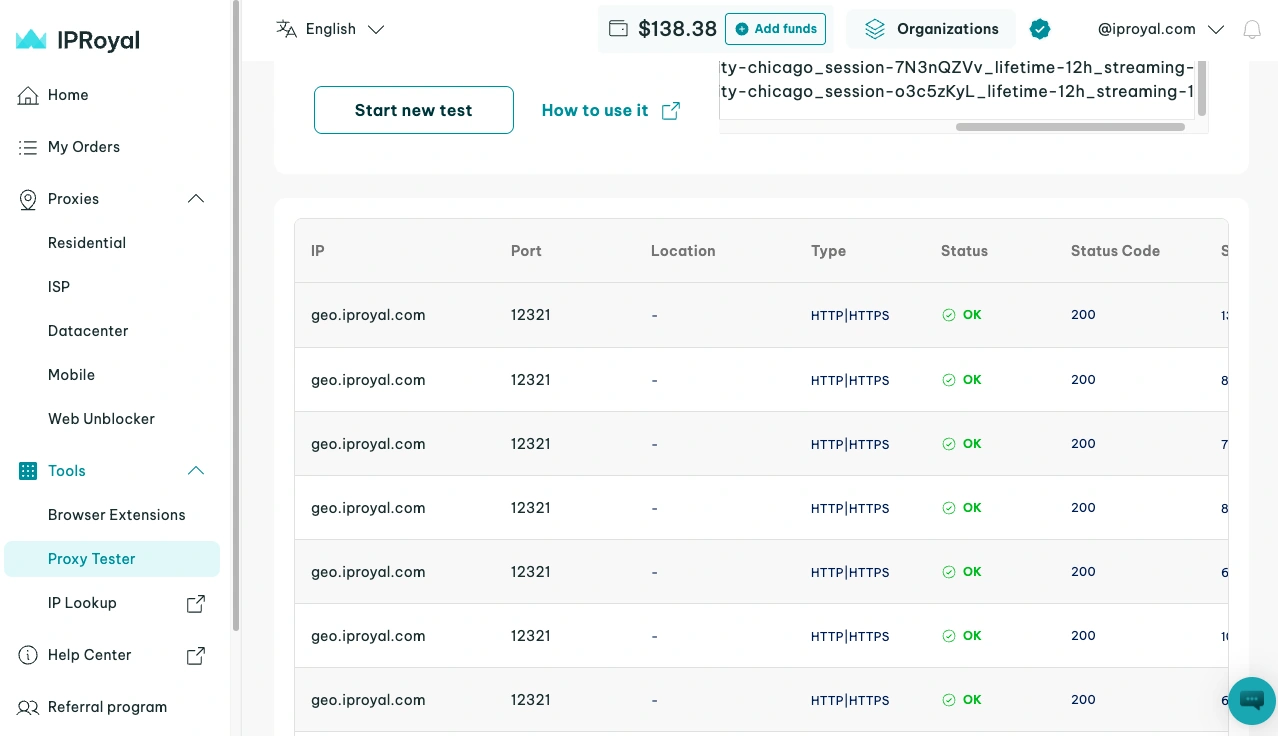
Once you have your proxies copied, use the IPRoyal Proxy Tester to quickly verify their configuration, connectivity, and speed. It’s a great way to ensure your proxies work correctly before integrating them into your workflow.
1. Select ‘Proxy Tester’ (2) from the menu on the left.
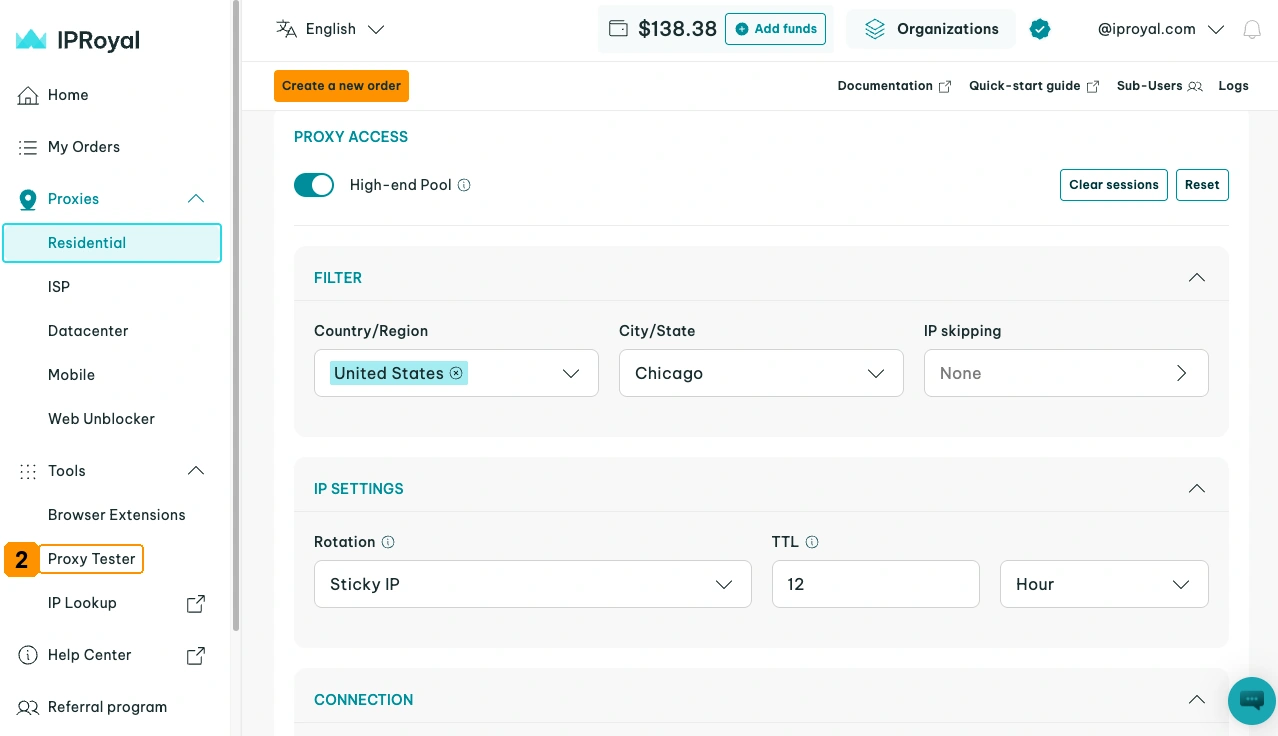
2. Select the protocol (3) you want to test, and make sure the format (4) matches the one you selected in your ‘Formatted Proxy List’. Paste your sessions in the input field (5) and click the ‘Begin test’ (6) button.
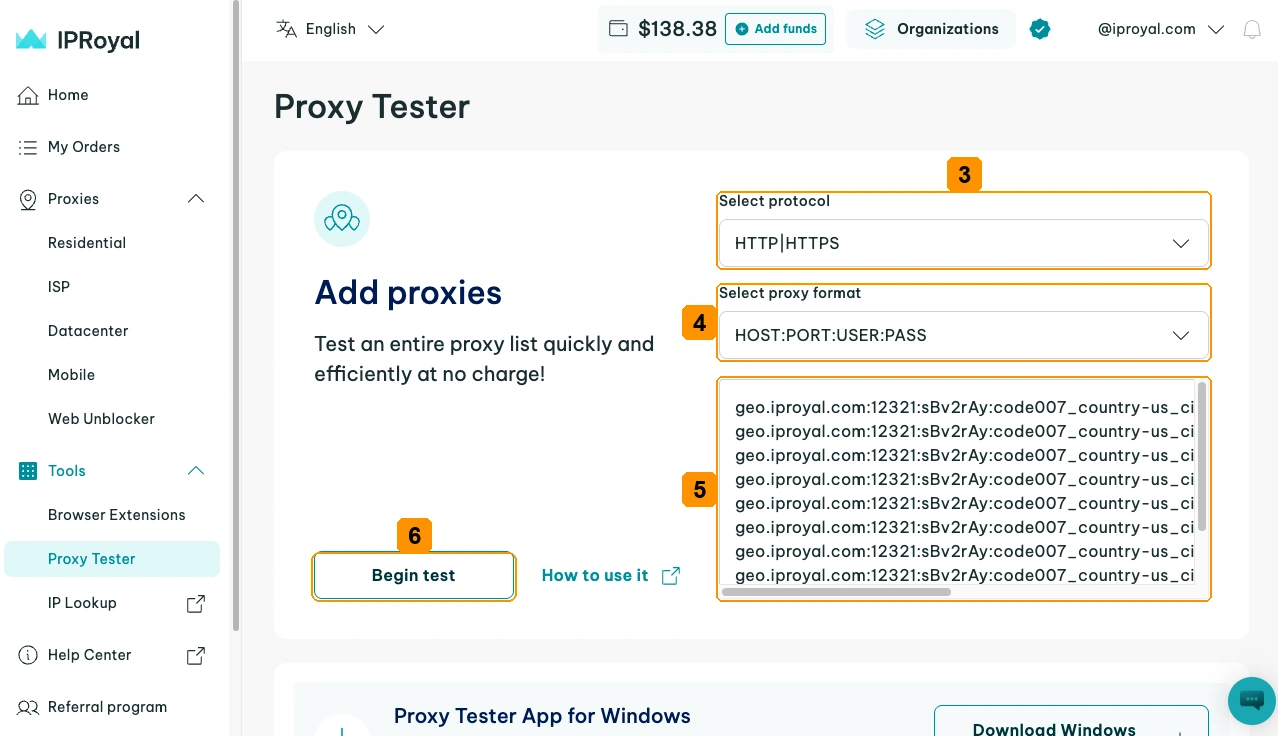
3. You will instantly get results for each provided session.
You can find more information about making requests in our documentation.
Specific IPRoyal Residential Proxy Features
Beyond the basic proxy configuration, IPRoyal offers advanced features to give you more control, flexibility, and security.
Whitelisting
Whitelisting is an authentication method that lets you grant proxy access to specific IP addresses without sharing usernames or passwords. It’s especially useful for teams that need to manage multiple users securely. Instead of creating multiple sub-users or sharing your credentials, you can simply whitelist specific IPs.
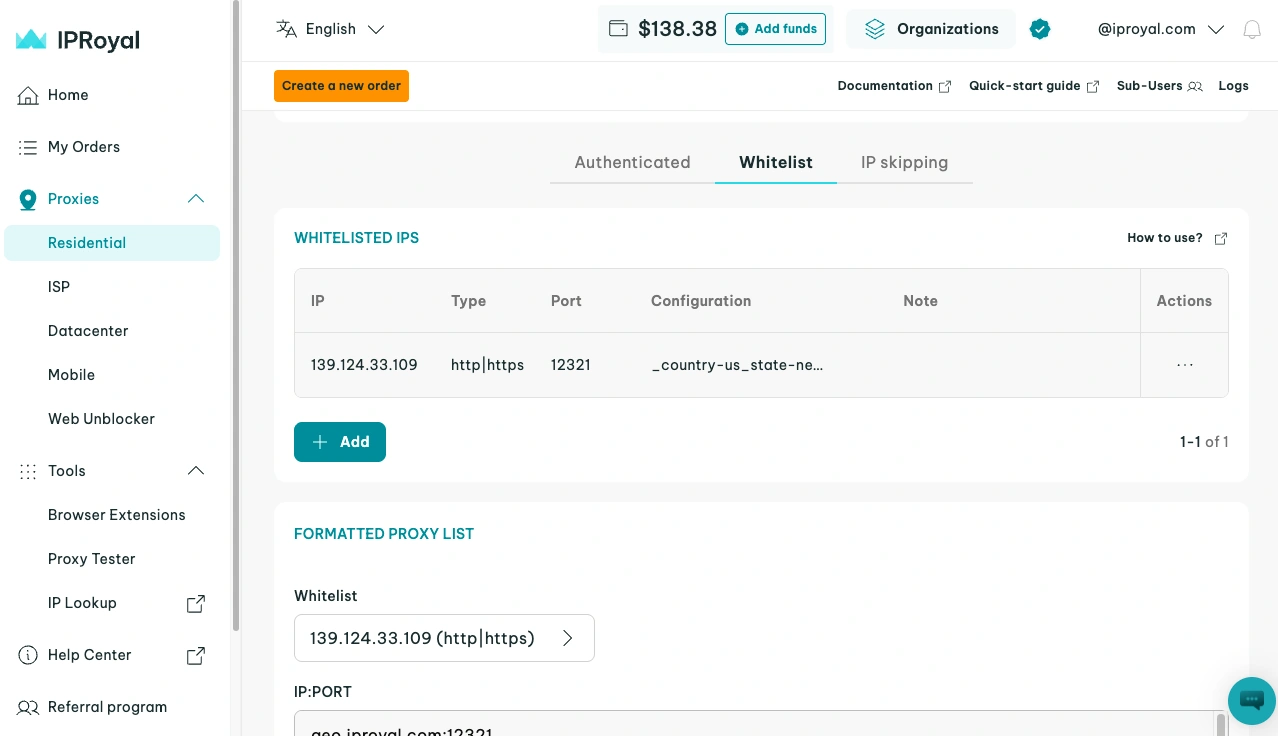
Learn more about managing IP whitelists in our Whitelisting documentation.
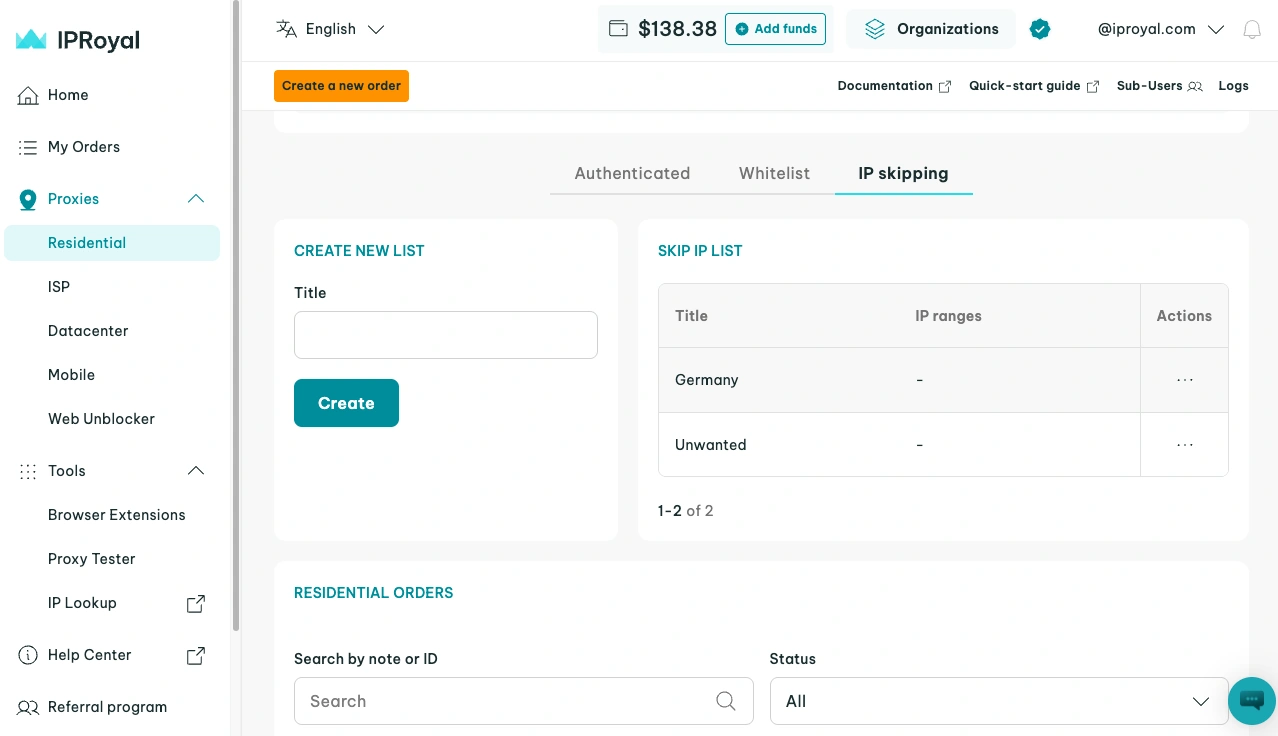
IP Skipping
With IP skipping, you can create lists of IP ranges you want to exclude from IP rotation to maintain higher performance and reliability across your operations.
Find more information on how to create and manage these lists in our IP Skipping documentation.
IPRoyal Residential Proxies Usage Statistics
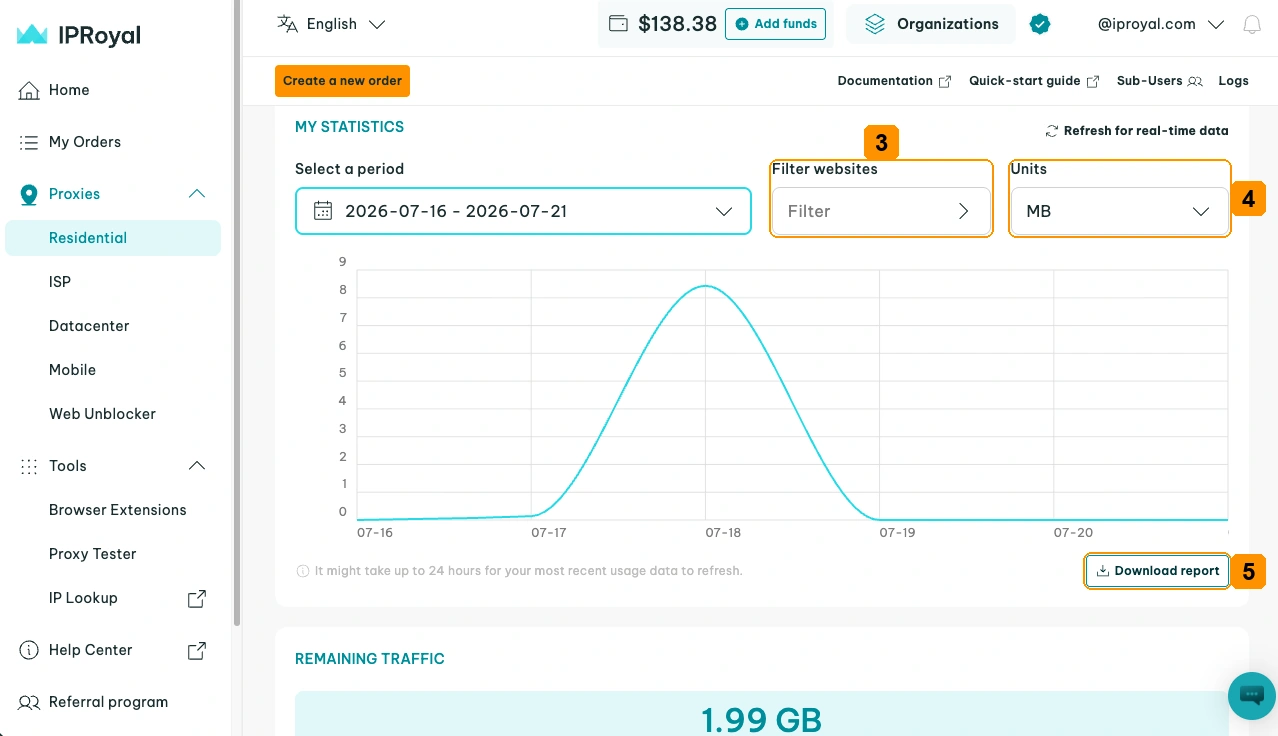
The ‘My Statistics’ section in your Residential Proxies dashboard provides detailed information about your proxy traffic usage. It allows you to monitor and analyze your residential proxy usage in real time (1) or over a specific period (2).
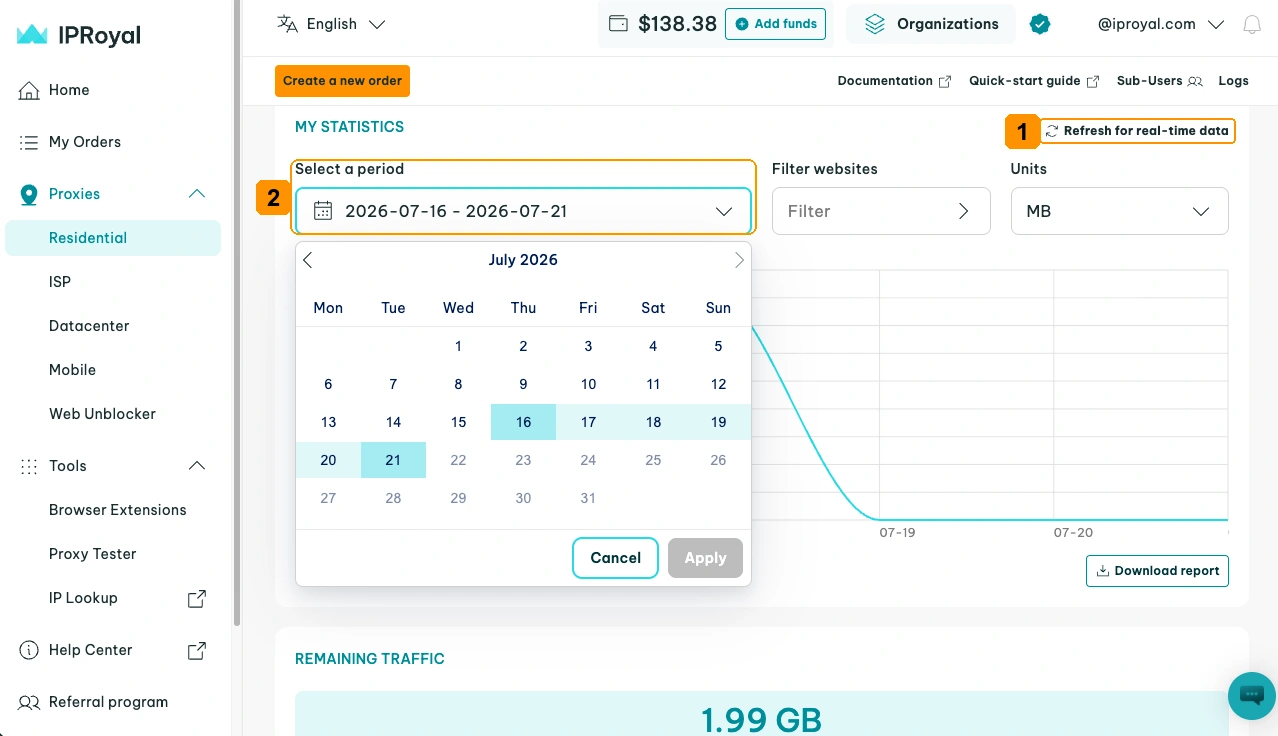
This helps you understand how your proxies are being used, so you can identify trends and peak usage times. With these valuable insights, you can manage your data allocation and optimize performance more effectively.
The ‘My Statistics’ section also allows you to filter data by specific websites (3) and choose your preferred unit of measurement (MB or GB) (4) for precise tracking. For deeper analysis or record-keeping, you can download a full usage report (5) at any time with a single click.
Explore more ways to monitor your traffic usage in our Statistics documentation.
IPRoyal Residential Proxies Integrations
Integrating your Residential Proxies with third-party tools or software allows you to automate workflows and improve data collection without interruptions.
Since the integration process depends on the specific tool or platform you’re using, it’s important to follow the right steps to avoid delays and connectivity issues.
For that reason, we provide comprehensive integration tutorials for the most popular tools, services, anti-detect browsers, desktop and mobile apps, and more.
Explore our Integrations page to find the guide you need to get started.
How to Manage IPRoyal Residential Proxy Orders
Residential Proxies can be purchased as a subscription or pay-as-you-go. Choosing 'Subscription' at checkout renews your plan automatically.
You can manage your subscription at any time from the Residential Proxies dashboard:
- If your subscription is cancelled, you can reactivate it from the Subscription status bar at the top of the dashboard
- If you want to update your existing subscription, use the 'Change Subscription' option
- If you only need more traffic on your current plan, the '+ Quick top-up' button lets you add data without changing your subscription.
For more details on managing your subscription, see our Subscription documentation.
Best Practices
To ensure a reliable and secure proxy experience, here are a few best practices:
- Keep your tools and apps updated to ensure stable operations
- Never share your account or proxy credentials to protect your bandwidth
- Monitor your usage statistics and adjust settings to allocate data efficiently
- Avoid using unverified third-party software to reduce security risks
- Test your proxies with our Online Proxy Checker to ensure they work correctly