Understanding the Challenge Required on Instagram: Tips for Users
News

Milena Popova
Key Takeaways
-
Instagram triggers this error when it detects a login attempt from an unknown device, a new IP address, or an unstable connection.
-
You can usually restore access immediately by following the on-screen verification prompts, clearing your app cache, or switching to a stable network.
-
To prevent this error from happening again, use a recognized device to log in, keep your app updated, and enable two-factor authentication.
If you use Instagram, you may have run into the Challenge_Required error while trying to log in. This security measure prevents unauthorized access but can be frustrating when it temporarily locks you out of your own account.
This post explains exactly what triggers the Challenge_Required error and provides straightforward steps to fix it. Let’s look at why this message appears and how to get your account running again.
What Is the Instagram “Challenge_Required” Error?
The “Challenge_Required” error appears when Instagram’s systems can’t confirm that a login or action really comes from you, most often because of a new device, an unfamiliar IP address, or behavior that looks automated. It works as a security checkpoint, so you need to verify your identity before Instagram restores access to your account.
When this error occurs, Instagram prompts you to verify your identity or take specific actions to prove that you’re a legitimate user, not a bot. It’s a type of security measure that the Instagram app uses to ensure the platform is used by legitimate users and not third-party apps or automation systems.
But what if you rely on scheduling or account management tools for repetitive tasks? Or what if you’re not prompted to verify your identity, or verifying it doesn’t solve your problem?
Whether Instagram has sent you the error message by mistake or not, there are ways to fix it. But first, let’s take a closer look at the most common reasons for this error on Instagram so you can try to avoid it.

What Are the Reasons for the “Challenge_Required” Error on Instagram?
Logging in With an Unrecognized or New Device
If you attempt to log in to your account from an unknown device or a device that the platform doesn’t recognize, it may prompt you to verify your identity through the Challenge_Required process as a security measure.
This is typical for users juggling multiple devices, so if you’re one of them, you’ll probably get this error message sooner or later.
Logging in From an Unrecognized IP
Instagram developers take security seriously to protect user accounts from unauthorized access and potential compromise. When you log in from an IP address that Instagram doesn’t recognize, it may interpret this as a potential security risk.
It helps prevent unauthorized individuals from accessing your account, even if they have your login credentials.
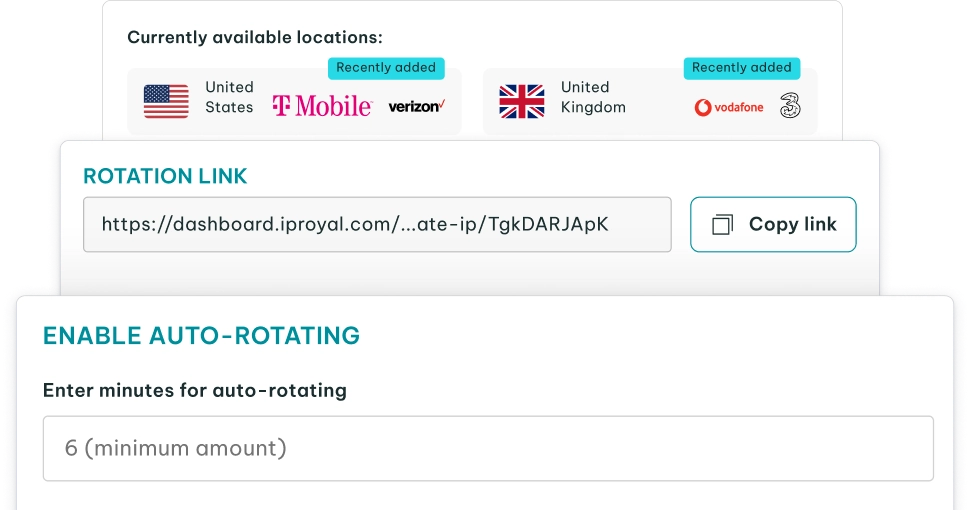
However, this can easily happen when handling multiple Instagram accounts or utilizing an automation tool on the platform. In such cases, it’s important to use dedicated IP addresses that will ensure each account is associated with a specific IP address.
The best way to avoid and resolve this issue is to use an Instagram proxy. These proxy servers will keep your accounts safe from bans and restrictions so you can use automation tools to grow your engagement with minimal risk of interruptions and errors.
A Failed/Poor Connection
Another potential reason for this error is when your device struggles to connect with proper security protocols. This can happen if your internet is overwhelmed due to simultaneous downloads or a poor connection.
Any obstacle that prevents your browser or mobile app from securely connecting to Instagram’s protocols can result in the Challenge_Required error.
Outdated Instagram App
Social media platforms like Instagram regularly update their apps to patch security vulnerabilities and improve overall user experience. When you’re using an outdated version of the app, you may be missing important security patches, which could cause the Instagram error Challenge_Required.
The App Servers Are Down
Sometimes, the problem is not in your device, internet connection, or how you use the app but rather in Instagram itself. When the Instagram servers experience downtime, it disrupts the communication between your device and Instagram’s servers, leading to various errors, including the Challenge_Required message.
This error message occurs because the server fails to respond to authentication requests from the user’s device. Without proper server communication, the app may be unable to verify the user’s credentials or retrieve necessary data, resulting in this error message.
Clogged-up Instagram Cache
When the cache of the Instagram app becomes clogged with too many temporary files or becomes corrupted, it can lead to the Challenge_Required message. The cache stores temporary files and data that help the app load faster and operate smoothly.
However, if this cache becomes overloaded or contains outdated or corrupted information, it can interfere with the app’s functionality, including the authentication process.
In the case of this error, the corrupted cache may prevent the app from accessing essential data needed for authentication, such as login credentials or session information. As a result, the app may prompt the user to complete additional verification steps or challenge responses to ensure security and regain access to the account.
Why Does Instagram Think I’m a Bot?
The platform constantly monitors your behavior to catch spam and automated activity. If you follow or unfollow dozens of accounts in a few minutes, the algorithm will flag your profile. Even if you’re just quickly tapping through a recommended list, Instagram views this speed as bot behavior. You can also trigger these filters by pasting the exact same comment on multiple posts.
Account age is also an important factor in how much freedom the security system gives you. Brand new profiles face strict limits on how many actions they can take per hour. Older accounts with a history of regular use get much more flexibility.
Finally, sudden changes to your connection details will raise red flags. If you log in from a different country on a new device, or simply turn on a VPN, Instagram might temporarily lock the account to verify you are the real owner.
How Long Does the Challenge_Required Error Last?
The duration of the Instagram Challenge_Required message can vary depending on the specific factors that triggered it.
If the error is a minor glitch, you can often resolve it quickly after completing the required challenge, such as verifying your identity by email or phone number. In some cases, it can potentially last up to a few hours.
However, if it’s caused by technical issues on Instagram’s end, such as server downtime or maintenance, it could last until the app resolves the underlying problem.
If the error is due to suspicious activity detected on your account, the duration might be longer. That’s because Instagram may require additional steps to ensure the account’s security, such as changing the password or reviewing recent account activity.
If it turns out you’re using bots or third-party apps or are involved in bad automation, your account might be suspended.

Challenge_Required vs. Other Errors
| Restriction type | Error message | Common triggers | Typical duration | How to resolve |
|---|---|---|---|---|
| Challenge_Required | App asks you to confirm your identity | Logging in from a new device, unfamiliar location, or IP address | Until you complete the security prompt | Follow the on-screen prompts to verify your email or phone number |
| Action_Blocked | App stops you from liking, following, or commenting | Hitting daily limits for interactions like following too many people | A few hours to a week | Pause the blocked activity and wait for the restriction to lift |
| Try_Again_Later | Warning about repetitive actions | Doing the exact same action too quickly in a short timeframe | Usually 24 to 48 hours | Stop the action. Switching from Wi-Fi to cellular data sometimes fixes this instantly |
| Consent_Required | Prompt to review updated policies | Instagram updates its terms of service or data policies | Until you accept the new terms | Read and accept the agreement on the screen to regain access |
| Temporarily_Restricted | Notice that you lost certain privileges | Violating community guidelines like posting inappropriate content | Usually 7 to 30 days | Wait out the penalty period and avoid further violations |
| Suspended | Login screen states you lost access to your profile | Severe platform violations, using unauthorized bots, or suspected fraud | Pending until support reviews your appeal | Submit an appeal through the app using the provided form |
| Permanently_Banned | Notice that your account has been permanently disabled | Repeated offenses or failing a final suspension appeal | Permanent | The decision is final, and Instagram’s Terms of Use don’t allow opening a replacement account |
How to Fix the Challenge_Required Error on Instagram?
No matter why you’re seeing this error and how long it lasts, there are a few ways you can try to fix Challenge_Required error issues. Here are the best solutions available:
1. Verify Your Account When Required
This is the first thing to do when getting hit by the Challenge_Required error. Just follow the on-screen instructions to prove it’s really you. If you’ve got this message while using a web browser, try logging in again via your tablet or phone.
Verifying your Instagram account via tablet or mobile devices known to the app will make things easier. Once you’re back, activate two-factor authentication to avoid getting this message again. Using a verification code to log in will reduce the chances of getting this error in the future.
2. Check Your Internet Connection
If verifying your account didn’t help you solve the issue, the next thing to do is to test your internet speed to see if a slow connection is causing the problem. There are plenty of websites offering internet speed tests, so you can easily check your upload and download speeds.
If you get this error while using mobile data, switch to a stable Wi-Fi connection. But if you’re already on Wi-Fi, try hopping on mobile data and see if this helps you access Instagram.
3. Log in From Another IP Address
If none of the above helps, try logging in from a different IP address to resolve the error. You can do that by changing your connection from Wi-Fi to a mobile data plan or vice versa.
If you manage several accounts, the long-term fix is the opposite of switching. Assign each account its own dedicated IP address through a proxy server and keep it consistent, since frequent IP changes are one of the main triggers.
4. Restart the App
This may sound simple, but it can fix the Challenge_Required error, especially if a temporary glitch caused it. Just keep in mind that closing the window on your tablet or mobile device is usually not enough to fix the issue.
You should also close any other app running in the background before restarting Instagram. This applies to all iPhone, iPad, and Android users.
Doing this simple trick can resolve the glitch caused by your current Instagram session.
5. Check for Instagram Updates
The app regularly releases updates to improve performance and fix bugs, so make sure you use the latest version.
Android device users should check for Instagram updates on the Google Play Store. On the other hand, iPhone and iPad users can check the App Store. So, if you see one available, make sure you install it and try accessing Instagram as usual.
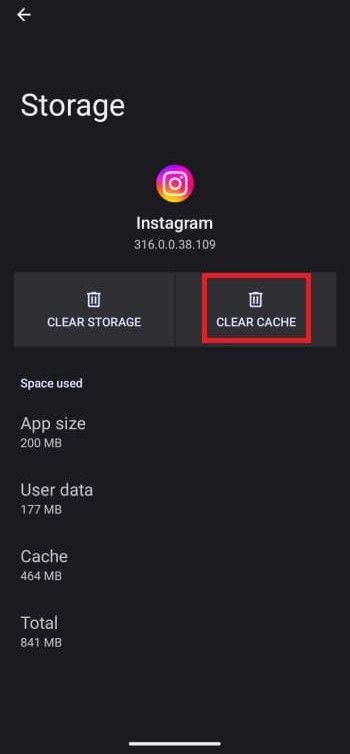
6. Clear the Instagram App Cache
Sometimes, this error message can be triggered by a messed-up file in the cache memory, so you can try clearing it to fix it. To clear the app cache on your iPhone or iPad, offload or uninstall the Instagram app.
And for those using Android devices, here are the steps to follow to clear the cache successfully and access the Instagram login screen:
- Go to ‘Apps’ from ‘Settings’
- Choose ‘Instagram’
- Select ‘Storage & cache’
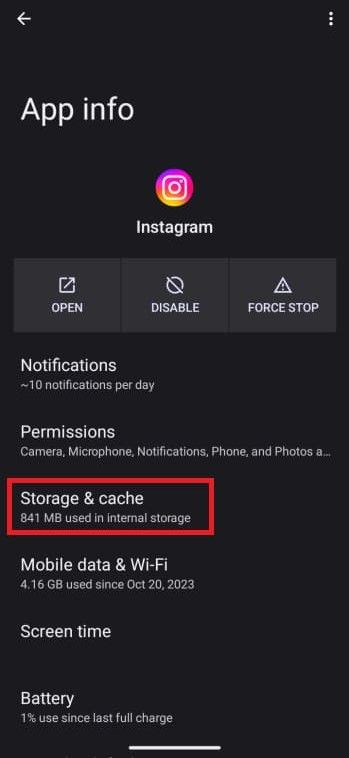
- Click on ‘Clear cache’
7. Access Data in Instagram
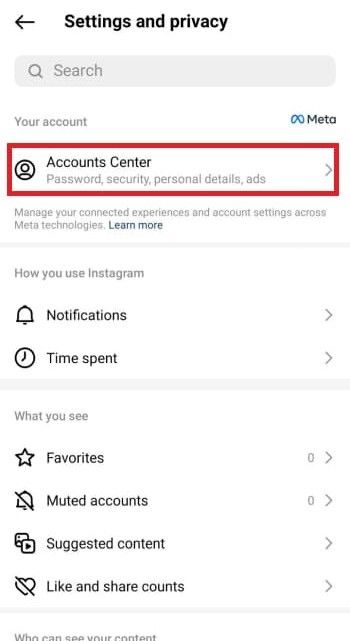
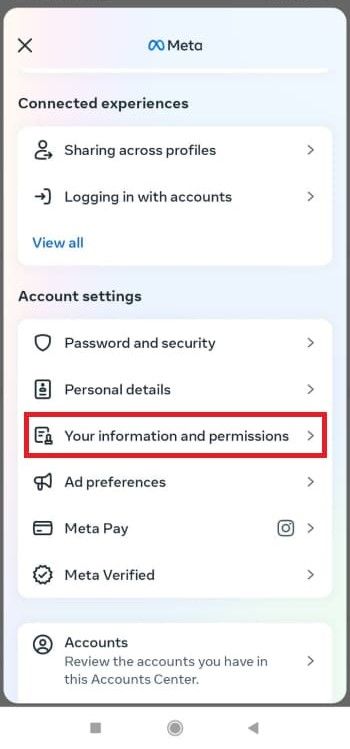
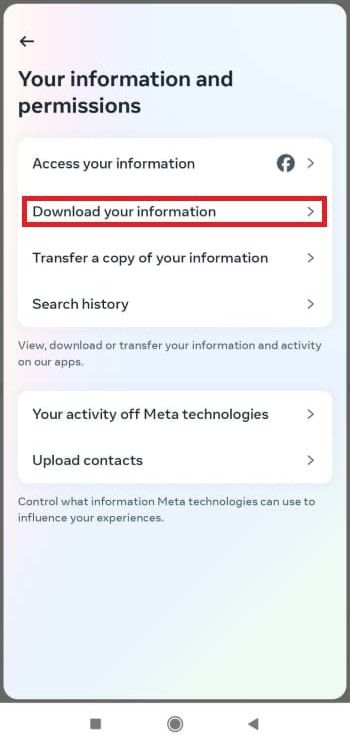
You can try this method if you can log in to Instagram using a recognized device. This should help you solve the error for a future login attempt. Here’s how to do it:
- Go to your Instagram profile
- Tap the three-line menu icon
- Select ‘Settings and privacy’
- Go to the ‘Accounts Center’
- Tap ‘Your information and permissions’
- Select ‘Download your information’
8. Uninstall/Reinstall the App
If the error keeps coming back after you’ve cleared the cache, uninstall the Instagram app, wait a day or two, and reinstall it from the Google Play Store or App Store. A fresh install removes corrupted local data and gives you a clean login session.
9. Check the Instagram Server Status
Last but not least, look for updates on the current Instagram server status on the official Instagram website to see if a huge data load causes the error.
How to Submit an Appeal and Recover Your Account
If your account gets fully suspended, you will need to submit an appeal to get it back. When you try to log in, Instagram will show an on-screen prompt asking you to verify your email and phone number to start the process.
In some cases, support will send a follow-up email asking for a selfie. You will need to take a clear, well-lit photo of yourself holding a handwritten code they provide. Reviewers will use this image to verify your identity against the photos on your profile.
The review process usually takes 24 to 48 hours, though it can take longer. Keep in mind that a full suspension is different from a temporary action block. If you can still log in but just cannot like or comment, you do not need to submit an appeal; all you need to do is wait for the temporary penalty to expire.
To Sum Up
Seeing the “Challenge_Required” error doesn’t necessarily mean the end of your Instagram career. While the issue can prevent you from using the app for a few hours or days, it can be solved using the right methods. Try as many of them as needed to fix it and continue using Instagram without interruptions.
FAQ
How do I know if Instagram banned me?
If you are banned, you will see a message stating your account has been disabled as soon as you try to log in. Your profile will also disappear from the search bar, and anyone who goes to your page will see a “User not found” screen.
Why is my account Action Blocked?
If you started liking or commenting on posts too fast, which often indicates bot activity, Instagram may throw the Action_Blocked error. These limits are there to prevent spam and stop bots from overwhelming the servers.
How do I fix “Try Again Later” on Instagram?
The best fix is to stop the action you were doing and wait 24 to 48 hours for the limit to reset. You can also try switching from Wi-Fi to cellular data, as changing your IP address sometimes resolves the error instantly.
How long is a temporary restriction?
Temporary limits usually last anywhere from a few hours to a week. The time depends on your account history and which rule you violated. Don’t submit any appeals for this as your access will return automatically once the penalty expires.
How do I appeal an Instagram suspension?
Try to log in to your account and follow the on-screen prompts to submit an appeal. You will usually need to verify your email and phone number. In some cases, support may send a follow-up email asking for a photo of yourself holding a security code to prove your identity.
Does a VPN or proxy cause Challenge_Required?
Yes. Using a VPN changes your IP address and makes it look like you are logging in from a different country, which triggers the security filters, and you will need to verify your identity to regain access.