Mozilla Firefox Proxy Add-on Quick-Start Guide

This guide will introduce you to the IPRoyal Mozilla Firefox Proxy Add-on. It’s a free, 100% secure browser add-on that enables you to switch between all your proxy profiles seamlessly. We will cover its key advantages, features, installation, and usage.
Advantages of Using the Mozilla Firefox Proxy Add-on
Here are the key advantages of our Proxy Add-on:
- All-in-one proxy management
Create different profiles for different proxies, locations, and configurations, and switch between them as needed.
- One-click proxy changing
Switch between your proxy profiles with a single click - no need to log into your dashboard each time you want to use a new IP address.
- Easy profile customization
Customize your proxy profiles with features like IP skipping, localization, high-end proxies, and IP rotation to meet your specific needs.
- High compatibility
Use any type of proxy from any provider. If you’re an IPRoyal client, simply log in and don’t worry about usernames and passwords.
How to Install the Mozilla Firefox Proxy Add-on
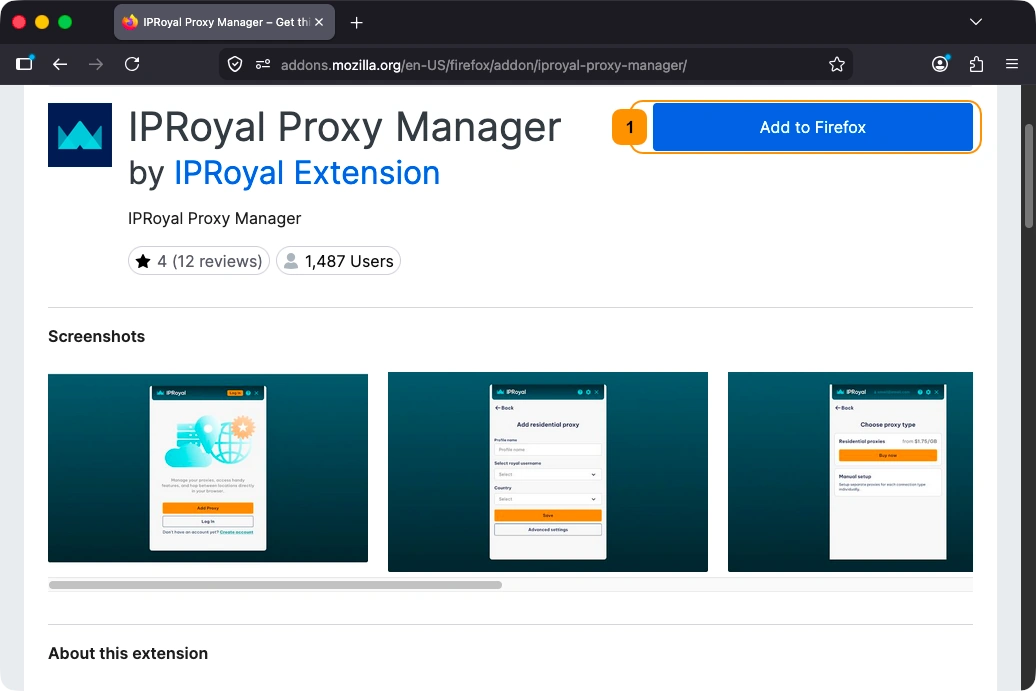
The Proxy Add-on extension is available on the Firefox Add-ons page. To add it to your browser, simply click the 'Add to Firefox' (1) button.
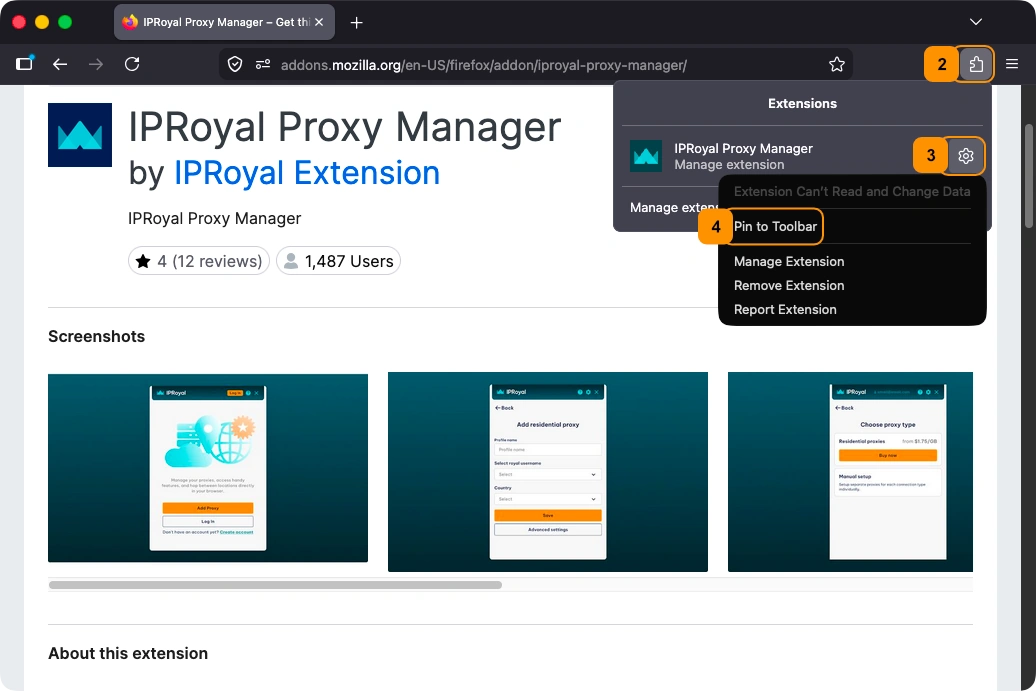
Once you do, make sure the add-on is pinned so you can access it easily. Click the add-ons menu icon (2), then the wheel icon (3) next to the IPRoyal Proxy Add-on, and select ‘Pin to Toolbar’ (4) for easy access.
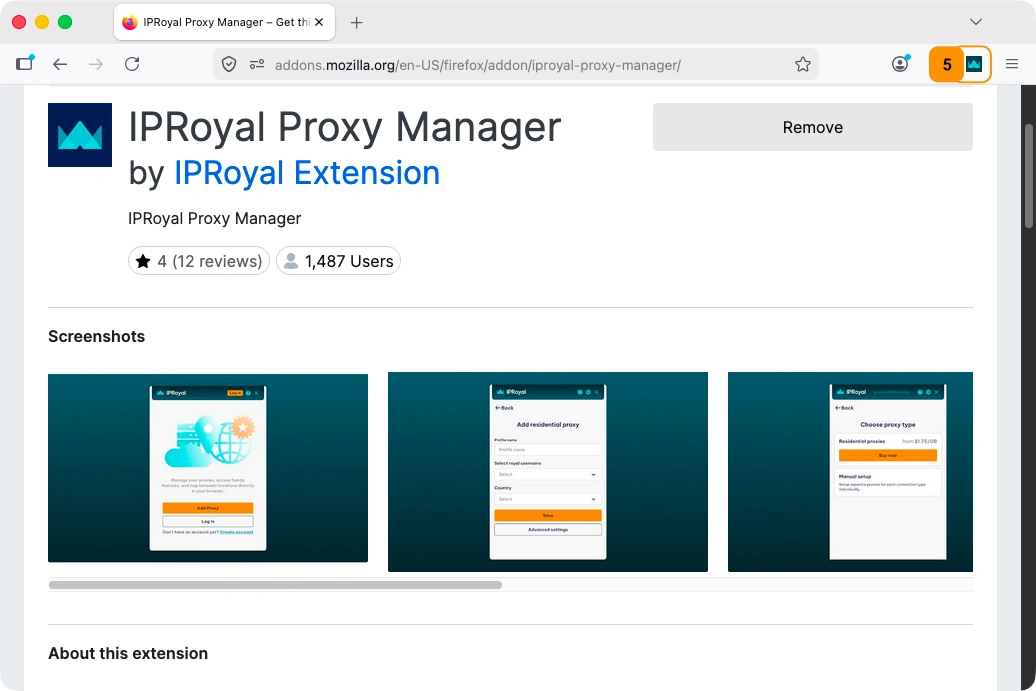
Next, click the IPRoyal Proxy Manager (5) icon, which is now visible in your add-ons panel, to get started.
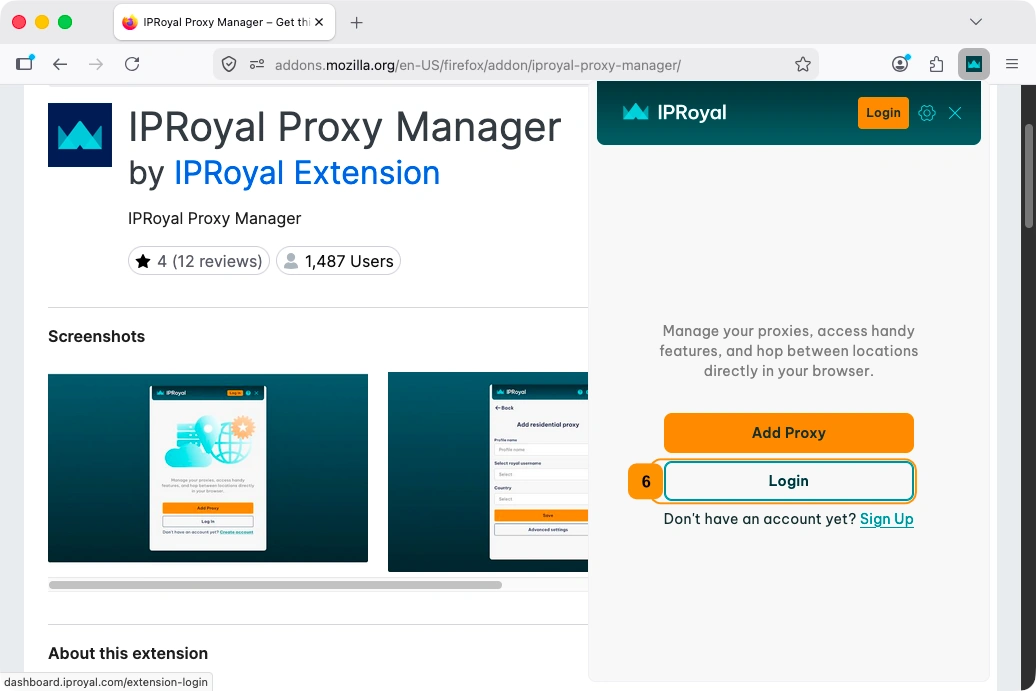
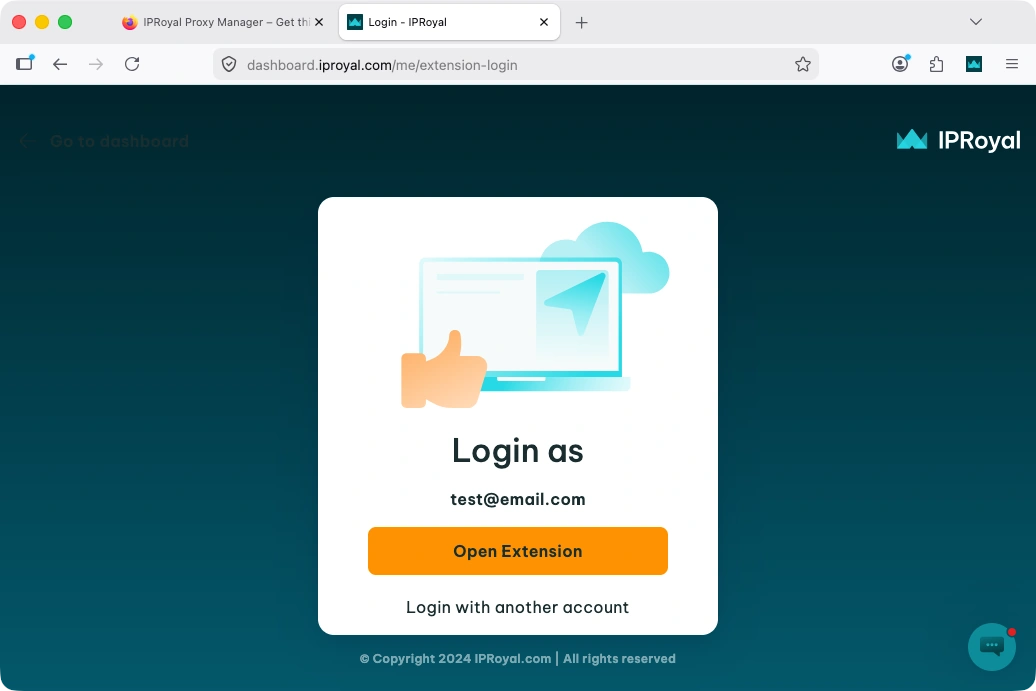
You will be prompted to either add a proxy manually or log in. The easiest and the most convenient option is to log in, as your IPRoyal proxy profiles will be automatically authenticated. Click the ‘Login’ (6) button and a new browser tab will appear.
Follow the on-screen instructions to get started.
Setting Up Proxy Profiles
To start using the Mozilla Firefox Proxy Add-on, you need to create a profile first. The add-on supports all IPRoyal products, HTTP/HTTPS and SOCKS5 protocols, as well as free proxies and proxies from other providers.
There are three ways to create a profile, and we’ll guide you through each one.
1. Quick Proxy Profile Creation
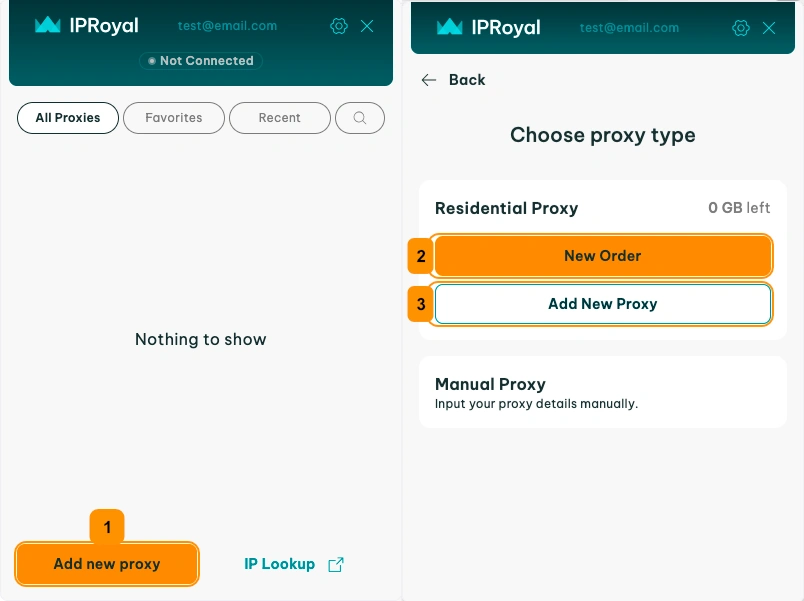
To quickly add a proxy profile simply click the 'Add new proxy' button (1). Then, choose your proxy type (Residential or manual). For our Residential proxies, you can place orders without visiting the dashboard by clicking the 'New Order' (2) button. If you already have residential traffic on your account, click on 'Add New Proxy' (3).
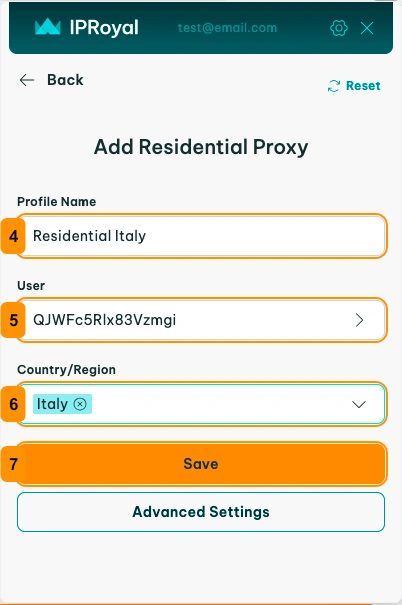
Let’s say you wanted to use a residential proxy from Italy. Start by typing in a Profile Name (4). The add-on will use the account (5) you logged in with to generate your credentials. Set Country/Region (6) to Italy and click the 'Save' button (7).
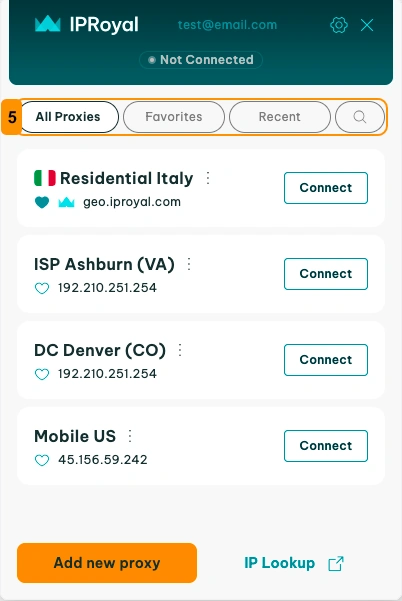
Your newly created proxy profile will now appear in the add-on interface. To enable it, click the 'Connect' button (8) next to the profile. Once activated, the status will update to 'Connected' (9).
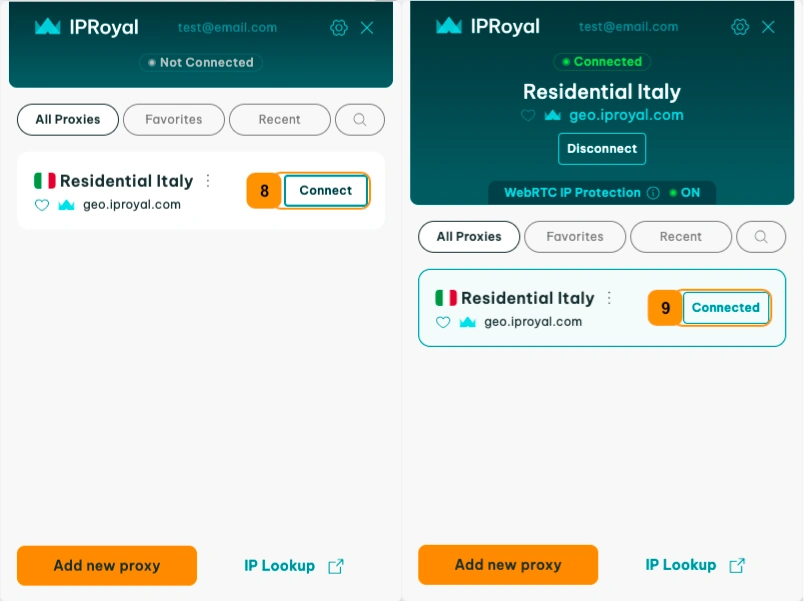
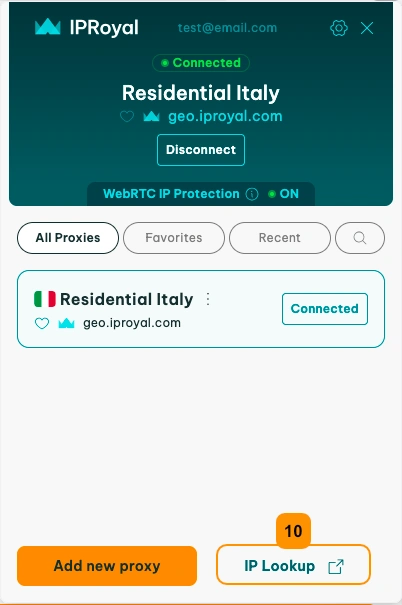
To see if your proxy is working properly, click the 'IP Lookup' button (10).
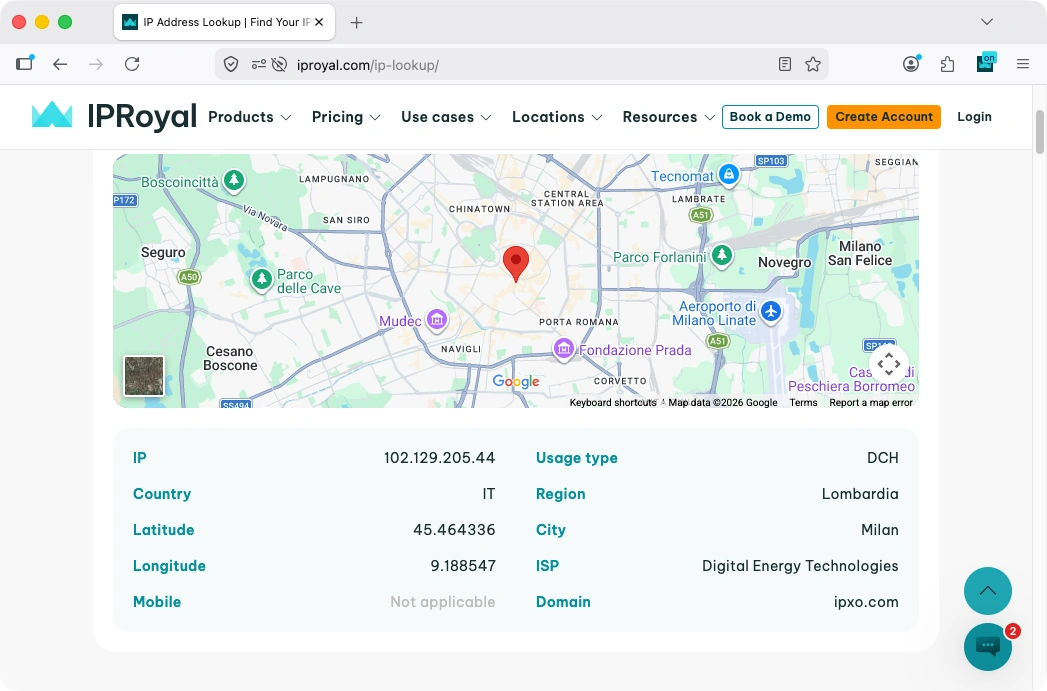
Our free IP Lookup page will open, showing your proxy’s IP address, location, and other information.
2. Advanced Proxy Profile Creation
If you’re looking for more customization, additional options are available. Simply click on the 'Advanced Settings' button (1).
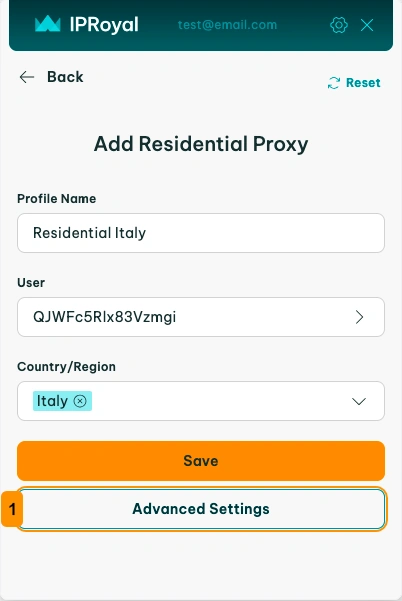
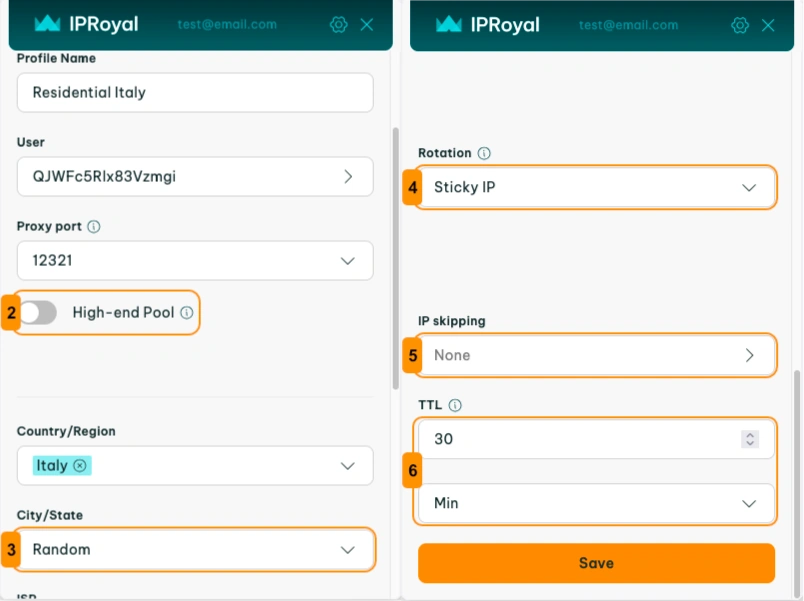
This will enable you to add the following features to your proxy profile:
- Proxy Port (1): select the port you want from the available options.
- High-end Pool (2): access faster and more stable proxies from the selected location. Please note that this option reduces the pool size to ensure the highest performance.
- City/State (3): refine the location of your proxies to a specific city or state within the selected country.
- Rotation (4): choose between sticky sessions and random IP rotation.
- IP skipping (5): specify if you want certain IP ranges to be automatically bypassed during proxy connections (more on IP skipping).
- TTL (6): if using sticky sessions, specify the duration (time-to-live) of a session (in seconds, minutes, hours, or days).
3. Manual proxy profile creation
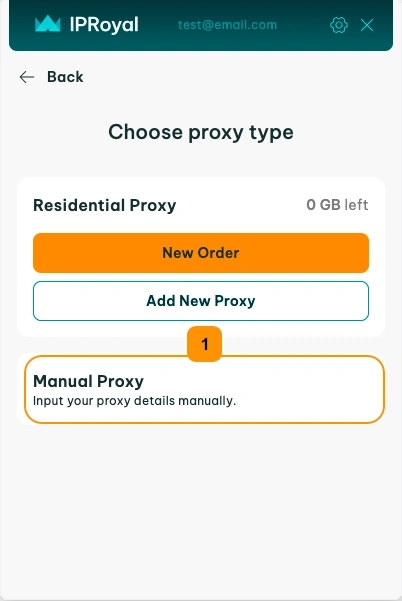
As mentioned above, you can also add your proxy details manually. You can use this option for our Datacenter, ISP, and Mobile proxies. You can also add proxies from other providers this way. To start, click the 'Manual Proxy' button (1).
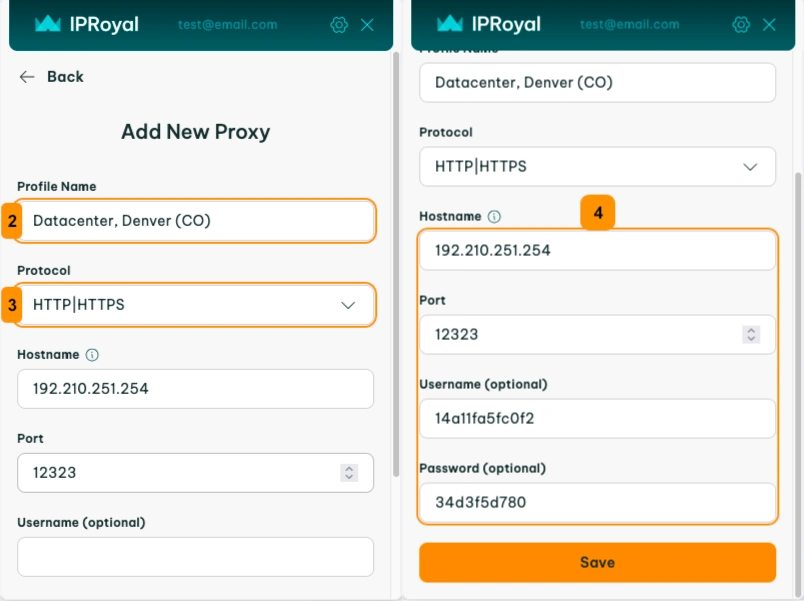
The process will remain the same with a few additional steps. As before, you’ll need to come up with a Profile Name (2) and choose your Protocol (3). You’ll also need to enter your proxy details (4). If you paste your details from the clipboard in the host:port:user:pass format, the add-on will fill these fields automatically.
Note: After adding profiles to your Proxy Manager, be sure to use our filters (5) for smoother and more efficient navigation.