How to Unblock GoGuardian on School Devices (What Works in 2026)
TutorialsLearn why most tricks to unblock GoGuardian fail on school devices in 2026 and discover the safest alternatives.


Milena Popova
Key Takeaways
-
School-managed accounts lock down your browser extensions, making most popular bypass methods completely useless.
-
Third-party unblockers carry major security risks, including malware and data theft.
-
Asking a teacher to lift the block temporarily is still the safest and most reliable way to get the content you need.
Hitting a block page right when you’re trying to finish a project is incredibly frustrating. Naturally, your first instinct is to search for a quick GoGuardian bypass so you can get your work done.
Unfortunately, GoGuardian isn’t some simple toggle switch you can flip off in your browser settings. It’s tied directly to your school account and network, meaning it operates at an administrative level you simply don’t have access to.
How GoGuardian Works on School Devices
The system relies heavily on forced Chrome extensions and administrative rules tied directly to your school account, not just the physical device.
IT departments use a central dashboard to set strict filtering rules for thousands of devices at once. Older forums might suggest disabling extensions manually or tweaking network settings, but administrators have locked down those easy loopholes already.
Schools heavily target social media, streaming, and gaming sites primarily to eliminate distractions and comply with internet safety laws. Unfortunately, completely harmless educational sites often get caught in the crossfire simply because they share keywords with restricted categories.
Is It Legal and Safe to Bypass GoGuardian?
While it’s not a critical offense, doing so violates your school’s tech policy and can easily result in detention or a confiscated device. Students rarely realize just how much activity is tracked. GoGuardian admins can usually see every blocked page you hit and every bypass you attempt.
Searching for workarounds usually leads straight to sketchy sites or apps promising a magic fix. Installing these unverified tools puts your personal data at major risk, as many of them are malware designed to steal your passwords or hijack your accounts.
At the end of the day, risking your privacy and your device privileges just isn’t worth it for a blocked website that you can simply ask your teacher to unblock.
Fastest Option: Ask for a Teacher Override
The easiest and fastest way to get access is just to ask your teacher to temporarily lift the block.
Depending on your school’s setup, teachers can often approve a specific URL through their dashboard or type a bypass password directly into your block screen. Politely explaining exactly why you need the site for your project works much better than looking for shady free alternatives.
Just keep in mind that these overrides are temporary, and IT administrators can still see that you accessed the site.
Methods People Use to Unblock GoGuardian
People try all sorts of technical workarounds, but the reality is that almost none of them work on school-issued hardware. Before trying a random hack, you have to ask yourself if the massive risk of getting caught is worth the tiny chance of success.
Certain methods might offer some leverage if you’re working from home on a personal computer connected to your own Wi-Fi network.
Using Proxy Websites
A proxy server acts as a middleman between your computer and the website you want to visit, fetching the content for you so the school’s network only sees you connecting to the proxy itself.
While it sounds great in theory, IT teams actively monitor and block lists of known public proxies almost as soon as they appear online.
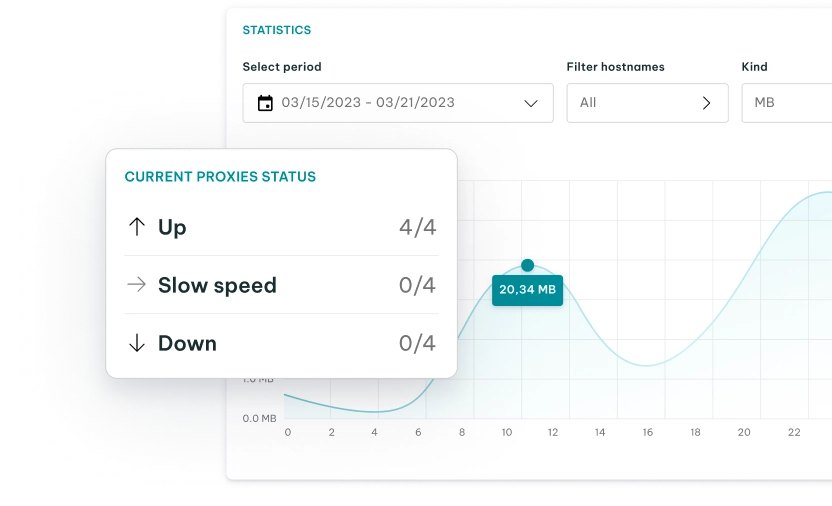
While premium commercial residential proxies , like the ones we offer at IPRoyal, provide highly reliable IPs for businesses, students usually resort to free web proxies that get blocked nearly immediately.
Global Pool, Precise Targeting, Zero Contracts
Premium Residential Proxies
Changing DNS Settings
Forums often recommend changing your DNS server to Google’s 8.8.8.8 to bypass network-level blocks. The idea is to force your computer to bypass the school’s web filters and use an unfiltered directory instead. Unfortunately, managed school devices usually lock you out of these network settings entirely.
You might have some luck changing the DNS on a personal phone or laptop at home, but only if the school hasn’t tied its filtering policies directly to your Google Workspace account.
Using a VPN
Virtual Private Networks (VPN) encrypt your entire internet connection and route it through an external server, hiding your activity from the local network administrator.
Downloading free VPN applications usually introduces more problems than it solves, considering many of them sell your data or inject advertisements into your browser.
More importantly, even if you run a premium VPN, GoGuardian operates as a browser extension. It sees and blocks the URLs you type before your traffic ever reaches the encrypted VPN tunnel.
Connecting Through a Mobile Hotspot
While dropping the school’s Wi-Fi for your smartphone’s cellular data bypasses the physical network restrictions, it comes with a major catch.
Streaming videos or downloading large files over a hotspot will eat through your mobile data cap incredibly fast and drain your phone’s battery.
Because GoGuardian lives in your browser, it will still block sites and report your activity to admins no matter whose Wi-Fi or cellular data you’re using.
Disabling or Removing the GoGuardian Extension
Digging into the Chrome settings to manually delete the tracking extension only really works if you are logged into your school account on a personal computer that you actually own.
On a managed device, the option to remove or disable the extension is usually completely greyed out. Even if you find a glitch to tamper with, the system will just force-reinstall the software and immediately flag your device for review on the GoGuardian admin dashboard.
What Actually Works on a School-Managed Chromebook
The harsh truth is that enterprise management software leaves you almost zero room to tweak system or network settings.
By design, school Chromebooks are locked down tight to comply with standard internet safety laws. Your best bet is always to stick to the approved methods, like politely asking your teacher for a temporary bypass.
If you’re stuck, moving to a computer lab might help, as those devices sometimes have looser restrictions for academic projects.
Conclusion
Finding a reliable way to bypass GoGuardian requires understanding the strict limits of school-managed hardware. All in all, talking to your teachers is consistently more effective than gambling with sketchy hacks that put your personal data at risk.
FAQ
Can I completely turn off GoGuardian on my school Chromebook?
No. Administrative policies permanently lock the extension to your device, meaning the option to remove or disable it is usually completely greyed out.
Does GoGuardian still track me at home?
Yes. If your district has “At Home” mode enabled, the software will continue to monitor your activity and enforce filters on your home Wi-Fi whenever you use a school device or log into your managed Chrome profile.
Will using my own laptop stop GoGuardian?
It helps, but be careful: while using personal hardware bypasses device-level restrictions, logging into your school email via Chrome can still sync the GoGuardian extensions to your browser and track your activity.
Can my teacher see my screen in real time?
Yes. During an active class session, teachers can view live thumbnails of your screen and even remotely close specific tabs if they see you getting off-task.
What should I do if a school site is blocked by mistake?
The easiest fix is to just share the blocked URL with your teacher or librarian so they can ask the IT department to whitelist the site officially.