'/%3e%3cellipse%20opacity='0.34'%20cx='327.5'%20cy='339'%20rx='264.5'%20ry='264'%20fill='url(%23paint1_linear_12724_35442)'/%3e%3cdefs%3e%3clinearGradient%20id='paint0_linear_12724_35442'%20x1='327'%20y1='-2.524e-06'%20x2='327'%20y2='389.286'%20gradientUnits='userSpaceOnUse'%3e%3cstop%20stop-color='%2327D9E5'/%3e%3cstop%20offset='0.927406'%20stop-color='%23004047'%20stop-opacity='0'/%3e%3c/linearGradient%3e%3clinearGradient%20id='paint1_linear_12724_35442'%20x1='328.02'%20y1='74.7771'%20x2='328.02'%20y2='395.312'%20gradientUnits='userSpaceOnUse'%3e%3cstop%20stop-color='%2327D9E5'/%3e%3cstop%20offset='0.927406'%20stop-color='%23004047'%20stop-opacity='0'/%3e%3c/linearGradient%3e%3c/defs%3e%3c/svg%3e)
How to Scrape a Website That Requires a Login: Python Tutorial
Python

Eugenijus Denisov
Some valuable online data is only displayed to users who are logged in. In such cases, sending regular GET requests, like you do when scraping other publicly available data, won’t cut it – you need to create a session first to log in.
Other than creating the session and logging in, the process isn’t that much different from regular web scraping. Take note, however, that for most websites, you have to accept the Terms and Conditions when you register or log in. If they forbid scraping, you can’t scrape such a website.
How To Scrape Data Locked Behind a Login?
Some websites put data behind a login for various reasons. A forum or social media website will likely want you to register to provide ad revenue opportunities for them and a permanent identity for you.
Other websites, such as e-commerce stores, may ask you to log in to provide a better UX experience and marketing opportunities for them. Some websites may even be akin to gated communities where you can’t see any data if you’re not logged in.
Assuming it’s allowed by the Terms of Service, web scraping under a login is largely no different from collecting publicly available data. There’s only one additional step added if you already have an account – a session object that stores all the login information.
The difficulties that arise are various CAPTCHA challenges or 2FA restrictions. For the latter, it’s often better to remove it when web scraping, while CAPTCHA can be solved by dedicated services or by switching proxy IPs until the login is successful.
Common Authentication Methods When Scraping Logged-In Websites
Sites protect their login flows in different ways, but generally, one of the common authentication methods is used to check whether you are who you claim to be. Learning how to scrape a website that requires a login with Python scrapers involves mastering such authentication.
- Basic auth is the simplest form of HTTP authentication, where login credentials are sent as an encoded authorization header with every request. Most HTTP libraries, including Python’s Requests, support Basic auth natively. You can simply pass auth=(‘username’, ‘password’) with your request, and the library handles header encoding automatically.
- Form-based login requires the user to submit username and password with a request, usually POST, so the server can set session cookies. To scrape successfully, you’ll need to replicate the form fields in the initial POST for all subsequent requests. Inspect websites in your browser’s DevTools (Network tab) to find the exact field names.
- CSRF (Cross-Site Request Forgery) protected logins help web admins protect from malicious bots and websites that forge cookies. Servers that set CSRF tokens reject any POST that doesn’t include them. The solution when scraping involves making a preliminary GET request and parsing the CSRF token with a library like BeautifulSoup.
- WAF (Web Application Firewall) logins use services like Cloudflare, Akamai, and others to add behavioral and fingerprinting-based protection on top of other authentication methods. Simple HTTP clients, such as Python’s Requests, fail because browser fingerprints and JavaScript execution are required. Browser automation tools, like Selenium or Playwright, and quality residential proxies are used to solve them.
To make the guide easier to follow, we’ll focus on form-based logins. They aren’t overly complicated to deal with using Python’s Requests and, unlike Basic auth, are common for modern websites. If your target website uses some other authentication method, tweak the code accordingly.
Step 1: Inspect the Website
Most websites use the same logic for the login process. It’s usually an HTML login form that sends a POST request to some endpoint. The login process then includes a username and password or an email and password.
You’ll need to figure a few things out first:
- The URL that authenticates the login process.
- The method used to log in (it’s almost always POST).
- Name of both username and password forms.
You can find these on the login form page by either using the browser’s Developer Tools (usually F12, then elements or network tabs) or by using the Inspect Element option on a page.
We’ll be using a test login page for our example, but before we can even try logging in, we need to set up our Python environment.
Step 2: Set Up Your Python Environment
We’ll be using the Requests library for sending both POST and GET requests, while Beautifulsoup4 will be used for parsing the data we retrieve:
pip install requests beautifulsoup4
If you haven't already, install a code editor, such as VS Code , and create a new Python file. Our script will need to start with the following to use the Requests and BeautifulSoup4 libraries:
import requests
from bs4 import BeautifulSoup
Step 3: Sending a POST Request With Credentials
The test login page has the username and password listed in the form (practice and SuperSecretPassword!). We do have to figure out the rest of the details from the HTML code. All of that can be done through the Developer Tools. Press F12, and a pop-up window will appear to your right. Head over to the 'Elements' tab.
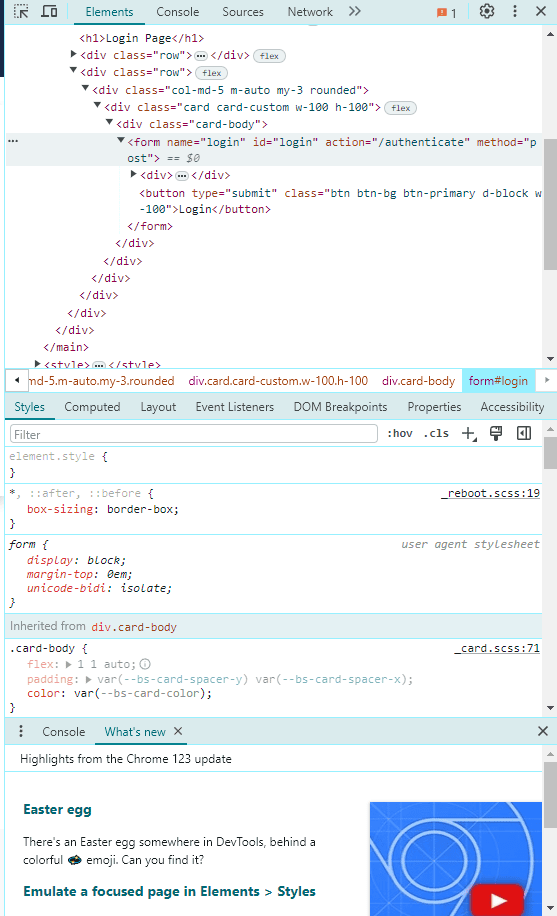
In the screenshot, we can see the form name, id, and, most importantly, the “action=” tag, which is where the authentication URL is usually stored. In this case, it’s “/authenticate”.
Additionally, we should take a look at the other two elements and expand them. They will hold the username and password field names. It’s usually nested as:
<input type="text" name="username">
<input type="password" name="password">
Luckily, in this case, that’s exactly the same – they’re called username and password.
With all of that information in hand, we can write a script that will send a POST request to the login page:
import requests
from bs4 import BeautifulSoup

## Create a session object
session = requests.Session()

 <SignUpSection
        class="mb-40 lg:hidden"
        title='Ready to get started?'
        linkHref='https://dashboard.iproyal.com/register/'
        linkLabel='Register now'
    />

 ## Add our login
login_url = 'https://practice.expandtesting.com/authenticate'
credentials = {
    'username': 'practice',
    'password': 'SuperSecretPassword!'
}
 <SignUpSection
        class="mb-40 lg:hidden"
        title='Ready to get started?'
        linkHref='https://dashboard.iproyal.com/register/'
        linkLabel='Register now'
    />

 ## Send a POST to our endpoint
response = session.post(login_url, data=credentials)
if response.ok:
    print("Login successful!")
else:
    print("Login failed!")
We start, as mentioned above, by creating a session object. They allow us to maintain consistent parameters throughout a period of time, which is essential when working with any login page.
After that, we’ll use all of the data we acquired through Developer Tools. The URL was listed as /authenticate in the HTML code, so we have to attach that to the home page.
We also create a credentials dictionary that allows us to enter key-value pairs. Our keys will be the name of the form, and the values will be the login credentials.
Finally, we send a post request with the login data as our arguments and print the result. If you get an error, you can use print(response) to see what type of HTTP error code was received.
That covers a simple login process. If a website you’re logging into requires a CSRF token, which is quite common nowadays, you will need to work around it by sending a GET request first to retrieve data from headers or use CSS selectors if the token is available in the HTML.
A CSRF token may also be saved in your cookies. There are many ways you can work around these issues, but it’s often a good idea to simply switch to browser automation such as Selenium.
Step 4: Scraping Data
Once we finish logging in, we can then use the same session object to send GET HTTP requests. You'll have to first send a POST request each time you execute the code after exiting, otherwise the page might be unreachable.
Since our test site only has one inaccessible page without logging in, we’ll be using it for scraping:
import requests
from bs4 import BeautifulSoup

## Create a session object
session = requests.Session()

## Add our login
login_url = 'https://practice.expandtesting.com/authenticate'
credentials = {
    'username': 'practice',
    'password': 'SuperSecretPassword!'
}
## Send a POST request to our endpoint
response = session.post(login_url, data=credentials)
if response.ok:
    print("Login successful!")
else:
    print("Login failed!")

data_url = 'https://practice.expandtesting.com/secure'
data_page = session.get(data_url)

if data_page.ok:
    print("Data retrieved successfully!")

    # Use Beautiful Soup to parse HTML content
    soup = BeautifulSoup(data_page.text, 'html.parser')

    # Example of finding an element by tag
    first_paragraph = soup.find('h1')
    print("First text:", first_paragraph.text)

else:
    print("Failed to retrieve data.")
At first, most of the steps are quite similar – we pick up our URL for scraping data and send a GET request using the session object.
We then use an “if” statement to verify if the response indicates success. If it does, we create a soup object that we’ll use to parse all of the content in the page.
There’s not a lot on the post-login page, so we’ll capture the H1 and print it out. Finally, if we didn’t receive a successful response, we print an error message.
Using Session Cookies Instead of Logging In Each Time
A common practice is to use session cookies, so your scraper wouldn't need to log in each time when collecting data. The steps below are optional for the code we've already written, as smaller projects might not require logging in multiple times.
1. Log in to the site manually and fully authenticate your session. It might include solving 2FA, CAPTCHA tests, or other login issues. 2. Export the cookies from your browser using a browser extension like EditThisCookie . It lets you export the cookies as a JSON file. Alternatively, you can copy the raw cookie string directly from the Cookie header in the Network tab. 3. Create a requests.Session() object and load the exported cookies there. If you exported a JSON file, loading might look as such.
import requests
import json

session = requests.Session()

with open("cookies.json", "r") as f:
    cookies = json.load(f)

for cookie in cookies:
    session.cookies.set(cookie["name"], cookie["value"])
4. Verify the authentication before collecting any data. Make a test request to a page that's only visible to logged-in users and check the response. Verification helps to avoid scraping login redirect pages. Additionally, you’ll likely need to get real cookies by sending a login first:
login_url = "https://practice.expandtesting.com/authenticate"
payload = {"username": "practice", "password": "SuperSecretPassword!"}
session.post(login_url, data=payload)

cookies = [{"name": c.name, "value": c.value} for c in session.cookies]
with open("cookies.json", "w") as f:
    json.dump(cookies, f, indent=2)

response = session.get("https://practice.expandtesting.com/secure")
assert "Secure Area" in response.text, "Session not authenticated!"
5. Skip the login POST entirely and make requests normally. If the flow works as intended, the cookies are attached automatically to every request, so the website sees you as already authenticated.
response = session.get("https://practice.expandtesting.com/secure")
print(response.text)
6. Handle cookie expiration, so that the script can notify when new session cookies are needed. Depending on the site, expiration might vary from a few hours to a few weeks after login. Typically, a simple check after each request is enough to track cookie expiration.
if "login" in response.url or "Sign in" in response.text:
    raise Exception("Session expired — please re-export cookies.")
Step 5: Handling Common Login Issues
There are a few issues you can run into when logging in and scraping. CAPTCHA tests are some of the most frequent occurrences when web scraping pages. The solutions differ depending on when you face CAPTCHA tests.
- If CAPTCHA tests appear during regular scraping, you’ll need to switch IP addresses and, likely, log in again to avoid further tests.
- CAPTCHAs during the login process requires switching to browser automation to see if it avoids the tests. If it doesn’t, you may need to use CAPTCHA-solving tools or services.
Two-factor authentication is another common hurdle. It’s usually possible to disable it through account settings on the website. Doing so is the easiest solution. However, it’s highly recommended to keep it enabled for security purposes on your regular account, so make a separate account for scraping purposes.
Solving 2FA is difficult because it's designed to require human interaction, and the authentication differs based on whether it's SMS or email 2FA. Here are some common strategies used while collecting data online.
- Reusing authenticated session cookies. Just as cookies can be used to avoid logging in each time, you can use them to retain 2FA authentication. As long as your session remains valid (rules differ by website) and the site doesn't re-trigger 2FA, your scraper should operate as an already authenticated user.
- Manual input. Your Python script can be set up to pause at the 2FA screen and send a notification to you for completing the authentication. Once done, the scraper resumes collecting data with a newly authenticated session.
- Browser automation tools. Use Selenium or Playwright to set a fixed browser profile that already has an authenticated session stored. Many sites won't challenge 2FA on a recognized device.
Note that you'll likely violate the site's terms and conditions if a site has implemented 2FA that requires the use of such strategies. Consider the site's rules, local laws, and your scraping intent before proceeding.
Full Code Snippet
import requests
import json
from bs4 import BeautifulSoup

session = requests.Session()

try:
    with open("cookies.json", "r") as f:
        cookies = json.load(f)
    for cookie in cookies:
        session.cookies.set(cookie["name"], cookie["value"])
    print("Cookies loaded from file.")
except FileNotFoundError:
    login_url = 'https://practice.expandtesting.com/authenticate'
    credentials = {'username': 'practice', 'password': 'SuperSecretPassword!'}
    response = session.post(login_url, data=credentials)
    if response.ok:
        print("Login successful!")
        cookies = [{"name": c.name, "value": c.value} for c in session.cookies]
        with open("cookies.json", "w") as f:
            json.dump(cookies, f, indent=2)
        print("Cookies saved to file.")
    else:
        print("Login failed!")
        exit()

data_page = session.get('https://practice.expandtesting.com/secure')
if data_page.ok and "Secure Area" in data_page.text:
    print("Data retrieved successfully!")
    soup = BeautifulSoup(data_page.text, 'html.parser')
    first_paragraph = soup.find('h1')
    print("First text:", first_paragraph.text)
else:
    print("Failed to retrieve data. Cookies may have expired.")

FAQ
Can Python Requests log into any website?
Technically, Python Requests can interact with almost any login page by mimicking form-based HTTP queries. However, Requests struggles with JavaScript-heavy sites, CAPTCHA tests, and two-factor authentication logins. For such complex authentication or sites that actively block automated requests, additional tools like Selenium or Playwright should be used.
How do you handle CSRF tokens when scraping?
First, send a GET request to retrieve the CSRF token from the HTML. Then, parse the request with BeautifulSoup, for example, and include the CSRF token in your POST headers or form data. Requests handle cookies automatically, but it might still be more convenient to use Selenium for CSRF token validation.
Can you scrape sites with two-factor authentication?
Yes, but it's a complex task and likely violates the site's rules. Previously authenticated cookies from a manual login might be reused when you scrape data. A script can also stop at the 2FA screen and wait for manual authentication. Other strategies might also work with Python scripts, but browser automation tools are generally recommended.
When should you use Selenium instead of Requests?
Selenium is typically best for JavaScript-heavy sites where content renders dynamically, the site requires user interaction, complex authentication, or uses advanced anti-bot measures. While Python with the Requests library is fitting for many static sites, Selenium is superior for simulating a real browser behavior, which can bypass many blocks and issues while scraping data.