'%20fill-rule='evenodd'%20clip-rule='evenodd'%3e%3cpath%20d='M21.9952%2012.2202c-.0019-.6851-.108-1.3688-.2269-2.0439h-9.6238v3.8768h5.4928c-.1125.6103-.3507%201.1919-.6999%201.7094-.3492.5175-.8022.9601-1.3315%201.3009v2.5105h3.3479c1.005-.9487%201.7951-2.0936%202.3191-3.3605.524-1.2668.7701-2.6273.7223-3.9932Z'%20fill='%234285F4'/%3e%3cpath%20d='M12.1415%2021.9954c2.5027.0755%204.9397-.7912%206.8092-2.4216l-3.3025-2.5105c-1.031.6482-2.2362.9808-3.4613.9553-1.266-.0247-2.49275-.4349-3.50967-1.1735-1.01691-.7385-1.81874-1.8128-2.20993-2.9916l-3.4048.0439v2.5438c.84005%201.6575%202.13352%203.0542%203.73642%204.0348%201.60291.9806%203.45238%201.5066%205.34258%201.5194Z'%20fill='%2334A853'/%3e%3cpath%20d='M6.46884%2013.8531c-.42382-1.2324-.42382-2.4897%200-3.7221V7.55469H3.06422C2.36423%208.93568%202%2010.4564%202%2011.998c0%201.5416.36423%203.0624%201.06422%204.4434l3.40462-2.5883Z'%20fill='%23FBBC05'/%3e%3cpath%20d='M12.1415%206.02167c1.4529-.02643%202.8572.46854%203.9039%201.45519l2.9053-2.87706c-1.8433-1.69203-4.2823-2.62308-6.8092-2.59936-1.8902.01282-3.73967.5388-5.34258%201.5194-1.6029.9806-2.89637%202.37735-3.73642%204.03478l3.40462%202.58828c.39118-1.17886%201.1478-2.20915%202.16472-2.94772%201.01691-.73857%202.24366-1.14874%203.50966-1.17351Z'%20fill='%23EA4335'/%3e%3c/g%3e%3c/svg%3e)

Managing multiple accounts without getting flagged requires stable anti-detect browsers and reliable proxies. Lalicat is a popular browser used in e-commerce, affiliate marketing, and anywhere else where efficient multi-accounting is essential.
Pairing it with high-quality proxies ensures your accounts stay separated and your operations uninterrupted.
In this guide, we’ll walk you through the Lalicat proxy integration with IPRoyal to keep your setup smooth and your workflow seamless.
What Is Lalicat Browser?
The Lalicat anti-detect browser allows you to manage multiple isolated browser instances at once. Each browser profile operates in its own environment with separate fingerprints and cookies, allowing you to control how each session appears online.
With this Windows-based browser, you can manage multiple accounts across different platforms and keep them separated to avoid getting detected or banned.
Here are some of the most significant features of Lalicat:
- Unlimited browser profile creation - scale up and manage countless unique browser profiles
- OS and device simulation - emulate Windows, Android, or iOS environments from within the Windows app
- Deep fingerprint customization - adjust Canvas, WebGL, AudioContext, time zone, geo-location, system fonts, CPU/RAM simulation, battery status, etc.
- Automation & API support - integrate with REST API, Selenium, or Puppeteer to automate workflows
- Profile isolation - keep cookies, cache, and local storage separate to avoid account linking
- Manual proxy integration - add proxies with HTTP, HTTPS, SOCKS4, or SOCKS5 support
How to Set Up IPRoyal Proxies With Lalicat Browser
Follow these steps to get started with Lalicat, set up a new browser profile, and integrate it with IPRoyal proxies.
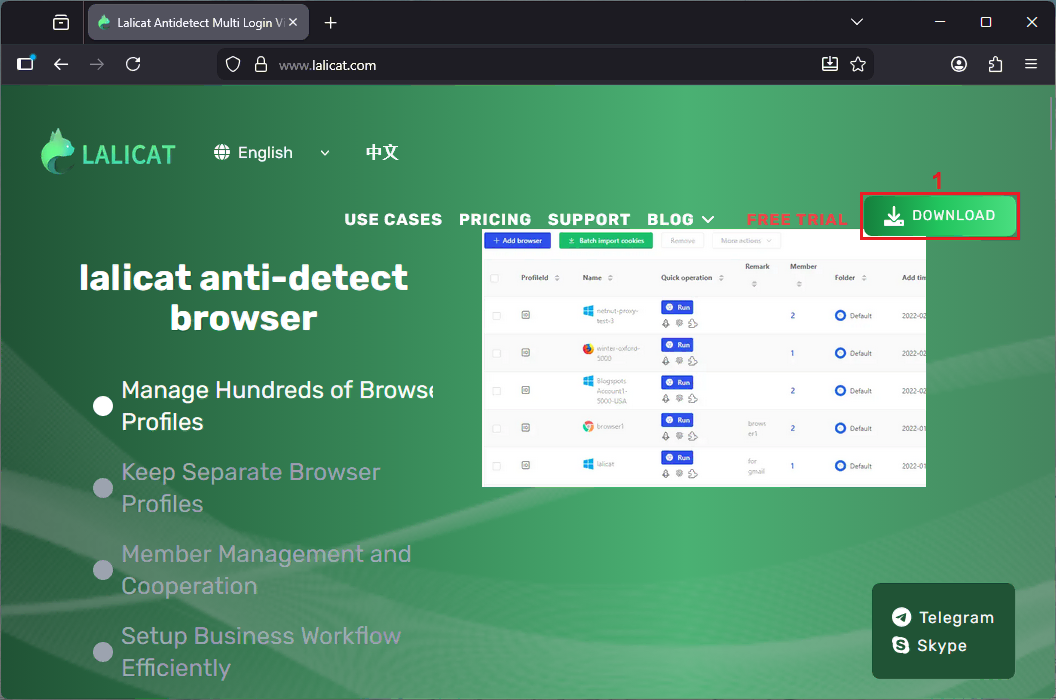
1. Go to Lalicat’s website and click the ‘Download’ (1) button to download the browser setup on your device. Keep in mind that it’s currently only available for Windows.
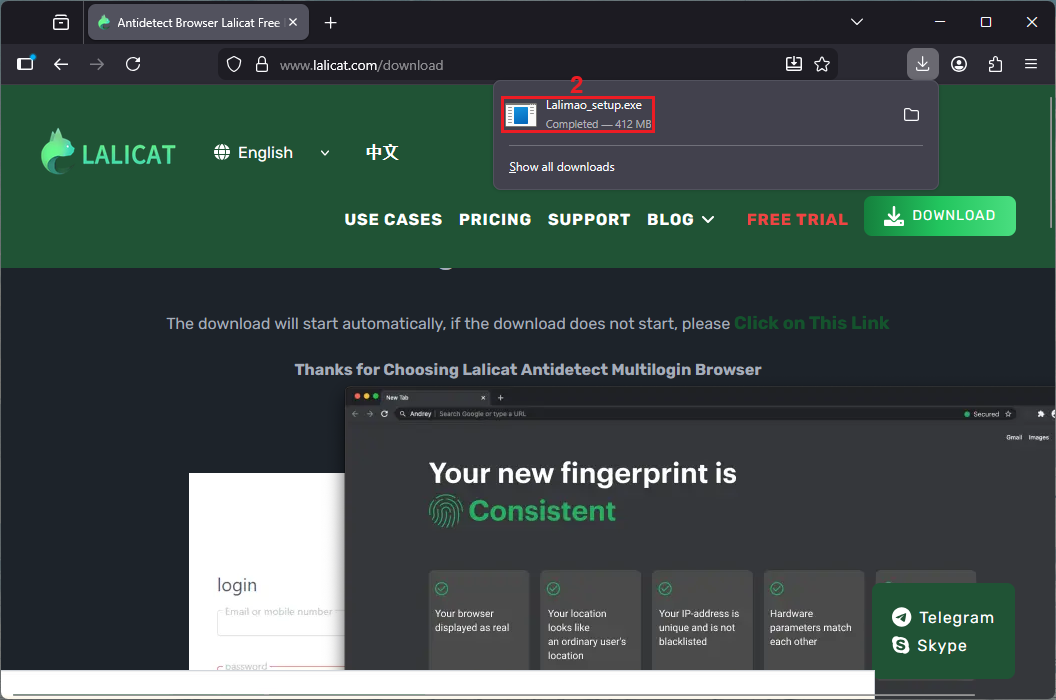
2. Run the ‘Lalimao_setup.exe’ (2) file and follow the on-screen instructions to install the browser.
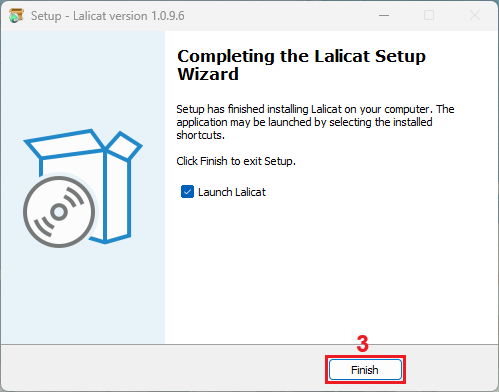
3. Click the ‘Finish’ (3) button to launch the browser.
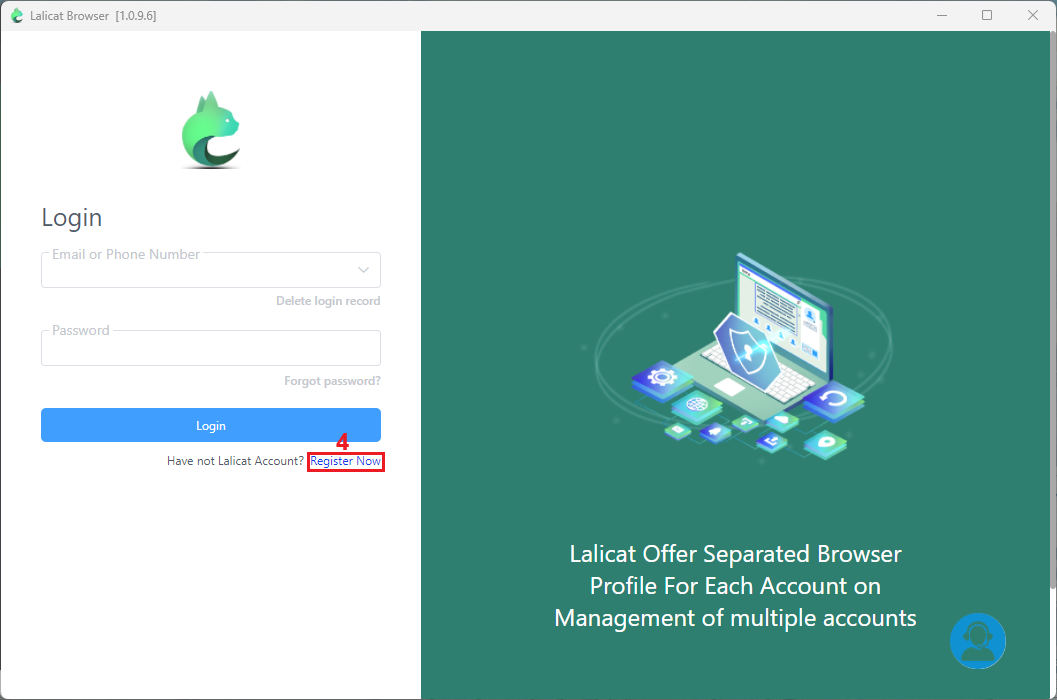
4. Sign in with your email or phone number and password, or register if you still don’t have a Lalicat account by clicking the ‘Register Now’ (4) button.
5. Once you access the browser, click the ‘+ Add Browser Profile’ (5) button to create one.
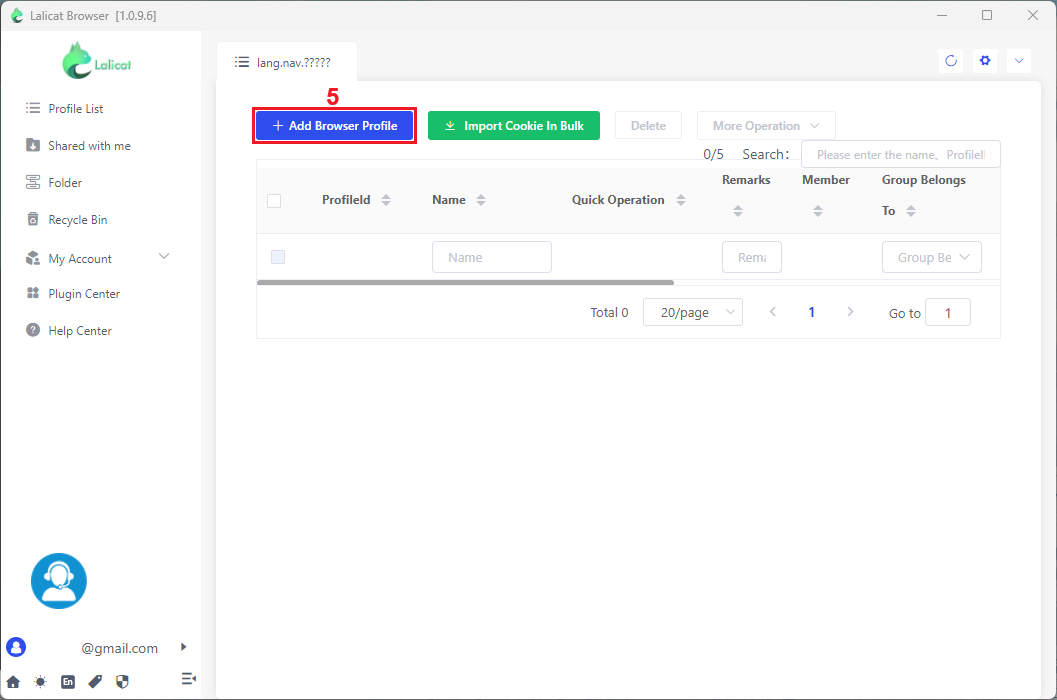
6. A form will appear with different configuration options. Select ‘basic configuration’ (6) and name (7) your browser profile.
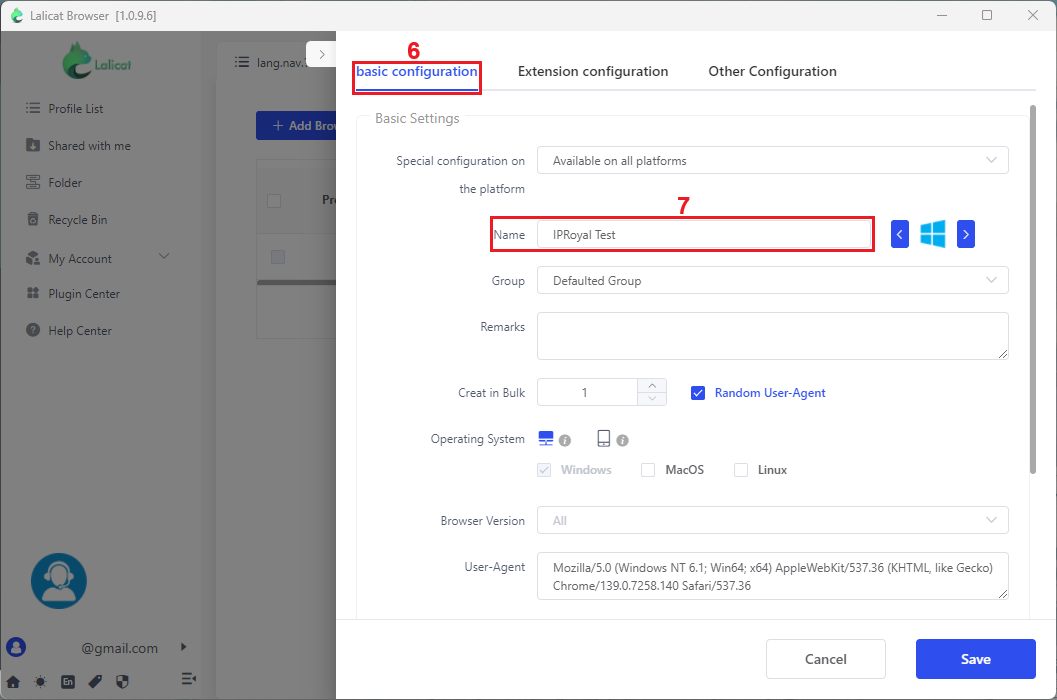
7. After naming your profile, scroll down to ‘proxy settings’ (8) and select the type you need. We’ll go with ‘HTTPS’ (9), but you can select the protocol you need.
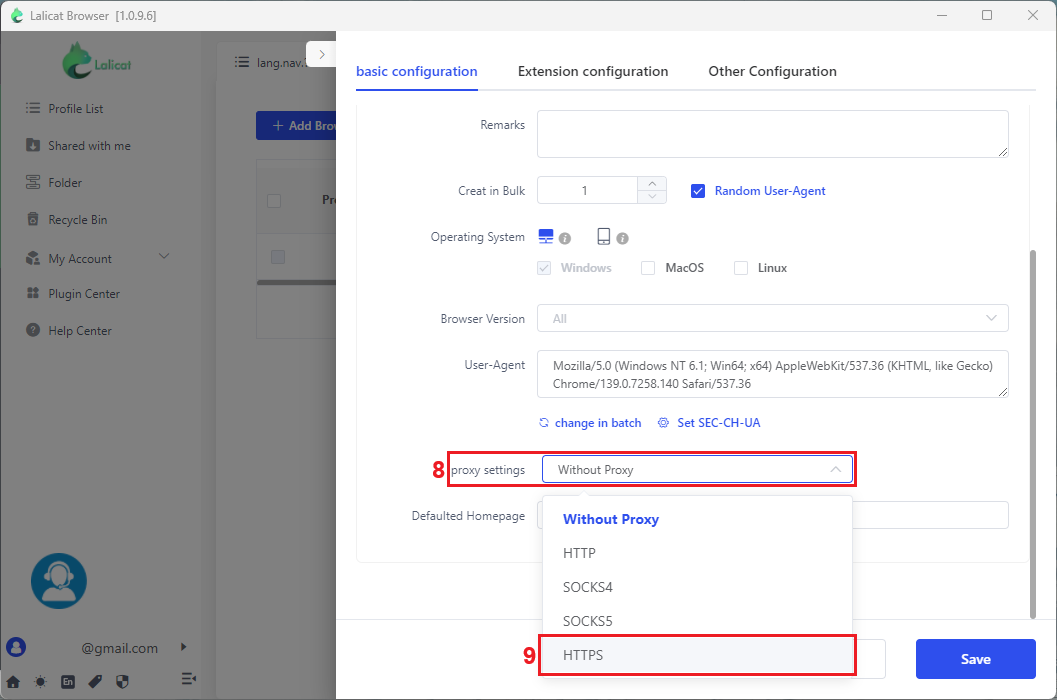
8. Once you choose a proxy type, additional fields (10) will appear where you can enter your proxy details (proxy host, port, login name, and password).
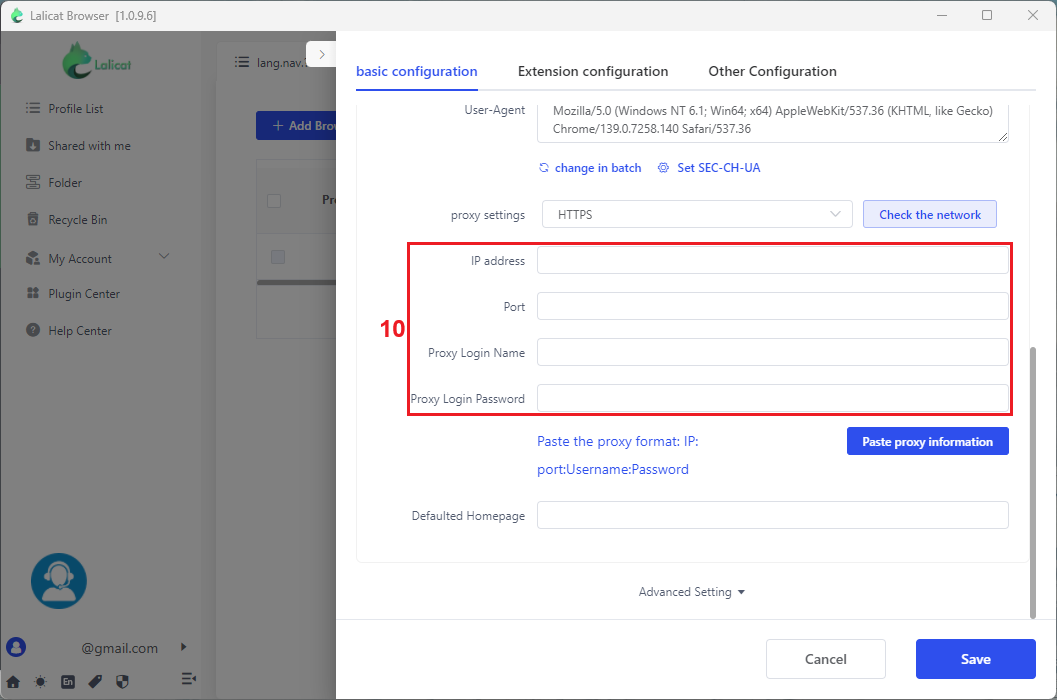
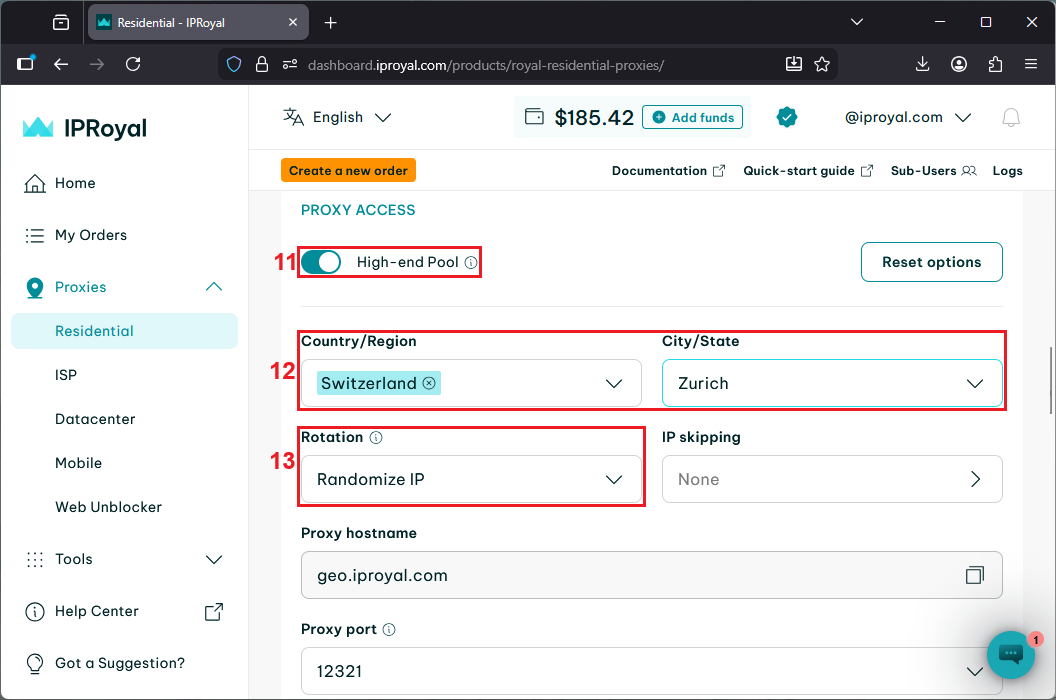
9. To get these details, open your IPRoyal dashboard and configure your proxy settings. We’ll use high-speed (11) Residential Proxies from Zurich, Switzerland (12), with rotating IPs (13). Since IPRoyal Residential Proxies support HTTP/HTTPS and SOCKS5 protocols by default, the protocol will automatically match the HTTPS type chosen in Lalicat.
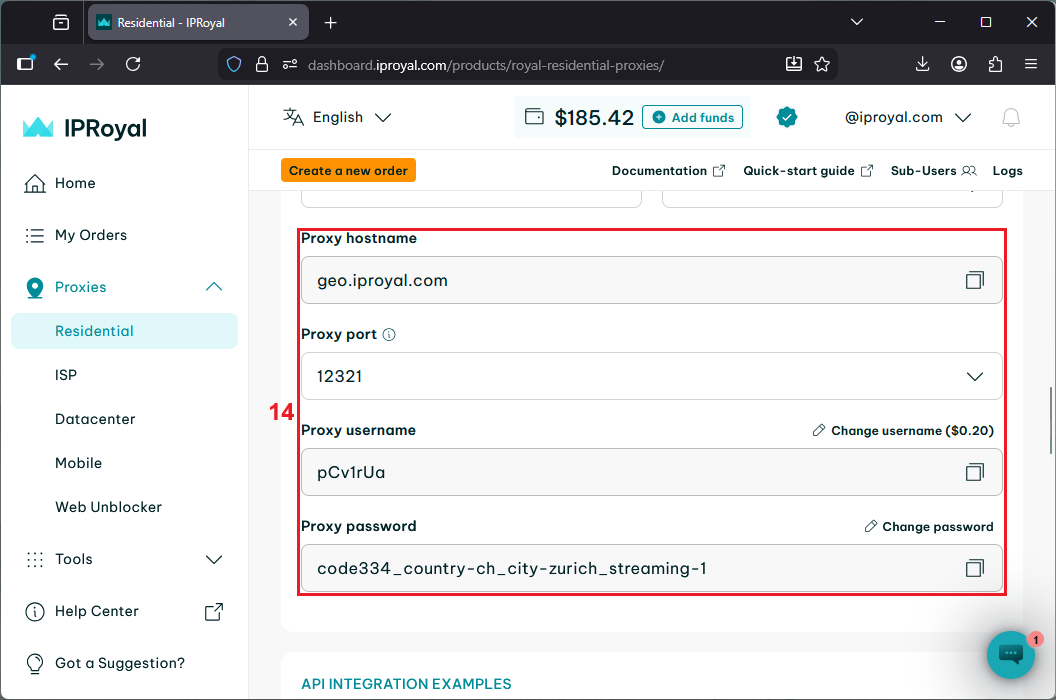
10. Scroll down and copy your proxy credentials (14) - proxy host (IP address), port, username (proxy login name), and password (proxy login password).
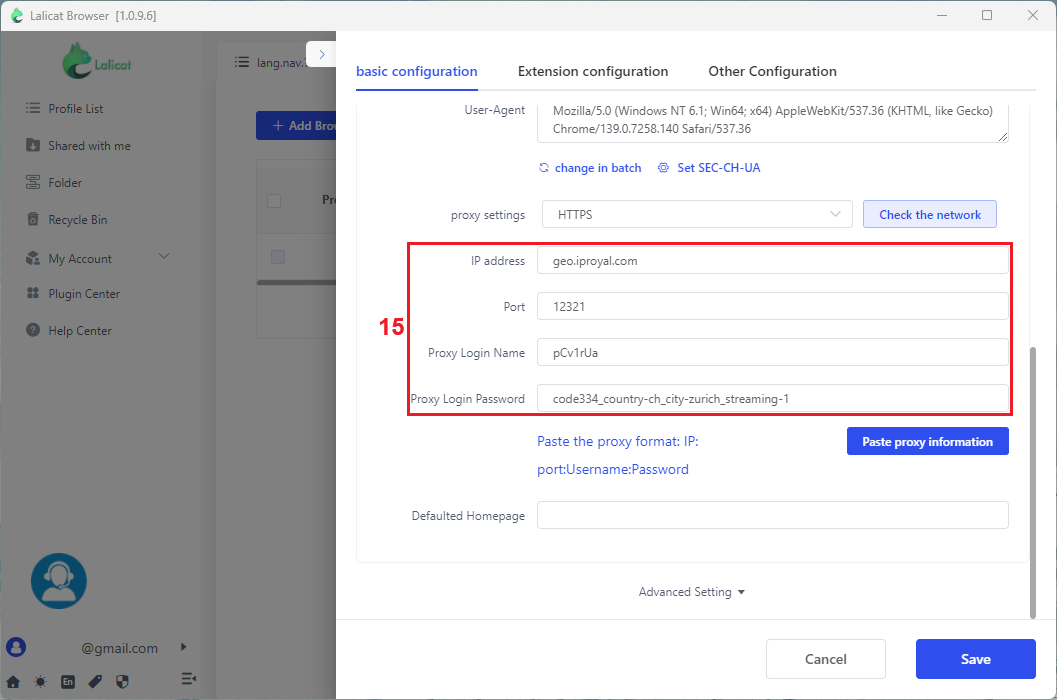
11. Go back to Lalicat and paste your proxy host, port, username, and password into the appropriate fields (15).
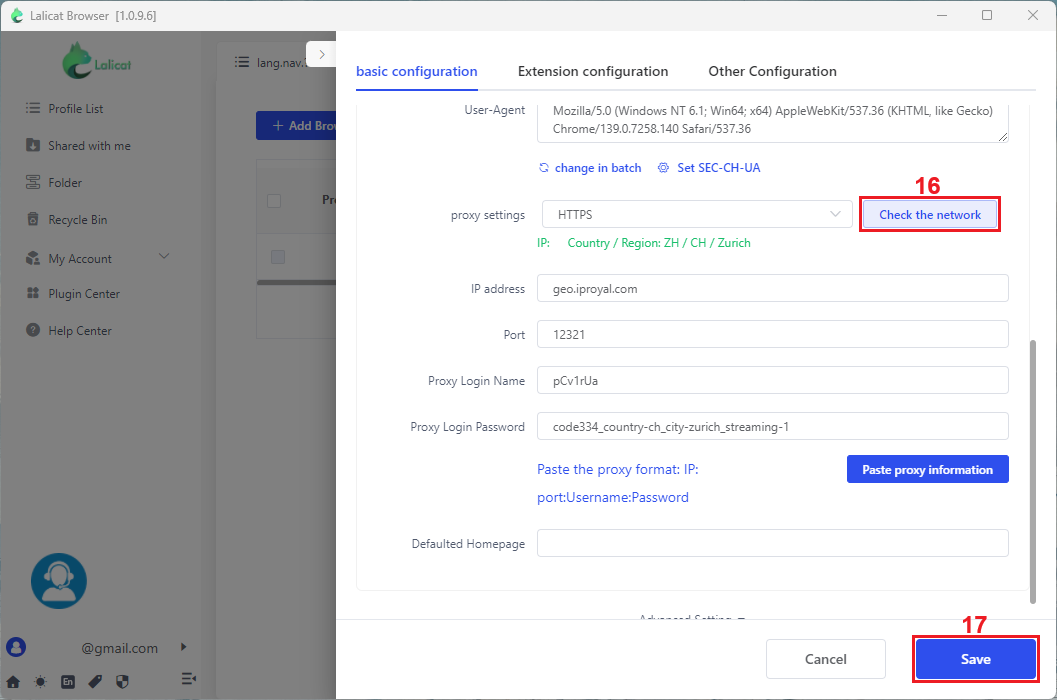
12. Click the ‘Check the network’ (16) button to verify the proxy’s IP address and location. Once you make sure it matches your proxy settings, click the ‘Save’ (17) button to confirm the changes.
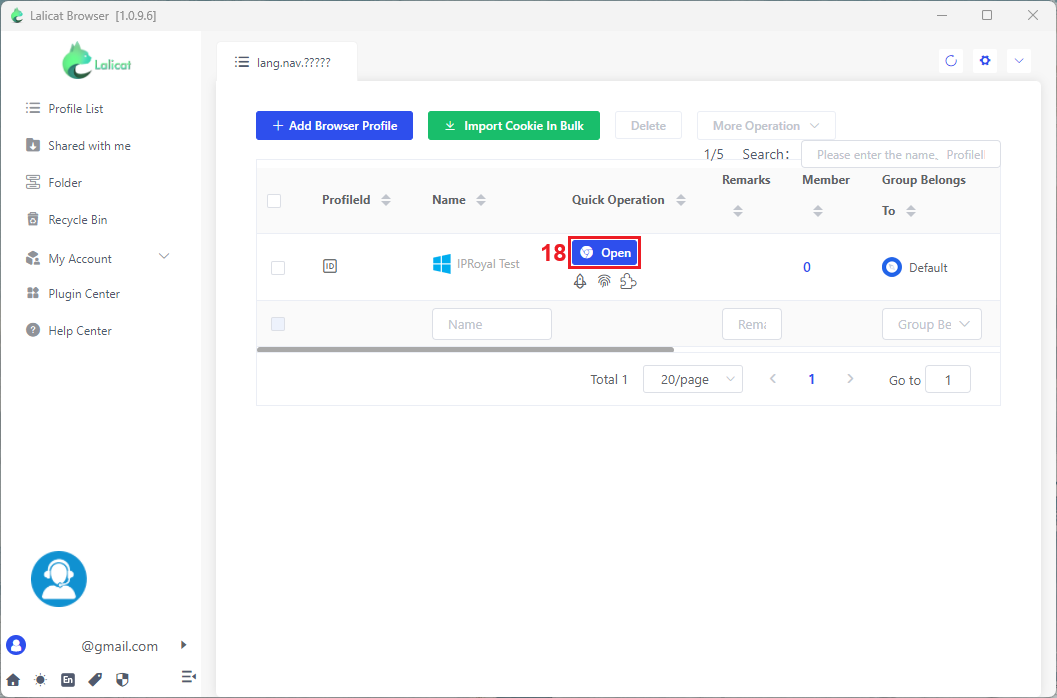
13. Click the ‘Open’ (18) button to launch your profile.
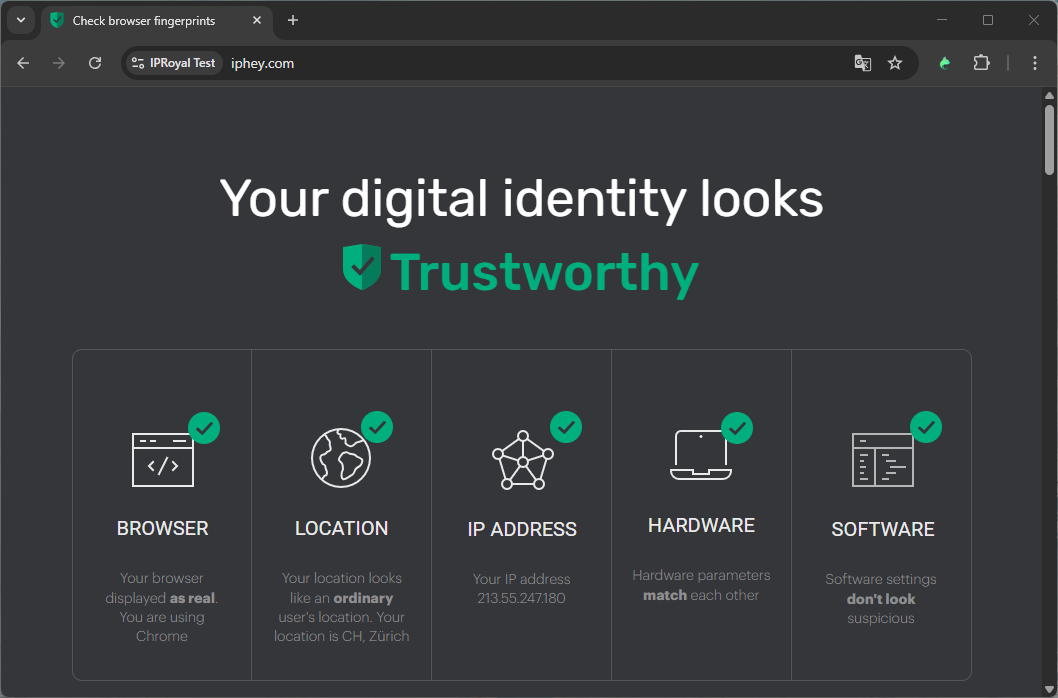
14. Visit IPHey or a similar website to test your proxy connection and browser fingerprint. If your profile looks authentic, it’s ready for deployment.
Best Proxies for Lalicat in 2025
Lalicat works with various types of proxies, including residential, ISP, and datacenter proxies. It also supports all major protocols, including HTTP, HTTPS, SOCKS4, and SOCKS5, so you can use it with almost any proxy service.
However, the best proxies for Lalicat depend on your specific use case. Here are the major proxy types along with their biggest strengths, weaknesses, and most suitable use cases.
Residential Proxies
Residential proxies use real IPs assigned by internet service providers to homeowners. This makes them highly reliable and less likely to be detected or blocked. It’s also the reason why they are more expensive and slightly slower than other proxies.
Thanks to the authentic IPs and wide location coverage, residential proxies are perfect for public web scraping, ad verification, and managing multiple social media accounts.
Datacenter Proxies
Datacenter proxies are fast, stable, and budget-friendly. They’re hosted on powerful servers and provide excellent connection speeds, making them ideal for tasks requiring large amounts of bandwidth.
However, they are also easier to detect and block by websites with advanced anti-bot systems because these proxies don’t come from real ISPs.
Therefore, the best use cases for datacenter proxies are SEO monitoring, data scraping from less protected websites, and bulk data collection where speed and cost-efficiency matter more than authenticity.
ISP Proxies
ISP proxies combine the speed of datacenter proxies with the legitimacy of residential IPs. They come directly from ISPs but are hosted in data centers, offering both stability and trustworthiness. These proxies are usually more expensive than datacenter proxies, and cover fewer geo-locations than residential ones.
They work best for account management, automation tasks, and login-heavy websites where you need high speed and consistent IPs without frequent changes.
Conclusion
With the Lalicat browser, you can create multiple isolated browser profiles with advanced fingerprint customization. This Windows-based browser is easy to set up and use, and works with all major proxy types and protocols.
Use Lalicat with IPRoyal proxies to ensure your profiles stay separate and your operations uninterrupted. Follow the steps in this Lalicat proxy integration guide to start managing your accounts and public data gathering tasks more efficiently.