'%20fill-rule='evenodd'%20clip-rule='evenodd'%3e%3cpath%20d='M21.9952%2012.2202c-.0019-.6851-.108-1.3688-.2269-2.0439h-9.6238v3.8768h5.4928c-.1125.6103-.3507%201.1919-.6999%201.7094-.3492.5175-.8022.9601-1.3315%201.3009v2.5105h3.3479c1.005-.9487%201.7951-2.0936%202.3191-3.3605.524-1.2668.7701-2.6273.7223-3.9932Z'%20fill='%234285F4'/%3e%3cpath%20d='M12.1415%2021.9954c2.5027.0755%204.9397-.7912%206.8092-2.4216l-3.3025-2.5105c-1.031.6482-2.2362.9808-3.4613.9553-1.266-.0247-2.49275-.4349-3.50967-1.1735-1.01691-.7385-1.81874-1.8128-2.20993-2.9916l-3.4048.0439v2.5438c.84005%201.6575%202.13352%203.0542%203.73642%204.0348%201.60291.9806%203.45238%201.5066%205.34258%201.5194Z'%20fill='%2334A853'/%3e%3cpath%20d='M6.46884%2013.8531c-.42382-1.2324-.42382-2.4897%200-3.7221V7.55469H3.06422C2.36423%208.93568%202%2010.4564%202%2011.998c0%201.5416.36423%203.0624%201.06422%204.4434l3.40462-2.5883Z'%20fill='%23FBBC05'/%3e%3cpath%20d='M12.1415%206.02167c1.4529-.02643%202.8572.46854%203.9039%201.45519l2.9053-2.87706c-1.8433-1.69203-4.2823-2.62308-6.8092-2.59936-1.8902.01282-3.73967.5388-5.34258%201.5194-1.6029.9806-2.89637%202.37735-3.73642%204.03478l3.40462%202.58828c.39118-1.17886%201.1478-2.20915%202.16472-2.94772%201.01691-.73857%202.24366-1.14874%203.50966-1.17351Z'%20fill='%23EA4335'/%3e%3c/g%3e%3c/svg%3e)
Anti detect browsers are a popular solution for safe multiple account management, web scraping, and private browsing. With numerous options to choose from, we continuously review new and existing tools to help our readers pick the best ones for their needs.
This time, we test and review Mbbrowser anti detect software. Below, you will learn what Mbbrowser is, its essential features, proxy compatibility, and how to setup proxies with Mbbrowser.
What Is Mbbrowser and Why Use Proxies?
Mbbrowser, also known as Migratory Bird Browser, is a business-oriented anti detect browser. It lets you create and manage multiple profiles separately, specifying their unique browser fingerprints. Additionally, it features a built-in proxy server manager to switch between IP addresses for an extra layer of online privacy.
You can use Mbbrowser for free, but with limited features. The free version allows two browser environments without automation scripts, but does not limit your actions while using them. The paid version unlocks concurrent multi-thread processes, team collaboration features, and advanced automation for up to 10,000 browser profiles.
Like most similar tools, Mbbrowser requires proxy servers to perform at full potential. For example, when combined with residential proxy servers, browser fingerprint masking ensures that multiple profiles cannot be traced back to a single IP address, significantly reducing detection and ban risks.
Also, connecting to proxy servers in different regions enables users to bypass geographical restrictions and extract regional data while web scraping or performing SEO research. Our step-by-step guide below shows how to add proxies to Mbbrowser and verify a successful connection.
Step-By-Step Guide to Setting up Proxies in Mbbrowser
We found Mbbrowser's interface beginner-friendly. So even if you're new to this technology or proxies, you should have no issues adding them using the following instructions.
Install Mbbrowser
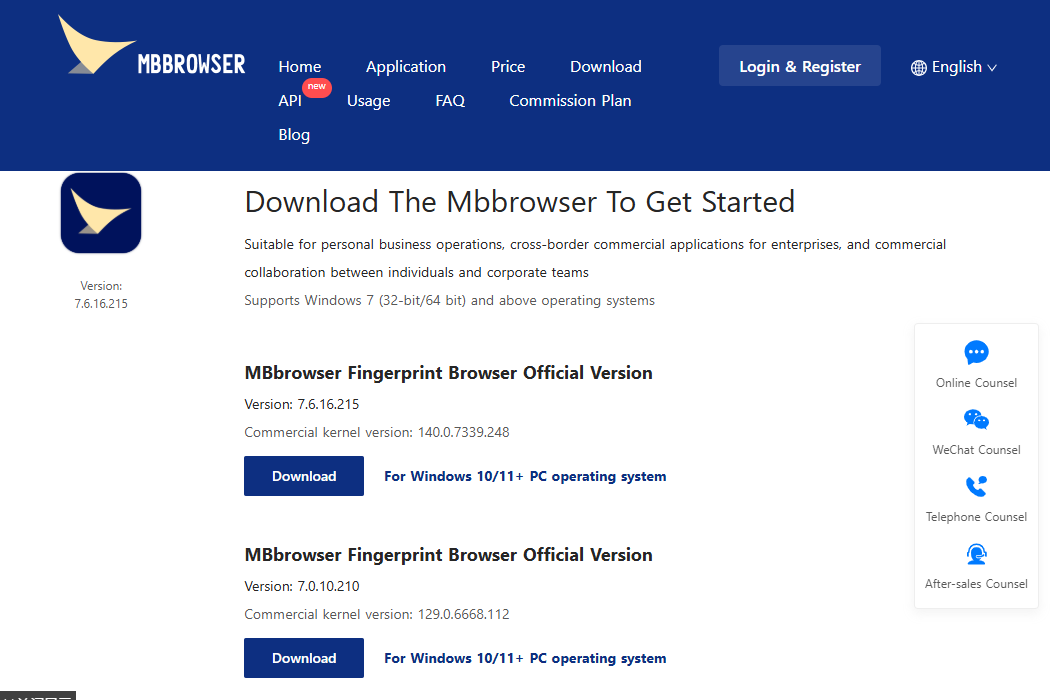
1. Firstly, download and install its latest version on your device.
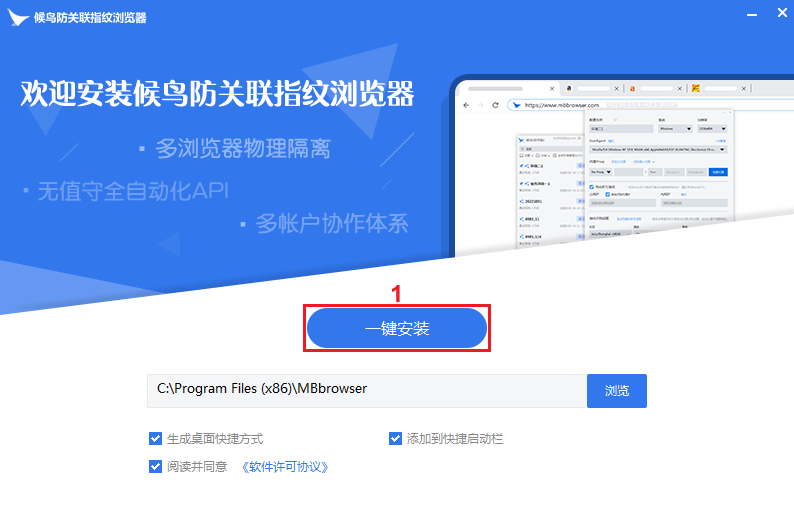
2. Unfortunately, the Mbbrowser installation process is written in simplified Chinese, so follow our screenshots taken on a Windows device to proceed. Launch the downloaded file, specify the installation path, and click on the blue button (1) to proceed.
3. Once the installation is complete, click the middle button again, which launches the Mbbrowser. Here, you can switch to another language by clicking the language icon (2).
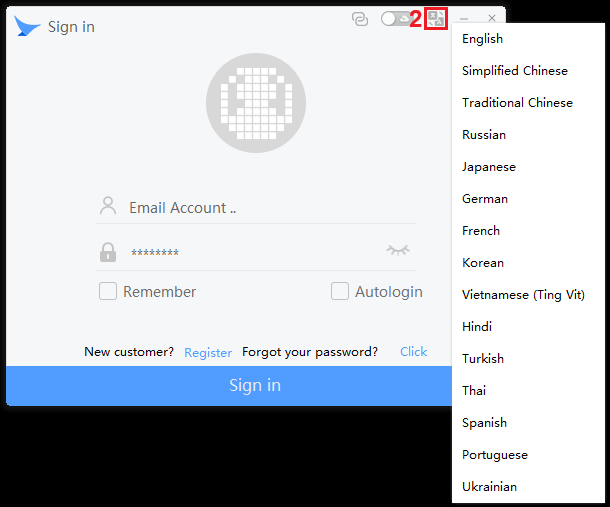
Click the 'Register' button and proceed with creating your account. Mbbrowser will then send you a verification link to your email. In case you can’t find it in your inbox, check the spam folder.
After verifying, you can log in to your Mbbrowser account. For now, leave it as it is while we show you how to get proxy server details for proxy setup.
Get IPRoyal Proxy Credentials
1. Log in to your IPRoyal account and choose the desired proxy type. For this example, we will use our residential proxies.
2. Turn on the 'High-end Pool' (1) option if you require only the fastest proxies. Then, choose the proxy server country, city, IP rotation, and session duration (2). We will use high-end proxies in Copenhagen, Denmark, with sticky sessions that last for one day.
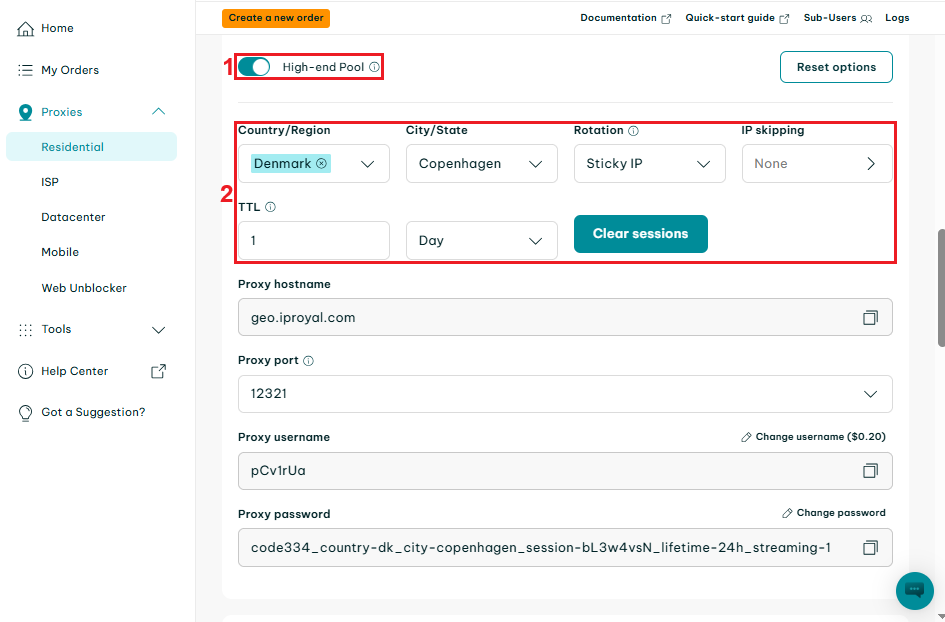
3. Scroll down until you see the 'Formatted proxy list' section and specify the proxy credentials format (3) and the quantity (4). You can use the default host:port:user:pass format for Mbbrowser.
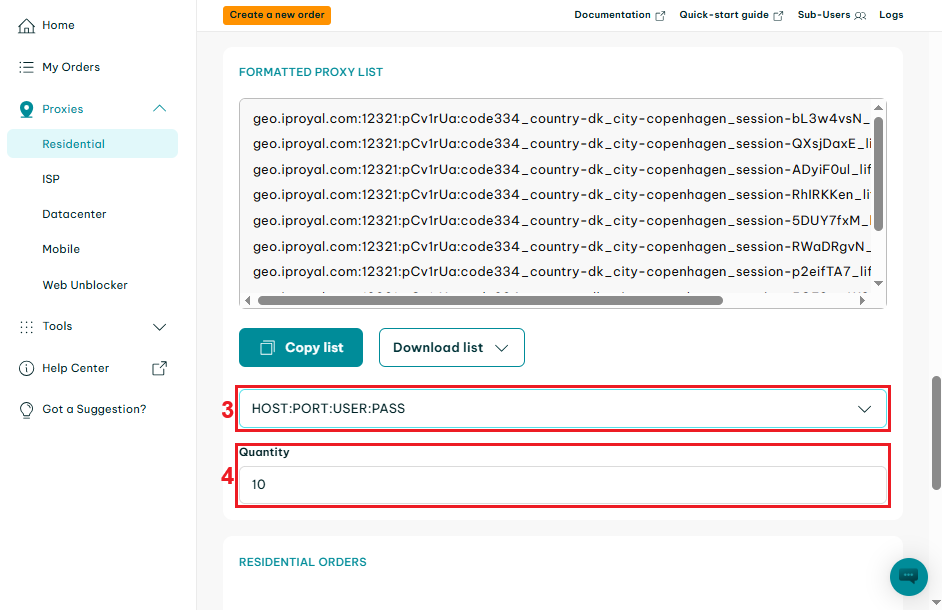
4. Lastly, copy one set of credentials (5) to your clipboard.
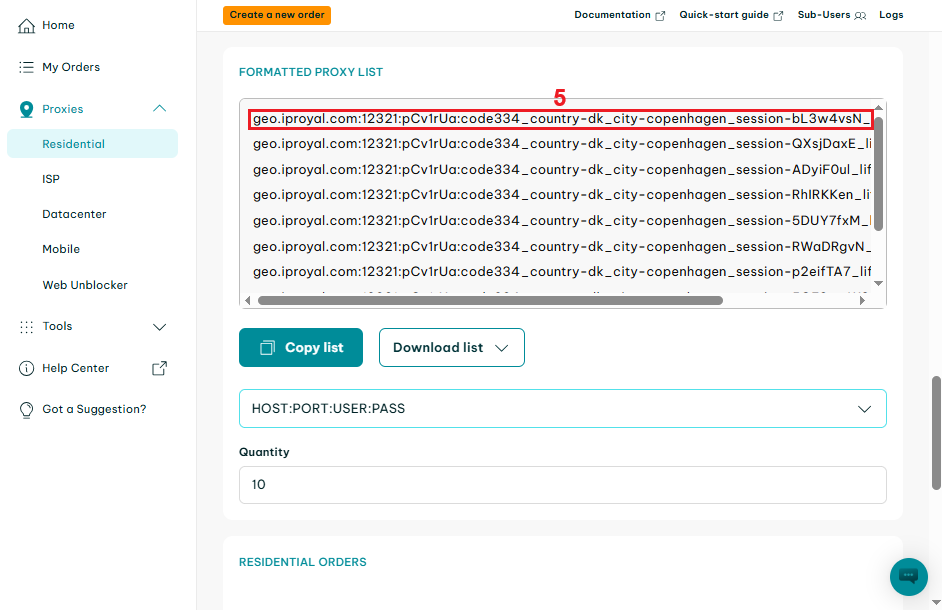
5. Now, we can get back to the anti detect browser to add a proxy connection there.
Create a New Session in Mbbrowser
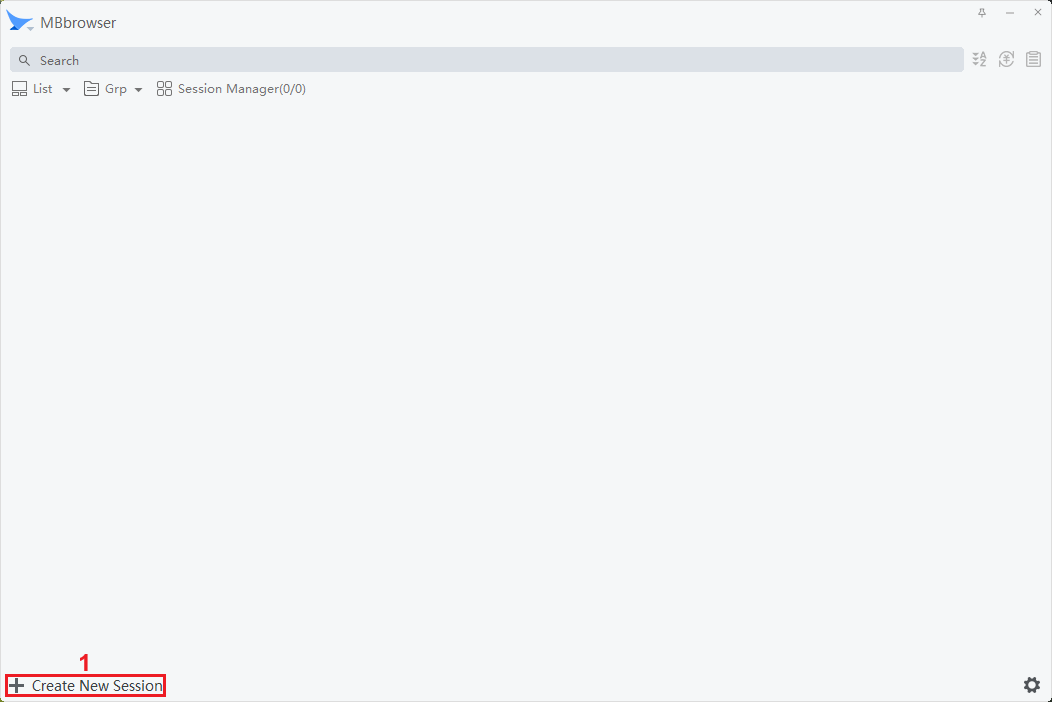
1. Click the 'Create New Session' (1) button at the lower left of the main Mbbrowser screen.
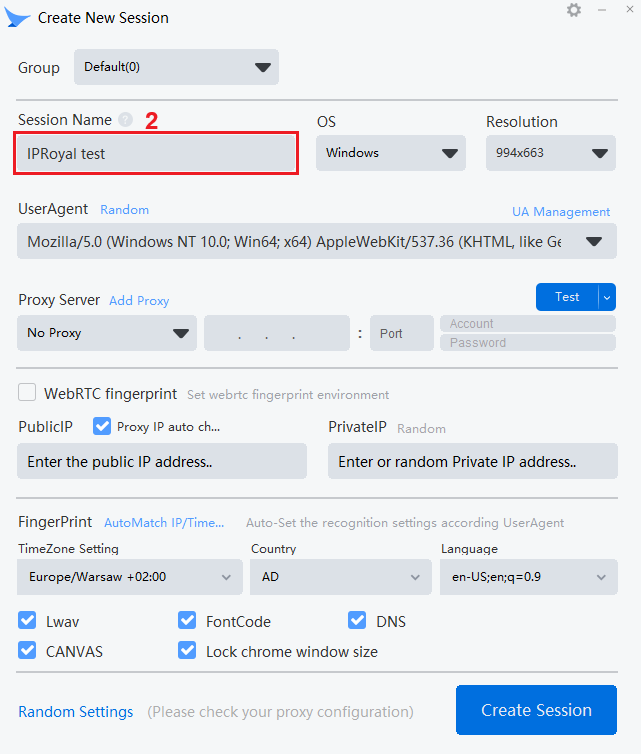
2. Name (2) your session and select fingerprint criteria, like the operating system, user agent, timezone, and others.
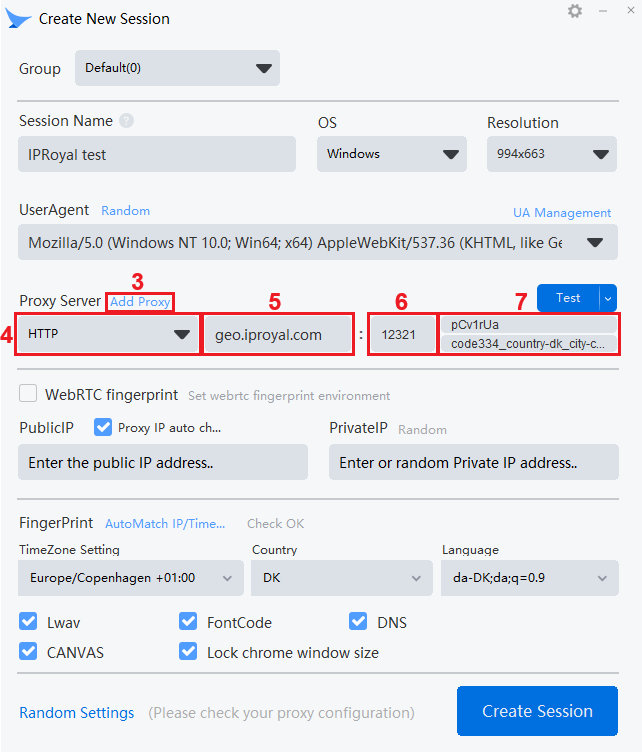
3. In the proxy server manager section, click the 'Add Proxy' (3) button and specify the protocol (4). Add the proxy hostname (5), followed by port (6), and proxy username and password (7) after that. You can paste your credentials in the hostname field, Mbbrowser will fill the other fields automatically.
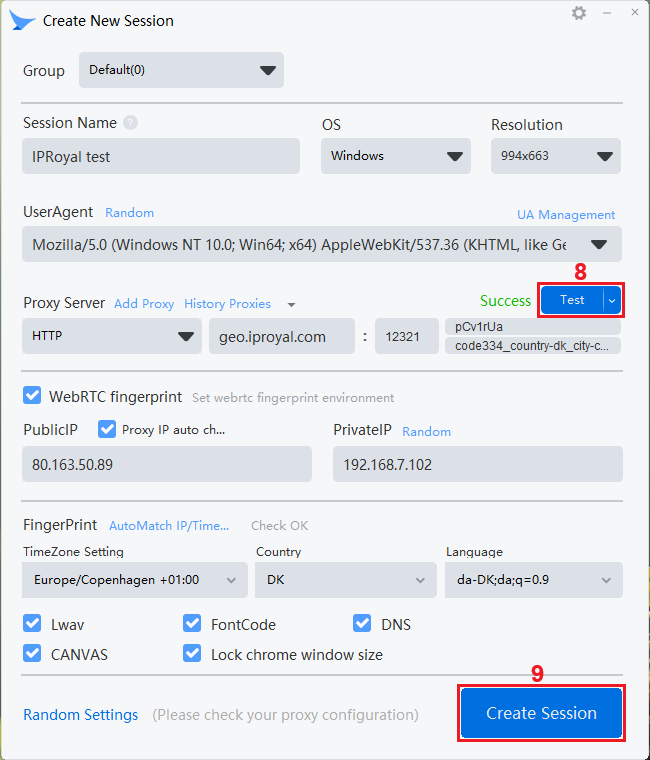
4. Lastly, click the 'Test' (8) button to verify a successful connection, and click the 'Create Session' (9) button to save the profile.
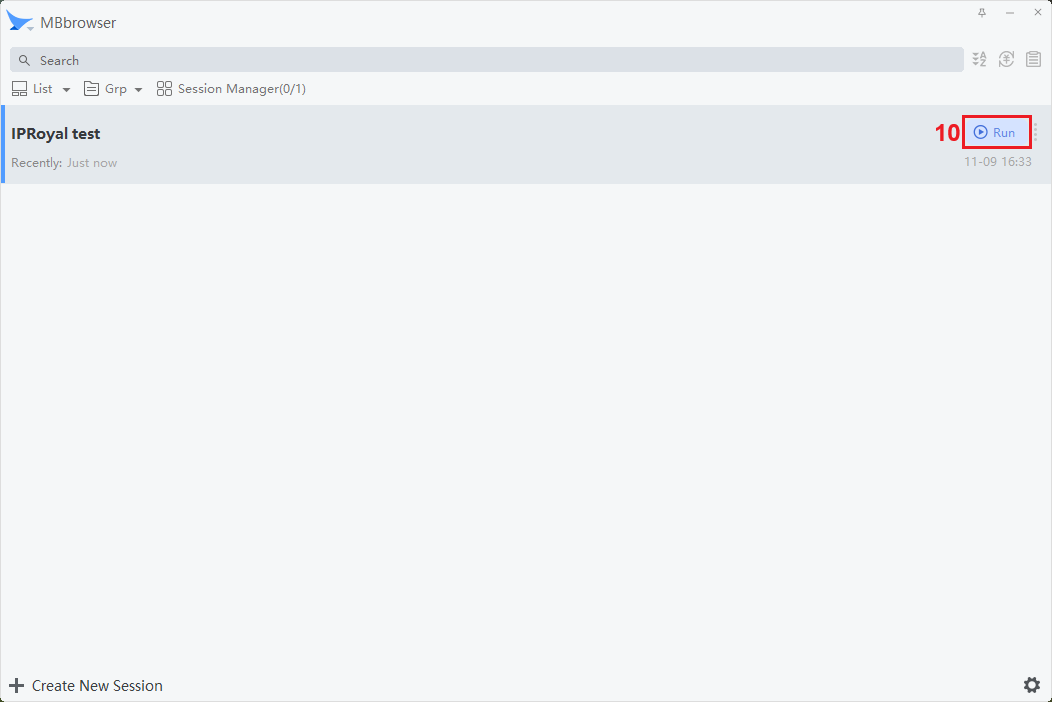
5. Launch your profile by clicking the 'Run' (10) button.
6. Visit IPHey or any other site that can verify your browser fingerprint.
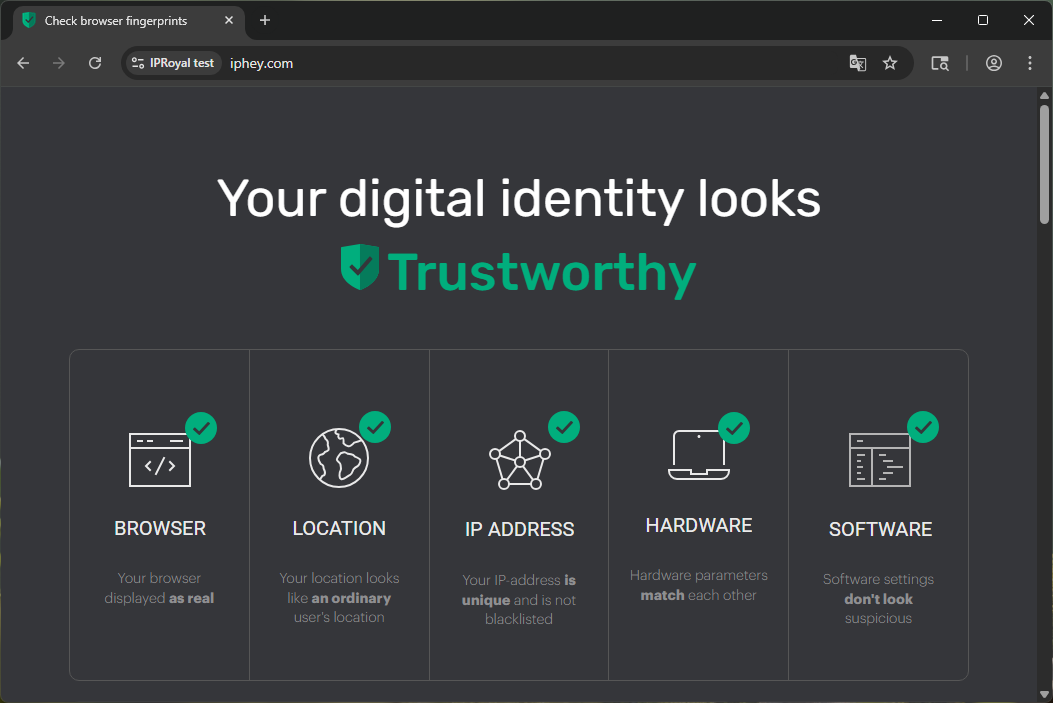
7. If your identity is trustworthy, it’s ready to start using.
Why Choose IPRoyal Proxies for Mbbrowser?
Anti detect browsers require reliable proxies to meet demanding business needs. Here's why our proxies are an excellent choice for Mbbrowser:
- No residential traffic expiration date
- Global pool of responsibly sourced residential IPs across 195+ countries
- Five proxy types with fully customizable plans
- Exclusive discounts for large orders
- 24/7 support via live chat, email, and Discord
Conclusion
Adding proxies to Mbbrowser is quick and easy, and you can start using it for social media marketing or web scraping in minutes. Keep in mind that Mbbrowser also lets you add batches of proxies to save time and manage cookies to prevent profiles from using the same ones.