Web Scraper API Quick-Start Guide

IPRoyal Web Scraper API, currently in beta, collects the content of public web pages, Google search results, and images through a single API endpoint.
It’s not a no-code tool or a visual crawler, so you need your own setup to use it. You send a request with your target from your own script or tool, such as Python, Node.js, cURL, or Postman, and the API returns the content. IPRoyal handles the proxies, browser rendering, retries, and bot-detection challenges for you.
The dashboard is where you purchase credits, manage your API token, test requests, and track usage.
You pay only for successful requests, so your costs match the data you actually receive. With no scraping infrastructure to build and maintain, Web Scraper API can automate your data collection at scale and save you time.
To join the beta, fill in the request form on the Web Scraper API page. Make sure you use the email address linked to your IPRoyal account.
In this guide, you will learn how to:
- Get the most out of core features
- Order IPRoyal Web Scraper API credits
- Find and regenerate your API token
- Test the Web Scraper API in the dashboard
- Use it in a real Python example
- Track your usage
Before You Start
To use Web Scraper API, you need:
- Access to the Web Scraper API beta
- A tool or environment that can send HTTP requests, such as Python, Node.js, cURL, or Postman
- The Web Scraper API documentation, which lists every endpoint, parameter, and error code
Specific IPRoyal Web Scraper API features
IPRoyal Web Scraper API takes care of the parts of scraping that usually need their own infrastructure: proxy management, retries, and structured parsing.
Built-In Block Handling
When you send a request, IPRoyal does the hard parts for you. It opens the target page through a proxy, loads it in a real browser, and handles any bot-detection challenges. You don't need to set up proxies or run your own browsers.
Sometimes a request fails for a short time, for example, when the target website is briefly unavailable. IPRoyal retries some of these failures once before it answers you. Each successful response includes the HTTP status code that the target website returned, so you can see exactly how the target responded.
Success-Based Pricing
You pay one credit per successful request, and every source costs the same. IPRoyal charges the credit when it delivers the content. If it can't deliver the content, the credit returns to your balance.
Requests rejected before scraping starts never use credits. This covers validation, authentication, balance, and concurrency limit errors.
Country Targeting
Use the geo_location parameter to send your request from a specific country. This feature is useful for fetching localized prices, regional search results, and product availability that changes by market.
{
  "source": "universal",
  "url": "https://example.com",
  "geo_location": "[country code]"
}
If you leave out geo_location, IPRoyal selects the location automatically. For the list of available countries and their codes, see Supported Countries.
How to Order IPRoyal Web Scraper API Credits
You can order Web Scraper API credits through your IPRoyal dashboard. One credit covers one successful request, and failed requests cost nothing. Credits never expire, so you can use them whenever you need.
Follow these steps to place your order:
- Log in or create an account at iproyal.com
- Select 'Scraping products' in the menu on the left and click 'Web Scraper API'
- Click 'Buy credits' in the 'Credits remaining' section
- Select a plan or enter the number of credits you need (starting at 1,000 requests)
- Click ‘Continue’
- Select your payment method
- Click 'Complete order'
Once your order is confirmed, the new credits appear in the 'Credits remaining' section. The order appears in the 'Web Scraper orders' section in the dashboard.
How to Find Your API Token
Along with credits, you need your API token to start sending requests. To create it, click ‘Generate token’ (1) in the ‘API Token’ section of your Web Scraper API dashboard.
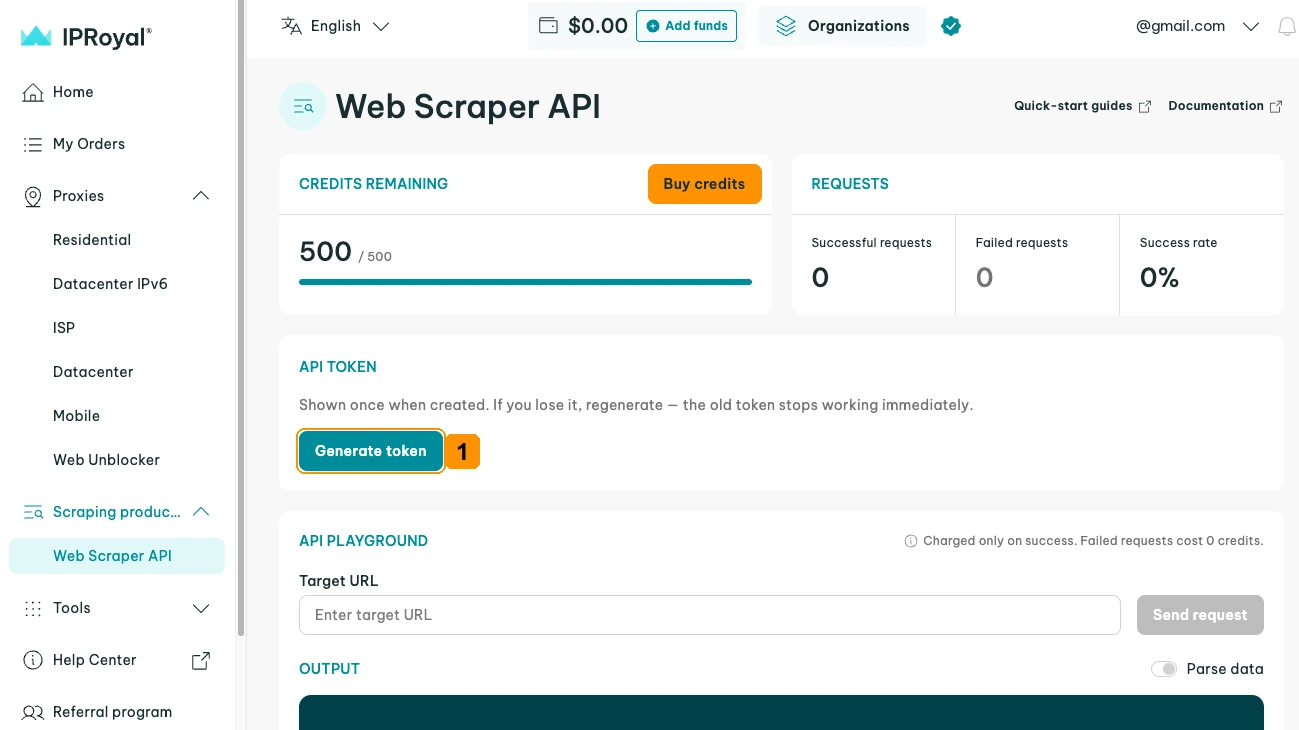
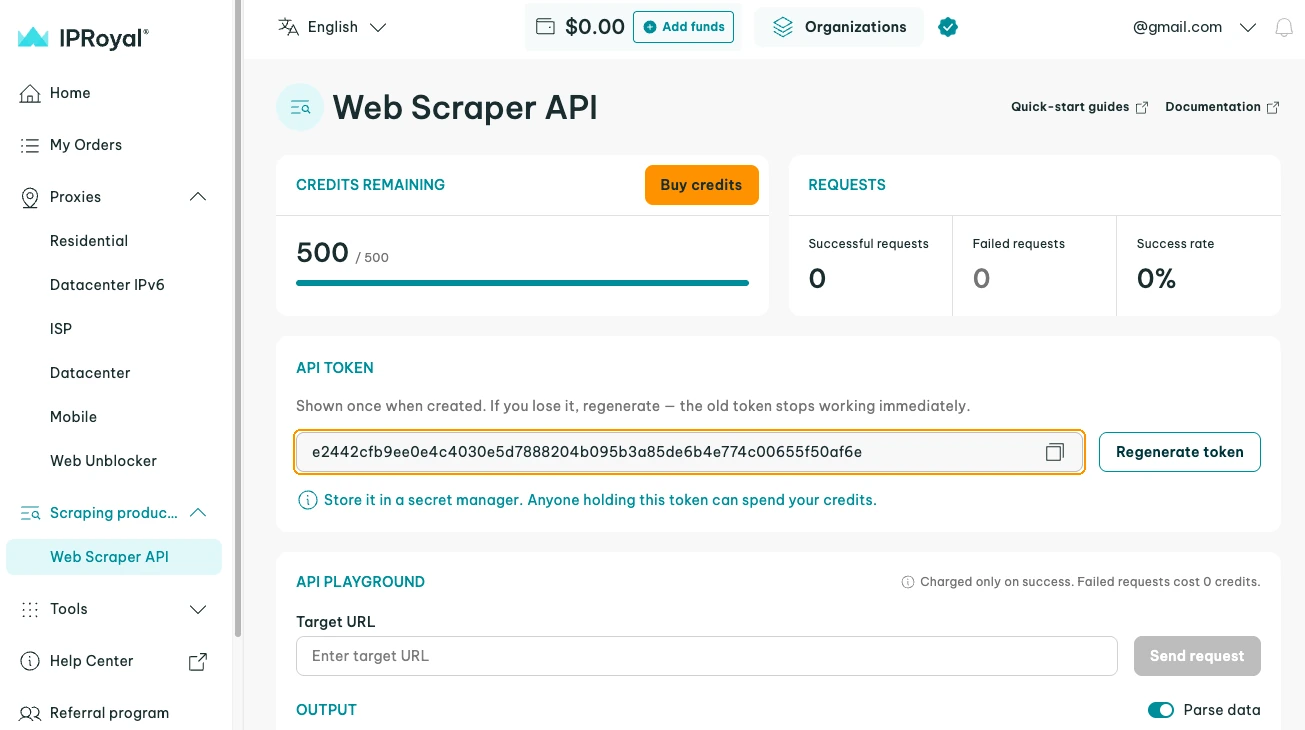
The dashboard shows your token only once, so copy it and store it in a secure place right away.
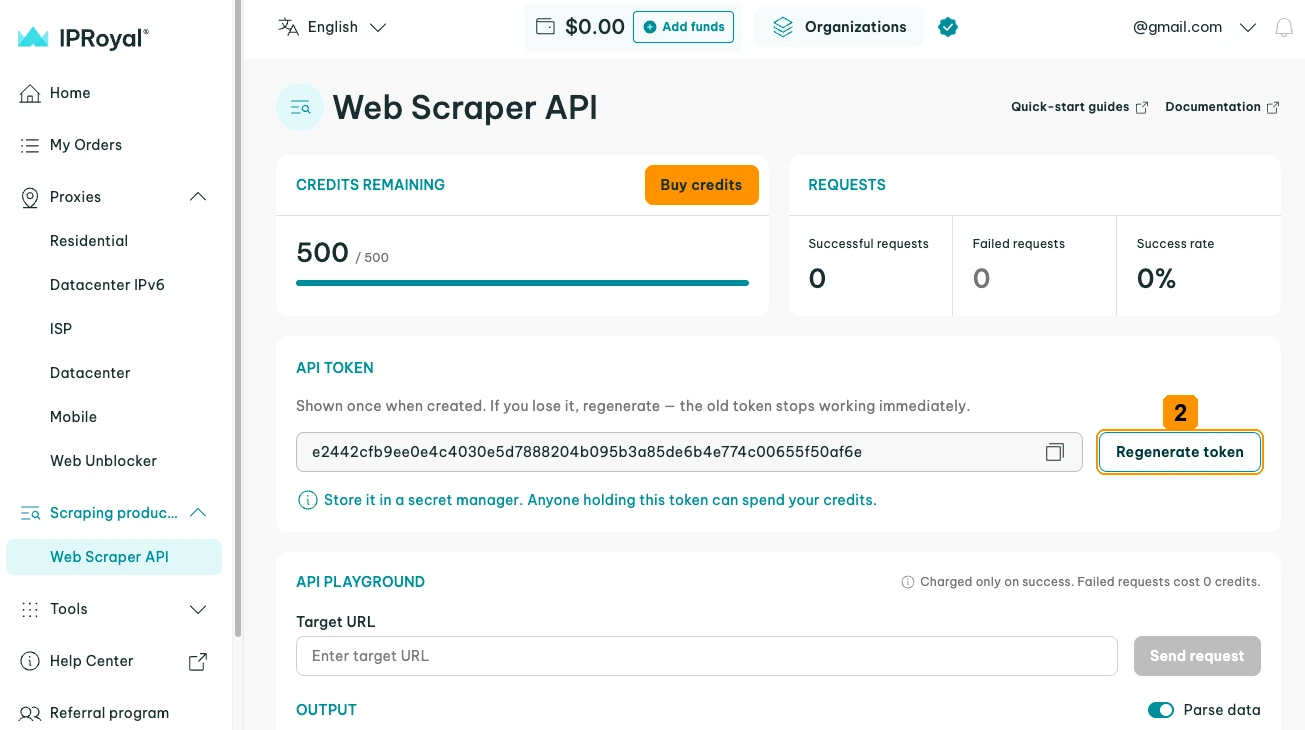
If you lose your token or think someone else has access to it, click 'Regenerate token' (2) to create a new one. The old token stops working immediately, so update it everywhere you use it and restart any long-running jobs so they read the new value.
Note: Store your token in an environment variable instead of pasting it into your code. This keeps the token out of version control, shared files, and screenshots, and you can replace it without editing your scripts.
How to Test Web Scraper API in the Dashboard
Follow the steps below to make your first request in the dashboard. This way you can test how IPRoyal Web Scraper API works with your target page before you write any code.
Note: The API playground uses your credit balance, but failed requests cost 0 credits.
Go to the 'API playground' section and enter the page you want to scrape in the 'Target URL' (1) field. Turn on 'Parse data' (2) if you want to receive structured JSON instead of raw HTML. Click 'Send request' (3).
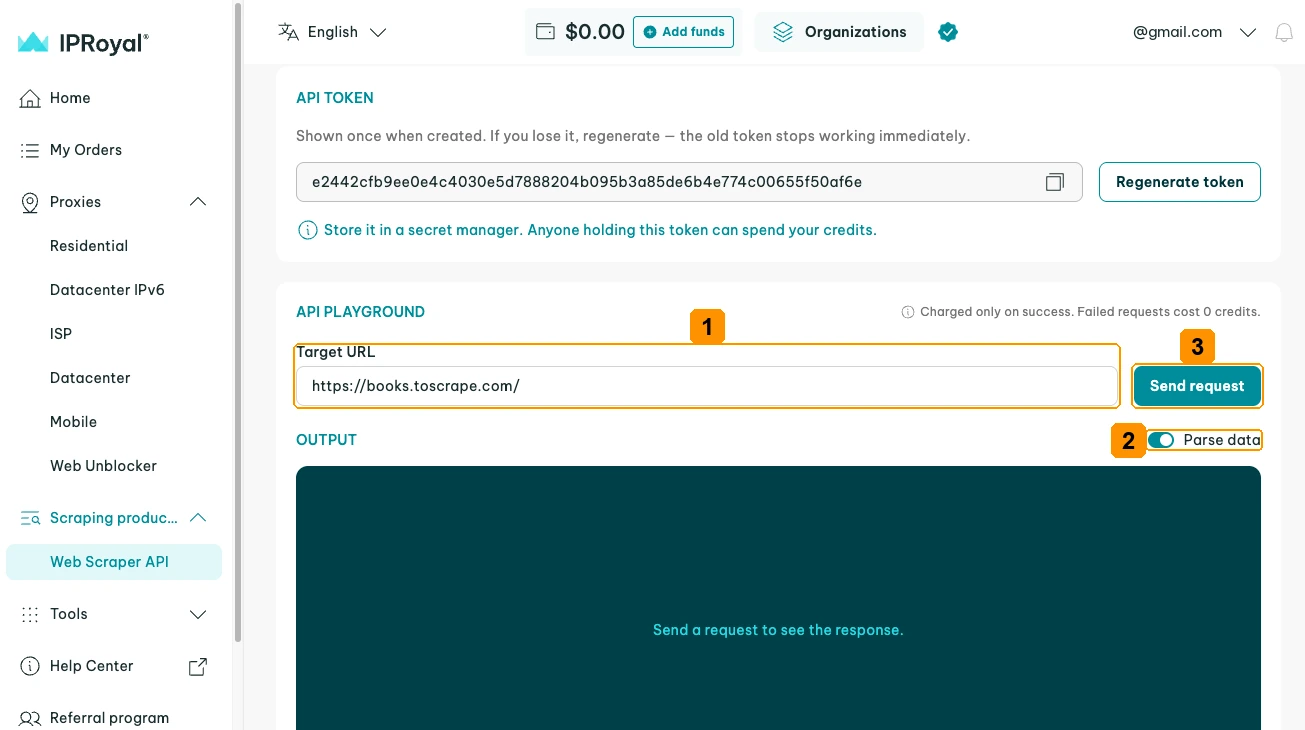
Review the response in the 'Output' section. With 'Parse data' on, use the 'JSON Response' (4) tab to see the structured result and the 'Response Headers' (5) tab to see the headers returned with it. With 'Parse data' off, use the 'HTML Source' (6) tab to see the raw HTML of the page.
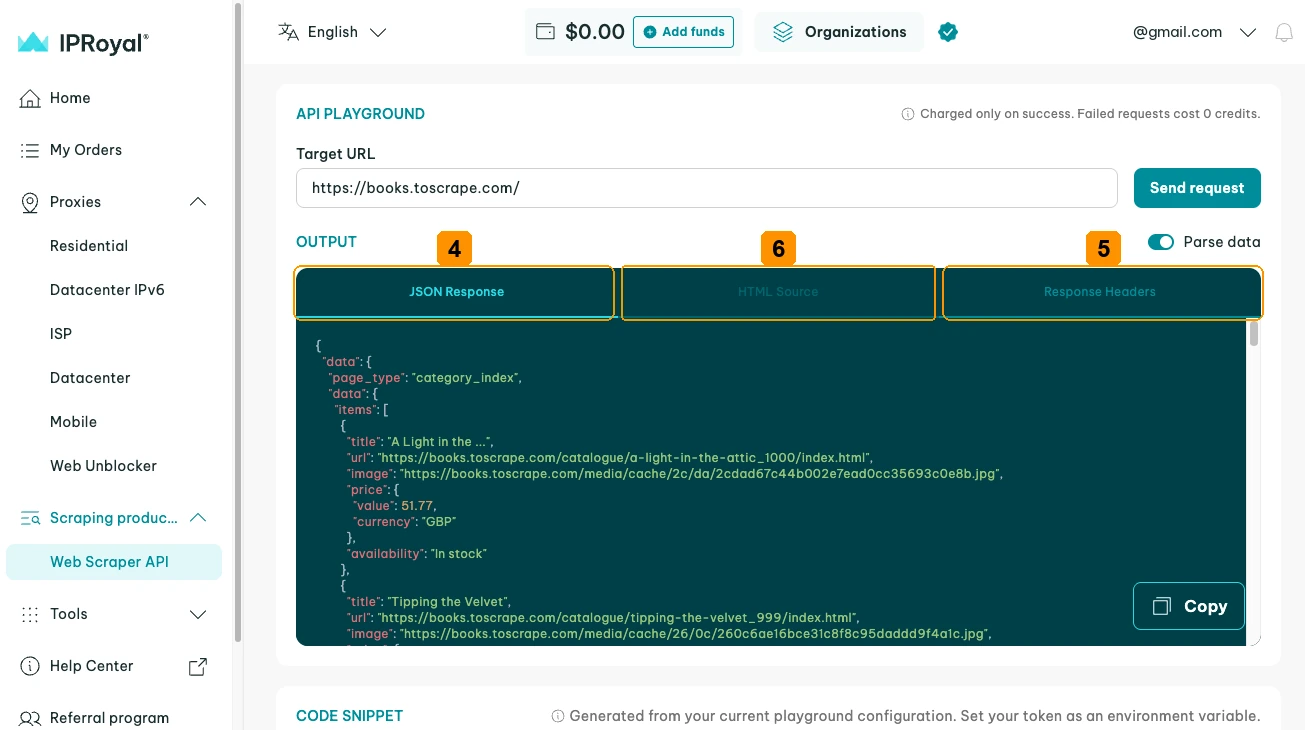
Once the response contains the data you need, you can run the same request from your own setup.
Key Request Parameters
Each scrape request includes a JSON body that tells Web Scraper API what to collect and how. These are the parameters you will use most often:
source
url
parse
geo_location
Sets the type of target:
- universal for web pages
- google for Google search results
- image for image files
The target URL you want to scrape
Set to true to receive structured JSON instead of raw HTML (universal source)
Sends the request from a specific country
For the full list of parameters, accepted values, and response fields, see the Web Scraper API documentation.
How to Use IPRoyal Web Scraper API
Below is a full, working example in Python. It sends a request, retries temporary errors, displays the job ID, and saves the result. Each step explains what the code does, and the complete script is at the end.
1. Before Running
The script uses the requests library. Install it with this command:
pip install requests
The script also reads your API token from an environment variable named IPROYAL_WS_TOKEN. On macOS or Linux, set it with:
export IPROYAL_WS_TOKEN="your_api_token"
On Windows (PowerShell), use:
$env:IPROYAL_WS_TOKEN="your_api_token"
2. Imports and Settings
import os
import random
import time

import requests

API_URL = "https://scrape.iproyal.com/v1/scrape"
TOKEN = os.environ["IPROYAL_WS_TOKEN"]
MAX_ATTEMPTS = 4
RETRYABLE = {
    "concurrency_limit_exceeded",
    "internal_error",
    "upstream_unavailable",
    "capacity_exceeded",
}
‘API_URL’ is the scrape endpoint. ‘TOKEN’ reads the token from the environment, so it never appears in the code.
‘RETRYABLE’ lists the four temporary error codes that are worth retrying. Other errors, such as an invalid request, an invalid token, or an empty credit balance, need a fix before you retry, so the script stops on them.
If you use the dashboard code snippets, add a timeout and a retry limit before you run them at scale. The snippets work as they are, but a request with no timeout can wait for a response indefinitely.
With many requests waiting, you can quickly reach your concurrency limit. For that reason, we recommend a timeout of at least 90 seconds, a limit of a few attempts per request, and stopping on errors that need a fix, as this script does.
3. Sending the Request
response = requests.post(
    API_URL,
    headers={"Authorization": f"Bearer {TOKEN}"},
    json=payload,
    timeout=90,
)
Every scrape request is a POST request, with your token in the Authorization header and your request settings in a JSON body. The 90-second timeout is important. Some websites take up to 75 seconds to respond. If your client times out earlier, the request can still finish on IPRoyal’s side and use a credit.
4. Handling the Response
if response.ok:
    return response.json()["results"][0]
When a request succeeds, the API returns a ‘results’ list. The script returns its first item, which contains the page content and details about the request.
try:
    error = response.json()["error"]
except (ValueError, KeyError):
    error = {"code": "internal_error", "message": response.text[:200]}
When a request fails, the API returns an error object with a code and a message. In the rare case that the response is not the expected JSON, the script treats it as a temporary error, so it retries instead of stopping.
5. Deciding Whether to Retry
if error["code"] not in RETRYABLE or attempt == MAX_ATTEMPTS:
    raise RuntimeError(f"{response.status_code} {error['code']}: {error['message']}")

time.sleep(2 ** attempt + random.random())
The script checks the error code rather than the message, since messages can change. If the error isn’t temporary, or this was the last attempt, the script stops and reports the error.
Otherwise, it waits 2, then 4, then 8 seconds before trying again, with a short random delay added each time.
Note: ‘422 blocked’ is not in the ‘RETRYABLE’ list on purpose. An immediate retry rarely helps when a website blocks a request. Instead, try again later or use a different ‘geo_location’ parameter.
6. Scraping a Page
result = scrape({
    "source": "universal",
    "url": "https://books.toscrape.com/",
    "geo_location": "us",
})
The ‘source’ parameter sets the type of target, and ‘universal’ covers any public web page. The ‘url’ parameter is the page you want to scrape or the target. The ‘geo_location’ parameter sends the request from a specific country, in this case the US. Leaving the ‘geo_location’ parameter out lets IPRoyal choose the location automatically.
7. Using the Result
print("Target status:", result["status_code"])
print("Job ID:", result["job_id"])

if result["status_code"] == 200:
    with open("books.html", "w", encoding="utf-8") as file:
        file.write(result["content"])
   print("Saved", len(result["content"]), "characters to books.html")
The ‘status_code’ value shows the status we received from the target website, not the API’s own status. The script checks it before using the content, so an error page is not saved as real data.
The ‘job_id’ value identifies the request. Keep it in your logs, because IPRoyal Support uses it to trace a request if you contact them.
The script saves the HTML from 'content' as a HTML file.
Note: The API also has endpoints for checking your balance, tracking usage, and regenerating your token. For details, see the Web Scraper API documentation.
Full Code Example
import os
import random
import time

import requests

API_URL = "https://scrape.iproyal.com/v1/scrape"
TOKEN = os.environ["IPROYAL_WS_TOKEN"]
MAX_ATTEMPTS = 4
RETRYABLE = {
    "concurrency_limit_exceeded",
    "internal_error",
    "upstream_unavailable",
    "capacity_exceeded",
}


def scrape(payload):
    for attempt in range(1, MAX_ATTEMPTS + 1):
        response = requests.post(
            API_URL,
            headers={"Authorization": f"Bearer {TOKEN}"},
            json=payload,
            timeout=90,
        )

        if response.ok:
            return response.json()["results"][0]

        try:
            error = response.json()["error"]
        except (ValueError, KeyError):
            error = {"code": "internal_error", "message": response.text[:200]}

        if error["code"] not in RETRYABLE or attempt == MAX_ATTEMPTS:
            raise RuntimeError(f"{response.status_code} {error['code']}: {error['message']}")

        time.sleep(2 ** attempt + random.random())


result = scrape({
    "source": "universal",
    "url": "https://books.toscrape.com/",
    "geo_location": "us",
})

print("Target status:", result["status_code"])
print("Job ID:", result["job_id"])

if result["status_code"] == 200:
    with open("books.html", "w", encoding="utf-8") as file:
        file.write(result["content"])
    print("Saved", len(result["content"]), "characters to books.html")
How to Track Your Usage
You can track your requests and credits in the dashboard or through the API. The dashboard is the quickest way to check a single request. Go to the 'Recent Requests' section to see the target, request time, request type, status, location, and credits used for each request.
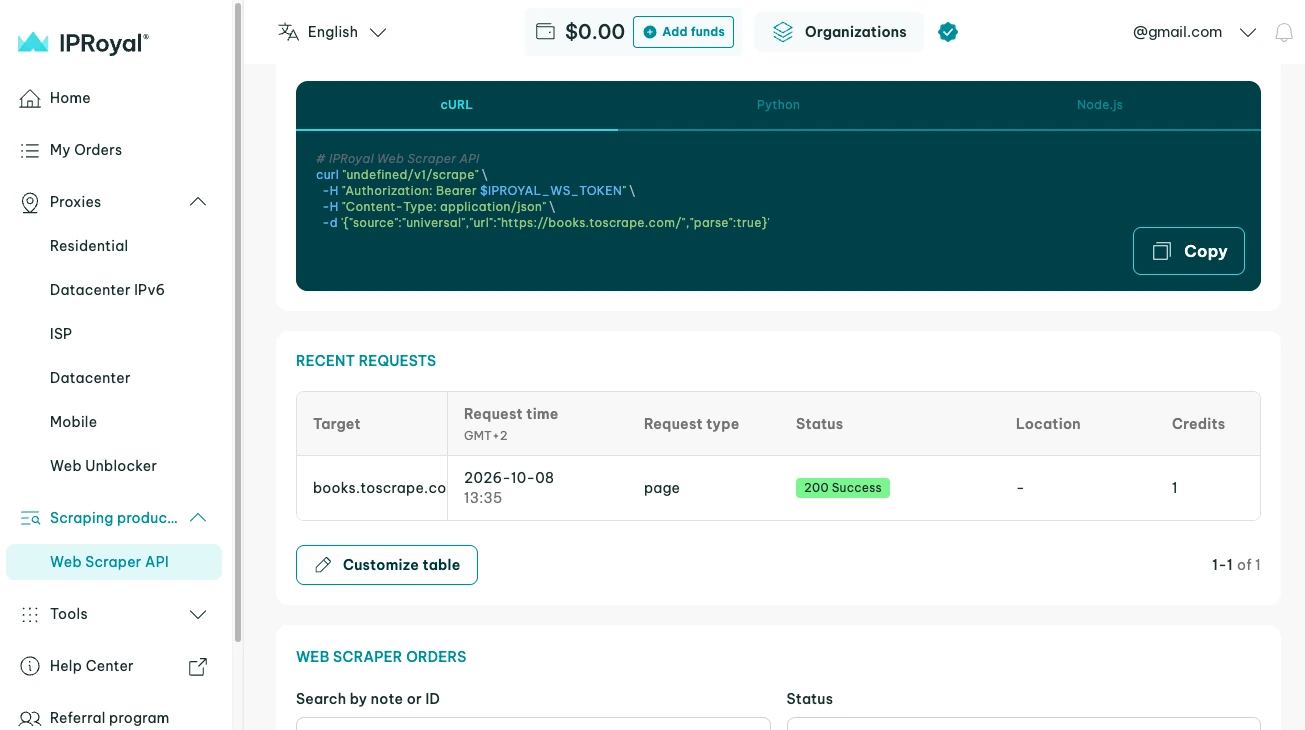
To track your usage from your own code, see the Web Scraper API documentation for the User, Usage, and Usage History endpoints.