'%20fill-rule='evenodd'%20clip-rule='evenodd'%3e%3cpath%20d='M21.9952%2012.2202c-.0019-.6851-.108-1.3688-.2269-2.0439h-9.6238v3.8768h5.4928c-.1125.6103-.3507%201.1919-.6999%201.7094-.3492.5175-.8022.9601-1.3315%201.3009v2.5105h3.3479c1.005-.9487%201.7951-2.0936%202.3191-3.3605.524-1.2668.7701-2.6273.7223-3.9932Z'%20fill='%234285F4'/%3e%3cpath%20d='M12.1415%2021.9954c2.5027.0755%204.9397-.7912%206.8092-2.4216l-3.3025-2.5105c-1.031.6482-2.2362.9808-3.4613.9553-1.266-.0247-2.49275-.4349-3.50967-1.1735-1.01691-.7385-1.81874-1.8128-2.20993-2.9916l-3.4048.0439v2.5438c.84005%201.6575%202.13352%203.0542%203.73642%204.0348%201.60291.9806%203.45238%201.5066%205.34258%201.5194Z'%20fill='%2334A853'/%3e%3cpath%20d='M6.46884%2013.8531c-.42382-1.2324-.42382-2.4897%200-3.7221V7.55469H3.06422C2.36423%208.93568%202%2010.4564%202%2011.998c0%201.5416.36423%203.0624%201.06422%204.4434l3.40462-2.5883Z'%20fill='%23FBBC05'/%3e%3cpath%20d='M12.1415%206.02167c1.4529-.02643%202.8572.46854%203.9039%201.45519l2.9053-2.87706c-1.8433-1.69203-4.2823-2.62308-6.8092-2.59936-1.8902.01282-3.73967.5388-5.34258%201.5194-1.6029.9806-2.89637%202.37735-3.73642%204.03478l3.40462%202.58828c.39118-1.17886%201.1478-2.20915%202.16472-2.94772%201.01691-.73857%202.24366-1.14874%203.50966-1.17351Z'%20fill='%23EA4335'/%3e%3c/g%3e%3c/svg%3e)
Using proxies with any anti-detect browser unlocks advanced capabilities for managing multiple online identities while maintaining complete session separation. Ghost Browser excels at this use case with its workspace-based architecture that isolates cookies, cache, and authentication states across simultaneous sessions.
This guide demonstrates complete Ghost Browser proxy integration with IPRoyal's infrastructure, enabling professionals to maintain genuinely independent browsing sessions with distinct geographic identities and IP addresses.
What Is Ghost Browser?
Ghost Browser is a productivity-focused web browser designed for users who concurrently manage numerous online identities or sessions. Unlike traditional browsers that require separate windows or incognito modes, it allows individuals to organize their browser activities within a unified interface.
Each workspace functions as an independent browsing environment with its own authentication credentials, stored data, and session information. This separation prevents cookie conflicts and cross-session contamination that typically occur when accessing multiple accounts on the same platform.
Key features of Ghost Browser include:
- Workspace-based architecture
Color-coded workspaces allow users to organize their browser sessions, each maintaining independent cookies, cache, and login states while supporting unique proxy configurations.
- Tab-level proxy assignment
Users can route individual tabs through different proxy servers, which enables simultaneous access to different geo-distributed resources without the need to adjust browser-level configurations.
- Session preservation
Workspace layouts can be saved with their proxy configurations, allowing instant recreation of complex multi-session environments across browser restarts.
- Identity compartmentalization
The browser prevents tracking systems from linking activities across workspaces through browser fingerprinting or shared network identifiers.
- Extension compatibility
Support for standard Chrome extensions is also present to help manage sophisticated routing rules and automatic failover.
The major limitation of traditional browsers is that they can only handle proxies at the application level, where each tab shares identical network settings. On the other hand, Ghost Browser's architecture allows users to open different tabs and workspaces to operate through distinct proxies simultaneously.
In short, users can set different proxy settings for each tab within the same browser to manage multiple platform accounts from varied IP addresses or to access region-specific content.
Why Use Proxies With Ghost Browser?
Combining proxies in Ghost Browser with its built-in isolation features creates genuinely independent browsing sessions that platforms cannot correlate through network analysis or behavioral patterns.
- Circumvent access restrictions and throttling
When websites detect concentrated request activity from a single IP address, they implement aggressive rate limiting. With proxies, it’s possible to bypass this behavior by distributing requests across a larger IP address pool.
- Eliminate authentication interference
Websites actively block simultaneous login attempts from the same IP address as a security concern. Ghost Browser proxy integration can create network separation, which is necessary for concurrent multi-account access without triggering platform safeguards.
- Conduct authentic geographic testing
Quality assurance teams need to monitor region-specific data to validate international deployments and verify how applications behave in different markets. Proxies provide authentic regional IP addresses that trigger location-based content delivery, currency adjustments, and compliance mechanisms, replicating the exact experience legitimate users encounter in those regions.
Testing teams can use Ghost Browser proxies to keep workspace sessions persistent for each target market without constant reconfiguration.
- Verify content localization accuracy
Global businesses ensure their platform delivers appropriate content, pricing, and functionality based on visitors' location. Proxies enable businesses to verify platform functionality for specific locations by simulating authentic visitor connections from target regions.
Combined with Ghost Browser's workspace persistence, teams can maintain ongoing monitoring of multiple markets simultaneously, catching localization errors before they impact actual users.
- Prevent cross-session correlation
Platforms use advanced tracking systems to analyze browsing patterns, timing behaviors, and network characteristics to identify user activities even when cookies or cache are cleared. Proxies add network-level differentiation that, combined with Ghost Browser's session isolation, makes correlation through behavioral analysis significantly more difficult.
Step-by-Step Proxy Integration With Ghost Browser
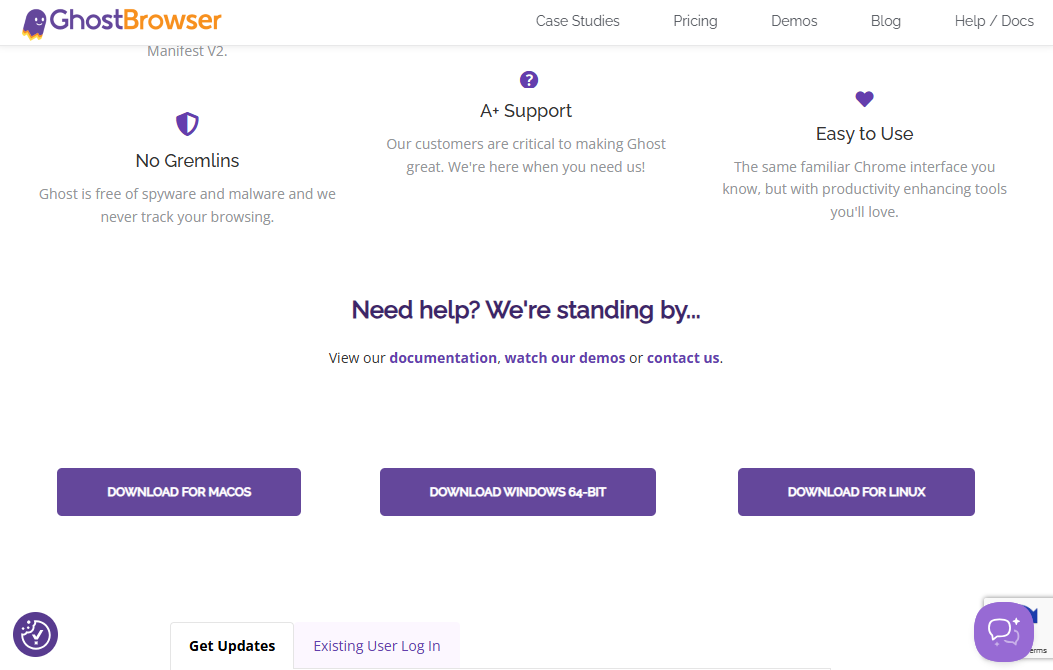
1. Navigate to the Ghost Browser official website and download the installer for your operating system (available for Windows, macOS, and Linux).
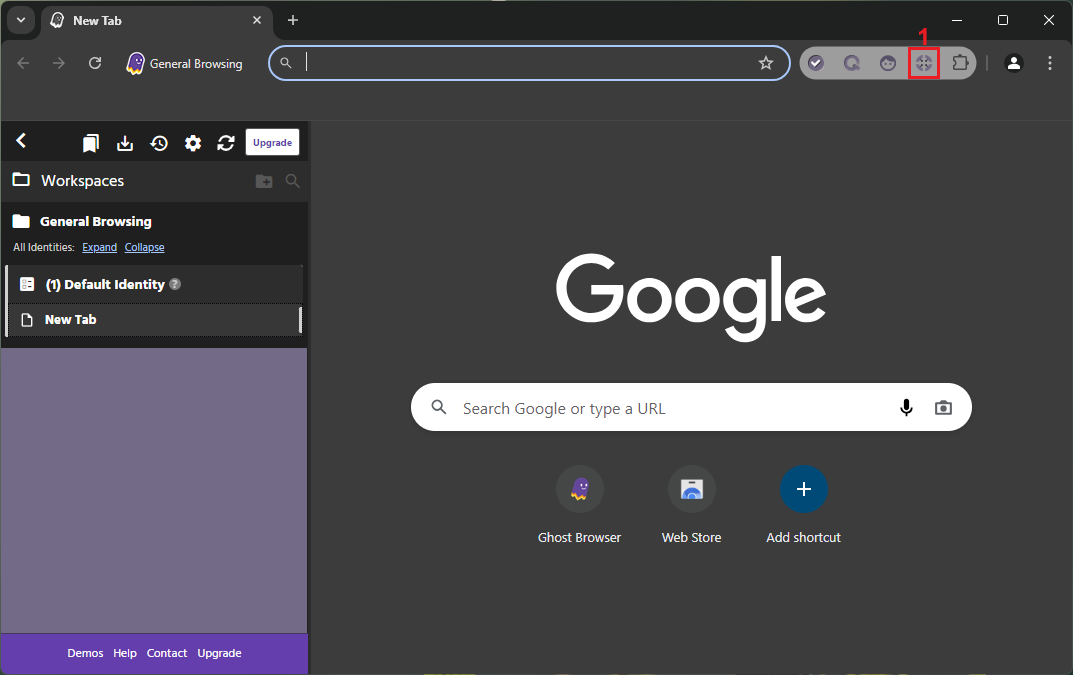
2. Launch the browser and click the ‘Ghost Proxy Control’ (1) icon in the top right corner of the browser.
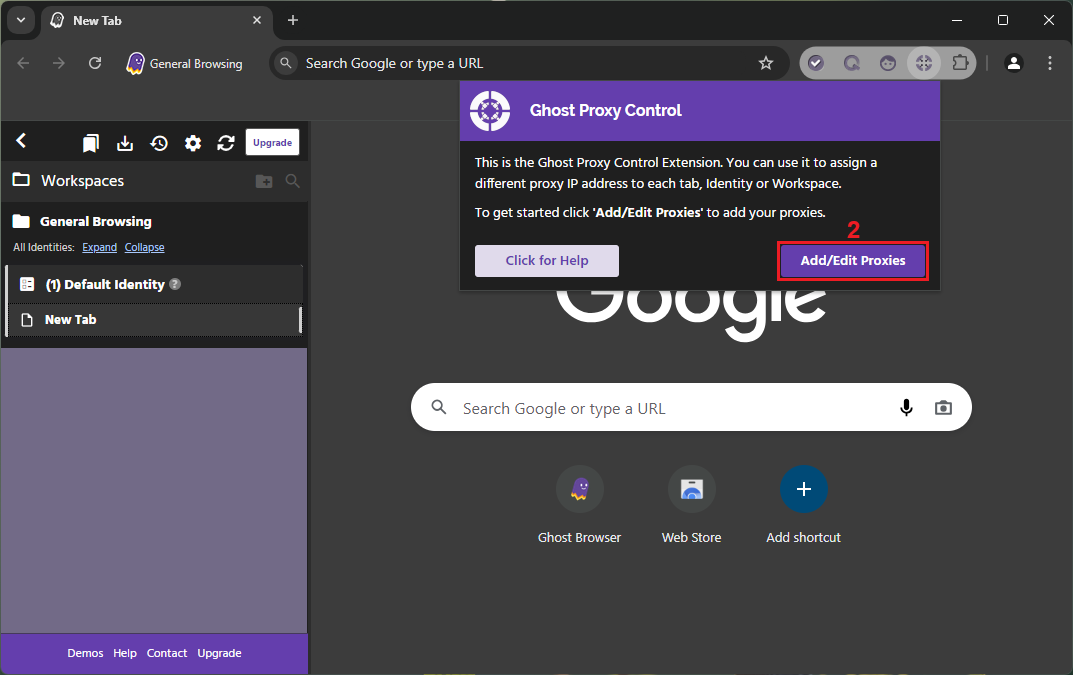
3. Click the 'Add/Edit Proxies' (2) button.
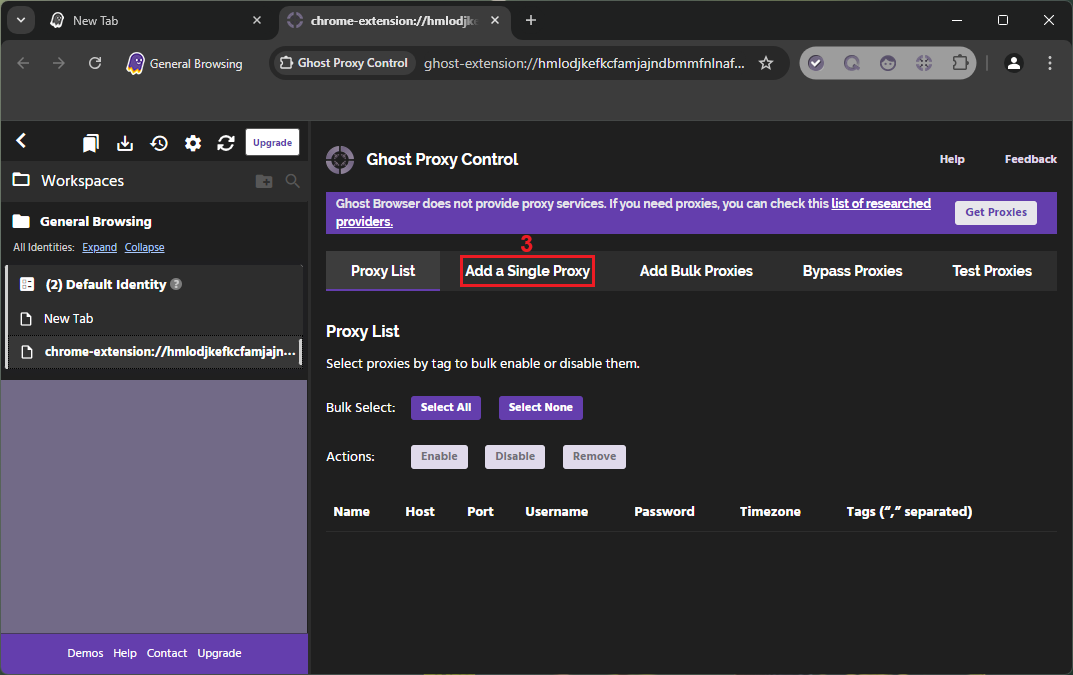
3. Switch to the 'Add a single proxy' (3) tab to fill out your proxy credentials manually. This method allows precise control without altering your computer’s proxy settings.
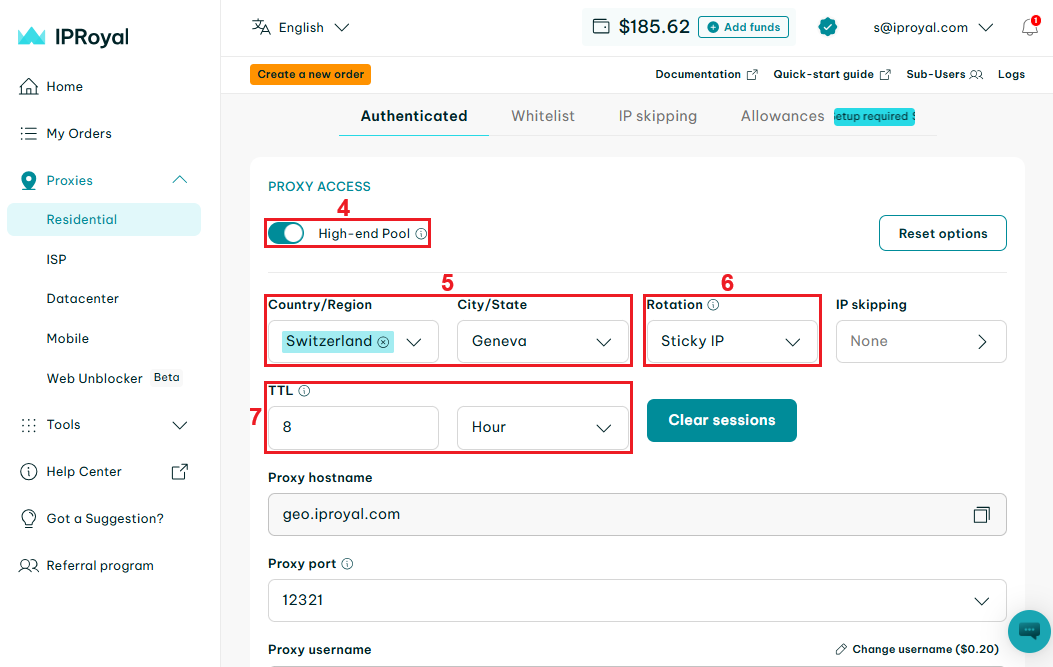
4. Log in to your IPRoyal dashboard in a new tab. Select and configure your desired proxy type - we'll use high-end (4) residential proxies from Geneva, Switzerland (5), with sticky sessions (6) that last eight hours (7). You’ll find your proxy credentials below.
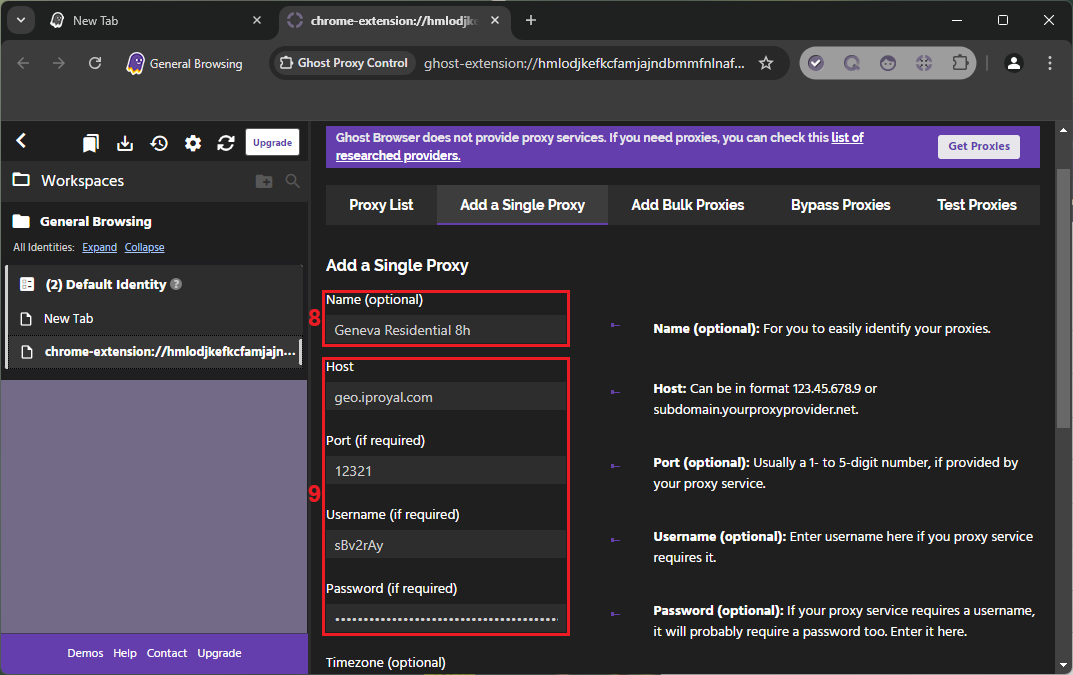
5. Return to Ghost Browser and give your proxy a name (8). Copy the hostname, port, username, and password (9) to the appropriate fields.
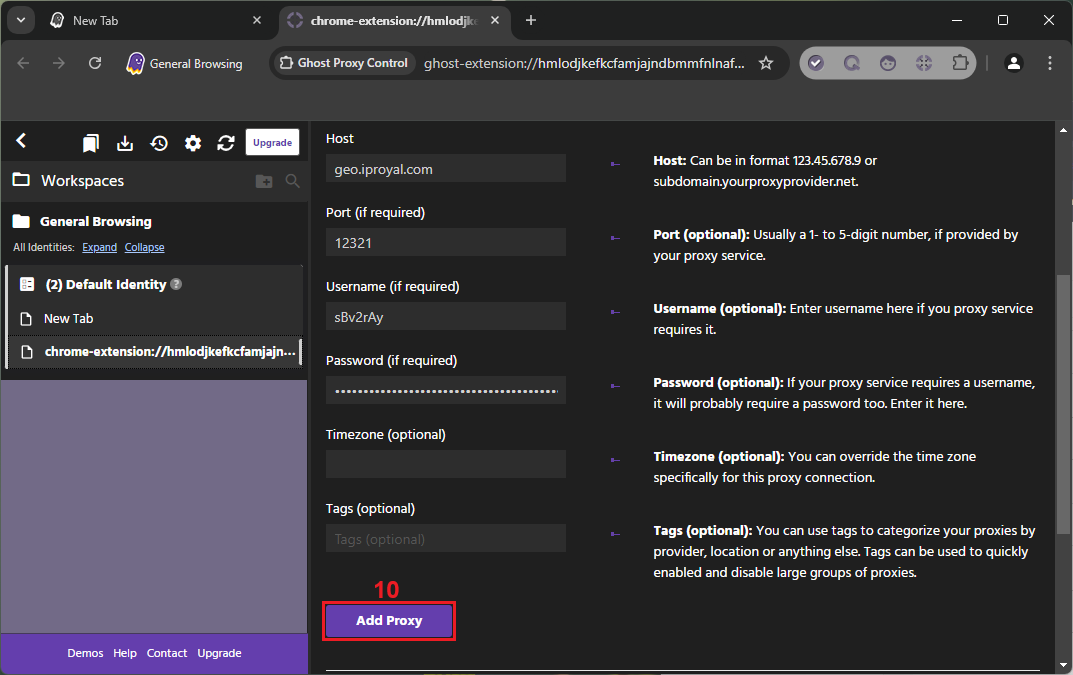
6. Scroll down and click the ‘Add Proxy’ (10) button.
7. Now, select the proxy (11) you added, and click 'Enable' (12) to activate it.
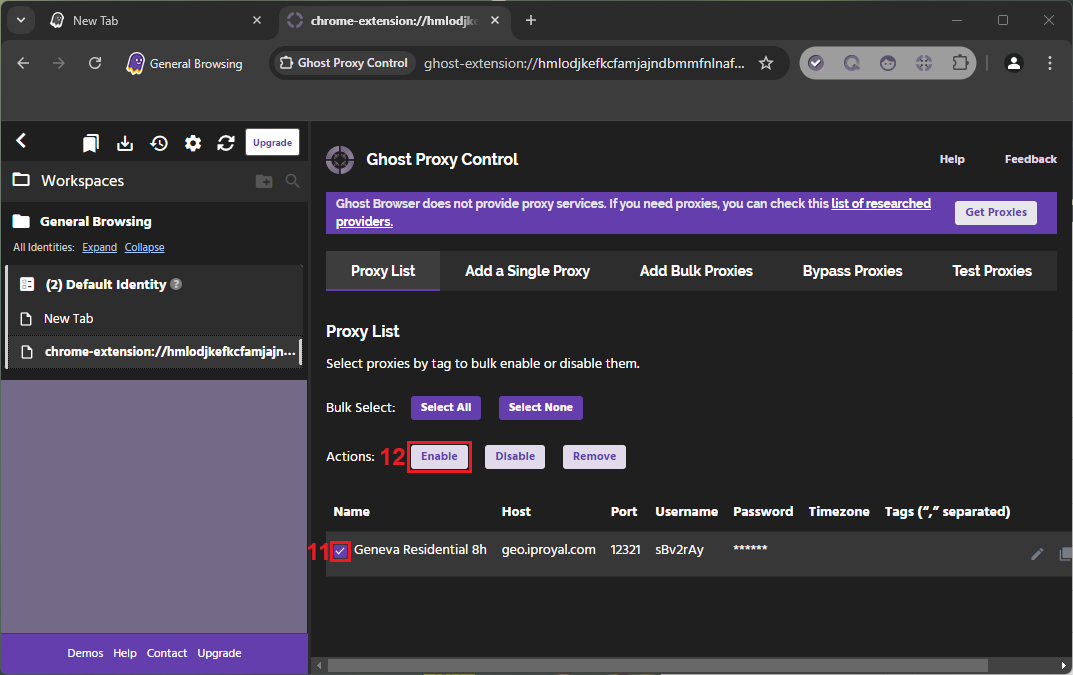
8. Switch to the ‘Test Proxies’ (13) tab in the Ghost proxy control settings to verify your configuration once the setup is complete. Enter an URL (14), make sure your proxy is selected (15), and click the ‘Test’ (16) button.
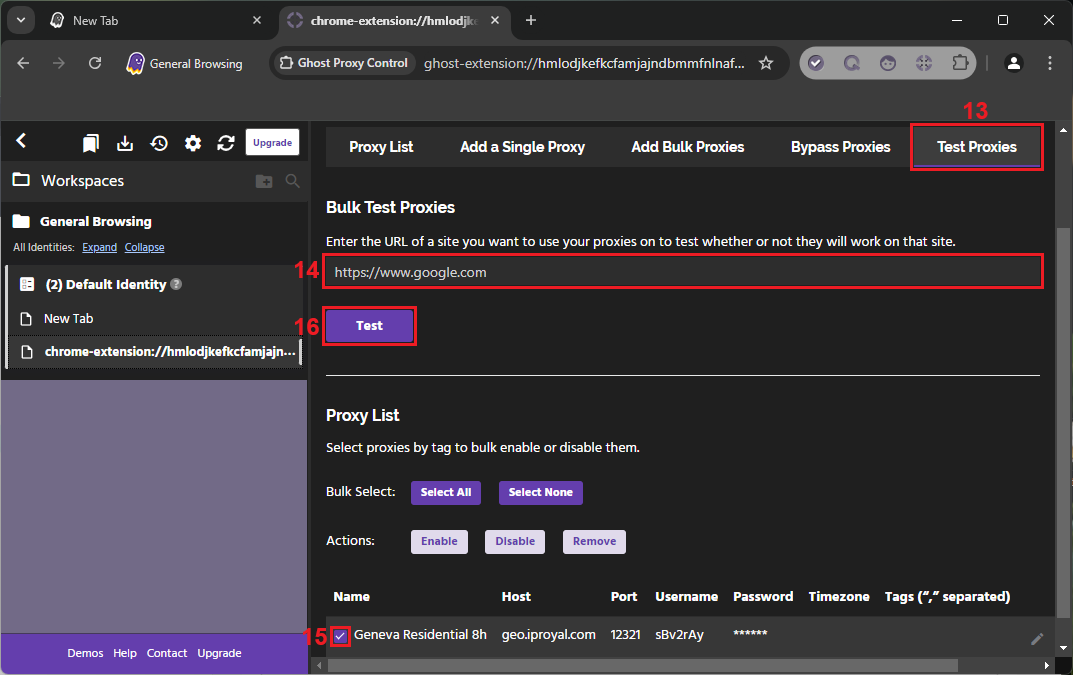
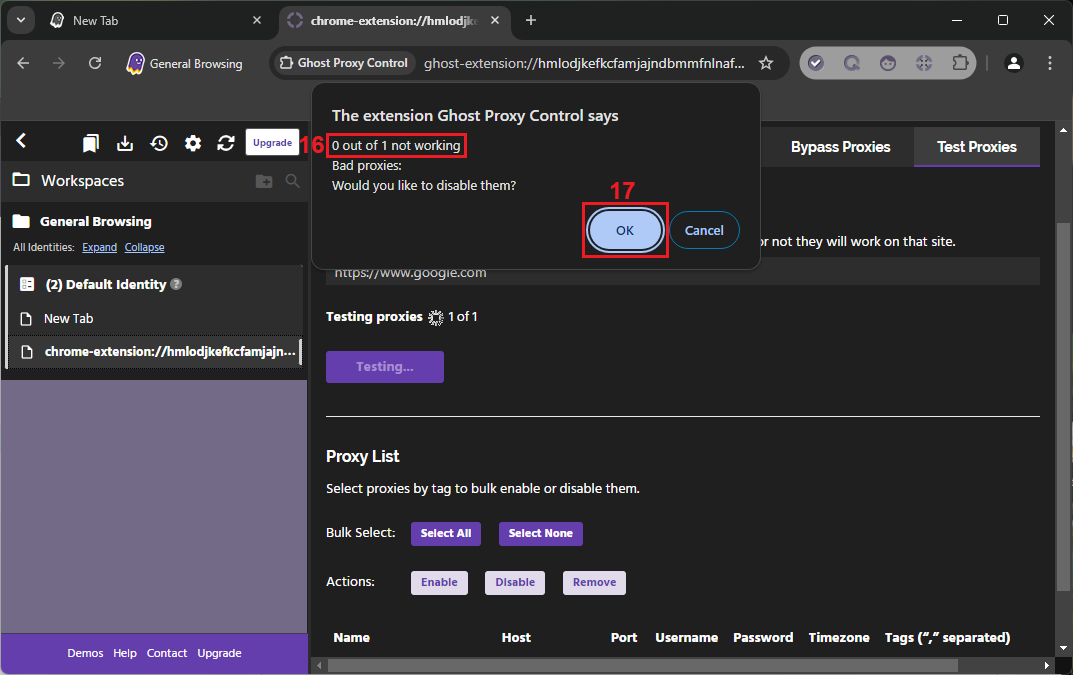
9. Once the test is complete, you’ll see the results (16). Your proxy is ready to use. Click the ‘OK’ (17) button.
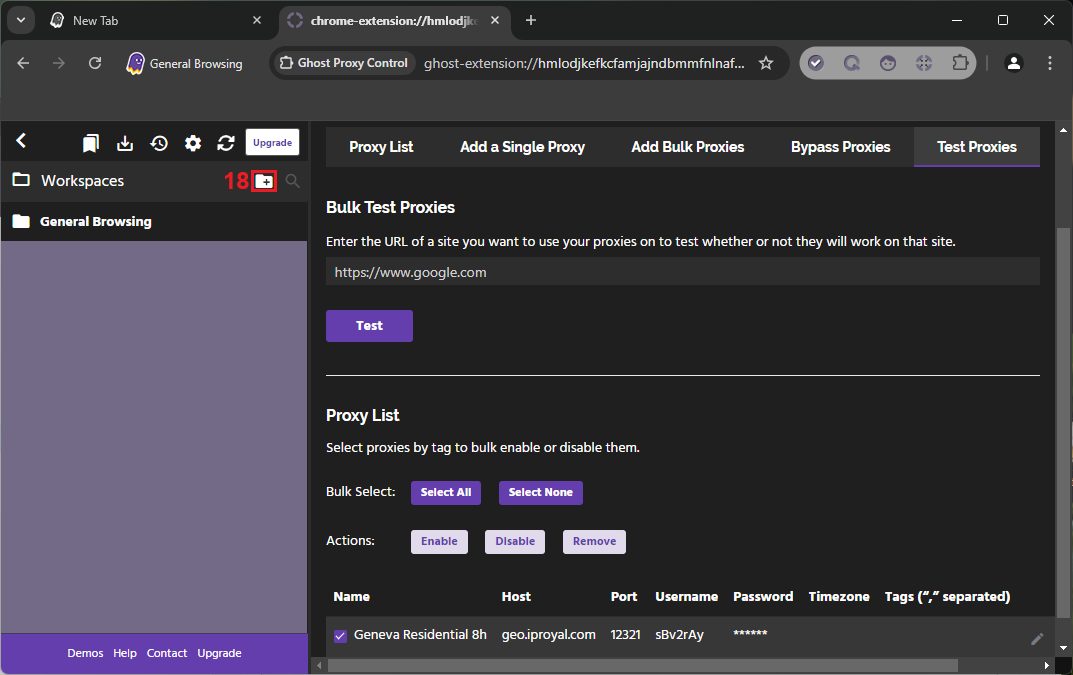
10. To create a different workspace, click the '+' (18) icon.
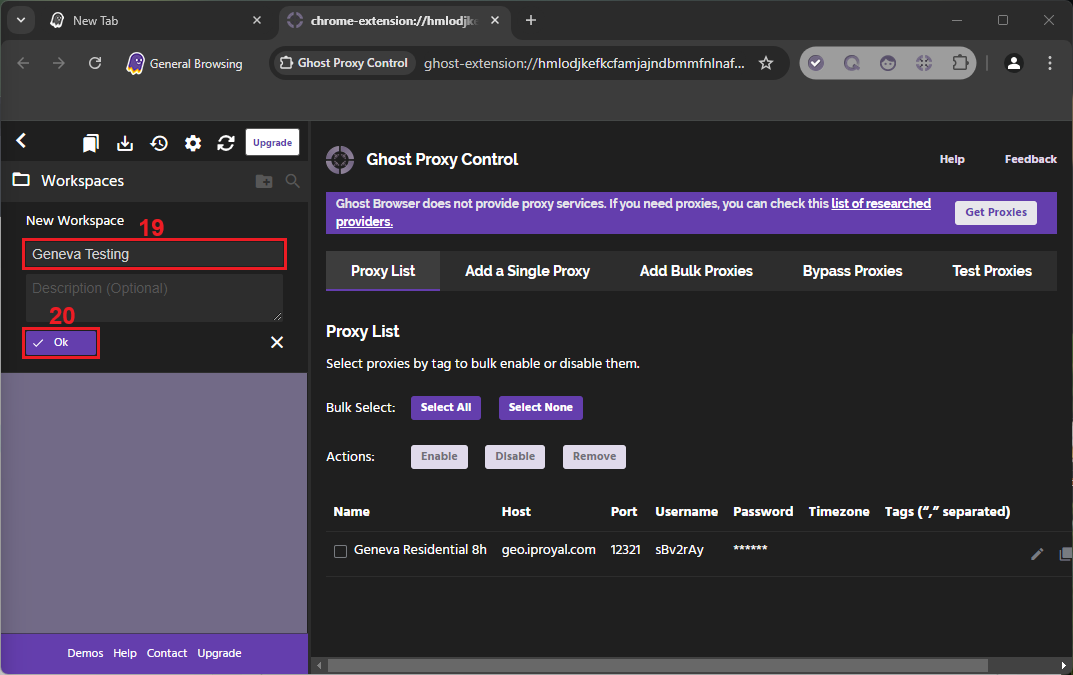
11. Enter a name (19) for your workspace and click the ‘Ok’ (20) button.
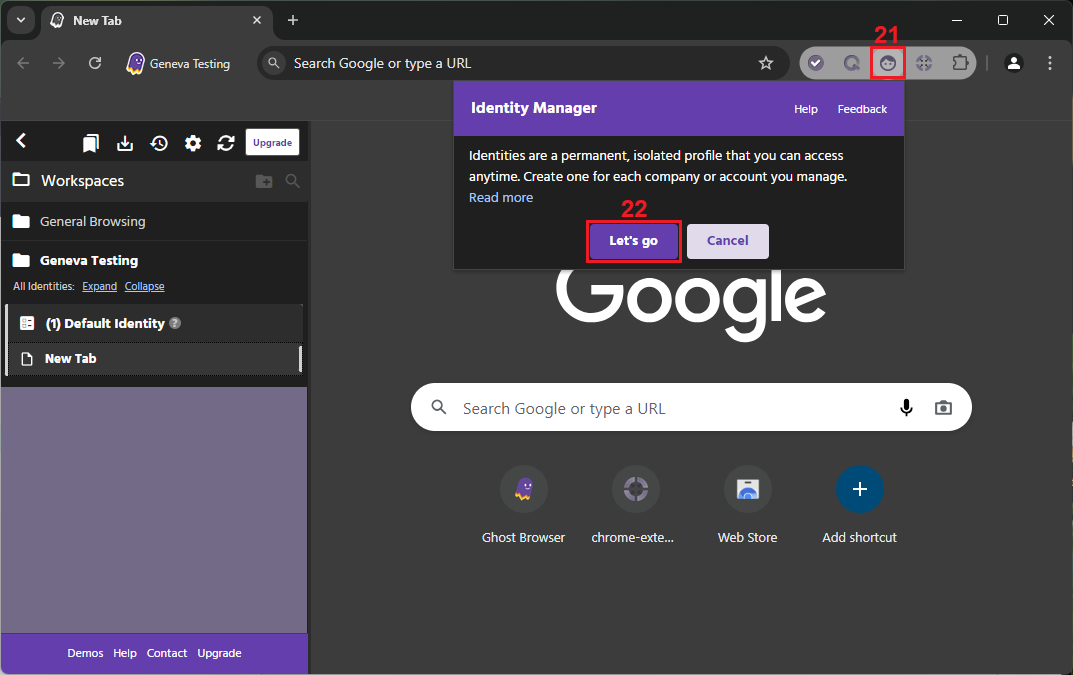
12. Once you’ve created your workspace, click the ‘Identity Manager’ (21) icon and select ‘Let’s go’ (22).
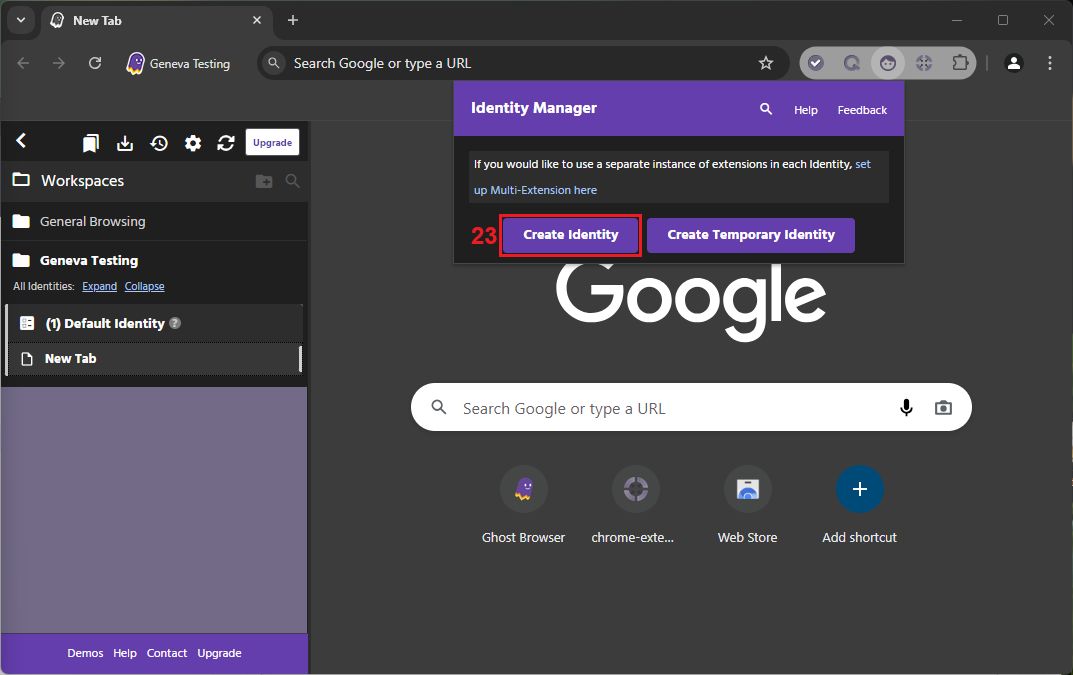
13. Click the ‘Create Identity’ (23) button.
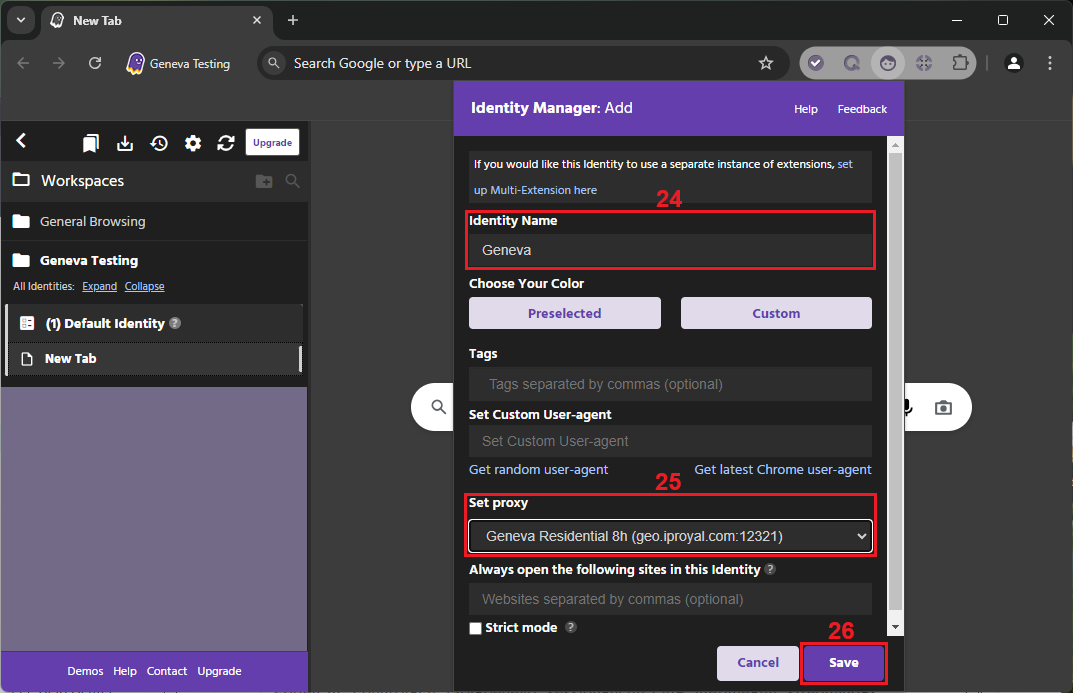
14. Assign a name (24) to your new identity and choose a proxy (25) for it. Finally, click the ‘Save’ (26) button.
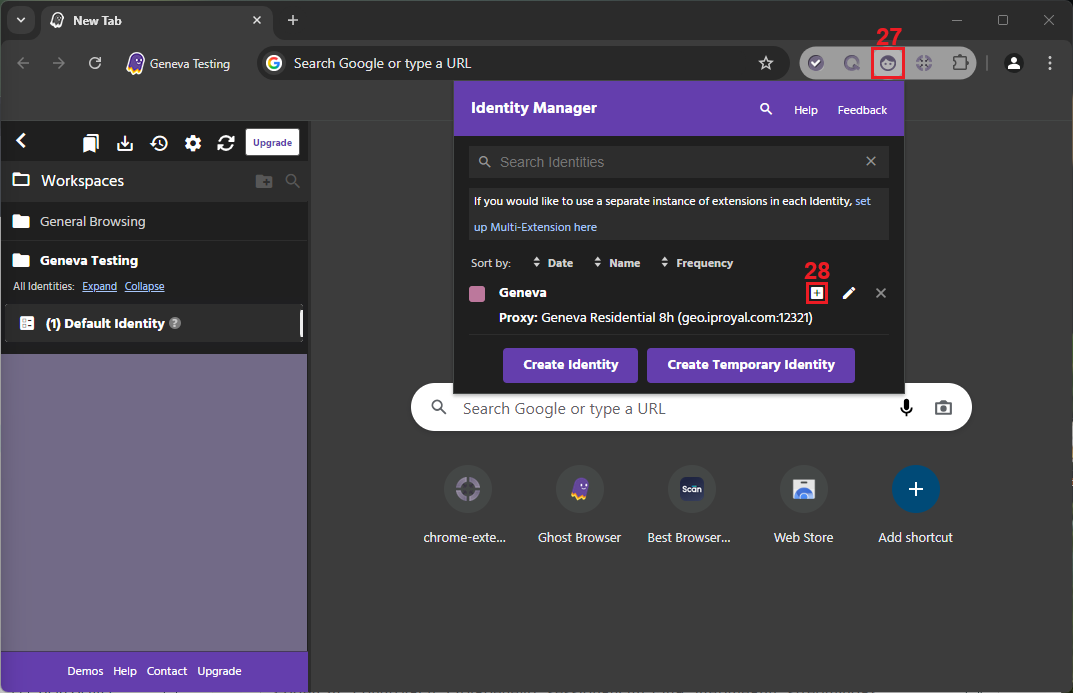
15. Open the ‘Identity Manager’ (27) menu again and click the ‘+’ (28) icon next to your newly created identity to start using it.
16. Finally, visit any IP-checking website to confirm you’ve successfully set up proxies in Ghost Browser.
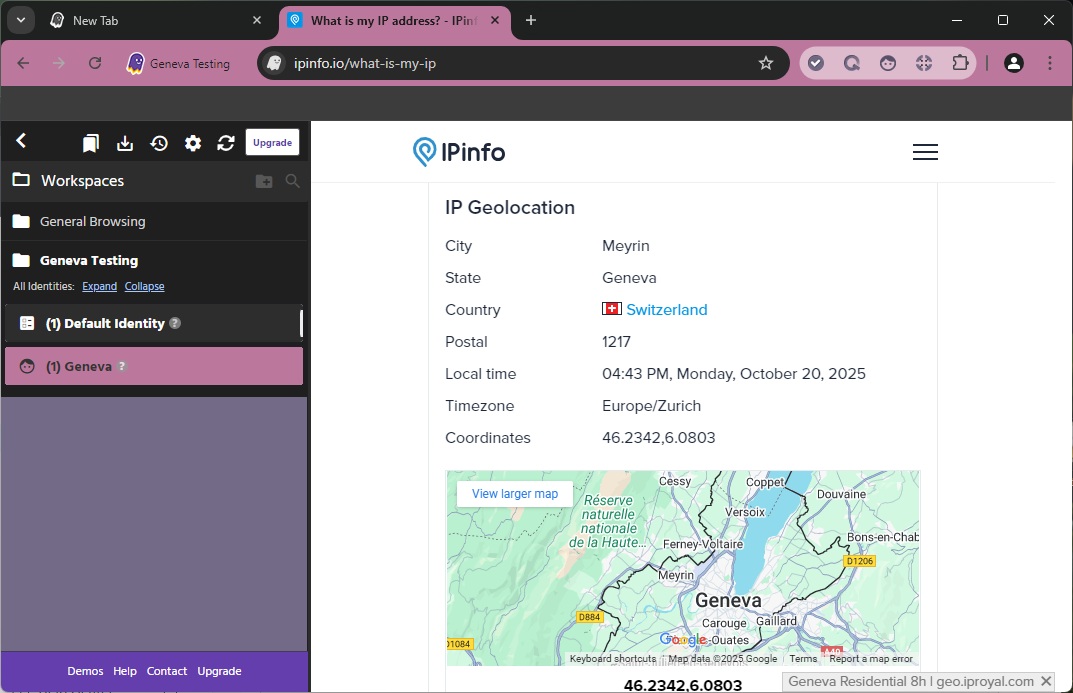
This configuration enables users to manage multiple tasks across different workspaces within a single browser instance, maintaining complete session separation.
Best Proxies for Ghost Browser in 2025
Ghost Browser's flexibility accommodates all proxy types; however, the optimal selection depends on your specific operational requirements and target platforms.
Residential Proxies
Residential proxies channel traffic through genuine consumer internet connections provided by ISPs (internet service providers). Because of their larger proxy pools with millions of IPs across the world, residential proxies offer maximum legitimacy and minimal detection probability, making them ideal for platform interactions where authenticity is critical.
When paired with residential proxies, Ghost Browser can effectively simulate distinct household internet connections, so this combination works best for marketing operations and campaign management.
Datacenter Proxies
Built on dedicated server infrastructure, datacenter proxies deliver exceptional speed and reliability at economical price points. These proxies excel in development environments, automated testing suites, and applications where raw performance trumps IP reputation concerns.
Ghost Browser's ability to isolate sessions can maximize datacenter proxy value by preventing detection patterns that might emerge from concentrated activity.
ISP Proxies
ISP proxies combine datacenter infrastructure efficiency with authentic residential IP addresses registered directly through internet service providers. With their static IP addresses that maintain residential legitimacy, these proxies are ideal for testing campaigns and finance platform access, maintaining consistent datacenter-grade performance.
Mobile Proxies
Mobile proxies route your internet traffic through a real mobile device and its cellular network, such as a 4G or 5G connection. These proxies are exceptionally effective for social media workflows as mobile-first platforms like Instagram, Snapchat, and TikTok inherently trust mobile network IPs. Ghost Browser workspaces with mobile proxies authentically replicate mobile browsing patterns that these platforms expect and favor.
To get the best experience when using proxies in Ghost Browser, it’s recommended to maintain a balance between performance and authenticity.
Conclusion
Combining IPRoyal's global proxy infrastructure with Ghost Browser's isolation capabilities creates a robust foundation for managing complex multi-session workflows. This combination can help professionals maintain a truly independent browsing environment with distinct network identities, geographic locations, and behavioral patterns.
With a workspace–proxy pairing, users can eliminate the complexity of managing multiple browser instances. It also provides the network separation needed for advanced operations across different accounts, regions, and platforms.