'%20fill-rule='evenodd'%20clip-rule='evenodd'%3e%3cpath%20d='M21.9952%2012.2202c-.0019-.6851-.108-1.3688-.2269-2.0439h-9.6238v3.8768h5.4928c-.1125.6103-.3507%201.1919-.6999%201.7094-.3492.5175-.8022.9601-1.3315%201.3009v2.5105h3.3479c1.005-.9487%201.7951-2.0936%202.3191-3.3605.524-1.2668.7701-2.6273.7223-3.9932Z'%20fill='%234285F4'/%3e%3cpath%20d='M12.1415%2021.9954c2.5027.0755%204.9397-.7912%206.8092-2.4216l-3.3025-2.5105c-1.031.6482-2.2362.9808-3.4613.9553-1.266-.0247-2.49275-.4349-3.50967-1.1735-1.01691-.7385-1.81874-1.8128-2.20993-2.9916l-3.4048.0439v2.5438c.84005%201.6575%202.13352%203.0542%203.73642%204.0348%201.60291.9806%203.45238%201.5066%205.34258%201.5194Z'%20fill='%2334A853'/%3e%3cpath%20d='M6.46884%2013.8531c-.42382-1.2324-.42382-2.4897%200-3.7221V7.55469H3.06422C2.36423%208.93568%202%2010.4564%202%2011.998c0%201.5416.36423%203.0624%201.06422%204.4434l3.40462-2.5883Z'%20fill='%23FBBC05'/%3e%3cpath%20d='M12.1415%206.02167c1.4529-.02643%202.8572.46854%203.9039%201.45519l2.9053-2.87706c-1.8433-1.69203-4.2823-2.62308-6.8092-2.59936-1.8902.01282-3.73967.5388-5.34258%201.5194-1.6029.9806-2.89637%202.37735-3.73642%204.03478l3.40462%202.58828c.39118-1.17886%201.1478-2.20915%202.16472-2.94772%201.01691-.73857%202.24366-1.14874%203.50966-1.17351Z'%20fill='%23EA4335'/%3e%3c/g%3e%3c/svg%3e)

When working with multiple accounts for social media, ecommerce, web scraping, or any other workflow that requires profile separation, the antidetect browser you choose and the proxies you pair it with can make or break your setup.
This article will show you how to set up IPRoyal proxies in Afina, an affordable antidetect browser with a built-in, no-code automation builder.
By the end, you’ll know how to match your Afina browser profile’s location settings to your IPRoyal proxy’s location and verify that everything works before you start browsing.
What Is Afina Browser?
Afina is an antidetect browser that helps you manage multiple accounts without them getting linked. Each profile acts like a separate browser environment with its own cookies, cache, local data, and unique digital fingerprint.
Afina also includes a no-code visual automation builder with a drag-and-drop canvas for tasks such as:
- Warming up new profiles
- Publishing posts on a schedule
- Scraping product data
- Filling out forms
Unlike most antidetect browsers, Afina supports local encryption. All profile data and credentials are stored on your device and encrypted with a master password.
The browser also provides a local API with no request limits, making it easier to automate profile management at scale. For example, you can use a for loop to create multiple profiles, run warm-up workflows, and collect data from multiple websites in parallel, with each task running through its designated profile.
Afina's Lite plan starts at $9/month for 20 profiles. This tier includes API access, while team collaboration starts with the Base plan, which costs $29/month. A four-day free trial gives you full access to all Base features, so you can test the API and automation before paying.
New users can get 20% off Base, Standard, and Max plans using the code SALE20.
How To Set Up IPRoyal Proxies With Afina
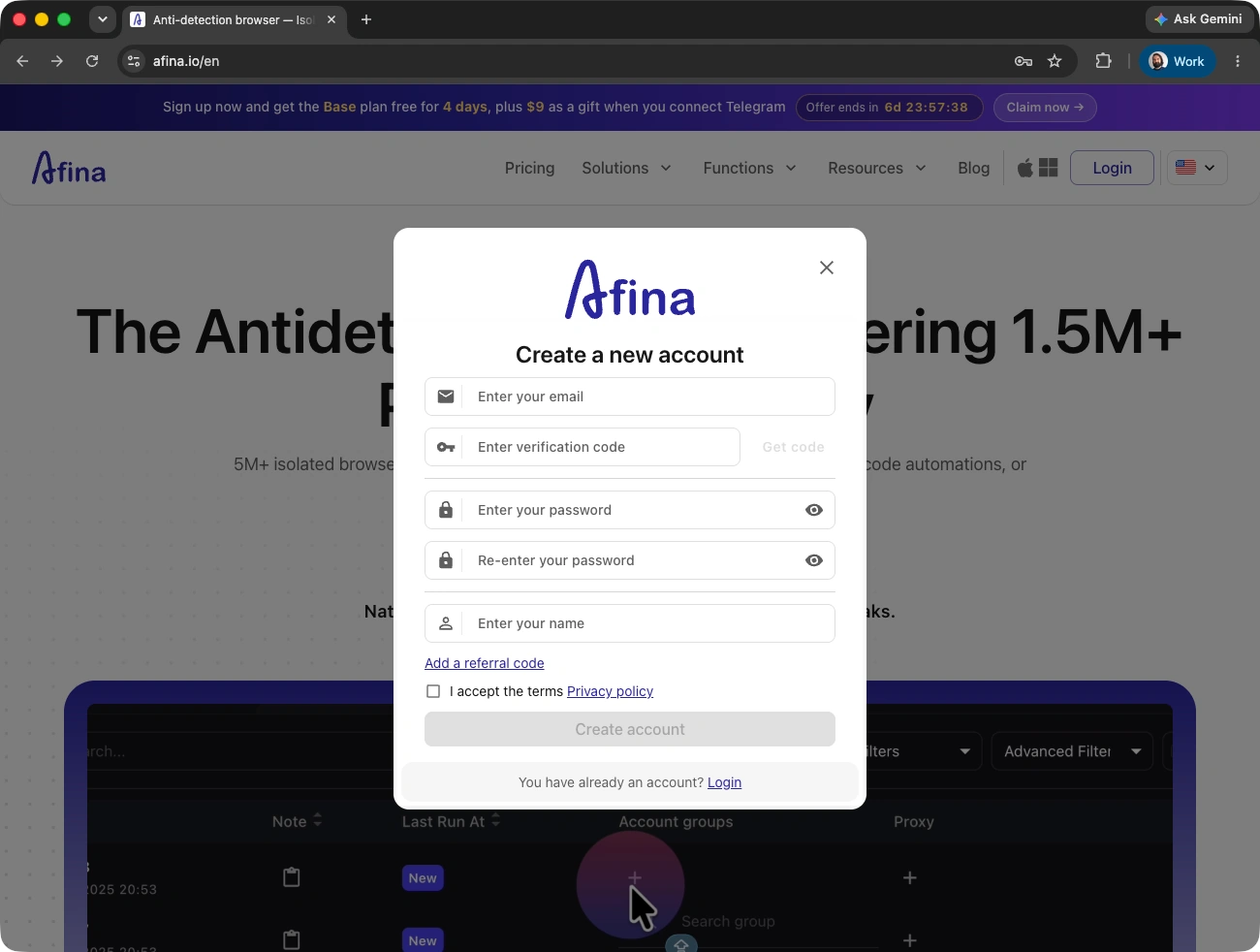
1. Go to Afina.io and create an account.
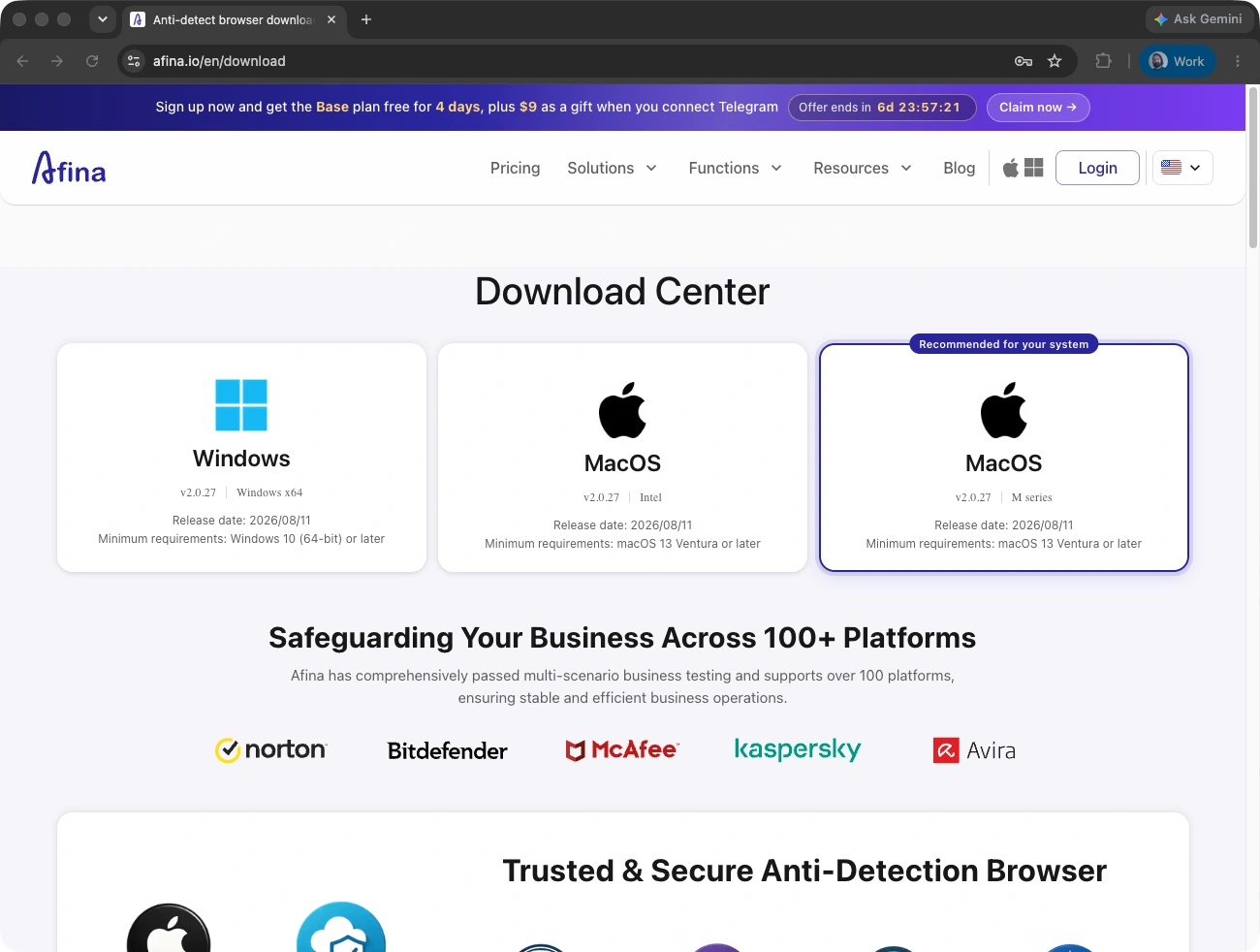
2. Download Afina for macOS or Windows and follow the installation instructions.
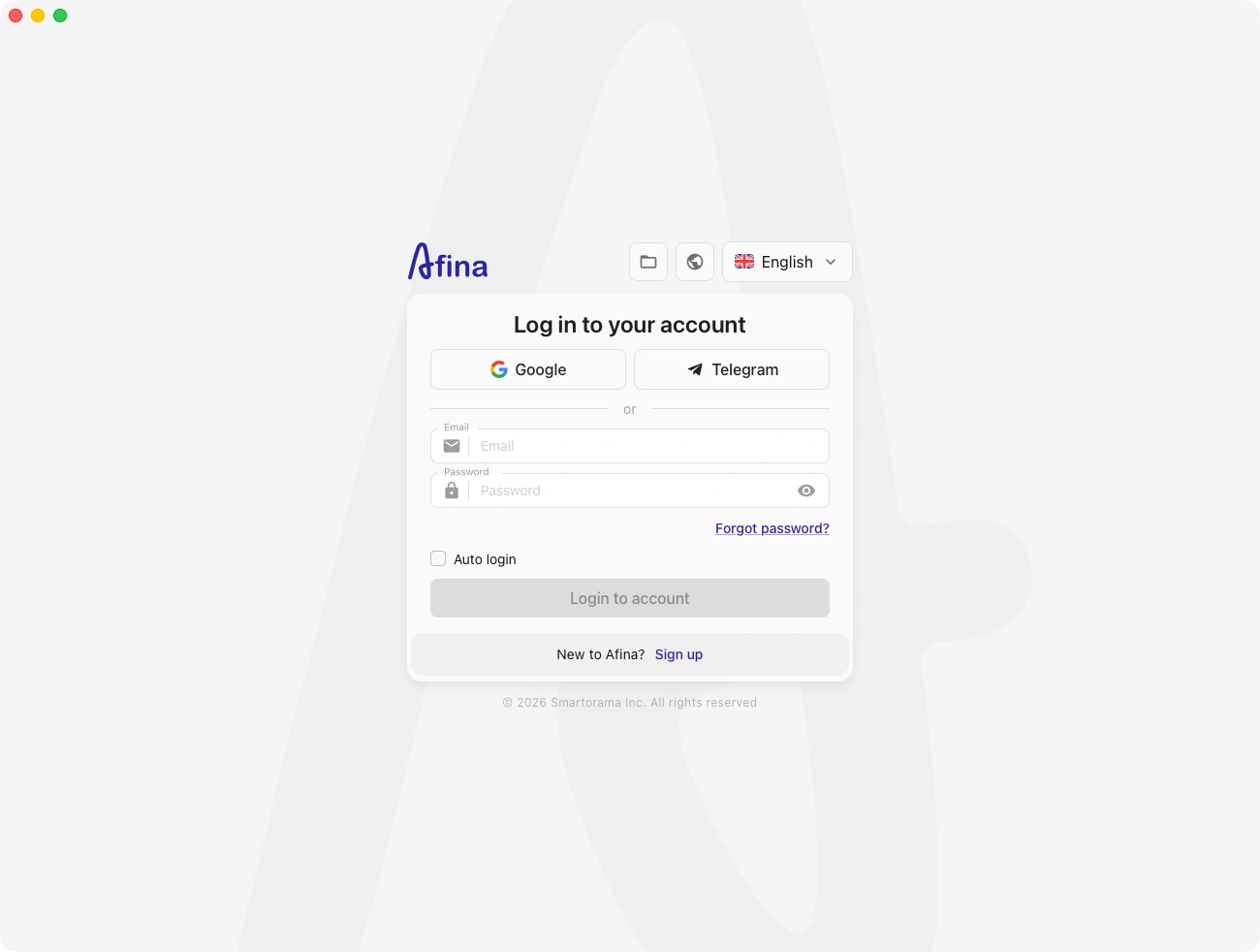
3. Launch Afina and log in with your credentials.
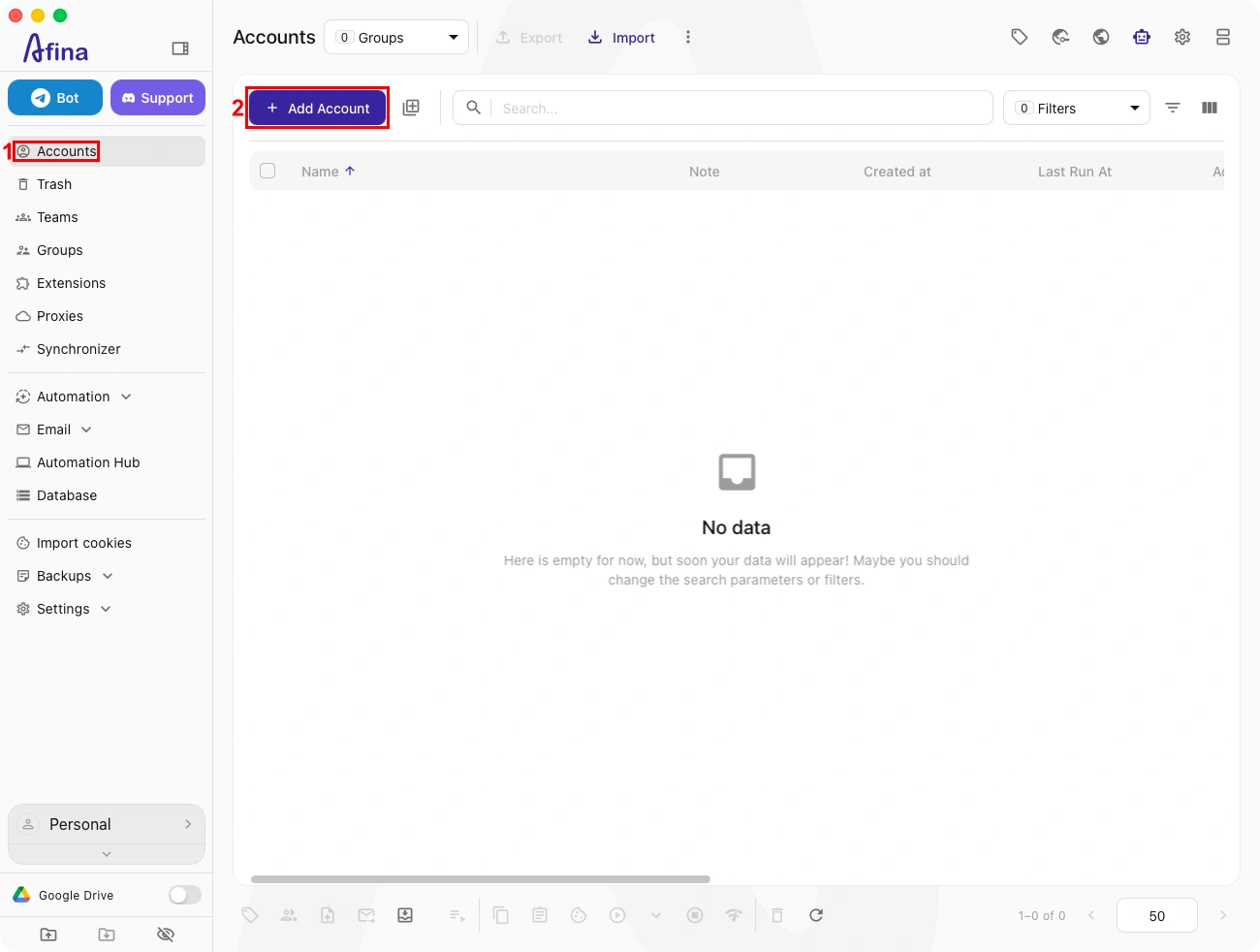
4. In the left sidebar of the Afina dashboard, select ‘Accounts’ (1) and click ‘Add Account’ (2).
5. In the ‘New account’ window, configure your new Afina profile.
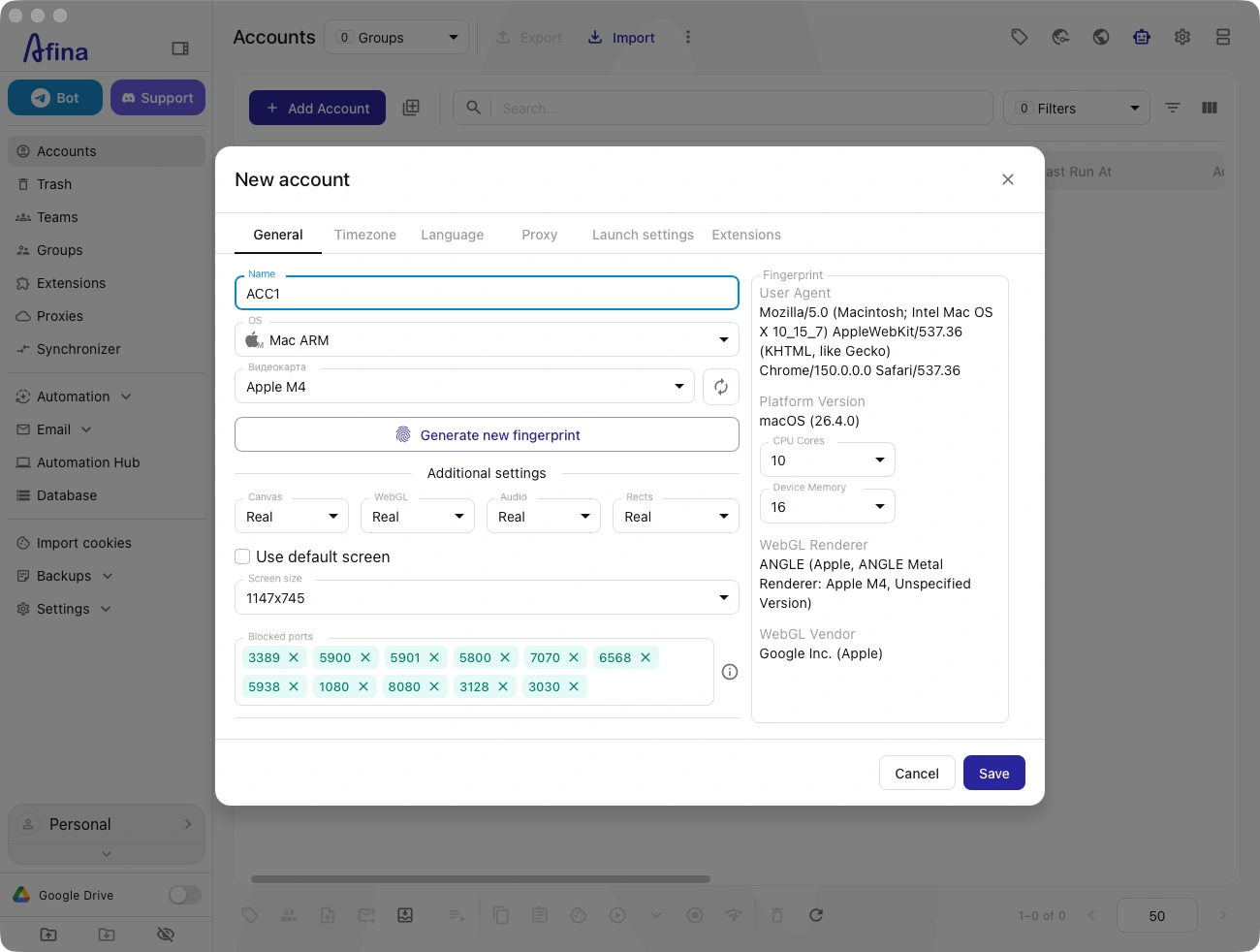
6. Open the ‘General’ (3) tab and enter a name for your profile in the ‘Name’ (4) field. Then adjust the fingerprint settings (5) as needed, including the operating system, graphics card, screen size, and other parameters.
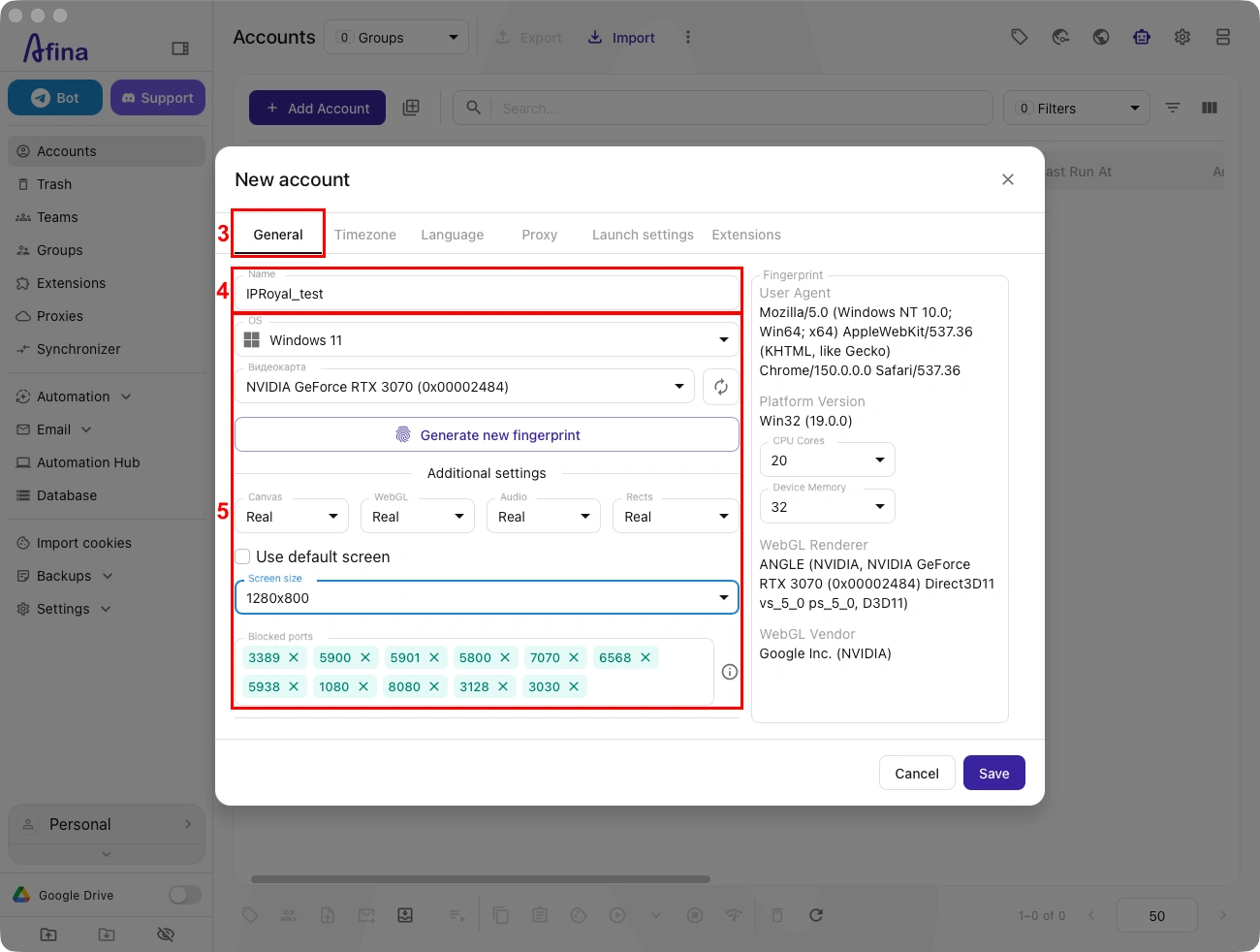
7. Next, open the ‘Timezone’ (6) tab and make sure ‘Timezone from IP’ (7) is enabled.
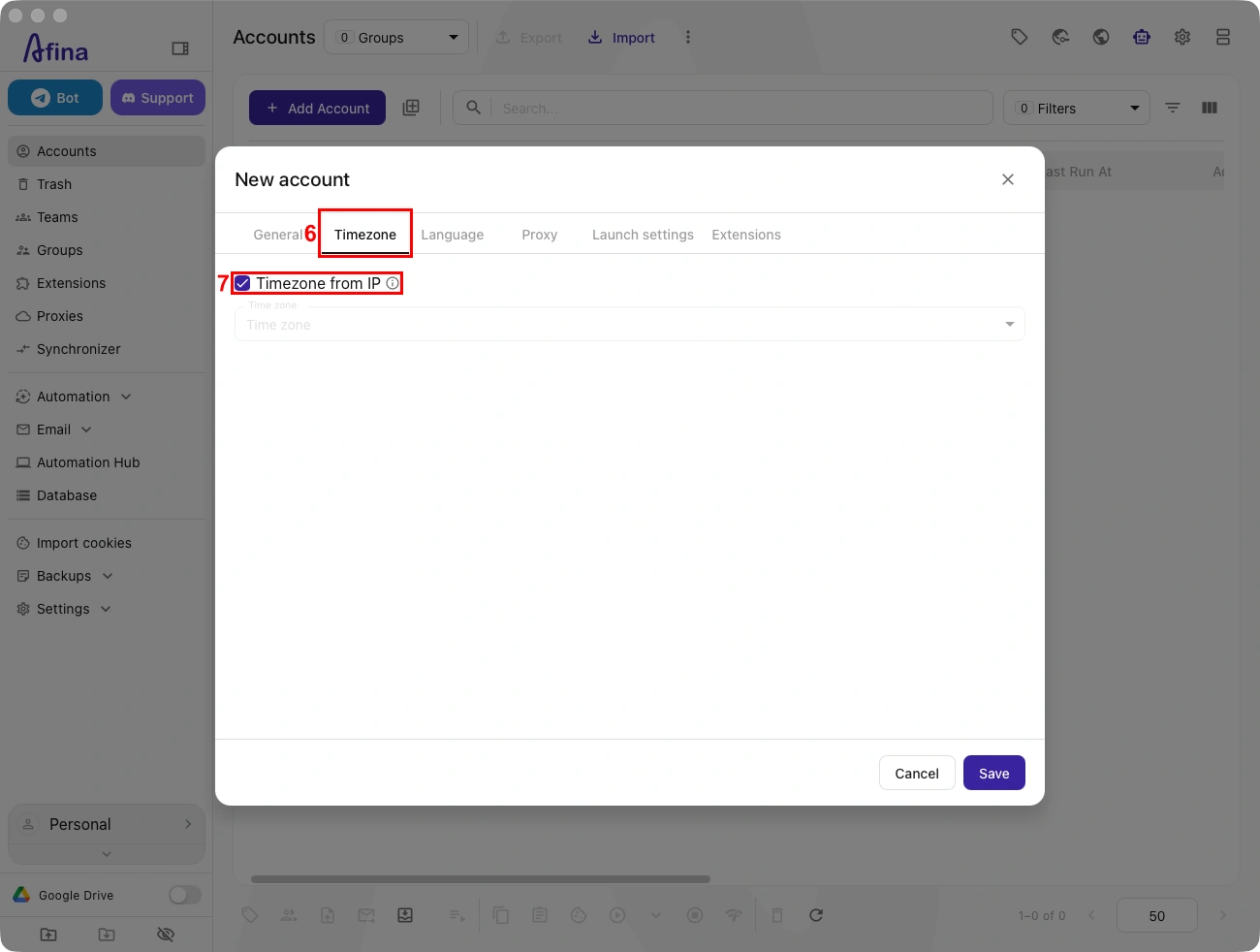
8. Open the ‘Language’ (8) tab, and leave ‘Languages from IP’ (9) enabled so Afina can match both settings to your proxy’s location.
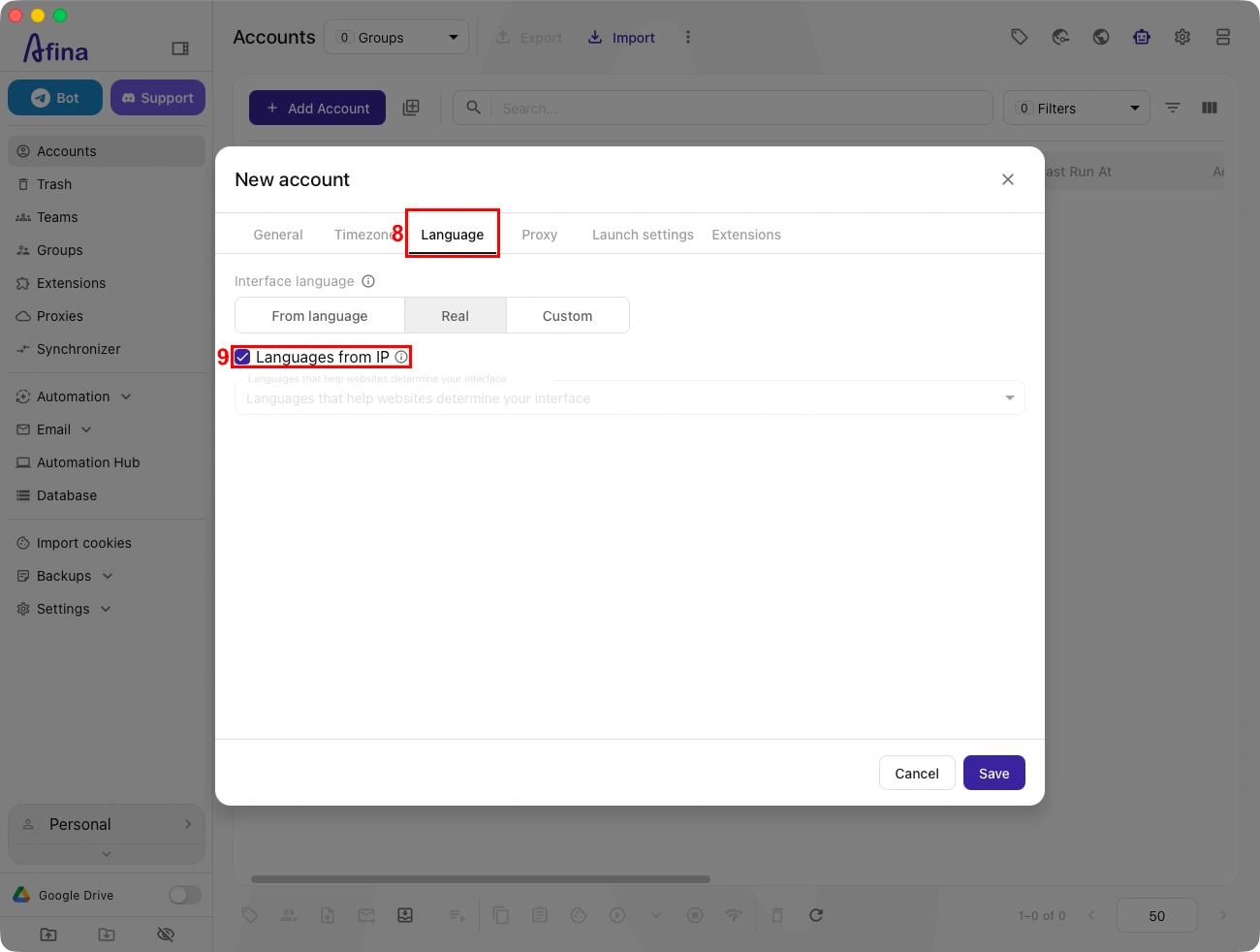
9. Next, open the ‘Proxy’ (10) tab and click ‘Set Proxy’ (11).
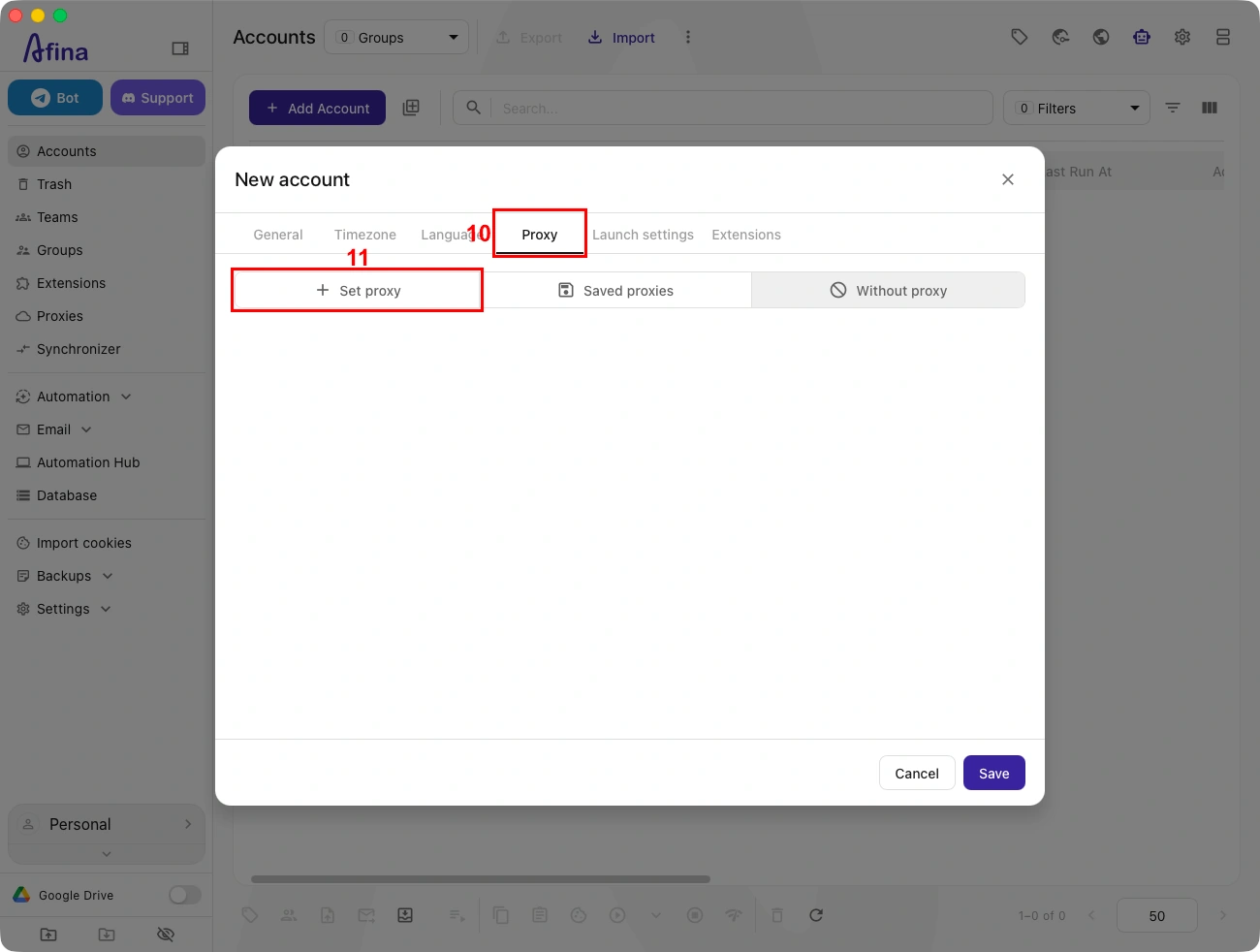
10. Go to your IPRoyal dashboard and configure the proxy’s location and rotation settings (12), then copy your credentials from the ‘Connection’ (13) section.
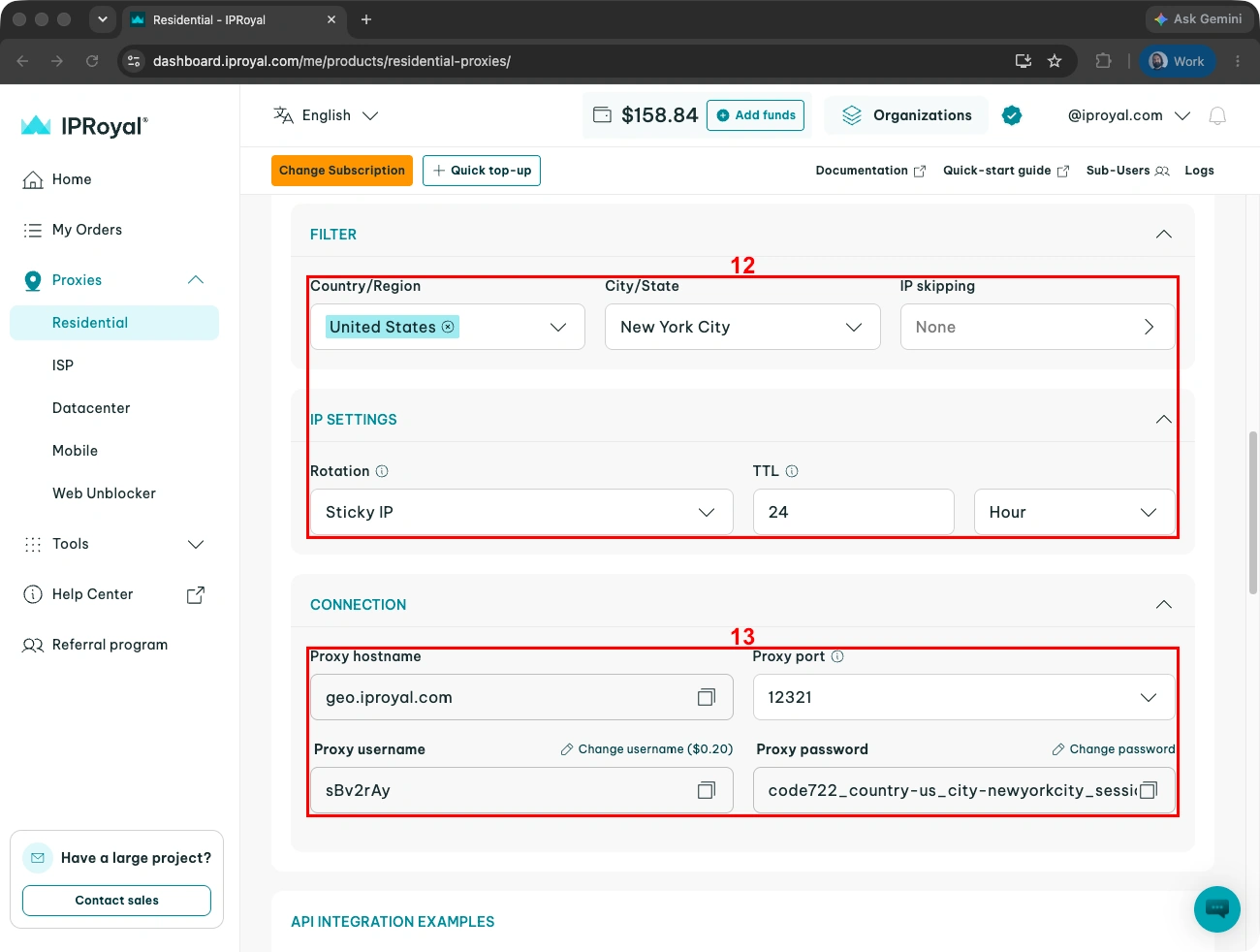
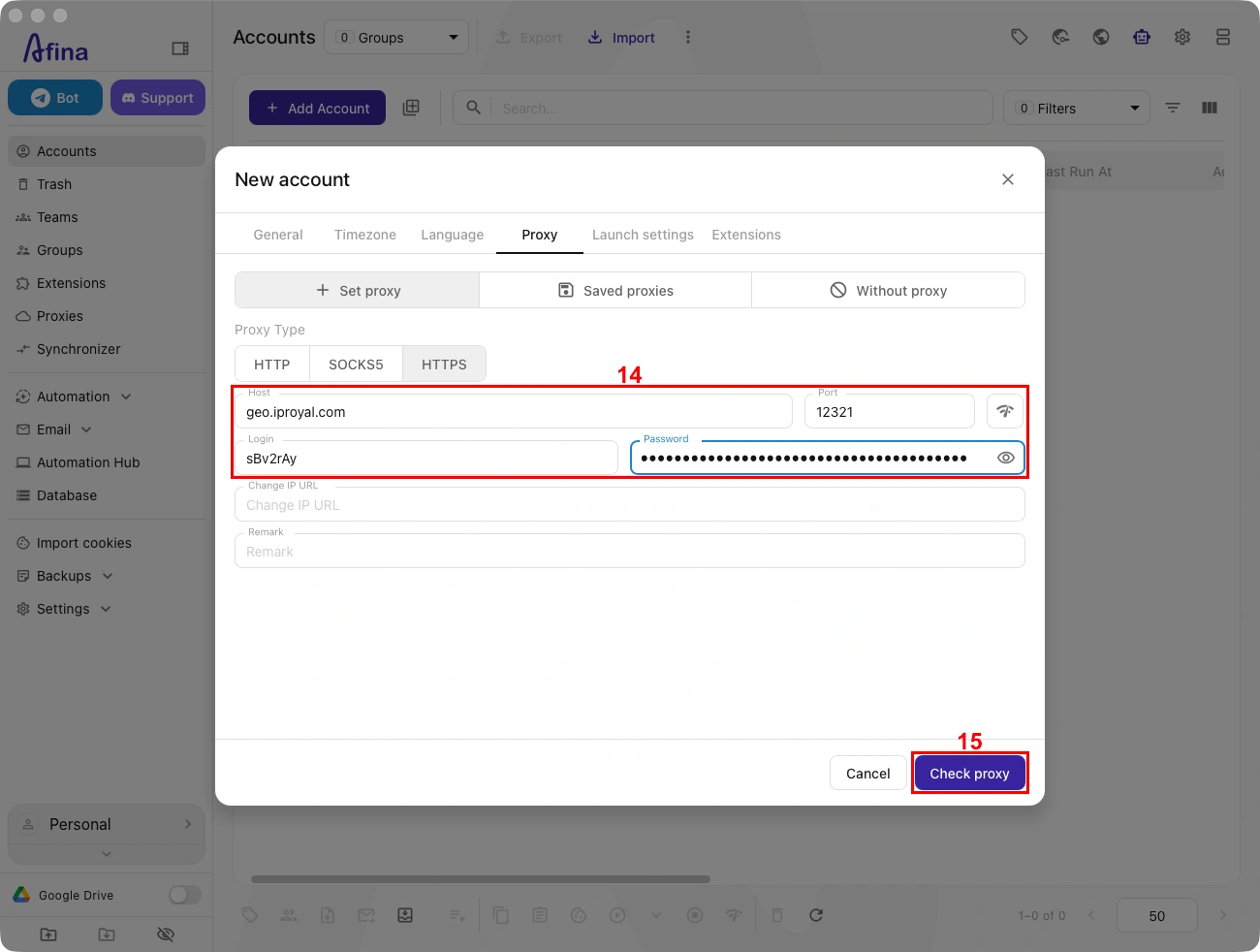
11. Paste your IPRoyal credentials into the corresponding fields (14) in Afina, then click ‘Check proxy’ (15) to test the connection.
12. If the connection test succeeds, click ‘Save’ (16).
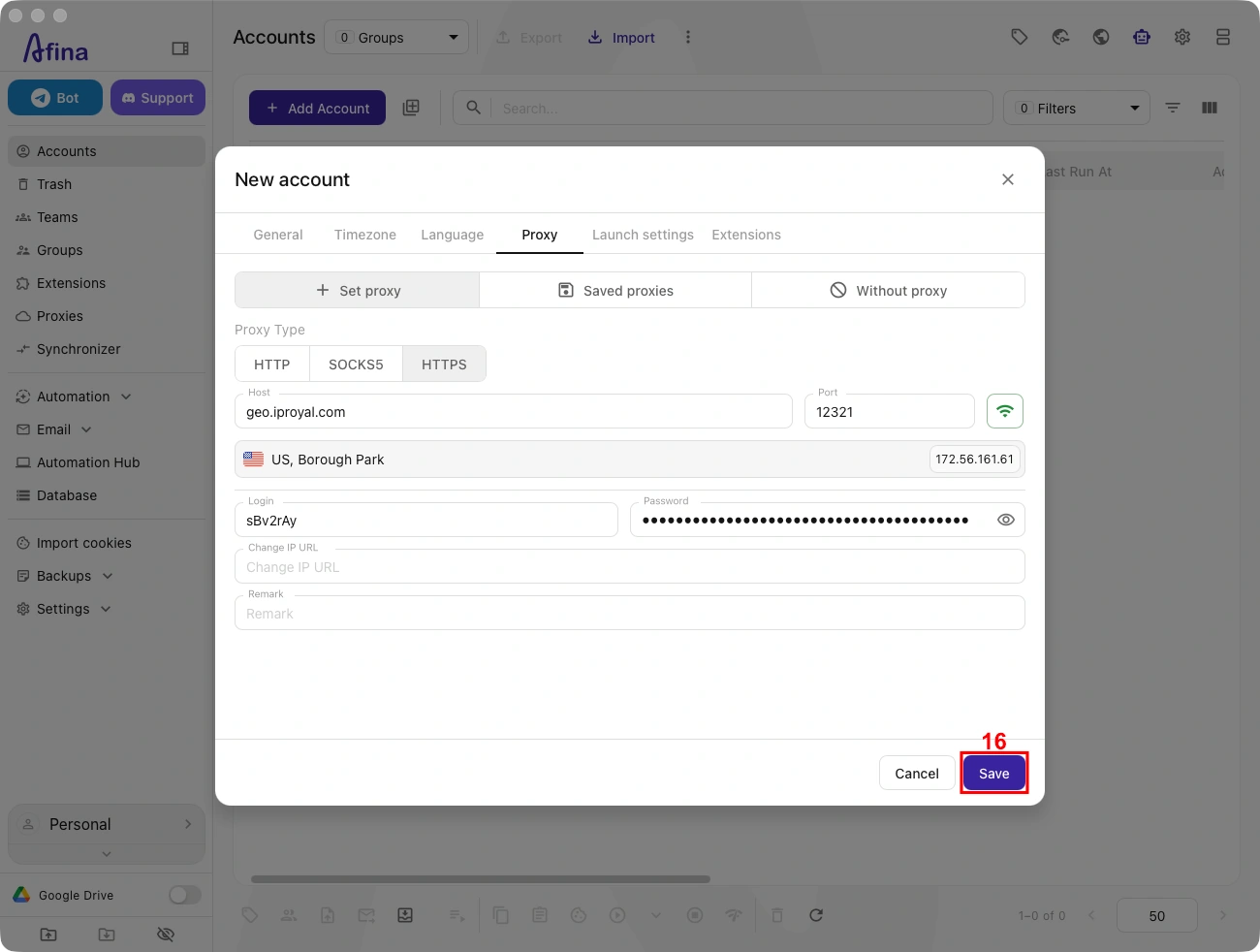
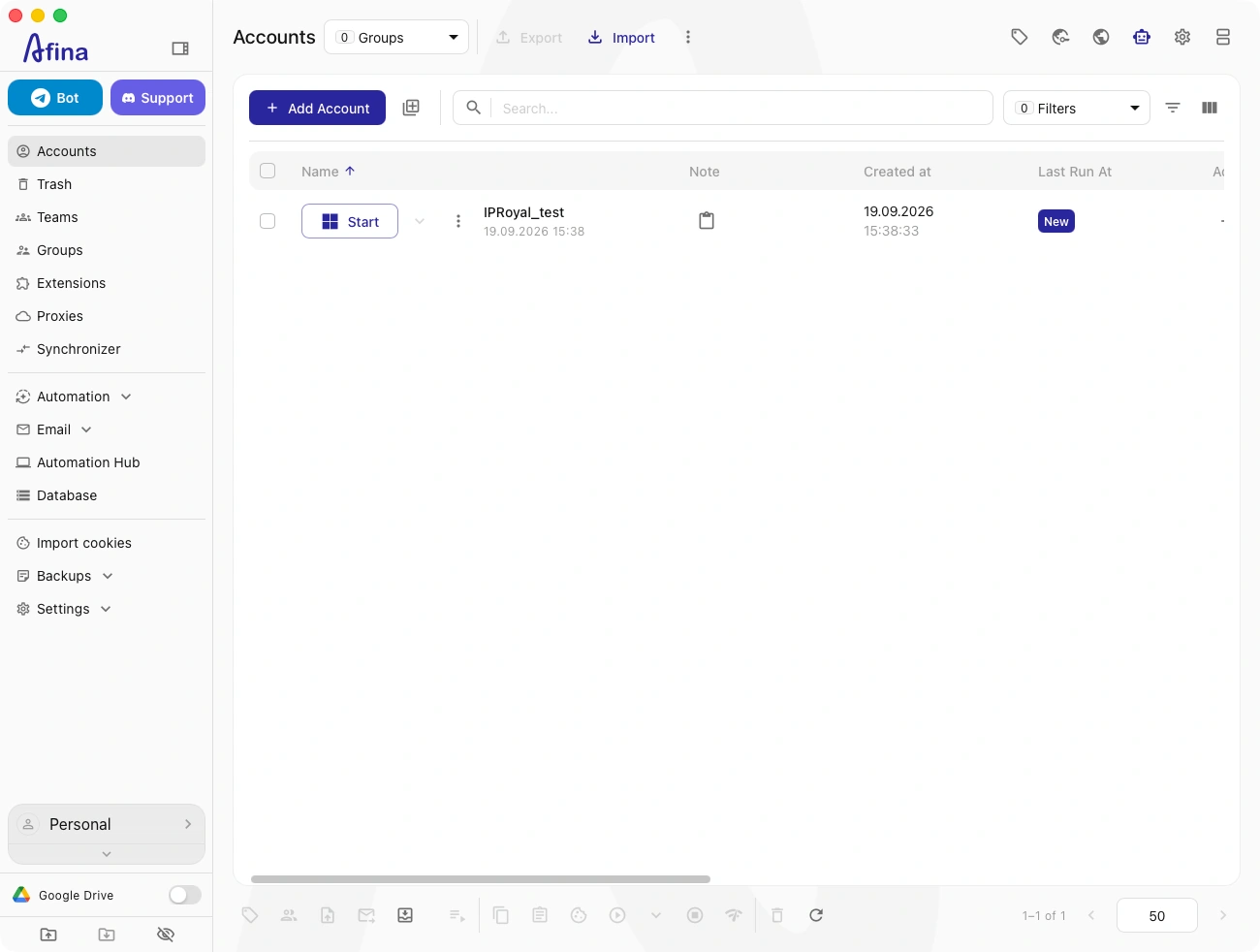
13. Your newly created profile will now appear in the Afina accounts list.
The number of profiles you can create manually or through the API depends on your Afina plan:
$9/month
$19/month
$29/month
$69/month
$129/month
Up to 20
Up to 50
Up to 100
Up to 300
Up to 1,000
Which Fingerprint Settings Should You Check After Connecting?
A proxy determines the IP address and apparent location a website sees, but it doesn’t control every signal your browser exposes. Other signals include timezone, language, WebRTC, User-Agent, screen parameters, Canvas, WebGL, Audio, and cookies.
If your IP address points to Germany but the timezone or language settings suggest another region, the profile may present conflicting signals. Depending on the platform, these discrepancies can trigger additional verification.
After connecting an IPRoyal proxy, review the following parameters:
The timezone should logically match the IP country
Browser language settings should not conflict with the IP’s location
It can expose network addresses that different from the HTTP IP
Browser and device characteristics can contribute to fingerprinting and profile correlation
Existing data can preserve sessions and identifiers from previous browsing activity
Enable timezone by IP or set it manually to a relevant timezone
Enable languages by IP or choose a relevant language
Compare WebRTC Public IP and Remote IP
Configure fingerprint settings consistently rather than changing them randomly
Start important accounts with a clean profile
Afina lets you manage the fingerprint at the profile level, including User-Agent, Canvas, WebGL, Audio, Rects, CPU, RAM, window size, language, and timezone. Rather than changing every setting, aim for a consistent configuration that reflects the intended browser and device environment.
A good profile is not the one where everything is changed, but the one where all signals look like a realistic configuration of a real user.
For example, if a profile uses a US-based IP address, its timezone and language settings should be appropriate for the intended setup. You should also check WebRTC for unexpected IP address discrepancies and avoid unnecessary changes in the profile’s apparent location.
How to Check Your Proxy Works Correctly
It’s best to verify your proxy connection in two stages. First, use Afina’s built-in check to confirm that the proxy credentials, host, port, and protocol are configured correctly.
Then launch the profile and test the connection again from within the browser. A successful proxy check confirms that the connection works, but it doesn’t guarantee that all browser settings and network signals are consistent.
Before working with an account, check that:
- Proxy check in Afina passes without errors
- The country or region matches what you selected in IPRoyal
- The protocol matches your connection details
- The host, port, username, and password are correct
- The sticky session stays within the configured TTL
- An IP checker confirms that the launched profile uses the expected proxy IP
- DNS, timezone, language and WebRTC do not conflict with each other
Pay special attention to WebRTC. Sometimes the HTTP IP shows the proxy, while WebRTC returns another address or another route. Check for unexpected discrepancies before using the profile.
If you detect one, it is useful to separately understand how WebRTC, UDP and leak checks work in an antidetect browser. Return to the profile settings and check the proxy, timezone and language.
Before signing in to an important account, test the profile on neutral IP and DNS checking pages. Verify the detected IP address, WebRTC behavior, timezone, and language settings, and only then proceed to your intended website.
Why Use IPRoyal Proxies With Afina Browser?
With IPRoyal’s pool of 64M+ IPs across 195+ countries, you can assign each Afina profile a clean, responsibly sourced residential IP to help maintain account-level separation. Here are some features that make IPRoyal Residential Proxies a practical solution for this setup:
- Flexible pricing: Choose pay-as-you-go or a subscription plan, with traffic that never expires
- Customizable sticky sessions: Configure sessions to rotate on request or last from one second to seven days
- Multiple protocols: HTTP, HTTPS, and SOCKS5 support across all proxy types
- Precise geo-targeting: Select locations at the country, state, and city levels
- 24/7 customer support: Get assistance through live chat or email
Final Thoughts
By following these steps, you can configure separate profiles, each connected to its own proxy and using consistent browser settings. You can repeat the process manually or automate profile creation through Afina’s API when managing profiles at scale.
You can test the entire setup before committing: Afina gives you a four-day free trial on the Base plan, along with a discount for new users - 20% off Base, Standard, and Max plans using the code SALE20.